2025 GigaOm Radar for Streaming Data Platforms

As real-time data becomes foundational to modern analytics and AI, organizations need streaming data platforms that go beyond basic ingestion—they must be intelligent, scalable, and ready for edge and enterprise deployment.

In this complimentary copy of the 2025 GigaOm Radar for Streaming Data Platforms, you’ll discover why Striim is proudly named a Leader and Outperformer. Uncover:

  • The key selection criteria used—including performance, SQL usability, data quality, edge-readiness, and ML integration.
  • How GigaOm evaluates innovation and execution with an emphasis on real-time analytics and architectural flexibility.
  • Why Striim stands out for its vector embeddings, real-time ML, and hybrid deployment flexibility.

From Compliance to Catalyst: How Parexel’s CIO Builds for Impact

Jonathan Shough, CIO of Parexel, joins us to talk about leading data modernization in one of the world’s most regulated industries. He shares how compliance can be reframed as an enabler, not a blocker—and why it’s critical to deliver value to patients, not just platforms. We get into Parexel’s pragmatic approach to AI adoption, the role of human interaction in digital transformation, and what it really means to modernize data infrastructure without breaking what works. If you’re balancing transformation with trust—or just trying to give your teams back their Fridays—this one’s for you.

Joe Reis on Staying Grounded in a Fast-Moving Data World

https://www.youtube.com/watch?v=Ft0qY55Rsqw

Joe Reis joins us to reflect on life after Fundamentals of Data Engineering, what makes data content worth consuming, and why good taste matters as much as technical skill. We talk about burnout in big tech, the myth of AI replacing everyone, and how Discord communities, DJ sets, and a sense of humor are helping shape the future of data. This one’s part industry pulse check, part real talk.

Follow Joe on:

AI Meets Data Infrastructure: Cost, Performance, and What’s Coming Next — with Barzan Mozafari

http://youtu.be/0xj2-PRX2R8

Barzan Mozafari, CEO of Keebo and former computer science professor, joins us to explore how AI is changing the way data teams work. We talk about the hidden inefficiencies in cloud data platforms like Snowflake and Databricks, how reinforcement learning can automate performance tuning, and why the tradeoff between cost and speed isn’t always what it seems. Barzan also shares thoughts on LLMs, the future of conversational analytics, and what data teams should (and shouldn’t) try to build themselves.

Follow Barzan on LinkedIn

Keebo – https://keebo.ai/ 

Real-time Streaming of Jira Data to Google BigQuery

Introduction

The transfer of data from Atlassian Jira to Google BigQuery facilitates the scalable analysis of engineering metrics, encompassing cycle time, throughput, and issue trends. This enables forecasting and planning through the utilization of historical data for predictive insights. Moreover, with the application of BigQuery ML or external AI tools, teams can leverage machine learning to forecast delivery delays, identify anomalies, or prioritize issues based on historical patterns. Furthermore, the integration with platforms such as GitHub or Zendesk allows for a comprehensive analysis of cross-functional impacts.
This recipe shows how you can build a data pipeline to read data from Atlassian Jira and write to Google BigQuery.  Striim’s Jira Reader will first read the existing tables from the configured Jira dataset and then write them to the target BigQuery project using the BigQuery Writer, a process called “initial load” in Striim and “historical sync” or “initial snapshot” by others.  After completing the initial load, the Jira Reader will automatically transition to continuously reading updates from the configured Jira datasets, and then writing these source updates to the target BigQuery project using the BigQuery Writer. You can use the recipe to write into any of Striim supported targets.

Benefits

  • Striim’s JIRA Reader improves your ability to manage large-scale data with high throughput and low latency.
  • Real-time data flow ensures that you can process and analyze information as it comes in, offering immediate insights for decision-making.

Step – 1 – Prep Work

Setting up Jira as source
You can connect to your Jira source by authenticating using API token or setting up an Atlassian client app for manual OAuth. For this recipe, we will be using the API token for authentication.

  • You will need an API token for authentication for setting up the connection to Jira, the list of steps are:
    1. Log in to your Atlassian account.
    2. Navigate to the Security tab.
    3. Click on Create API token.
    4. Provide a label for the token.
    5. Click Create.
    6. Copy the generated API token to clipboard.
    7. Store the API token securely.
  • Follow the steps in this link to setup an Atlassian client app for manual OAuth. Configure the Striim Jira Reader with the JSON access token when the OAuth authentication method is in use.

Setting up BigQuery as Target

Striim setup details

  • Get started on your journey with Striim by signing up for free on Striim’s Developer Edition.

Step – 2 – Create Striim Application

In Striim, App (application) is the component that holds the details of the data pipeline – source & target details, other logical components organized into one or more flows.
Below steps will help you create an application (refer – Screenshot-1):

  1. Click on Apps (left-hand panel) to create your application. 
  2. Enter Source:Jira Target:BigQuery (as shown in the screenshots-1,2,3 below)
  3. Click on the “Get Started” button.

(Screenshot- 1 – App selection based on source & target)

(Screenshot- 2 – Select the Jira Reader )

(Screenshot- 3 – Target selected is BigQuery )

  1. Provide a name for your application.
  2. Select a namespace.
  3. Click the “Next” button.

(Screenshot- 4 – Striim App Creation)

Step – 3 – Configuring Jira as Source

Before we jump into the connection to the source, lets understand Connection Profile and Target schema creation that are required for our pipeline creation.

  1. Connection Profile – Connection profile allows you to specify the properties required to connect to an external data source once and use that set of properties in multiple sources and/or targets in multiple applications. The authentication type supported by Connection profiles is manual OAuth for Jira and ServiceAccount for Google BigQuery.
  2. Target Schema creation – Keep this enabled to experience the power of Striim where all the required schemas and tables are created for you by Striim (if they don’t exist already). Note – Permissions are the only key requirement that you need to make sure of. For this recipe you will need to provide the service account key which is also mentioned in the next step.

 
In the “Configure Jira source” dialog (Screenshot-5):

  1. Select “Authenticate using API Key”. (You can use OAuth if you have setup the client app in Jira, as mentioned in Prep work section)
  2. Enter the “Endpoint URL”
  3. Provide the “Username”
  4. Paste the API token that was generated in Prep section (Point-6)

(Screenshot- 5 –  Configure Jira Source)

Striim will check on the source and environment access and then enable the “Next” button. (Screenshot-6)
(Screenshot- 6 –  Validating Source and Checking Environment)

In the next screen, select the Jira object(s) that you want to move into BigQuery and click “Next”. (Screenshot-7)
(Screenshot- 7 –  Source Object selection)

Step – 4 – Configuring BigQuery as Target

  1. Choose the service account key.
  2. The “Project ID” will get auto-populated from the service account key. (Screenshot-8, 9)

(Screenshot- 8 –  Configure BigQuery as Target)

(Screenshot-9 – BigQuery target credential upload)

  1. Either select an existing data set or create a new one. For this recipe we have created a new data set.
  2. Click on the “Next” button.
  3. Striim will validate the target connectivity and enable the “Next” button. (Screenshot-10)

(Screenshot- 10 – Target checks and validation)

Review all the details of the data pipeline that we just created and click on “Save & Start”. (Screenshot-11)
(Screenshot- 11 – Pipeline Review)

You have successfully created an app that will move your Jira data into Google BigQuery!
(Screenshot- 12 – Successful App Creation)

Step – 5 – Running and Monitoring your application

As the Striim App starts running,the dashboards and monitors (screenshot- 13,14) show the real-time data movement along with various metrics (ex- memory and CPU usage) that we capture. Refer to our documentation for more details on monitoring.
(Screenshot- 13 – Monitoring Dashboard)

(Screenshot-14 – Metrics overview)

Related Information

  • Apart from the wizard, you can use the sample TQL to quickly build your application.
  • For details on Jira properties, scopes and objects supported refer to the documentation.
  • Learn more about data streaming using Striim through our other Tutorials and Recipes.
  • More details about increasing throughput using parallel threads and recovery are here.

Conclusion

While this recipe has provided you steps to create a pipeline for your Jira data, do check all the application adapters that Striim supports to read from and write to.
If you have any questions regarding Jira adapter or any other application adapters, reach out to us at applicationadapters_support@striim.com.

How Jacopo Tagliabue is Cutting Data Pipeline Latency with Fast Functions

Get More Insights In Your Inbox

What if your data pipeline could run 10x faster without the overhead? Jacopo Tagliabue, CTO of Bauplan and NYU adjunct professor, is pushing the boundaries of data infrastructure with lightweight DAGs, Apache Arrow, and a radically different take on functions as a service. In this episode, he breaks down the tech stack behind Bauplan and why the future of scalable data pipelines is all about speed, modularity, and zero-copy design.

Follow Jacopo on LinkedIn

Bauplan – https://www.bauplanlabs.com/

Fast Snapshot Load in Striim using Recovery and Parallelism

In this blog, we will go over the the various steps and recommended approaches for performing initial load with Striim using the newly introduced Fast Snapshot recovery and Parallelism features introduced as part of 5.x releases.

Introduction

Initial Load (referred as Fast Snapshot) is generally the first step of any data integration or migration projects. Despite it being a one-time effort, the challenge of doing Initial load revolves around the complexity of the data and the scale of data that needs to be moved. Generally, Initial Snapshot is the most resource intensive activity that any data management application performs, so the ability to optimise this is critical to maximise efficiency and minimise the time taken for the initial load from start to finish.
Some of the new features introduced in Striim as part of 5.x are specifically meant for improving the overall experience of performing Initial Load, such as

  1. Fast Snapshot using Parallel Threads
  2. Fast Snapshot Recovery support
  3. Fast Snapshot support in Wizard – Validate table compatibility

In addition to these features, in this blog we will also be going over other aspects of simplifying the initial load process and ensuring it can be completed error-free. In this blog, we will go over the step by step process to ensure that your Initial Load use-case using Striim is a success smiling face with sunglasses.

Step 1 : Initial Load Assessment & Compatibility

Just like any major logistical operation (like shifting houses, office or stocking a new warehouse), the first step for a successful Initial Load is to perform a assessment & compatibility verification.

Why do we need to do an assessment/compatibility check before Initial Load (Snapshot)?

  1. Identify any incompatible datatypes or configuration between the source and target to avoid issue later.
  2. Upfront identification of the required/expected hardware resources (even possibly scale up, ahead of time)
  3. Identify optimal distribution to maximise performance & minimise Initial Load time taken

In order to perform an assessment of the source database we will be using the standalone assessment tool, which will automatically connect to the source database and gather the required information.

The tool supports all prominent databases & data warehouses.
For this blog, we will be using oracle as our source and postgres as the target.

  1. On a machine having access to the source database, download the tool from and unzip it.
  2. Now switch to the newly unzipped directory and invoke the provided script to run the automated assessment & compatibility checks.


Example


  1. After the above is run it should produce an output as below


  1. Open the above report with a text editor of your choice and the report would consist of below sections

  1. Instance Details
    1.1 Database profile

  2. Outlier Tables
    2.1 Tables With Complex Data Types
    2.2 Tables – Additional attention required for Change Data Capture
    2.3 Top 10 Tables By Index Size
    2.4 Partitioned Tables
    2.5 Virtual Column Tables

  3. Key Table Level Metrics
    3.1 Categories by keys
    3.2 Tables With No Primary Keys
    3.3 Tables with Foreign Key
    3.4 Tables with Column Count > 50
    3.5 Tables with Row Count > 100K
    3.6 Tables with size > 10 GB
    3.7 Tables with Max Row Length < 8000 bytes

  4. Integration Compatibility
    4.1 Incompatible tables
    4.2 Compatibility Scores

  1. Important considerations for Initial Load from the report

    a. DatabaseProfile
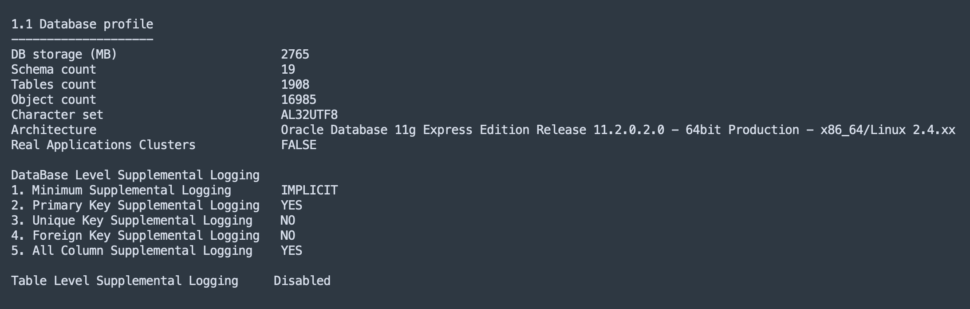
This section should be reviewed to ensure the below configuration matches with the target system

  • The charset/collation information should be reviewed with target to ensure data consistency

  • Storage space used by source would give an indication for expected storage on target system as well

b. Tables with complex types

All tables listed in this section should be analysed for row size.
Ex: Tables with LOB or large binary columns should be migrated with special memory and batch size property to avoid heap issues.

c. Table size reports
The sections covering table sizes in the report will come handy in the next step of our Initial Load journey to better optimise performance

d. Incompatible tables

This section of the reports any tables which cannot be moved to the target without transformation/custom handling. The description will help with the next action on thiese tables. but for this blog we will not go over this (you can reach striim support to help with these tables)

Step 2 : Table Distribution

The next step for our Initial Load is finding the right way to distribute your tables such that it minimises the time taken for the available hardware resources.

Luckily to help with this we have another tool, Data Distributor Tool.

  1. Download the data distributor tool,
    and run it from a machine which has access to the source db
  2. The tool provides option to specify the CPU resource available and how much should each CPu for the Striim instance be loaded. (note: it assumes 4GB memory per core)These parameter would help tune the performance of your Initial Load for your hardware.
  3. The tool will output the Total Initial Load size and the various buckets with the list of tables each.

  4. Each bucket also comes with a Parallelism Count (a.k.a Parallelism Factor) which will be helpful in further improving performance and reducing the time taken.

Step 3 : Initial Load Application Creation

Using the information now obtained from the assessment/compatibility reports & the data distribution from the previous step we are now ready to start with creating the application in Striim.

Go to the Striim UI and login. On the left hand pane click on Apps → Create An App

image-20250324-084506.png
On the create app screen, on the bottom, click on “Start from scratch”

image-20250324-084602.png
Give a name to your first IL app. and configure the source as DatabaseReader

Specify all the connection properties and in the Tables property.

image-20250324-084914.png
Important properties to configure

Tables: Copy the tables list for Bucket 1 from Data Distributor’s output and paste it.

Create Schema : Enable, If you want striim to create the target table before loading the data.

Fetch Size : if you do not have any LOB tables, then update to 10000

Quiesce On IL Completion : Enable this to allow app to automatically transition once IL completes.

ParallelThreads : Set this value to the Parallelism Count (a.k.a Parallelism Factor) for this bucket from the data distributor tool’s output from previous step.
Note: For 5.0.x releases only set this value if your target is a data warehouse (bigquery, snowflake, databricks) and not for databasewriter target.

image-20250324-090244.png
Next specify a new name for the output and save.

Add your Target: Add your target to the output Stream and configure & save it

Imp: Set the ParallelThreads for the target to the Parallelism Count (a.k.a Parallelism Factor) for this bucket from the data distributor tool’s output

Enable Application recovery
As of 5.x release Fast Snapshot applications now support Recovery. So ensure to enable recovery for the Initial Load (Snapshot) apps in the application settings.

image-20250324-090606.png
image-20250324-090624.png
Duplicate above app for all other buckets from the data tool.

Export the application tql.

Make a copy of the tql for each bucket for the previous step

Update the source databasereader tables property which the inidividual bucket’s tql

Also update the app name, source, target * stream name with _bucket<number>

Import all the tqls in Striim, so you now have 1 app per bucket.

image-20250324-091146.png
Step 4 : Initial Load Monitoring & Management
Now that we have all the initial load apps created as per our plan, we are good to start the actual data movement.

First deploy all the initial load applications, then begin to start the applications one-by-one.

Once all the apps are running your tables should start being replicated to the target.

Initial Load Monitoring: Starting 5.x, we have improved Initial load progress monitoring.

To monitor the initial load for a Initial load app, go to the app screen and click on the chart increasing chart icon on the top right hand side.

image-20250324-091408.png
This will show the new application progress screen with monitoring details for the IL progress at table level.

test.gif
The Top progress bar indicates the overall progress for the application.

The “Table Summary” section shows the individual tables, read and write counts along with progress bar.

Step 5 : Initial Load Restart Handling
With support for Fast Snapshot recovery added as part of 5.x, handling restarts for Initial load applications has been simplified with automatic handling for partially loaded tables.

DatabaseReader exposes property called RestartBehaviourOnILInteruption. The value supports the below 3 values which dictates the behaviour of the Initial load application on handling the partially loaded tables in the target in case of restarts.

Keep target table : In this option the IL application will not perform any automated action, and when tis value is set for the property the expectation is for users to manually identify and truncate/replace partially loaded target tables before restart.

Replace target table : This option makes the IL app automatically replace (drop & create) the target tables which were partially loaded before the restart. The application is able to automatically detect which tables are partially loaded and will perform the replace action automatically on restart and reloaded the tables with data.
This option is recommended for Initial load application where CreateSchema is enabled to ensure the latest schema is move to the target

Truncate target table: This option, is similar in all aspects to the previous one, except that when this option is selected the target tables are truncated instead of replace(drop/create) after restart.
This option is suitable when createSchema is not enabled on source.

Conclusion
In this blog, we went over the steps to perform Initial Load with Striim with proper planning and execution. The end goal is to ensure that our Initial load pipelines are error-free & highly performant. And also using the Fast Snapshot Recovery feature we are also able to handle any cases which requires restarting the pipeline.

Stream ServiceNow Data to Google BigQuery

Introduction

This recipe shows how you can build a data pipeline to read data from ServiceNow and write to BigQuery.  Striim’s ServiceNow Reader will first read the existing tables from the configured ServiceNow dataset and then write them to the target BigQuery project using the BigQuery Writer, a process called “initial load” in Striim and “historical sync” or “initial snapshot” by others.  After completing the initial load, the ServiceNow Reader will automatically transition to continuously reading updates from the configured ServiceNow datasets, and then writing these source updates to the target BigQuery project using the BigQuery Writer. You can use the recipe to write to any of Striim’s supported targets.

Benefits

  • Striim’s unified data streaming platform empowers organizations to infuse real-time data into AI, analytics, customer experiences and operations.
  • Leverage Striim’s wide range of application adapters to read multiple application data and consolidate in a single data warehouse to create custom reports for enhanced analytics.

Step – 1 – Prep Work

  • Setting up ServiceNow as source

    • To generate the Client ID and Client secret properties, set up an OAuth application endpoint as directed in the ServiceNow documentation.
    • See Access control list rules in ServiceNow’s documentation for details on how to create access privileges for users.
      • For full table access, the ServiceNow user account must have the admin and snc_read_only roles.
      • For per-table access, the ServiceNow user account must have the sys_db_object and sys_glide_object roles at the row level and field level ACL as well as the personalize_dictionary role.
  • Setting up BigQuery as Target

  • Striim setup details

    • Get started on your journey with Striim by signing up for free on Striim’s Developer Edition.

Step – 2 – Create Striim Application

In Striim, App (application) is the component that holds the details of the data pipeline – source & target details, other logical components organized into one or more flows.
Below steps will help you create an application (refer – Screenshot-1):

  1. Click on Apps (left-hand panel) to create your application.
  2. Enter Source:ServiceNow Target:BigQuery (as shown in the screenshots-1,2,3 below)
  3. Click on the “Get Started” button.(Screenshot- 1 – Create App)
    (Screenshot- 2 – Select the ServiceNow Reader )
    (Screenshot- 3 – Target selected is BigQuery )
  4. Provide a name for your application
  5. Select a namespace
  6. Click the “Next” button(Screenshot- 4 – Striim App Creation)


Step – 3 – Configuring ServiceNow as Source

Before we jump into the connection to the source, lets understand Connection Profile and Target schema creation that are required for our pipeline creation.

  1. Connection Profile – Connection profile allows you to specify the properties required to connect to an external data source once and use that set of properties in multiple sources and/or targets in multiple applications. The authentication types supported by Connection profiles are OAuth for ServiceNow and ServiceAccount for Google BigQuery. For ServiceNow, to generate the Client ID and Client secret properties, set up an OAuth application endpoint as directed in the ServiceNow documentation. (same as the steps given in Prep work section)
  2. Target Schema creation – This is enabled to experience the power of Striim where all the required schemas and tables are created for you by Striim (if they don’t exist already). If you do not want the automatic target schema creation, disable it after the pipeline is created. Note – Permissions are the only key requirement that you need to make sure of. For this recipe you will need to provide the service account key which is also mentioned in the next step.


  1. Enable “Use Connection Profile” (Screenshot-5)(Screenshot- 5 Gathering source details to connect)
  2. In the “New ServiceNow Connection Profile” dialog (Screenshot-6):
    1. Connection Profile Name – provide a name to identify this connection
    2. Namespace –  Select the namespace. In this case we have used the namespace where the App is created and you can do the same.
    3. Host – Provide the host (for example: <ddd.com>). Note: Please do not specify https:// in the host field.(Screenshot- 6 Connection Profile creation)


  1. Click on “Sign in using OAuth”
    1. You will be redirected to the ServiceNow login page where you click on “Allow”. (Screenshot-7)
    2. After successfully logging in you will see the below – (Screenshot-8)(Screenshot-7- Creation of Connection Profile for ServiceNow)(Screenshot- 8 – ServiceNow account authenticated)


  1. The Connection profile dialog should have success messages for the connection and Test. (refer Screenshot-9 below)
  2. Click on Save.(Screenshot- 9 –  Successful creation of Connection profile for Source)


  1. Striim will check on the source and environment access and then enable the “Next” button.
    (Screenshot- 10 –  Source connection validation)


  1. In the next screen, select the ServiceNow object(s) that you want to move into Google BigQuery and click “Next”.(Screenshot- 11 –  Source Object selection)


Step – 4 – Configuring BigQuery as Target

  1. Choose the service account key.
  2. The “Project ID” will get auto-populated from the service account key. (Screenshot-12, 13)(Screenshot-12 – BigQuery credential upload)
  3. Either select an existing data set or create a new one. For this recipe we have created a new data set.
  4. Click on “Next” button(Screenshot-13 – Target Configuration)
  5. Striim will validate the target connectivity and enable the “Next” button.(Screenshot- 14 – Target checks and validation)
  6. Review all the details of the data pipeline that we just created and click on “Save & Start”.(Screenshot- 15 – Pipeline Review)
  7. You have successfully created an app that will move your ServiceNow data into Google BigQuery!

    (Screenshot- 16 – Successful App Creation)

Step – 5 – Running and Monitoring your application

As the Striim App starts running,the dashboards and monitors (screenshot- 17) show the real-time data movement. Refer to our documentation for details on the metrics that are monitored for ServiceNow Reader.
(Screenshot- 17 – Monitoring Dashboard)

Related Information

  • Use the Polling Interval property to control the incremental updates from ServiceNow data. For more real-time updates, set the value in seconds. In the above recipe, the polling interval has been set to 5s.
  • Learn more about data streaming using Striim through our other Tutorials and Recipes.
  • More details about increasing throughput using parallel threads and recovery are here.

Demo Video

Check out the recipe in action:

Conclusion

While this recipe has provided you steps to create a pipeline for your ServiceNow data, do check all the application adapters that Striim supports to read from and write to.
If you have any questions regarding ServiceNow adapter or any other application adapters reach out to us at applicationadapters_support@striim.com.

Sol Rashidi on Why Most AI Strategies Fail—and What Great Data Leaders Get Right

Get More Insights In Your Inbox

Sol Rashidi has built AI, data, and digital strategies inside some of the world’s biggest companies—and she’s seen the same mistakes play out again and again. In this episode, she unpacks why AI initiatives often stall, how executives misread what “transformation” really requires, and why the future of AI success isn’t technical—it’s cultural. If you think AI is just a tech problem, Sol is here to change your mind.

Follow Sol on LinkedIn

Learn more about Your AI Survival Guide by Sol Rashidi

From Data Pipelines to Agentic Applications: Deploying LLM Apps That Actually Work

Get More Insights In Your Inbox

Spencer Cook, Lead Solutions Architect at Databricks, joins to unpack how enterprises are moving beyond hype and building practical AI systems using vector search, RAG, and real-time data pipelines. He and John Kutay get into what it really takes to serve production LLMs safely, avoid hallucinations, and tie AI back to business outcomes—without losing sight of governance, latency, or customer experience.

Follow Spencer on: LinkedIn

Back to top
