Streaming Synthetic Data to Snowflake with Striim

Tutorial

Streaming Data to Snowflake With Striim

Experiment with real-time ingest in Snowflake

Benefits

Get Started with Streaming

Learn how to play with real-time streams with simple auto-generated data streams

Real-Time Ingest for Snowflake

Enable true real-time ingest for Snowflake via Snowpipe StreamingActivate Data
With real-time data in Snowflake, you can power data activation workflows fed by fresh data and in-the-moment actions
On this page

Overview

Striim is a unified data streaming and integration product that offers change capture (CDC), enabling continuous replication from popular databases such as Oracle, SQLServer, PostgreSQL and many others to target data warehouses like BigQuery and Snowflake.

In this recipe, we walk you through setting up a streaming application to a Snowflake target. To begin with, we will generate synthetic data to get a feel for Striim’s streaming platform. We use Striim’s Continuous Generator component to generate test data which is then queried by a SQL-based Continuous Query. Follow the steps to configure your own streaming app on Striim.

Core Striim Components

Continuous Generator: A continuous data generator can auto-generate meaningful data for a given set of fields

Continuous Query: Striim continuous queries are continually running SQL queries that act on real-time data and may be used to filter, aggregate, join, enrich, and transform events.

Snowflake Writer: Striim’s Snowflake Writer writes to one or more existing tables in Snowflake. Events are staged to local storage, Azure Storage, or AWS S3, then written to Snowflake as per the Upload Policy setting.

Step 1: Log into your Striim account and select the source

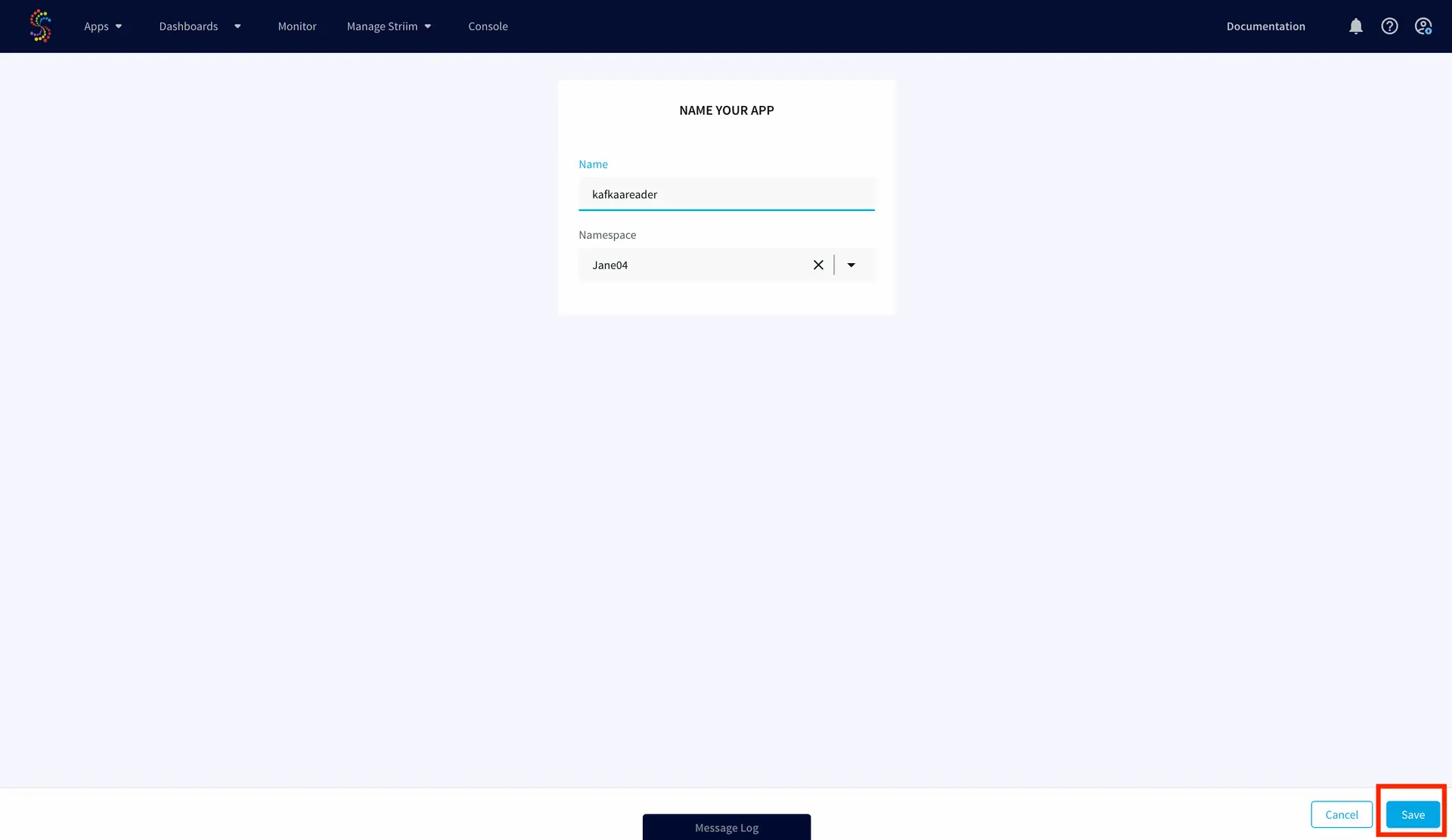
If you do not have an account yet, please go to signup-developer.striim.com to sign up for a free Striim developer account in a few simple steps. You can learn more on how to get started with free Striim Developer here. To configure your source adapter from the flow designer, click on ‘Create app’ on your homepage followed by ‘Start from scratch’. Name your app and click ‘Save’.

Click on the relevant link on the flow-designer screen to add an auto-generated data source.

You will be prompted to select a simple or an advanced source. For this application, we’ll add a simple source. The simple source has a continuous generator with four fields that are queried by a CQ component of Striim.

Step 2: Add a target table on your Snowflake Data Warehouse and enter the connection details on the Striim Target Snowflake adapter

On your Snowflake warehouse, add a table with the same fields and data type as the outcoming stream from Continuous Query.

Drag the Snowflake component from the left panel and configure your target. The connection url is of the format

jdbc:snowflake://YOUR_HOST-2.azure.snowflakecomputing.com:***?warehouse=warehouse_name&db=RETAILCDC&schema=public

Step 3: Deploy and Run the Striim app

Once the source, target and CQ are configured, select Deploy from the dropdown menu next to Created. Choose any available node and click Deploy. After the app is deployed, from the same drop-down, select StartApp.

You can preview the processed data by clicking on the ‘eye’ wizard next to the stream component.


Setting Up the Striim Application

Step 1: Log into your Striim account and select the source

To create a free account, go to signup-developer.striim.com

Step 2: Add a target table on your Snowflake Data Warehouse and enter the connection details on Striim Target adapter

Connection url: jdbc:snowflake://<YOUR_SNOWFLAKE_URL:***>?warehouse=warehouse_name&db=RETAILCDC&schema=public

Step 3: Deploy and Run the Striim app

Snowflake Writer: Support for Streaming API (Optional)

The Snowpipe Streaming API is designed to supplement Snowpipe, rather than replace it. It is intended for streaming scenarios where data is transmitted in row format, such as from Apache Kafka topics, rather than written to files. It enables low-latency loading of streaming data directly to the target table using the Snowflake Ingest SDK and Striim’s Snowflake Writer, thereby saving the costs associated with writing the data from staged files. 

Configurations:

Users should enable streaming support for their Snowflake account along with key-pair authentication. The Private Key is passed on SnowflakeWriter property by removing header and footer and no line break:

—–BEGIN ENCRYPTED PRIVATE KEY—– ## HEADER

*************************

*******************

—–END ENCRYPTED PRIVATE KEY—– ## FOOTER

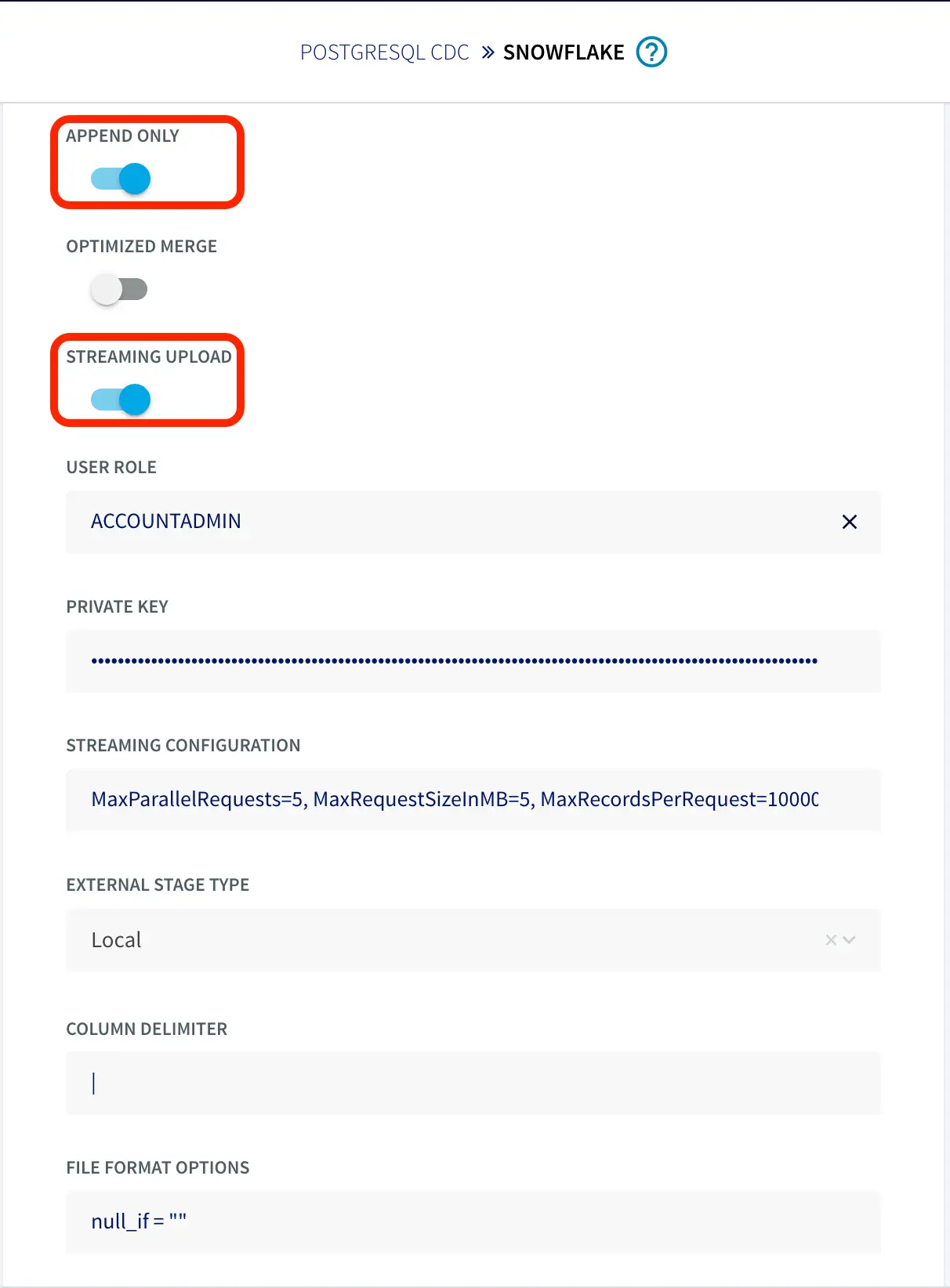
To configure the snowflake writer, under Advanced Settings, enable APPEND ONLY and STREAMING UPLOAD. With this setting, data will be streamed to the target table directly. Enter your user role and private key as shown below.

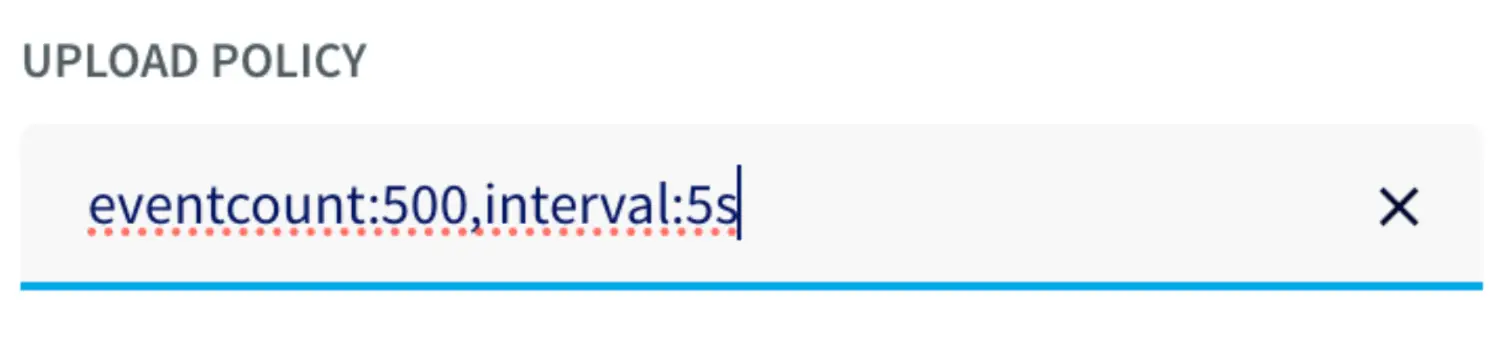
You can fine-tune the settings of upload policies based on the needs of your users. But you may start by changing ‘UploadPolicy’ to ‘eventcount:500,interval:5s’ to load either at every 500 events or 5 seconds (whichever comes first). 

There are a few limitations to this approach, as follows:

  • Snowflake Streaming API restricts AUTO INCREMENT or IDENTITY. 
  • Default column value that is not NULL is not supported. 
  • Data re-clustering is not available on Snowpipe streaming target tables. 
  • The GEOGRAPHY and GEOMETRY data types are not supported.

Wrapping Up: Start your Free Trial Today

In this recipe, we have walked you through steps for creating a Striim application with Snowflake as a target using test data from our Continuous Generator adapter. You can easily set up a streaming app by configuring your Snowflake target. As always, feel free to reach out to our integration experts to schedule a demo, or try Striim developer for free here.

Tools you need

Striim

Striim’s unified data integration and streaming platform connects clouds, data and applications.

Snowflake

Snowflake is a cloud-native relational data warehouse that offers flexible and scalable architecture for storage, compute and cloud services.

How to Use Terraform to Automate the Deployment of a Striim Server

Deploying a server can be a time-consuming process, but with the help of Terraform, it’s easier than ever. Terraform is an open-source tool that automates the deployment and management of infrastructure, making it an ideal choice for quickly and efficiently setting up a Striim server in the cloud or on-premise. With the help of Striim‘s streaming Extract, Transform, and Load (ETL) data platform, data can be replicated and transformed in real-time, with zero downtime, from a source database to one or more target database systems. Striim enables your analytics team to work more efficiently and migrate critical database systems. 

In this blog post, we’ll walk through the steps of how to use Terraform to automate the deployment of a Striim server in AWS.

Pre-requisites

  1. Access to an AWS account including the Access Key ID and Secret Access Key. 
  2. Have an available Linux machine.
  3. General understanding of what Striim is.
  4. A Striim license. For free trials, go to https://signup-developer.striim.com/.

Install and Setup Terraform

In order to automate the deployment of a Striim server, we’ll first need to install Terraform on our CentOS Linux machine. 

Let’s log in to it and enter the following commands into the terminal:

sudo yum install -y yum-utils
sudo yum-config-manager - add-repo https://rpm.releases.hashicorp.com/RHEL/hashicorp.repo
sudo yum -y install terraform

If you’re using a different operating system, please find the appropriate instructions in this link: https://developer.hashicorp.com/terraform/tutorials/aws-get-started/install-cli

We’ll be using Terraform version 1.3.6 in this tutorial. Please verify the version by running this command:

terraform -version

Terraform v1.3.6 on linux_amd64If

Once the installation is successful, we can authenticate to our AWS account by exporting the AWS_ACCESS_KEY_ID , AWS_SECRET_ACCESS_KEY and AWS_REGION environment variables:

export AWS_ACCESS_KEY_ID=123456789-1234-1234-222
export AWS_SECRET_ACCESS_KEY=123456789-234-234-444
export AWS_REGION=us-west-2

For more information about getting your AWS access keys from an IAM user, please visit this link: https://docs.aws.amazon.com/IAM/latest/UserGuide/id_credentials_access-keys.html

Configure Terraform

After the installation process, we can create a directory named striim_server_tf and add the following files inside:

  • main.tf — will include the primary set of configuration for your module. Additionally, you can create additional configuration files and arrange them in a way that makes sense for your project:
  • variables.tf — will contain the variable definitions for your module:

As was mentioned above in the “Striim Credentials and License Information” section from the variables.tf file, we will need to set Striim’s license information and user passwords as environment variables since they are confidential values:


export TF_VAR_striim_product_key=123456-123456-123456
export TF_VAR_striim_license_key=123456-123456-123456-123456-123456-123456-123456-04C
export TF_VAR_striim_company_name=striim
export TF_VAR_striim_cluster_name=striim_cluster_name
export TF_VAR_striim_sys_password=my_awesome_password
export TF_VAR_striim_keystore_password=my_awesome_password
export TF_VAR_striim_admin_password=my_awesome_password
export TF_VAR_striim_mdr_database_type=Derby

Terraform will then be instructed to search for the variable’s value in the environment variable by the TF_VAR_ prefix. More information: https://developer.hashicorp.com/terraform/cli/config/environment-variables

Once we have these files created, we should see a directory and file structure like this:

striim_server_tf
|
|-- main.tf
|
|-- variables.tf

Run Terraform

At this point, we have configured our Terraform environment to deploy a Striim server to our AWS account and written Terraform code to define the server. To deploy it, we can now execute the two Terraform commands, terraform plan and terraform apply, inside of the striim_server_tf directory.

  • The terraform plan command lets the user preview the changes (create, destroy, and modify) that Terraform plans to make to your overall infrastructure.
  • The terraform apply command executes the actions proposed in a Terraform plan. 

If these commands executions are successful, you should see a message at the end of your terminal with the following message:


Apply complete! Resources: 1 added, 0 changed, 0 destroyed.

Verify the Deployment

To verify the Striim server deployment, navigate to the AWS EC2 console and search for striim-server:

verify deployment

Make sure it’s in a Running state and Status check is 2/2 checks passed.

Next, enter the public IP address of the server with :9080 at the end of the url in a web browser and check to see if Striim is up and running:

Striim is up and running

Enter your credentials and verify you can log in to Striim console:

enter credentials

By leveraging Terraform and its Infrastructure-as-Code approach, deploying a Striim server can be automated with ease. It allows organizations to save time and money by quickly spinning up Striim servers, which can be used for data migration or zero downtime replication. This blog post provided an overview of how to use Terraform to set up and deploy a Striim server, as well as how to verify that the deployment was successful. With Terraform, it is possible to automate the entire process, making it easier than ever to deploy and manage cloud infrastructure. In addition to this, using Striim Cloud can fully automate this entire process. Visit the Striim Cloud page for a fully managed SaaS service/solution and Pay As You Go option to reduce total cost of ownership.


Streaming SQL on Kafka with Striim

Tutorial

Streaming SQL on Kafka with Striim

Data integration and SQL-based processing for Kafka with Striim

Benefits

Efficient Data Processing
Process streaming data quickly and effectively between enterprise databases and Kafka

Streamlined SQL-Based Queries
Transform, filter, aggregate, enrich, and correlate your real-time data using continuous queries

ACID-Compliant CDCStriim and Confluent work together to ensure high-performance, ACID-compliant Change Data Capture
On this page

Overview

Apache Kafka is a powerful messaging system, renowned for its speed, scalability, and fault-tolerant capabilities. It is widely used by organizations to reliably transfer data. However, deploying and maintaining Kafka-based streaming and analytics applications can require a team of developers and engineers capable of writing and managing substantial code. Striim is designed to simplify the process, allowing users to reap the full potential of Kafka without extensive coding.

Striim and Confluent, Inc. (founded by the creators of Apache Kafka), partnered to bring real-time change data capture (CDC) to the Kafka ecosystem. By integrating Striim with Confluent Kafka, organizations can achieve a cost-effective, unobtrusive solution for moving transactional data onto Apache Kafka message queues in real time. This delivery solution is managed through a single application that offers enterprise-level security, scalability, and dependability.

The Striim platform helps Kafka users quickly and effectively process streaming data from enterprise databases to Kafka. Streamlined SQL-like queries allow for data transformations, filtering, aggregation, enrichment, and correlation. Furthermore, Striim and Confluent work together to ensure high-performance, ACID-compliant CDC and faster Streaming SQL queries on Kafka. For further insights into the strengths of the Striim and Kafka integration, visit our comparison page.

This recipe will guide you through the process of setting up Striim applications (Striim apps) with Confluent Kafka. Two applications will be set up: one with Kafka as the data source using the Kafka Reader component and another with Kafka as the destination with the Kafka Writer component. You can download the associated TQL files from our community GitHub page and deploy them into your free Striim Developer account. Please follow the steps outlined in this recipe to configure your sources and targets.

Core Striim Components

Kafka Reader: Kafka Reader reads data from a topic in Apache Kafka 0.11 or 2.1.

Kafka Writer: Kafka Writer writes to a topic in Apache Kafka 0.11 or 2.1.

Stream: A stream passes one component’s output to one or more components. For example, a simple flow that only writes to a file might have this sequence.

Snowflake Writer: Striim’s Snowflake Writer writes to one or more existing tables in Snowflake. Events are staged to local storage, Azure Storage, or AWS S3, then written to Snowflake as per the Upload Policy setting.

Mongodb Reader: Striim supports MongoDB versions 2.6 through 5.0 and MongoDB and MongoDB Atlas on AWS, Azure, and Google Cloud Platform.

Continuous Query: Striim continuous queries are continually running SQL queries that act on real-time data and may be used to filter, aggregate, join, enrich, and transform events.

App 1: Kafka Source to Snowflake Target

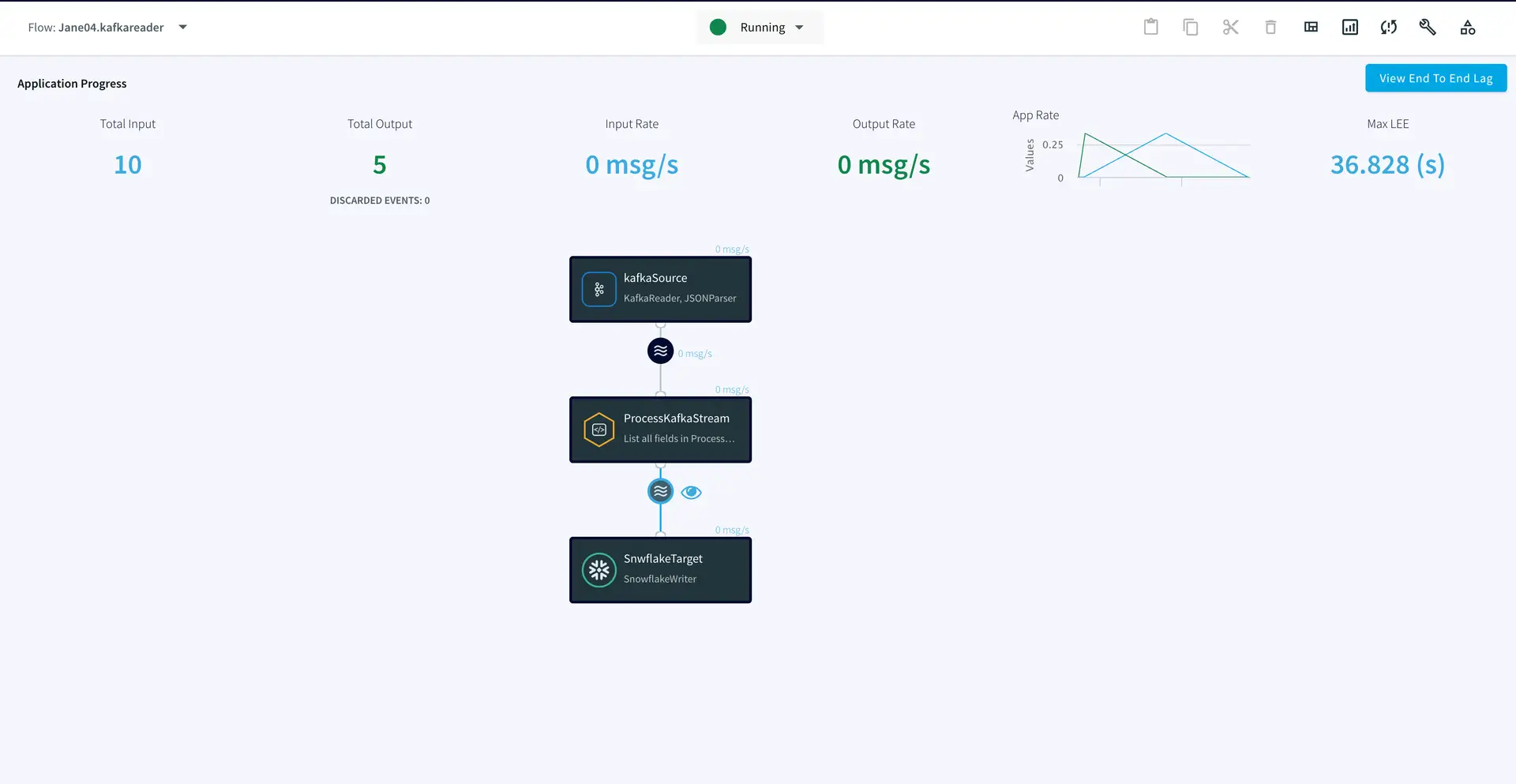
For the first app, we have used Confluent Kafka (Version 2.1) as our source. Data is read from a Kafka topic and processed in real time before being streamed to a Snowflake target warehouse. Please follow the steps below to set up the Striim app from the Flow Designer in your Striim Developer account. If you do not have an account yet, please follow this tutorial  to sign up for a free Striim Developer account in a few simple steps.

Step 1: Configure the Kafka Source adapter

In this recipe the Kafka topic is hosted on Confluent. Confluent offers a free trial version for learning and exploring Kafka and Confluent Cloud. To sign-up for a free trial of Confluent cloud, please follow the Confluent documentation. You can create a topic inside your free cluster and use it as the source for our Striim app.

To configure your source adapter from the Flow Designer, click on ‘Create app’ on your homepage followed by ‘Start from scratch’. Name your app and click ‘Save’.

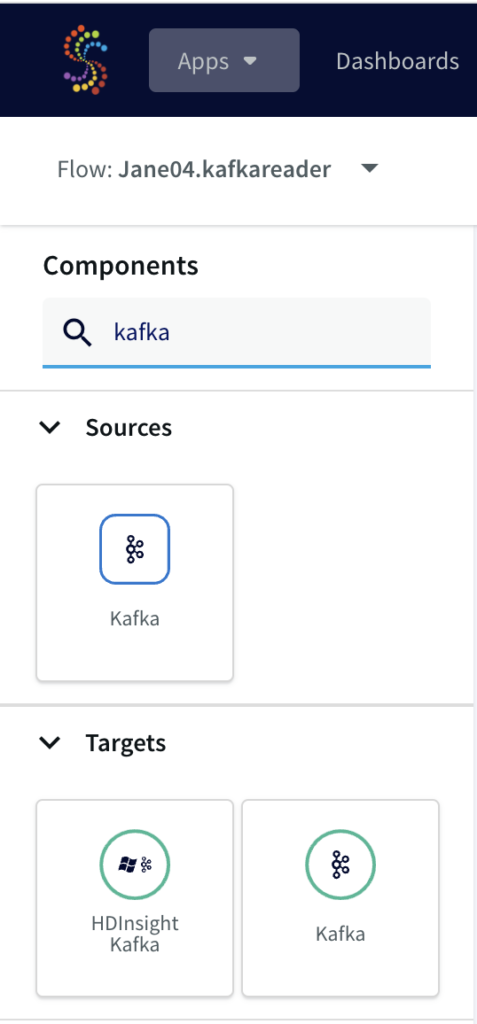
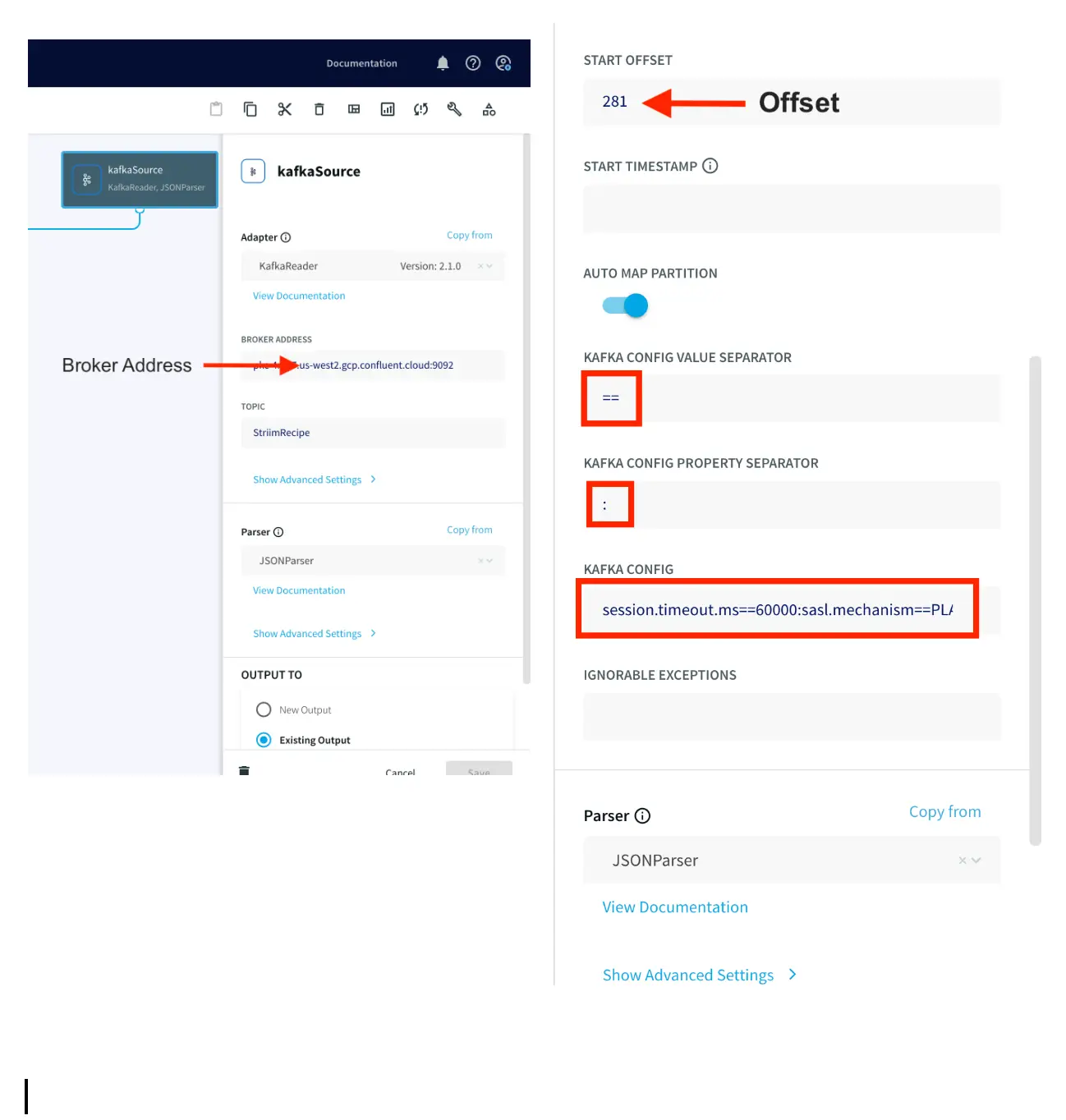
From the side panel, drag the Kafka source component and enter the connection details.

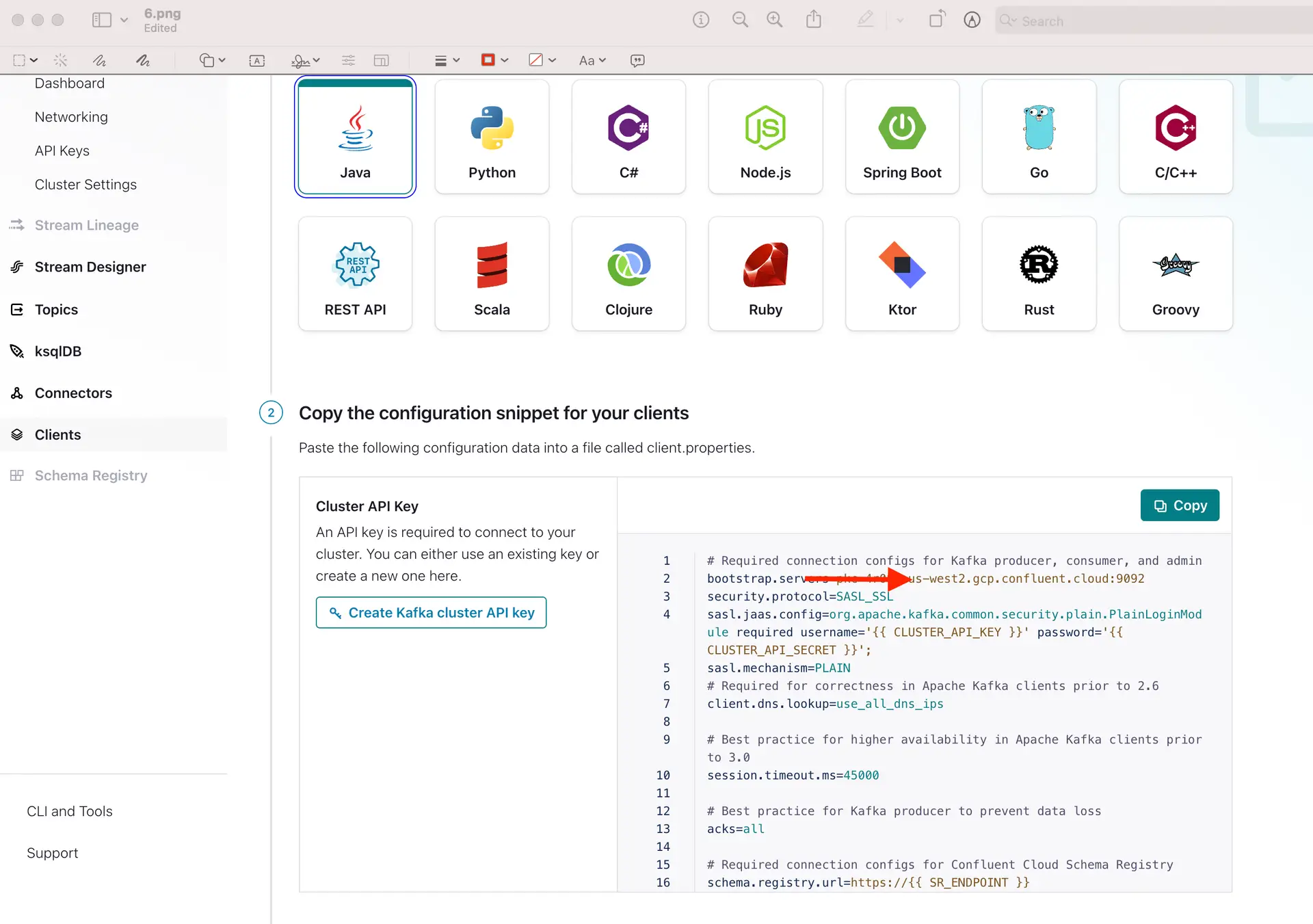
Add the broker address that you can find under client information on Confluent Cloud, also called the bootstrap server.

Enter the offset from where you want to stream data from your topic. Change the Kafka Config value and property separators as shown above. For the Kafka Config field you will need API key and API secret of your Confluent Kafka topic. The Kafka Config is entered in the following

format:session.timeout.ms==60000:sasl.mechanism== PLAIN:sasl.jaas.config==org.apache.kafka.common.security.plain.PlainLoginModule required username=””password=””;  :ssl.endpoint.identification.algorithm==https:security.protocol==SASL_SSL

You can copy the sasl.jaas.config from client information on Confluent Cloud and use the correct separators for the Kafka Config string.

Step 2: Add a Continuous Query to process the output stream

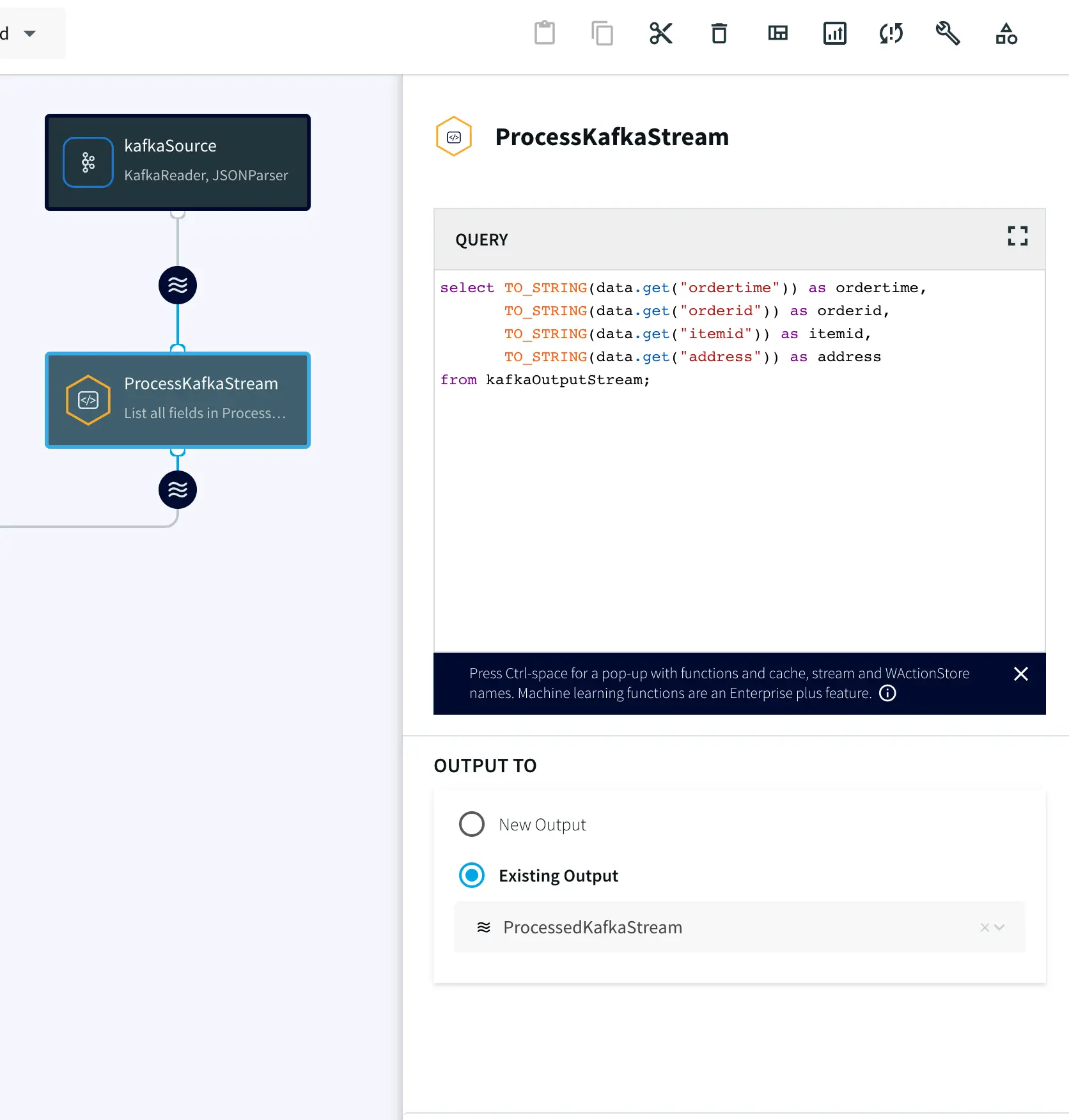
Now the data streamed from the Kafka source will be processed in real time for various analytical applications. In this recipe the data is processed with SQL-like query that converts the JSON values into a structured table which is then streamed into your Snowflake warehouse, all in real time.

Drag the CQ component from the side panel and enter the following query. You can copy the SQL query from our GitHub page.

Step 3: Configure your Snowflake Target

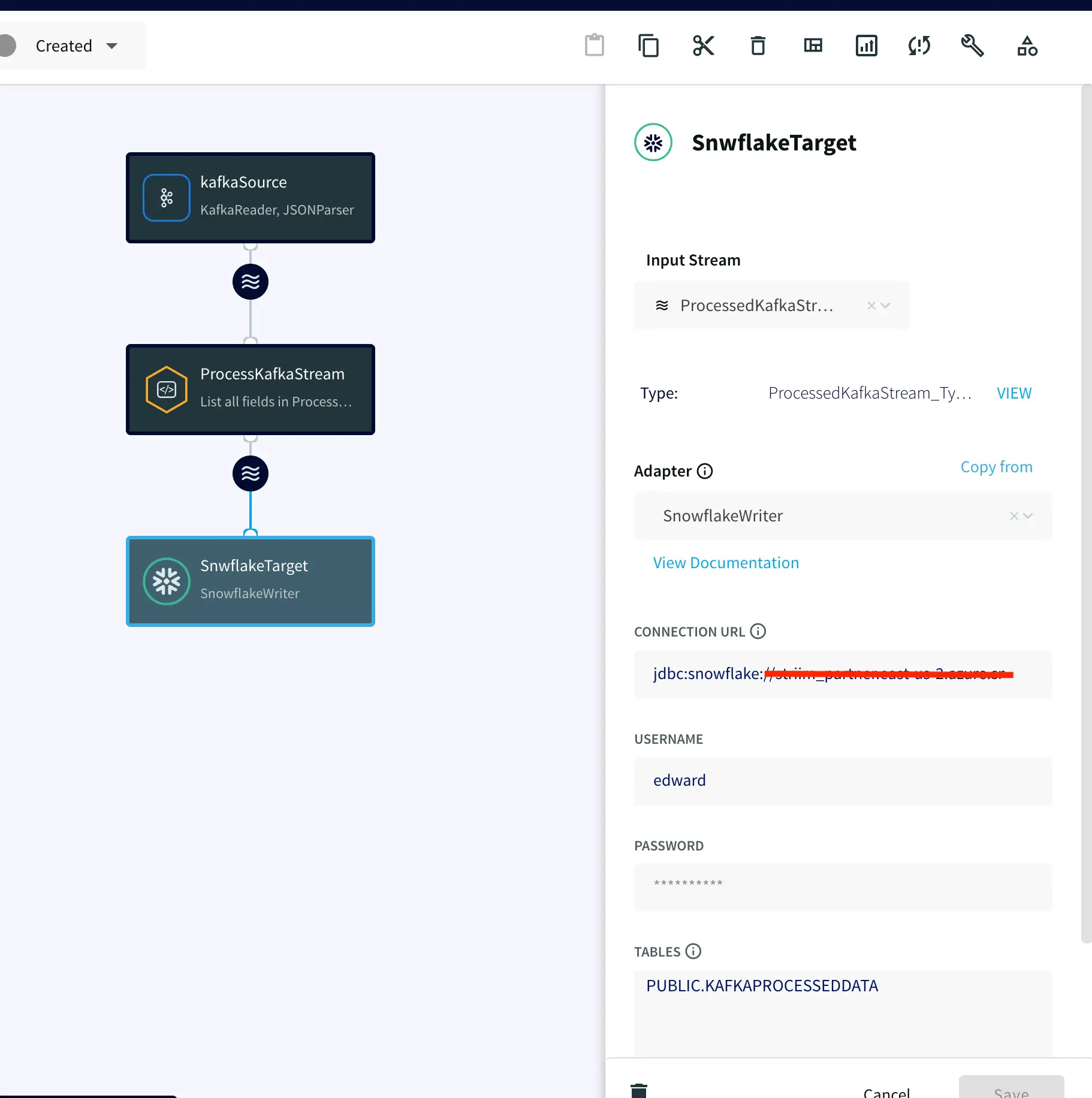
On your target Snowflake warehouse, create a table with the same schema as the processed stream from the above Continuous Query. Enter the connection details and save. You can learn more about Snowflake Writer from this recipe.

Step 4: Deploy and run the app

Once the source, target and CQ are configured, select Deploy from the dropdown menu next to ‘Created’. Choose any available node and click Deploy. After the app is deployed, from the same drop-down, select StartApp.

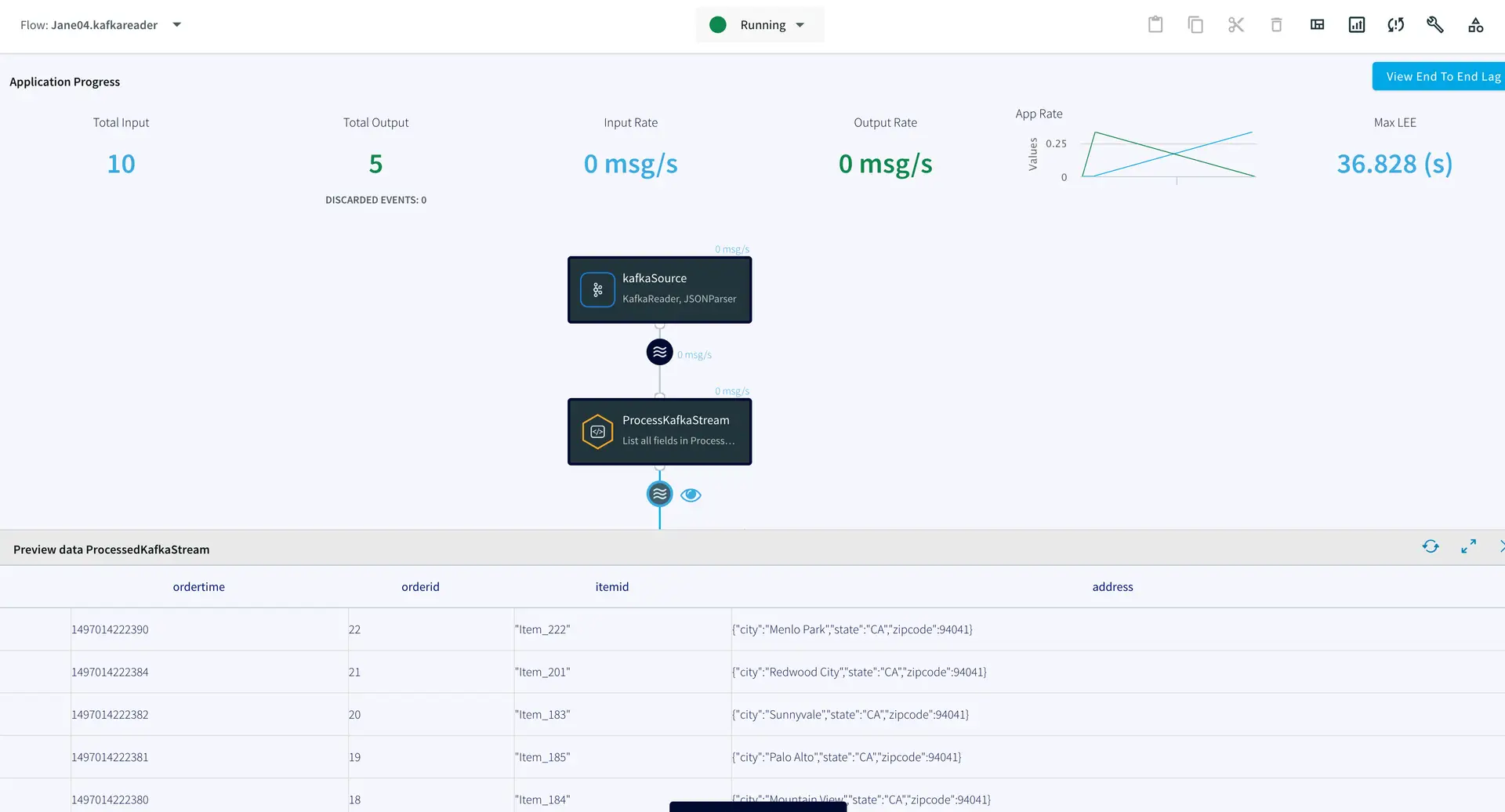
You can preview the processed data by clicking on the ‘eye’ icon next to the stream component.

App 2: MongoDB Source to Kafka Target

In this app, real-time data from MongoDB has been processed with SQL-like queries and replicated to a Kafka topic on Confluent. Follow the steps below to configure a MongoDB to Kafka streaming app on Striim. As shown in app 1 above, first name your app and go to the Flow Designer.

Step 1: Set up your MongoDB Source

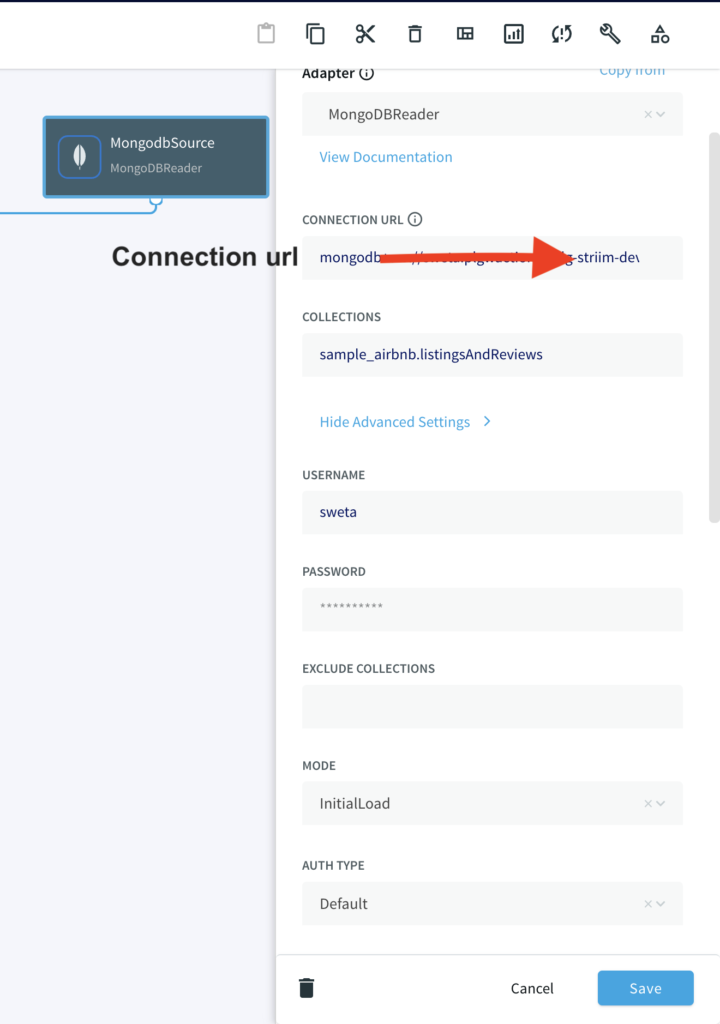
Configure your MongoDB source by filling in the connection details. Follow this recipe for detailed steps on setting up a MongoDB source on Striim. Enter the connection url, username, password and the collection data that you want to stream.

Step 2: Add a Continuous Query to process incoming data

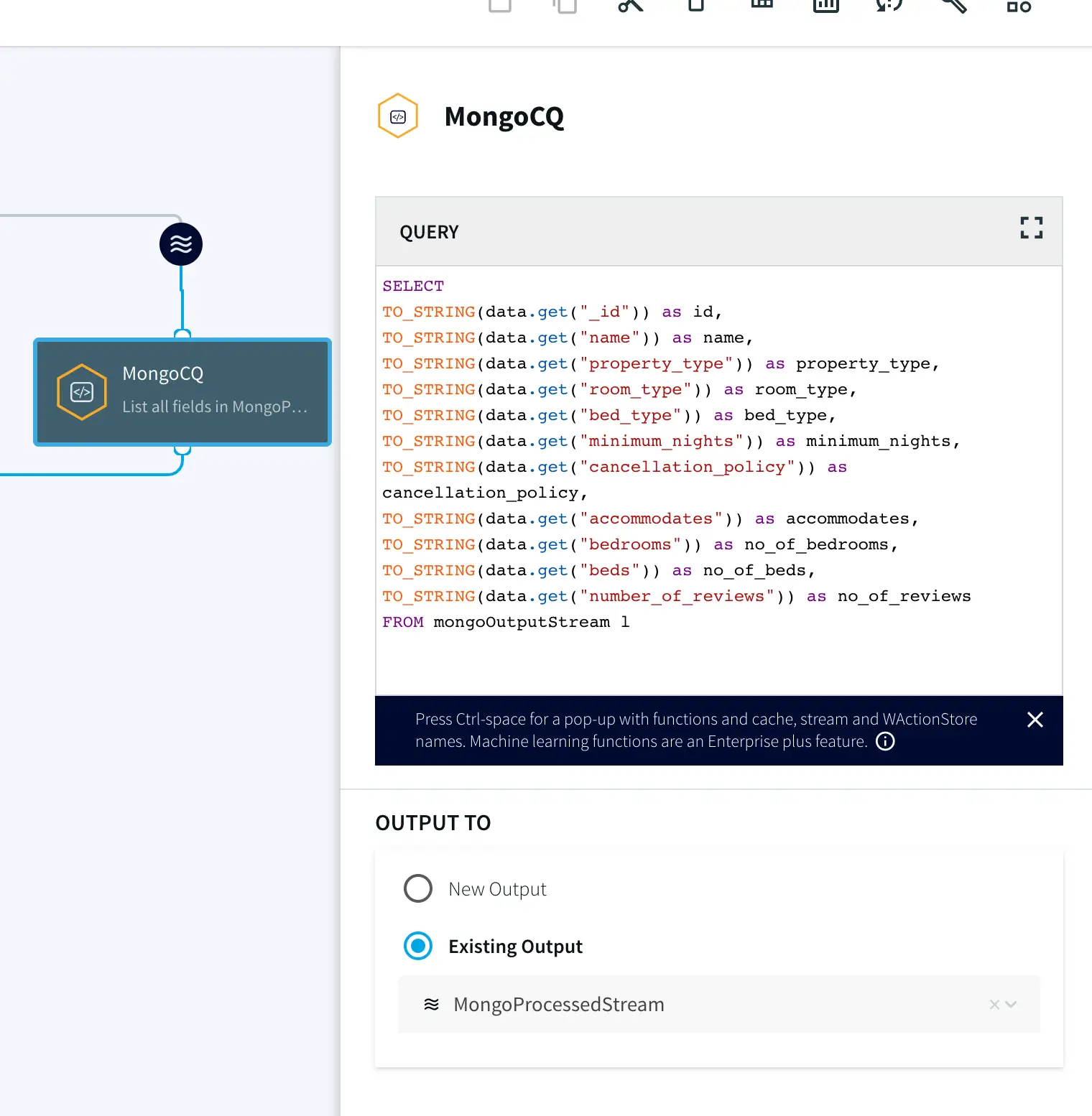
Once the source is configured, we will run a query on the data stream to process it. You can copy and paste the code from our GitHub page.

Step 3: Set up the Kafka target

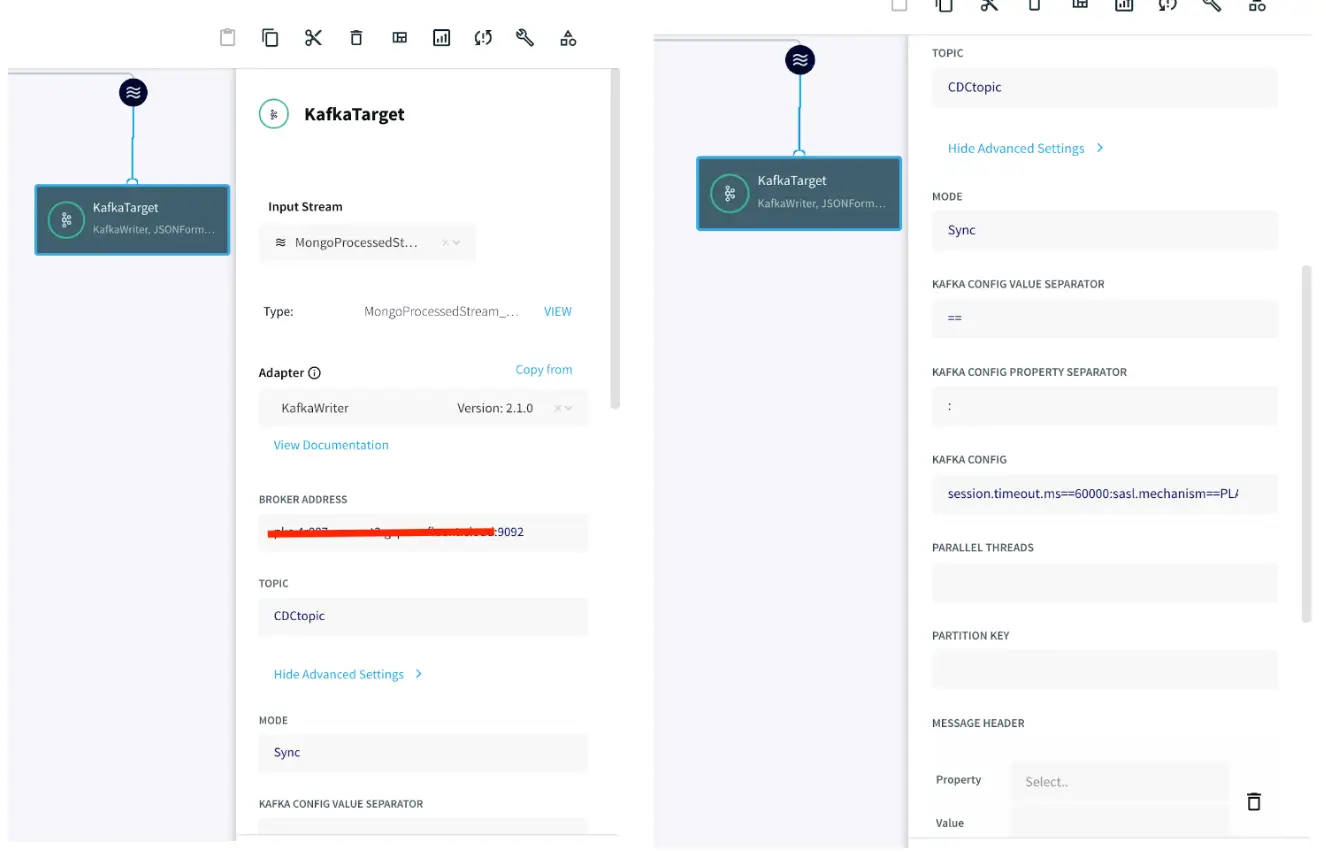
After the data is processed, it is written to a Confluent Kafka topic. The configuration for the Kafka Writer is similar to Kafka Reader as shown in app 1. Enter the connection details of your Kafka and click Save.

Step 4: Deploy and run the app

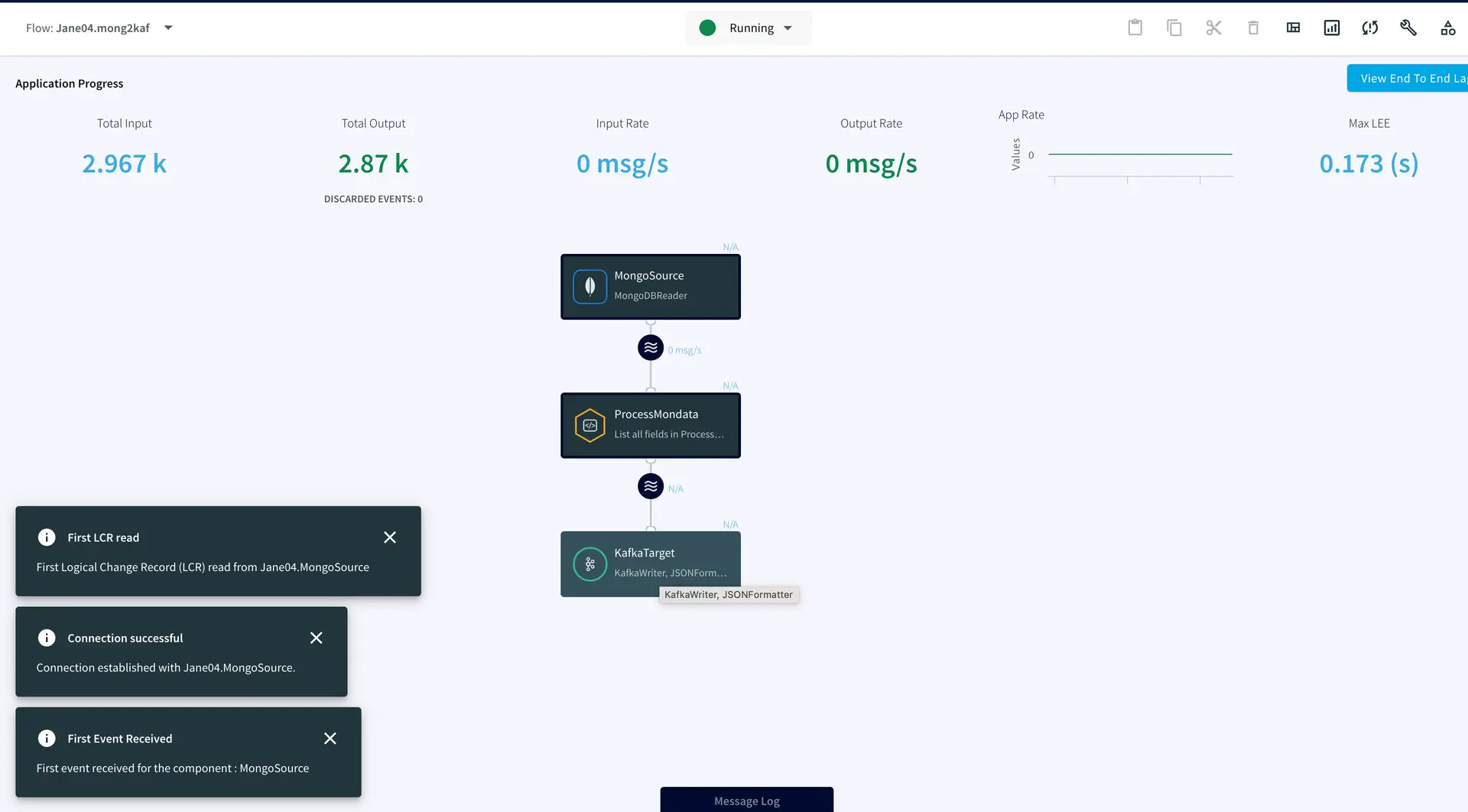
After the source and target adapters are configured, click Deploy followed by Startapp to run the data stream.

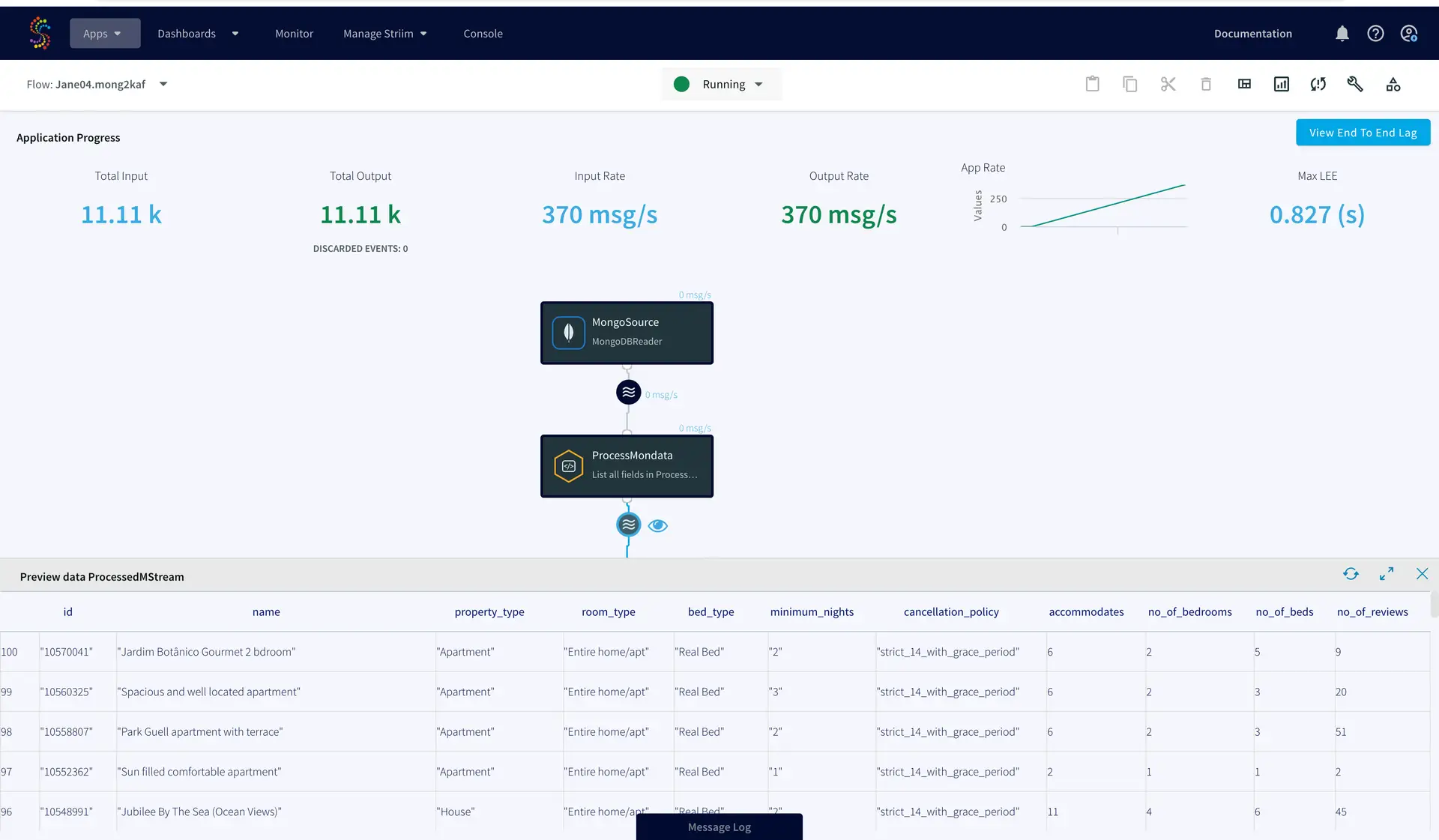
You can preview the processed data through the ‘eye’ wizard next to the data stream.

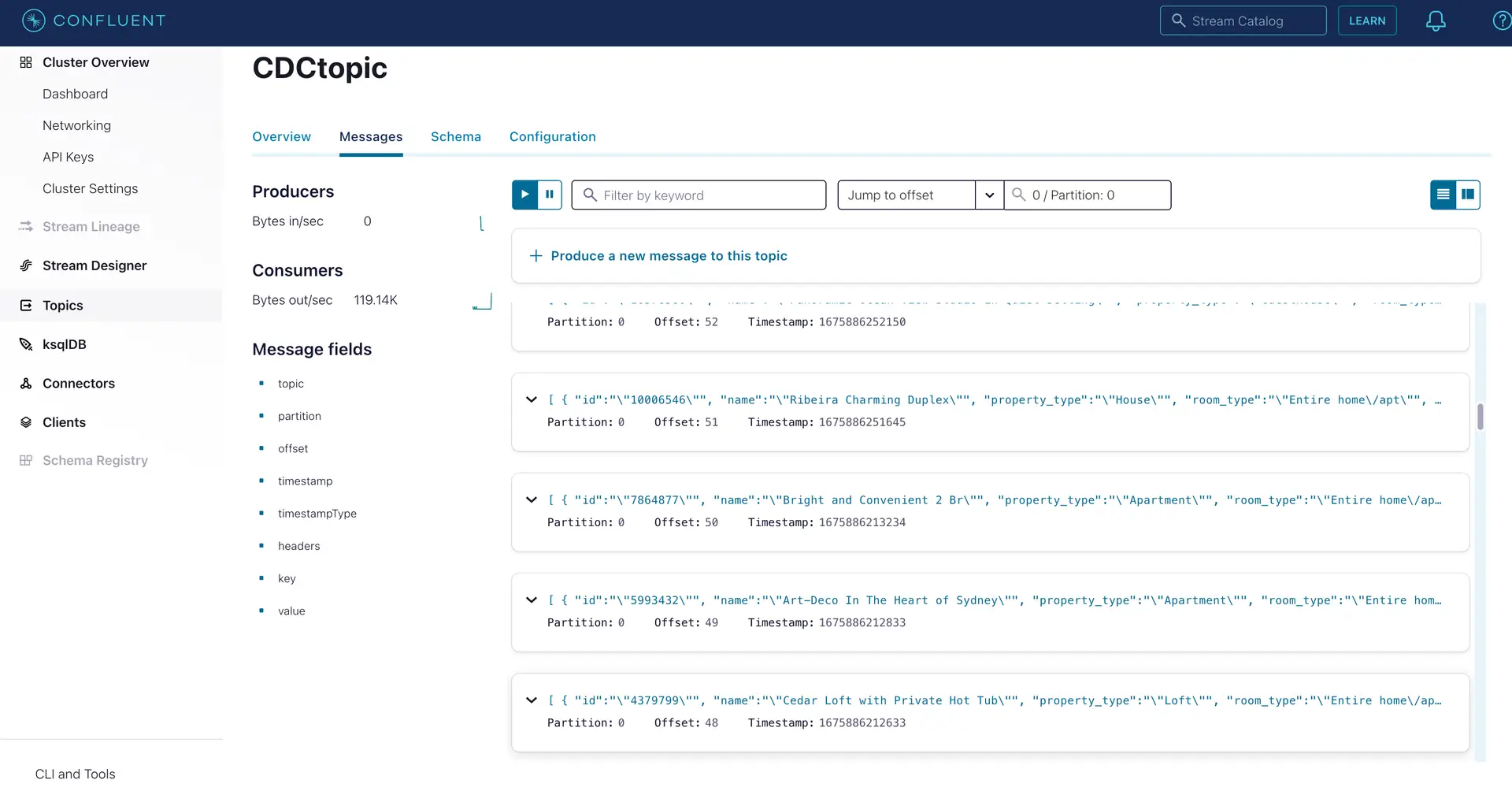
As seen on the target Kafka messages, the data from MongoDB source is streamed into the Kafka topic.

Setting Up the Striim Applications

App 1: Kafka Source to Snowflake Target

Step 1: Configure the Kafka Source Adapter

Kafka Config:

session.timeout.ms==60000:sasl.mechanism==PLAIN: sasl.jaas.config==org.apache.kafka.common.security.plain.PlainLoginModule required username=””password=””; :ssl.endpoint.identification.algorithm==https:security.protocol==SASL_SSL

Step 2: Add a Continuous Query to process the output stream

select TO_STRING(data.get(“ordertime”)) as ordertime,
TO_STRING(data.get(“orderid”)) as orderid,
TO_STRING(data.get(“itemid”)) as itemid,
TO_STRING(data.get(“address”)) as address
from kafkaOutputStream;

Step 3: Configure your Snowflake target

Step 4: Deploy and run the Striim app

App 2: MongoDB Source to Kafka target

Step 1: Set up your MongoDB Source

Step 2: Add a Continuous Query to process incoming data

SELECT
TO_STRING(data.get(“_id”)) as id,
TO_STRING(data.get(“name”)) as name,
TO_STRING(data.get(“property_type”)) as property_type,
TO_STRING(data.get(“room_type”)) as room_type,
TO_STRING(data.get(“bed_type”)) as bed_type,
TO_STRING(data.get(“minimum_nights”)) as minimum_nights,
TO_STRING(data.get(“cancellation_policy”)) as cancellation_policy,
TO_STRING(data.get(“accommodates”)) as accommodates,
TO_STRING(data.get(“bedrooms”)) as no_of_bedrooms,
TO_STRING(data.get(“beds”)) as no_of_beds,
TO_STRING(data.get(“number_of_reviews”)) as no_of_reviews
FROM mongoOutputStream l

Step 3: Set up the Kafka target

Step 4: Deploy and run the app

Wrapping Up: Start your Free Trial Today

The above tutorial describes how you can use Striim with Confluent Kafka  to move change data into the Kafka messaging system. Striim’s pipelines are portable between multiple clouds across hundreds of endpoint connectors. You can create your own applications that cater to your needs. Please find the app TQL and data used in this recipe on our GitHub repository.

As always, feel free to reach out to our integration experts to schedule a demo, or try Striim for free here.

Tools you need

Striim

Striim’s unified data integration and streaming platform connects clouds, data and applications.

Snowflake

Snowflake is a cloud-native relational data warehouse that offers flexible and scalable architecture for storage, compute and cloud services.

Apache Kafka

Apache Kafka is an open-source distributed streaming system used for stream processing, real-time data pipelines, and data integration at scale.

MongoDB

NoSQL database that provides support for JSON-like storage with full indexing support.

Democratizing Data Streaming with Striim Developer

Everyone wants real-time data…in theory. You see real-time stock tickers on TV, you use real-time odometers when you’re driving to gauge your speed, when you check the weather in your app. 

Yet the “Modern Data Stack” is largely focussed on delivering batch processing and reporting on historical data with cloud-native platforms. While these cloud analytics platforms have transformed business operations, we are still missing the real-time piece of the puzzle and many data engineers feel inclined to think real-time is simply out of their organization’s reach. As a result, companies don’t have a real-time, single source of truth for their business nor can they take in-the-moment actions on customer behavior.

Why? Real-time data is currently synonymous with spinning up complex infrastructure, cobbling together multiple projects, and figuring out the integrations to internal systems yourself.  The more valuable work of delivering fresh data to enable real-time data-driven applications in the business seems like an afterthought compared to the engineering prerequisites. 

Now there is another way…

Striim is a simple unified data integration and streaming platform that uniquely combines change data capture, application integration, and  Streaming SQL as a fully managed service that is used by the world’s top enterprises to truly deliver real-time business applications. 

With Striim Developer, we’ve opened up the core piece of Striim’s Streaming SQL and Change Data Capture engine as a free service to stream up to 10 million events per month with an unlimited number of Streaming SQL queries. Striim Developer includes:

  • CDC connectors for PostgreSQL, MongoDB, SQLServer, MySQL, and MariaDB
  • SaaS connectors for Slack, MS Teams, Salesforce, and others
  • Streaming SQL, Sliding and Jumping Windows, Caches to join data from databases and data warehouses like Snowflake 
  • Source and Target connectors for BigQuery, Snowflake, Redshift, S3, GCS, ADLS, Kafka, Kinesis, and more

Now any data engineer can quickly get started prototyping streaming use cases for production use with no upfront cost. You can even use Striim’s synthetic continuous data generator and plug it into your targets to see how real-time data behaves in your environment. 

What happens when you hit your monthly 10 million event quota? We simply pause your account and you can resume using it the following month without losing your pipelines. You also download your pipelines as code and upgrade to Striim Cloud in a matter of clicks. No effort wasted. 

Use cases you can address in Striim Developer:

  • Act on anomalous customer behavior by comparing real-time data with their historical norms, then alert internally in Slack or Teams
  • Implement data contracts on database schemas and freshness SLAs with Striim’s CDC, Streaming SQL, and schema evolution rules
  • Compute moving averages, aggregations, and run regressions on streaming data from Kafka or Kinesis using SQL. 

If you’d like to join our first cohort of Striim Developers, you can sign up here.

If you’d like to get an overview from a data streaming expert first, request a demo here. 

Three Real-world Examples of Companies Using Striim for Real-Time Data Analytics

According to a recent study by KX, US businesses could see a total revenue uplift of $2.6 trillion through investment in real-time data analytics. From telecommunication to retail, businesses are harnessing the power of data analytics to optimize operations and drive growth. 

Striim is a data integration platform that connects data from different applications and services to deliver real-time data analytics. These three companies successfully harnessed data analytics through Striim and serve as excellent examples of the practical applications of this valuable tool across industries and use cases.

1. Ciena: Enabling Fast Real-time Insights to Telecommunication Network Changes 

Ciena is an American telecommunications networking equipment and software services supplier. It provides networking solutions to support the world’s largest telecommunications service providers, submarine network operators, data and cloud operators, and large enterprises. 

How Ciena uses Striim for real-time data analytics

Use cases

Ciena’s data team wanted to build a modern, self-serve data and analytics ecosystem that:

  • Improves the customer experience by enabling real-time insights and intelligent automation to network changes as they occur.
  • Facilitates data access across the enterprise by removing silos and empowering every team to make data-driven decisions quickly.

To meet its goals, Ciena chose Snowflake as its data warehousing platform for operational reporting and analytics and Striim as its data integration and streaming solution to replicate changes from its Oracle database to Snowflake. The company used Striim to collect, filter, aggregate, and update (in real time) 40-90 million business events to Snowflake daily across systems that manage manufacturing, sales, and dozens of other crucial business functions to enable advanced real-time analytics.

 With its real-time analytics platform, Ciena has offered customers up-to-date insights as changes occurred in its network, thus improving the customer experience. Additionally, operators can begin experimenting with machine learning by using real-time analytics to identify network events that could impact performance.

Finally, with its self-serve analytics platform, everyone in the organization can now access the data they need to make faster data-driven decisions. With real-time analytics, Ciena’s customers no longer have to wait to see their updated data because it is displayed instantly after any changes are made in the source platforms.

“Because of Striim, we have so much customer and operational data at our fingertips. We can build all kinds of solutions without worrying about how we’ll provide them with timely data,” Rajesh Raju, director of data engineering at Ciena, explains.

2. Macy’s: Improving Digital and Mobile Shopping Experiences 

Macy’s, Inc. is one of America’s largest retailers, delivering quality fashion to customers in more than 100 international destinations through the leading e-commerce site macys.com. Macy’s, Inc. sells a wide range of products, including men’s, women’s, and children’s clothes and accessories, cosmetics, home furnishings, and more. 

Use cases

Macy’s real-time analytics use cases were to:

  • Achieve real-time visibility into customer and inventory orders to maximize operational cost, especially during the peak holiday events like Black Friday and Cyber Monday
  • Leverage artificial intelligence and machine learning to personalize customer shopping experiences.
  • Quickly turn data into actionable insights that help Macy’s deliver quality digital customer experiences and improve operational efficiencies.

Macy’s migrated its on-premise inventory and order data to Google Cloud storage to reach its objectives. The company decided to move to the cloud based on the benefits of cost efficiency, flexibility, and improved data management. To facilitate the data integration process, it used Striim, which allowed it to:

  • Import historical and real-time on-premise data from its Oracle and DB2 mainframe databases.
  • Process the data in flight, including detecting and transforming mismatched timestamp fields.
  • Continuously deliver data to its Big Query data warehouse for scalable analysis of petabytes of information.

Real-time data analytics has been a critical factor in Macy’s ability to understand customer behaviors and improve the shopping experience for its customers. Data analytics has enabled the company to increase customer purchases and loyalty and optimize its operations to minimize costs. As a result, Macy’s has been able to offer its customers a seamless and personalized shopping experience.

3. MineralTree: Facilitating Real-time Customer Invoice Reporting

MineralTree, formerly Inspyrus, is a fintech SaaS company specializing in automating the accounts payable (AP) process of invoice capture, invoice approval, payment authorization, and payment completion. To do this, the company connects with hundreds of different ERP and accounting systems companies and streamlines the entire AP process into a unified system.

How Inspyrus uses Striim for real-time data analytics

Use cases

MineralTree wanted to build a real-time data analytics system to:

  • Provide customers with a real-time view of all their invoicing reports as they occur. 
  • Help customers visualize their data using a business intelligence tool.

MineralTree used Striim to seamlessly integrate customer data from various ERP and accounting systems into its Snowflake cloud data warehouse. Striim’s data integration connector enabled the company to generate real-time operational data from Snowflake and use it to power the business intelligence reports it provides to customers through Looker.

MineralTree updated data stack, consisting of Striim, Snowflake, dbt, and Looker, has enhanced the invoicing operations of its customers through rich, value-added reports. 

According to Prashant Soral, CTO, the real-time data integration provided by Striim from operational systems to Snowflake has been particularly beneficial in generating detailed, live reports for its customers.

Transform How Your Company Operates Using Real-time Analytics With Striim

Real-time analytics transforms how your business operates by providing accurate, up-to-date information that can help you make better decisions and optimize your operations. 

Striim offers an enterprise-grade platform that allows you to easily build continuous, streaming data pipelines to support real-time cloud integration, log correlation, edge processing, and analytics. Request a demo today.

Building a Real-Time Lakehouse with Data Streaming

Data lakehouses are a strategic platform for unification of enterprise decision support, advanced analytics, and machine learning.

If engineered for streaming and other low-latency workloads, data lakehouses can enable companies to deliver trusted data-driven insights and sophisticated analytics in real time to internal operations as well as to customer-facing applications.

Delivering on the promise of the real-time cloud data lakehouse demands careful attention to a wide range of architecture, deployment, governance, and performance issues. Please join TDWI’s senior research director James Kobielus on this on-demand webinar, in which he, Databricks’ Spencer Cook, and Striim’s John Kutay, discuss how enterprises can incorporate change data capture and data streaming in a cloud-based lakehouse to drive real-time data-driven insights, operations, and customer engagement. After brief presentations, Kobielus, Cook, and Kutay engage in a roundtable discussion focused on the following issues:

  • What are the core business use cases for a real-time enterprise cloud data lakehouse?
  • What are the essential ingredients of a real-time enterprise cloud data lakehouse?
  • How should enterprises deploy change data capture, streaming, and other low-latency infrastructure within a real-time cloud data lakehouse?
  • What challenges do enterprises face when migrating schemas, data, and workloads from legacy data warehouses to a cloud data lakehouse?
  • How can enterprises future-proof their investments in real-time cloud data lakehouses?

Presented by:

Spencer Cook – Senior Solutions Architect, Databricks

Spencer Cook, M.S., is a data professional with experience delivering end-to-end analytics solutions in the cloud to iconic brands. Since 2021, Spencer has been a financial services solutions architect at Databricks focused on revolutionizing the industry with lakehouse architecture.

John Kutay – Director of Product Management, Striim

John Kutay is director of product management at Striim with prior experience as a software engineer, product manager, and investor. His podcast “What’s New in Data” best captures his ability to understand upcoming trends in the data space with thousands of listeners across the globe. In addition, John has over 10 years of experience in the streaming data space through academic research and his work at Striim.

Back to top