Sweta Prabha

12 Posts

Emergency Room Monitoring Recipe

Tutorial

Emergency Room Analytics with Data Streaming

Improve efficiency, patient care, and resource allocation with real-time data

Benefits

Real-Time Monitoring

Process incoming ER data in real-time for immediate triage and resource allocation


Enhanced Decision-Making Make informed decisions through visual dashboards that represents key metrics and KPIs 

Efficient Communication

Streaming analytics facilitate communication among healthcare teams as well as with patients for better collaboration

On this page

Healthcare Needs Real-Time Data

In the dynamic landscape of healthcare, the demand for real-time data in emergency room operations has become increasingly important. Hospital emergency rooms serve as critical hubs for patient care, responding to a myriad of medical crises with urgency and precision. The ability to monitor and analyze real-time data within these environments is critical for enhancing operational efficiency, optimizing resource allocation, and ultimately improving patient outcomes. 

As healthcare professionals navigate the complexities of emergency room settings, a comprehensive understanding of real-time data through intuitive dashboards becomes indispensable. 

This tutorial aims to show the significance of healthcare monitoring through a real-time data dashboard, providing insights into how these tools can revolutionize emergency room management, streamline workflows, and contribute to a more responsive and patient-centric healthcare system. Whether it’s tracking patient flow, resource utilization, or anticipating surges in demand, the integration of real-time data dashboards empowers healthcare providers to make informed decisions swiftly and proactively in the ever-evolving landscape of emergency care.

Why Striim for Healthcare?

Striim offers a straightforward, unified data integration and streaming platform that combines change data capture (CDC), Streaming SQL and real-time analytical dashboards as a fully managed service.The Continuous Query (CQ) component of Striim uses SQL-like operations to query streaming data with almost no latency.

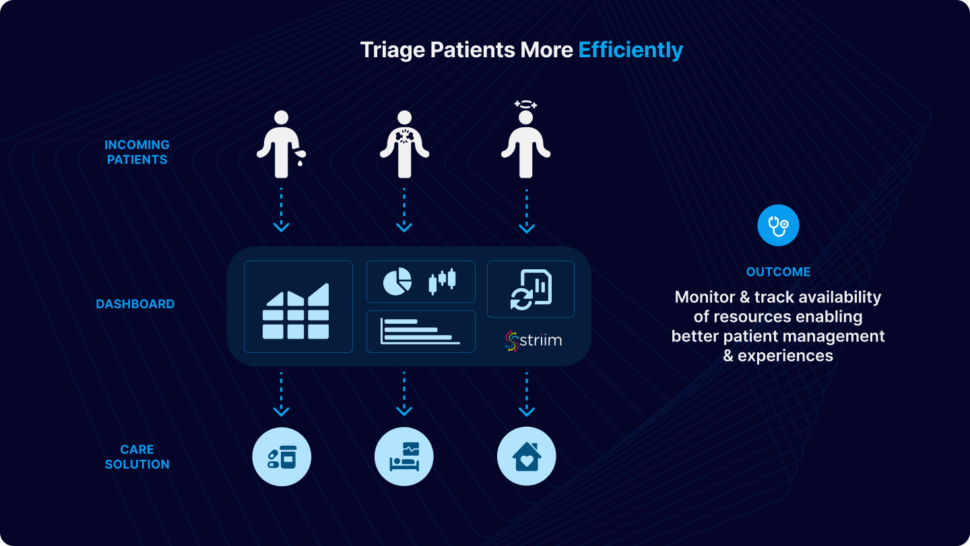
Using streaming analytics and real-time dashboards for Emergency Room (ER) monitoring processes incoming patient data in real-time, allowing for immediate triage and prioritization of patients based on the severity of their conditions. Hospitals can monitor the availability of resources such as beds, medical staff, and equipment in real-time. This allows for efficient allocation and utilization of resources. Dashboards provide a visual representation of key metrics and KPIs. Healthcare professionals can make informed decisions quickly by accessing real-time data on patient statuses, resource utilization, and overall ER operations.
Use-Case

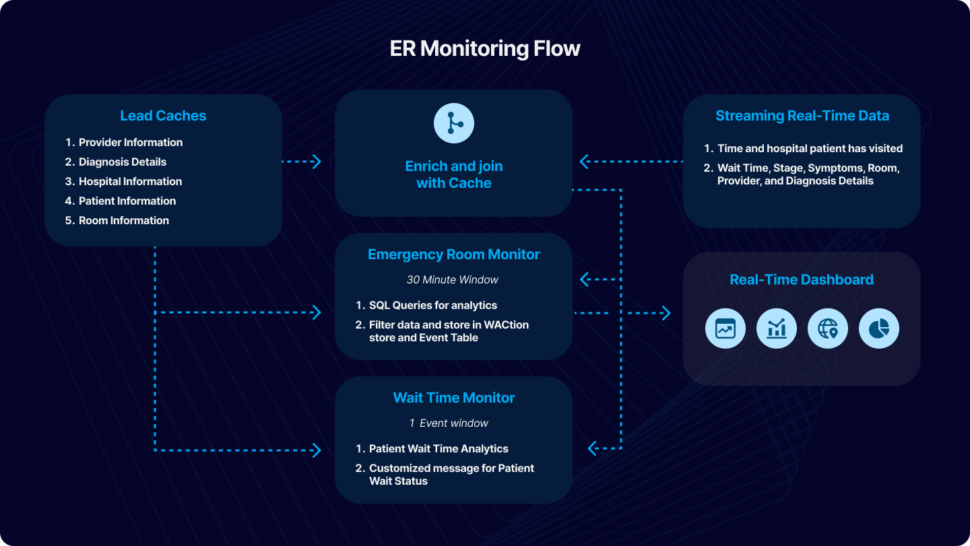
In this particular use case, patient’s data from their ER visit is continuously streamed in real-time, undergoing dynamic filtering and processing. Cache files, containing essential details such as hospital information, provider details, and patient data, are employed to enhance and integrate the data stream. The resulting processed data is utilized for immediate analytics through the use of dashboards and elastic storage.

For the purpose of this tutorial, we have simulated fictional data in CSV format to emulate a real-world scenario. The data can be streamed from diverse sources and databases supported by Striim. This application tutorial is built from four primary sections: Loading Cache, Reading and Enriching Real-Time Data Stream, Emergency Room (ER) Monitoring, and Wait Time Monitoring.

The incoming data includes fields such as Timestamp, hospital ID, wait time, stage, symptoms, room ID, provider ID, and diagnosis details. The initial step involves enriching the data using cache, which includes adding details like hospital name, geographical location, patient name, patient age, and patient location. The enriched data is subsequently merged with other cache files, encompassing room details, provider details, and diagnosis. An outer join is executed to accommodate potential null values in these columns.

Once the data is enhanced by incorporating information from the cache, ER Monitoring takes place within a 30-minute window. A window component in Striim bounds real-time data based on time (e.g., five minutes), event count (e.g., 10,000 events), or a combination of both. Complex SQL-like queries, known as Continuous Queries (CQ), transform the data for various analytics and reporting objectives. Processed data from each stream is stored in an Event Table for real-time access and a WAction store for historical records. Event tables are queried to construct a Striim dashboard for reporting purposes. We will take a detailed look at the various components of the Striim application in this tutorial.

Wait Time Monitoring is implemented to generate personalized messages for patients, notifying them about the estimated wait time. In a real-world scenario, these messages could be disseminated through text or email alerts.
To give this app a try, please download the TQL file, dashboard and the associated CSV files from our github repository. You can directly upload and run the TQL file by making a few changes discussed in the later sections. 
Core Striim Components

File Reader: Reads files from disk using a compatible parser.

Cache: A memory-based cache of non-real-time historical or reference data acquired from an external source, such as a static file of postal codes and geographic data used to display data on dashboard maps, or a database table containing historical averages used to determine when to send alerts. If the source is updated regularly, the cache can be set to refresh the data at an appropriate interval.

Stream: A stream passes one component’s output to one or more other components. For example, a simple flow that only writes to a file might have this sequence

Continuous Query: Striim Continuous queries are continually running SQL queries that act on real-time data and may be used to filter, aggregate, join, enrich, and transform events.

Window: A window bounds real-time data by time, event count or both. A window is required for an application to aggregate or perform calculations on data, populate the dashboard, or send alerts when conditions deviate from normal parameters.

WAction and WActionStore: A WActionStore stores event data from one or more sources based on criteria defined in one or more queries. These events may be related using common key fields.

Event Table: An event table is similar to a cache, except it is populated by an input stream instead of by an external file or database. CQs can both INSERT INTO and SELECT FROM an event table.

File Writer: Writes outcoming data to files 

Dashboard: A Striim dashboard gives you a visual representation of data read and written by a Striim application

Loading Cache

There are five cache files used in this application. The name and details of the files are as follows:

Providers: Provider id, firstname, lastname, hospital id, providerType

Diagnoses: Diagnosis id, name

Hospitals: Hospital id, name, city, state,zip,lat,lon

Patients: Patient id, firstname, lastname, gender, age, city, state, zip, lat, lon

Rooms: Room id, name, hospitalid, roomtype

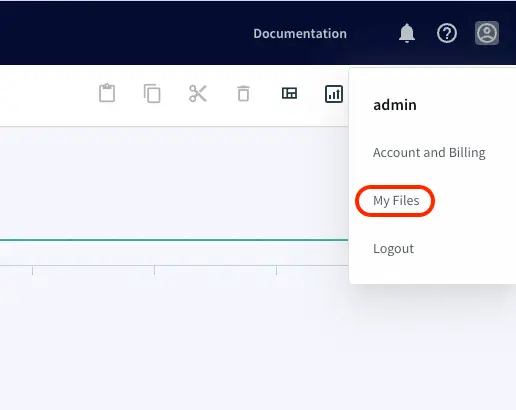
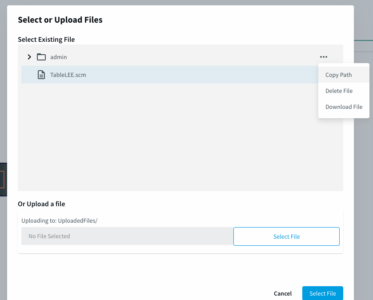
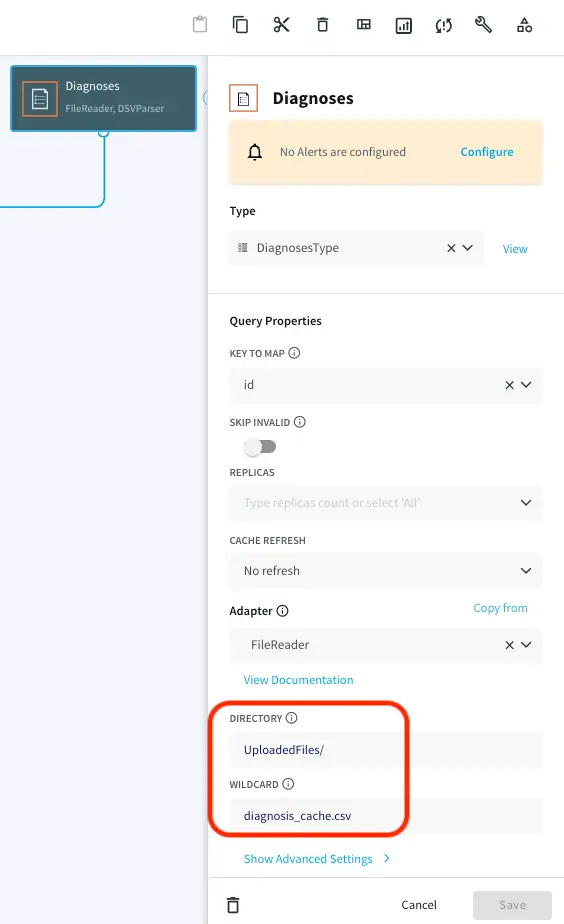
Choose ‘My files’ from the drop-down on the upper right corner and upload the cache files that you have downloaded from the github repository.

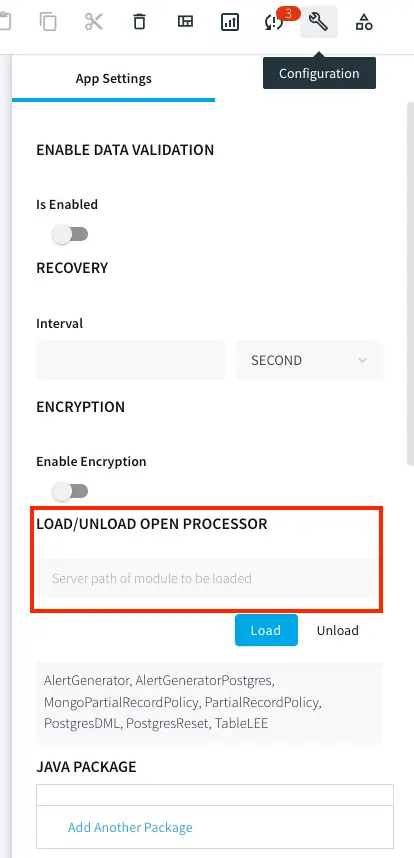
Note the path of the file and make necessary changes as shown below. Repeat this for all the five caches.
Streaming Real-Time Data

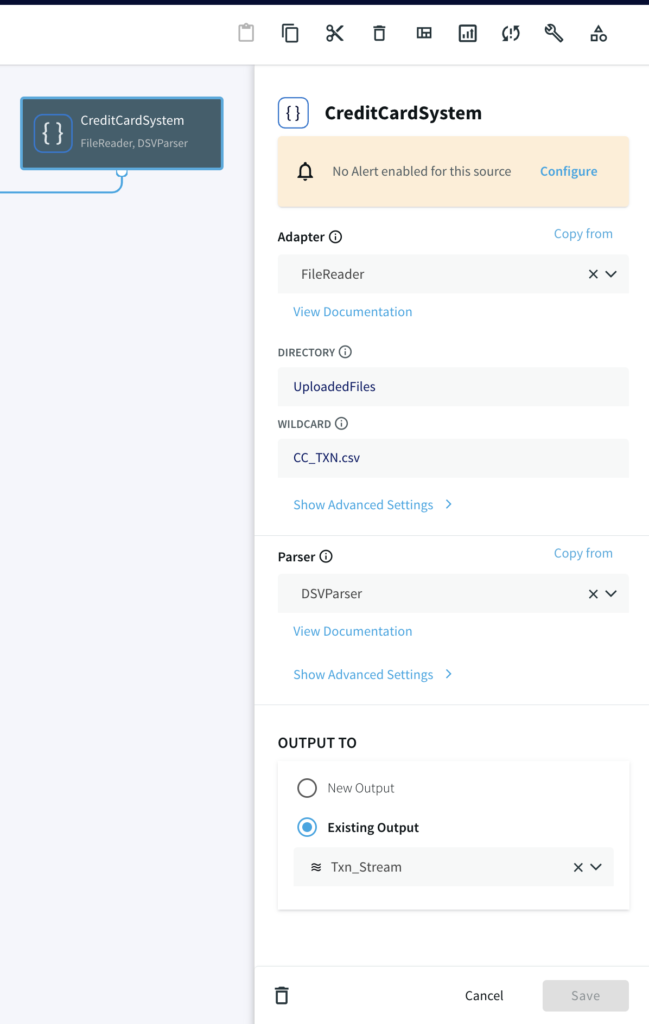
A CSV file containing patient visit data with timestamp is provided on the github repository. Upload the file in the same way as you uploaded the cache files in the previous section. Note the path of directory and edit the filereader component that reads the data as shown below:
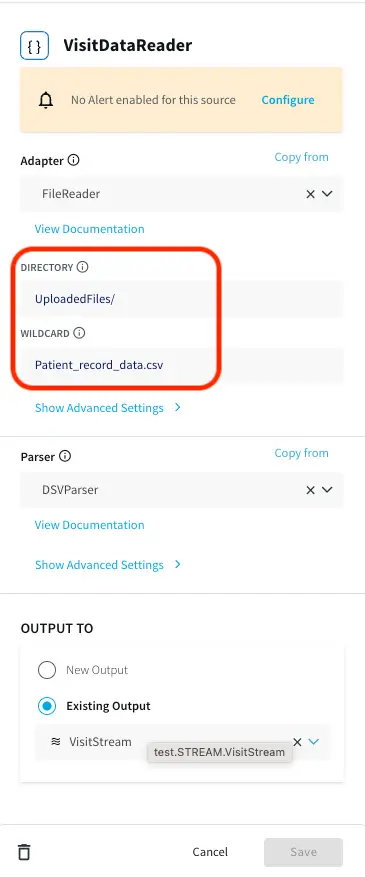
Three Continuous Queries (CQ), ParseVisitData, EnrichVisitData and AddOuterJoinsToVisitData are applied to parse the real-time data and enrich and join with cache. The queries are provided in the TQL file. The processed data is input into ER Monitor as well as Wait Time Monitor for further analytics.

Emergency Room Monitor

The data containing Timestamp, hourOfDay, patientID, hospitalId, stage, symptoms, visitDuration, stageDuration, roomId, providerId, diagnosisCode, hospitalName, hospitalLat, hospitalLon, patientAge, patientlat, patientlon, roomName, roomType, providerLastName, providerType and diagnosis is passed through a 30 min window based on timestamp column and following analytics are performed:

  • DiagnosisAnalytics
  • HandleAlerts
  • HospitalAnalytics
  • OccupancyAnalytics
  • PreviousVisitAnalytics
  • VisitsAnalytics
  • WaitTimeStatsAnalytics

We will briefly look at each of the analyses in the following section. The TQL file contains every query and can be run directly to visualize the apps and dashboard.

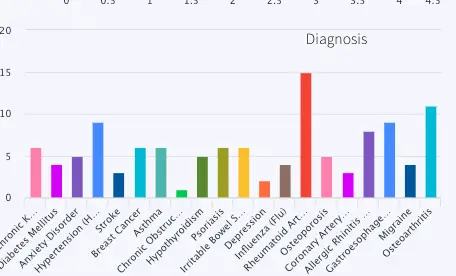
DiagnosisAnalytics: Number of patients for each type of diagnosis in the last 30 minutes is calculated. The data is visualized using a bar chart in the final dashboard.  The name of the WAction store and Event table for the processed data are DiagnosisHistory and DiagnosisCountCurrent respectively. The query reading data for the bar chart is PreviousVisitsByDiagnosis.
HandleAlerts: This analysis uses a Continuous Query to assign wait status as ‘normal’, ‘medium’ and ‘high’. It also generates alerts if the wait time does not improve in 30 minutes. The alert messages are:

Case 1: If wait time improves:
Hospital <hospital name> wait time of <last wait time> minutes is back to acceptable was <first wait time>

Case 2:  If wait time worsens:
Hospital <hospital name> wait time of <last wait time> minutes is too high was <first wait time> with <number of patients> current visits

The alert is sent to a Alert Adapter component named SendHospitalWebAlerts

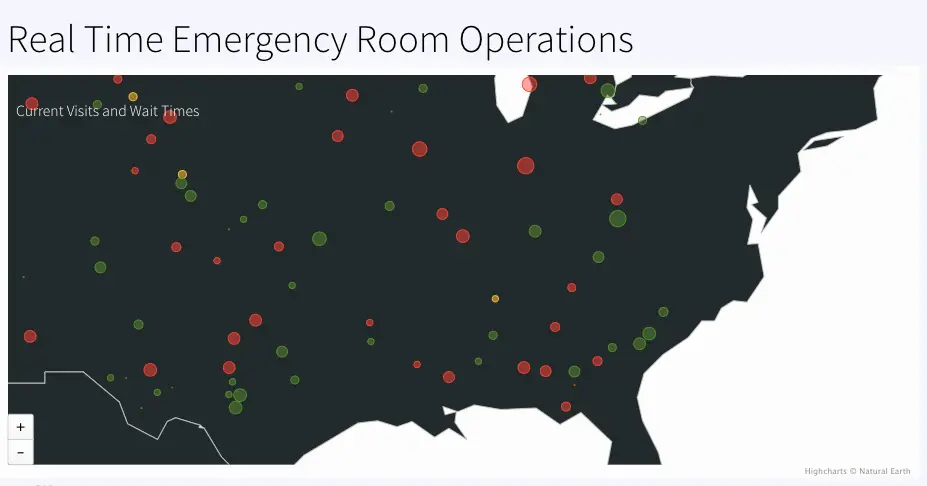
HospitalAnalytics: Calculates number of visits and waitstatus based on maximum wait-time in each hospital. The geographical information of each hospital is used to color code ‘normal’, ‘medium’ and ‘high’ wait status in the map. The event table and WAction Store where the outcoming data is stored are VisitsByHospitalCurrent and VisitsByHospitalHistory respectively.
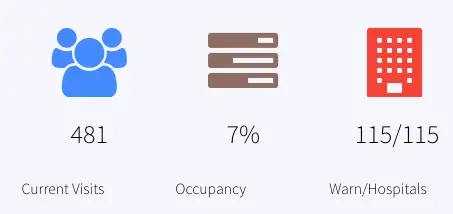
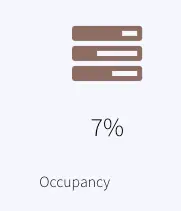
OccupancyAnalytics: Calculate the percentage of occupied rooms from a 30 mins window. The current data is stored in the event table, OccupancyCurrent. The percentage is reported as Occupancy in the dashboard.
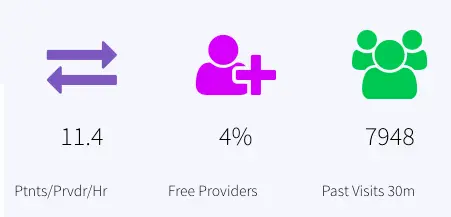
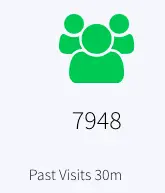
PreviousVisitAnalytics: Number of previous visits that are now Discharged, Admitted or have left in the past 30 mins are calculated. The resulting data is stored in the event table, PreviousVisitCountCurrent and WAction store PreviousVisitCountHistory. The dashboard reports ‘Past Visits 30m’ to show the previous visit count.
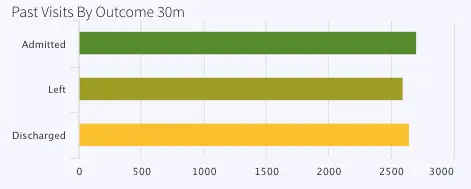
Another CQ queries the number of previous visits by stage (admitted, discharged or left) and stores current data inside event table, PreviousVisitsByStageCurrent and historical data inside WAction store, PreviousVisitsByStageHistory.

The bar chart titled ‘Past Visits By Outcome 30m’ represents this data.
VisitsAnalytics: Calculates the current visit number from the 30 min window and also the number of visits by stage.

The number of current visits is stored in the event table VisitCountCurrent and historical data is stored in the WAction store VisitCountHistory. In the dashboard the current count is reported under ‘Current Visits

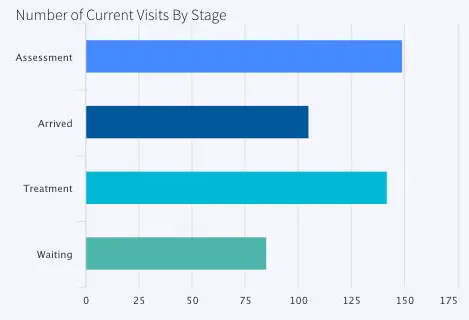
The number of visits by stage (Arrived, Waiting, Assessment or Treatment is also calculated and stored in VisitsByStageCurrent (event table) and VisitsByStageHistory (WAction Store). The data is labeled as ‘Number of Current Visits By Stage’ in the dashboard.
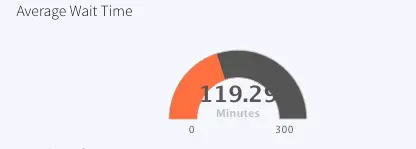
WaitTimeStatsAnalytics: For stage ‘waiting’, the minimum, maximum and average wait time is calculated and stored in WaitTimeStatsCurrent (Event Table) and WaitTimeStatsHistory (WAction Store). 
All data from the 30 min window is saved in the event table CurrentVisitStatus. Provider analytics is done by querying this event table and joining with cache, ‘Providers’. The data is reported in the dashboard as ‘Ptnts/Prvdr/Hr’ and ‘Free Providers

Wait Time Monitor

A jumping window streams one event at a time partitioned by patient ID and Hospital ID. The number of patients ahead of each event is calculated. 

Based on the number of patients ahead, a customized message with estimated wait time information is generated 

Eg:  “<Patient name>, you are <1st/2nd/3rd or nth> in line at <hospital name> with an estimated <duration> wait time 

The patient messages are stored in WACtion store PatientWaitMessages

Dashboards

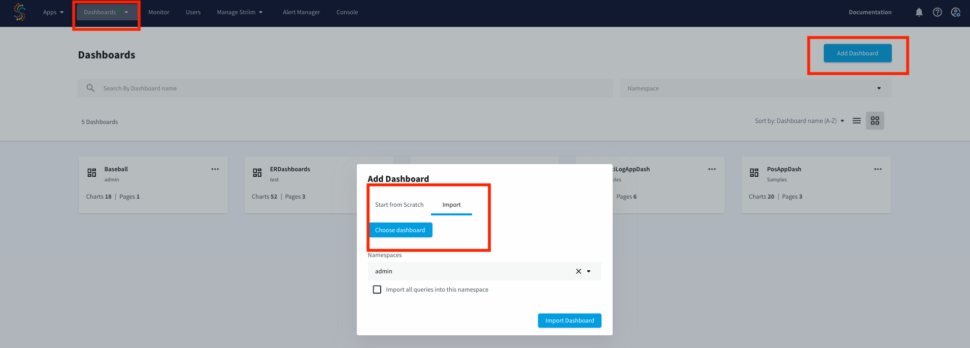
Striim offers UI dashboards that can be used for reporting. The dashboard JSON file provided in our repo can be imported for visualization of ER monitor data in this tutorial. Import the raw JSON file from your computer, as shown below:
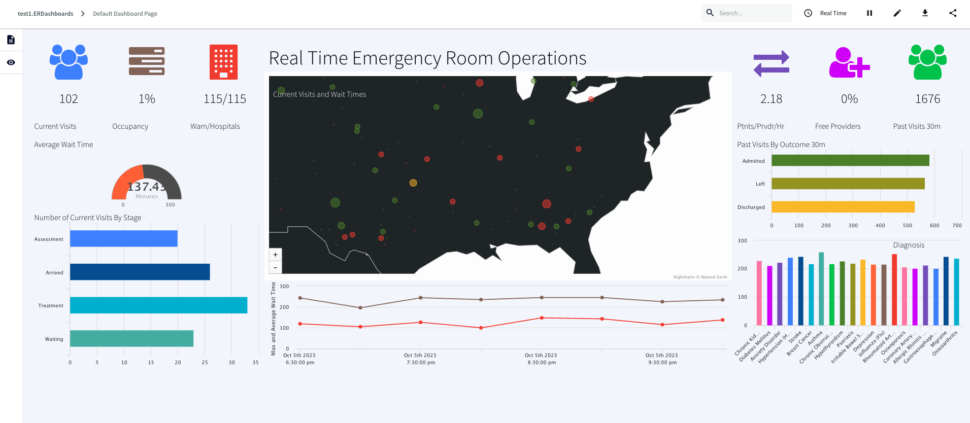
Here is a consolidated list of charts from the ER monitoring dashboard:

ActiveVisits: Number of patients that are in any other stage but “Arrived”, “Waiting”, “Assessment” or “Treatment” every 30 mins labeled as Current Visits  Queries on: VisitCountCurrent

RoomOccupancy:Percentage of rooms occupied in each 30 mins window labeled as Occupancy, Queries Event Table: OccupancyCurrent

HospitalsWithHighWaits: Number of hospital with max wait status > 45 minutes/number of hospitals with wait, labeled as Warn/Hospitals, Queries event table: CurrentVisitStatus

ActiveVisitWaitTime: Average wait time of all hospitals, labeled as Average Wait Time , Queries event table:  WaitTimeStatsCurrent

VisitsByStage: Number of Visits for Assessment, Arrived, Treatment and Waiting at each timestamp, labeled as Number of Current Visits By Stage, Queries event table: VisitsByStageCurrent

GetCurrentVisitsPerHospital: Number of visits every hospital (not ‘Discharged’, ‘Admitted’, ‘Left’) every 30 mins, labeled as, Real Time Emergency Room Operations , Queries event table: VisitsByHospitalCurrent

VisitDurationOverTime: Maximum wait time every 2 hours, labeled as Maximum Wait Time, Queries event table: WaitTimeStatsHistory

PatientsPerProvider: Patients/provider/hr, labeled as Ptnts/Prvdr/Hr, Queries event table: CurrentVisitStatus 

FreeProvider: Total provider(queries: Cache Providers)- provider that are busy (queries: CurrentVisitStatus), calculate percent, labeled as Free Providers

PreviousVisits: Count of Discharged, Admitted, Left from 30 mins window, labeled Past Visits 30m, Queries event table: PreviousVisitCountCurrent

PreviousVisitsByOutcome: Number of Admitted, Left or Discharged in past 30 mins, labeled: Past Visits By Outcome 30m , Queries event table: PreviousVisitsByStageCurrent

PreviousVisitsByDiagnosis: Number of Diagnosis for each disorder in past 30 mins, labeled: Diagnosis, Queries event table: DiagnosisCountCurrent
Conclusion: Reimagine Healthcare Monitoring Leveraging Real-Time Data and Dashboards with Striim

In this tutorial, you have seen and created an Emergency Room (ER) monitoring analytics dashboard powered by Striim. This use case can be leveraged in many other scenarios in healthcare, such as pharmacy order monitoring and distribution. 

Unlock the true potential of your data with Striim. Don’t miss out—start your 14-day free trial today and experience the future of data integration firsthand. To give what you saw in this recipe a try, get started on your journey with Striim by signing up for free with Striim Developer or Striim Cloud

Learn more about data streaming using Striim through our other Tutorials and Recipes.

Efficiently Process Data Streams with Pattern Matching: A Financial Example

Tutorial

Detect Anomalies and Process Data Streams with Pattern Matching: A Financial Services Example

How you can use rule-based, Complex Event Processing (CEP) to detect real world patterns in data

Benefits

Operational Analytics 
Use non-intrusive CDC to Kafka to create persistent streams that can be accessed by multiple consumers and automatically reflect upstream schema changes

Empower Your TeamsGive teams across your organization a real-time view of your Oracle database transactions.Get Analytics-Ready DataGet your data ready for analytics before it lands in the cloud. Process and analyze in-flight data with scalable streaming SQL.
On this page

Introduction

Striim is a unified real-time data streaming and integration product that enables continuous replication from various data sources, including databases, data warehouses, object stores, messaging systems, files, and network protocols. The Continuous Query (CQ) component of Striim uses SQL-like operations to query streaming data with almost no latency.

Pattern matching in data pipelines is often used to run transformations on specific parts of a data stream. In particular, this is a common approach in the finance industry to anonymize data in streams (like credit card numbers) or act quickly on it.

Striim works with a financial institution that has a need to correlate authorization transactions and final capture transactions which typically are brought into their databases as events. Their current process is overly complicated where a sequence of hard queries are made on the databases to see if a set of rows are matching a specific pattern by a specific key. The alternative is to have Databases or Data Warehouses like Oracle/Snowflake use MATCH_RECOGNIZE to do this as a single query; however, for a data stream this has to be done for all the events and the queries hit on the database will be even worse and may need to be done in batches. 

We can use the MATCH_PATTERN and PARTITION BY statements in Striim’s Continuous Query component to process the data in real-time. Striim’s CQ can also mask the credit card numbers to anonymize personally identifiable information. The entire workflow can be achieved with Striim’s easy-to-understand architecture  This tutorial walks through an example we completed with a fictitious financial institution, First Wealth Bank, on using pattern matching and Continuous Query to partition masked credit cards and process them, which is possible only with Striim’s ability to transform, enrich, and join data in realtime.

Use Case

Imagine you are staying at a hotel, “Hotel California”, and from the moment you check-in until you check-out, they charge your credit card with a series of “auth/hold” transactions. At check-out the hotel creates a “Charge” transaction against the prior authorizations for the total bill, which is essentially a total sum of all charges incurred by you during your stay. 

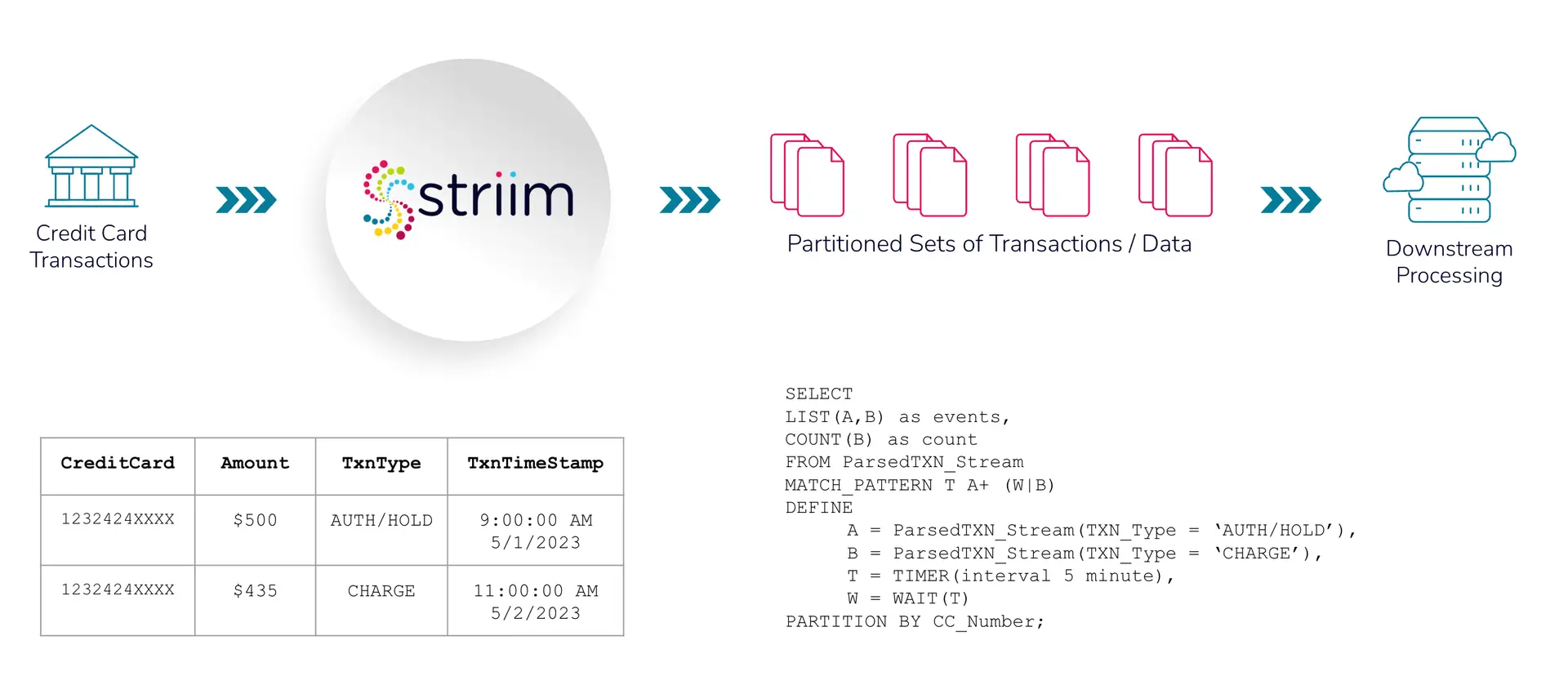
Your financial institution, “First Wealth Bank”, has a streaming transaction pattern where one or more Credit Card Authorization Hold (A) events are followed by a Credit Card Charge (B) event or a Timeout (T) event which is intended to process your charges accurately. 

With Pattern Matching & Partitioning, Striim can match these sequences of credit card transactions in real-time, and output these transactions partitioned by their identifiers (i.e Credit Card/Account/Session ID numbers) which would ultimately simplify the customer experience.

Data Field (with assumptions)

BusinessID = HotelCalifornia
CustomerName = John Doe
CC_Number = Credit-Card/Account number used by customer.
ChargeSessionID (assumption) = CSNID123 – we are assuming this is an id that First Wealth Bank provides as part of authorization transaction response. This id repeats for all subsequent incremental authorizations. If not, we will have to use CreditCard number.
Amount = hold authorization amount in dollars or final payment charge.
TXN_Type = AUTH/HOLD or CHARGE
TXN_Timestamp = datetime when transaction was entered.

As shown in the above schematic, credit card transactions are recorded in financial institutions (in this case, First Wealth Bank) which is streamed in real-time. Data enrichment and processing takes place using Striim’s Continuous Query. Credit card numbers are masked for anonymization, followed by partitioning based on identifiers (credit card numbers). The partitioned data is then queried to check the pattern in downstream processing, ‘Auth/Hold’ followed by ‘Charge’ or ‘Auth/Hold’ followed by ‘Timeout’ for each credit. 

Core Striim Components

MS SQL Reader: Reads from SQL Server and writes to various targets.

Filereader: Reads files from disk using a compatible parser.

Continuous Query: Striim’s continuous queries are continually running SQL queries that act on real-time data and may be used to filter, aggregate, join, enrich, and transform events.

Window: A window bounds real-time data by time, event count or both. A window is required for an application to aggregate or perform calculations on data, populate the dashboard, or send alerts when conditions deviate from normal parameters.

Stream: A stream passes one component’s output to one or more components. For example, a simple flow that only writes to a file might have this sequence.

FileWriter: Writes to a file in various format (csv, json etc)

Step 1: Configure your source

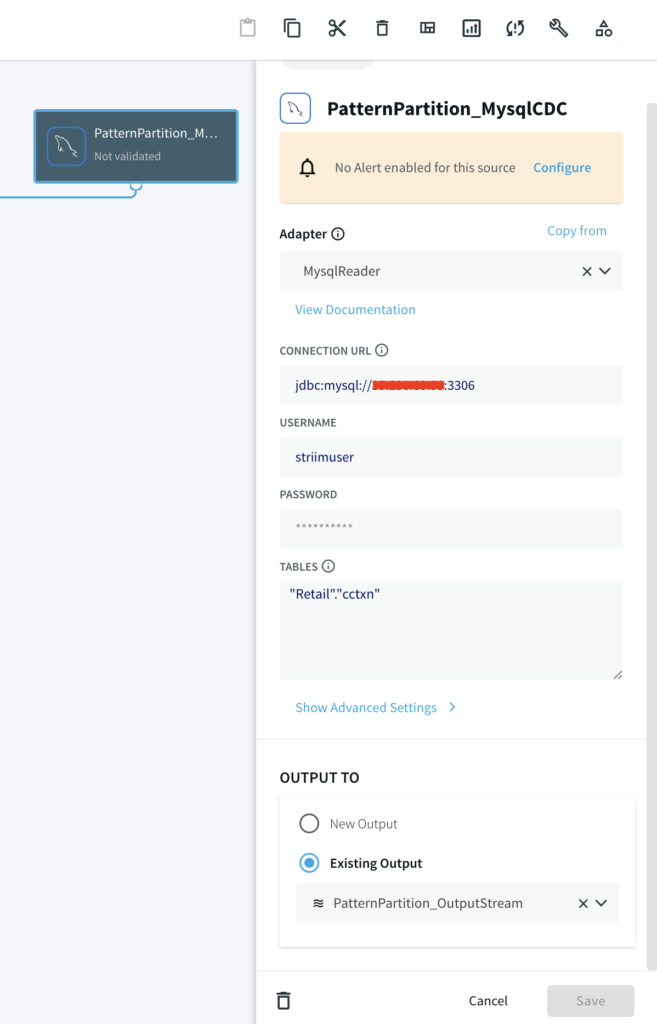
For this tutorial, you can either use MySQL CDC to replicate a real-life business scenario or a csv file if you do not have access to MySQL database.

Striim Demo w/ MySQL CDC

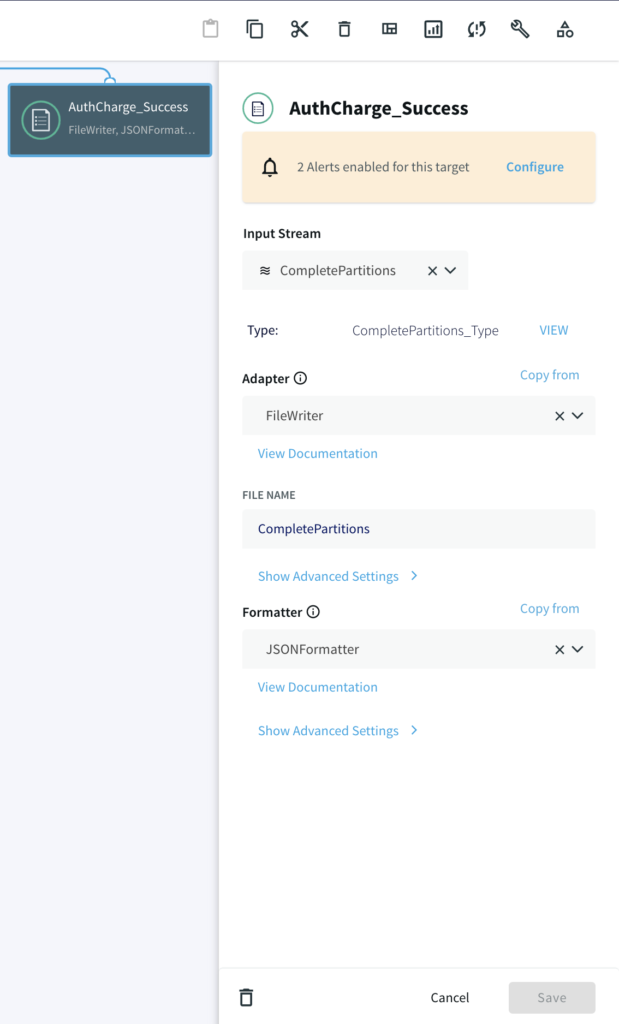
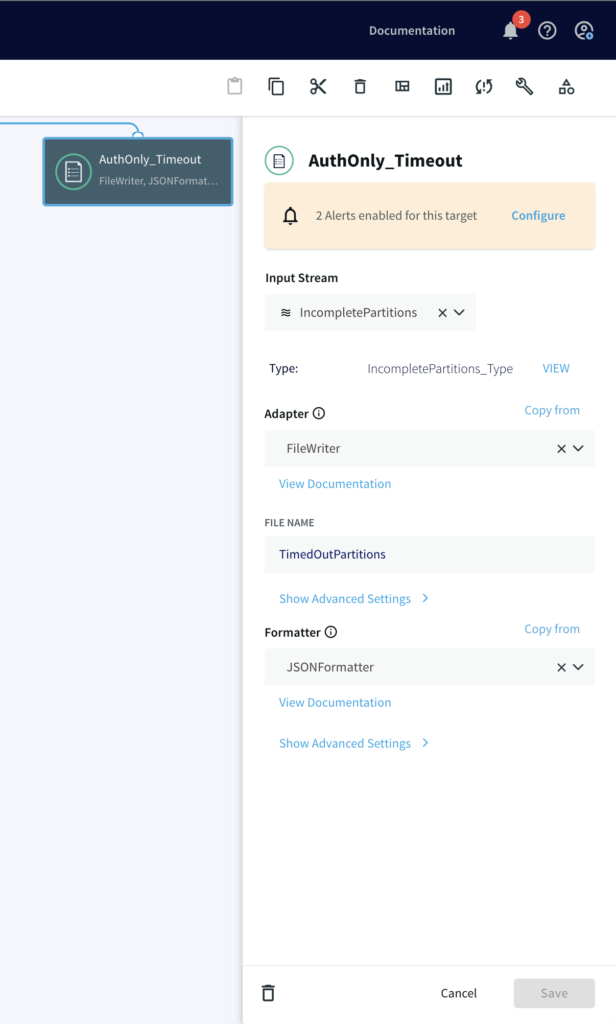
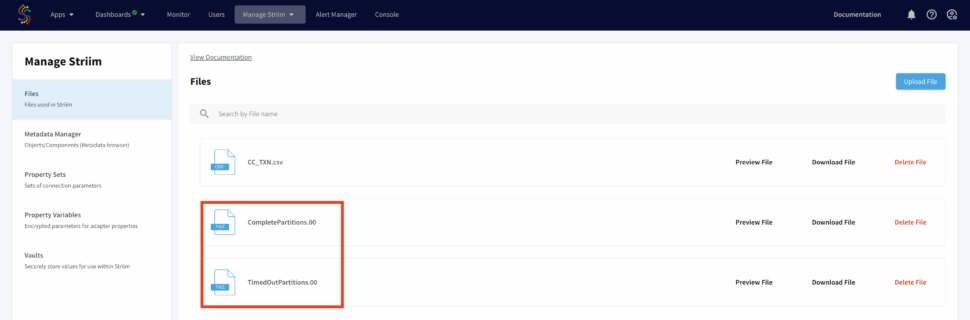
A CDC pipeline that has MySQL/Oracle as source with above data added as sequence of events. The output are two files, CompletePartitions (Pattern Matched) and TimedOutPartitions  (Timer ran down with incomplete CHARGE) for each identifier (Credit Card Number/ Session id).

Demo Data Size

1 million events (transactions) over 250,000 partitions

  • 50,000 partitions for success/complete partitions
  • 200,000 partitions for incomplete/timed-out partitions

The Python script that writes data to your SQL database can be found here.

Striim Demo w/ FileReader CDC-like Behavior

A File Reader-Writer pipeline that can be run locally without relying on a external working database.
This utilizes a python script to write data into a csv file.


Step 2: Mask the Credit Card Numbers

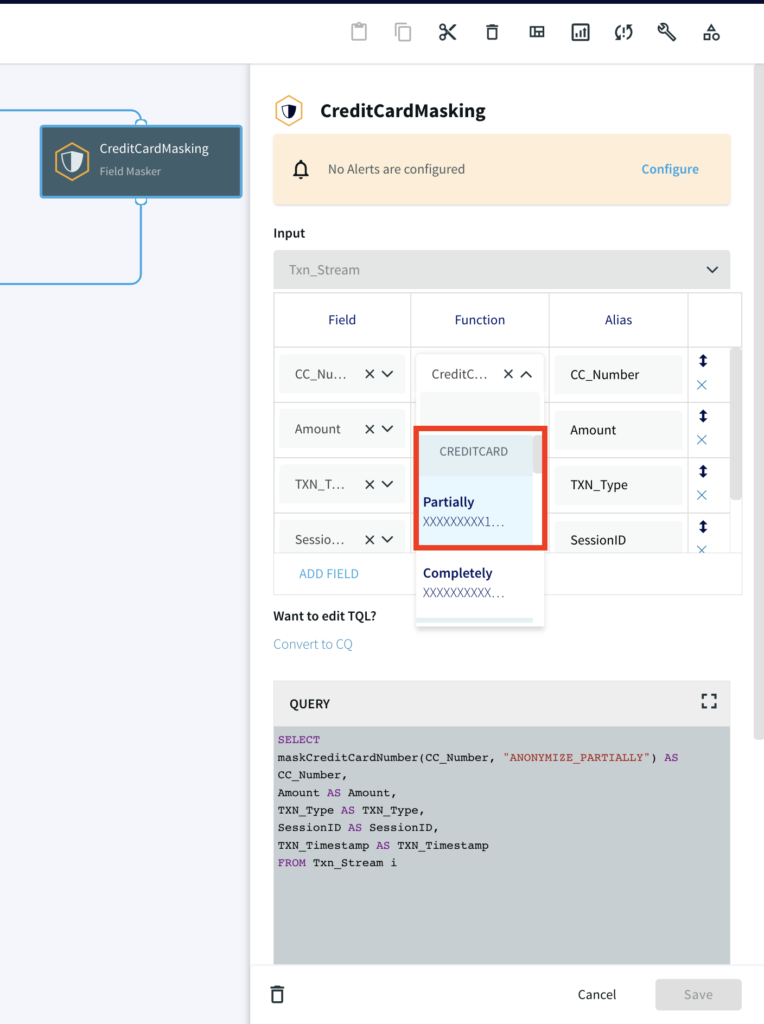
Striim utilizes inbuilt masking function to anonymize personally identifiable information like credit card numbers. The function maskCreditCardNumber(String value, String functionType) masks the credit card number partially or fully as specified by the user. We use a Continuous Query to read masked data from the source. 

				
					SELECT
maskCreditCardNumber(CC_Number, "ANONYMIZE_PARTIALLY") AS CC_Number,
Amount AS Amount,
TXN_Type AS TXN_Type,
SessionID AS SessionID,
TXN_Timestamp AS TXN_Timestamp
FROM Txn_Stream i;


Step 3: Continuous Query (w/ Pattern Match & Partitions)

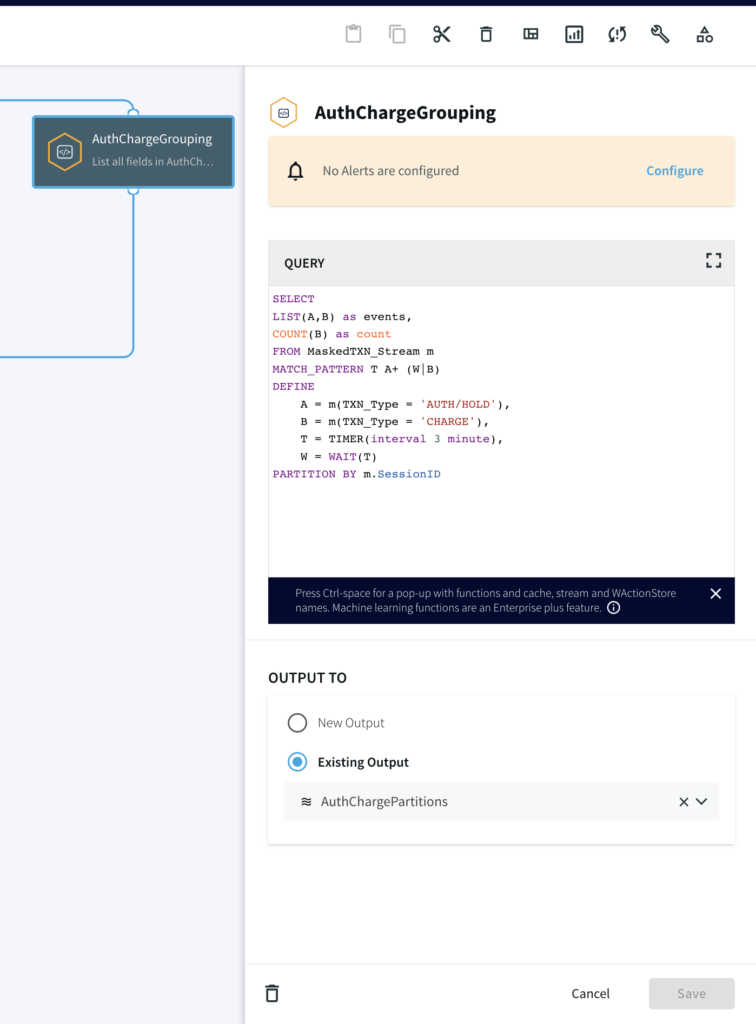
Next, we write a continuous query on the data with masked credit card numbers to partition the events by their distinct CC_NUMBER. The pattern logic for the CQ is:

  • Start the pattern on the first event of ‘A’ (an event where the TXN_Type is AUTH/HOLD) for a particular CC_NUMBER
  • With ‘A’ event to start the pattern, start the timer (mimicking the hold time) for 3 minutes
  • Accumulate any incoming ‘A’ events until either the following happens:
    • ‘W’ occurs where the Timer runs down OR
    • event ‘B’ occurs where the TXN_Type is CHARGE
				
					SELECT
LIST(A,B) as events,
COUNT(B) as count
FROM MaskedTXN_Stream m
MATCH_PATTERN T A+ (W|B)
DEFINE
A = m(TXN_Type = 'AUTH/HOLD'),
B = m(TXN_Type = 'CHARGE'),
T = TIMER(interval 3 minute),
W = WAIT(T)
PARTITION BY m.SessionID


Step 4: Split the data into Complete and TimedOut Criteria

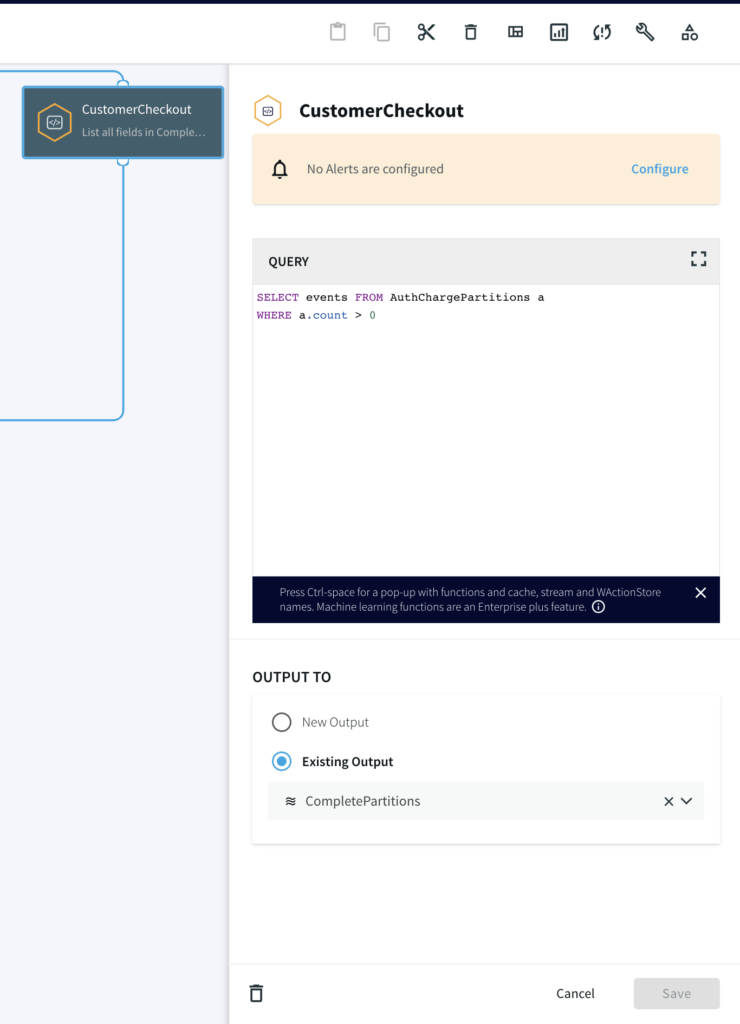
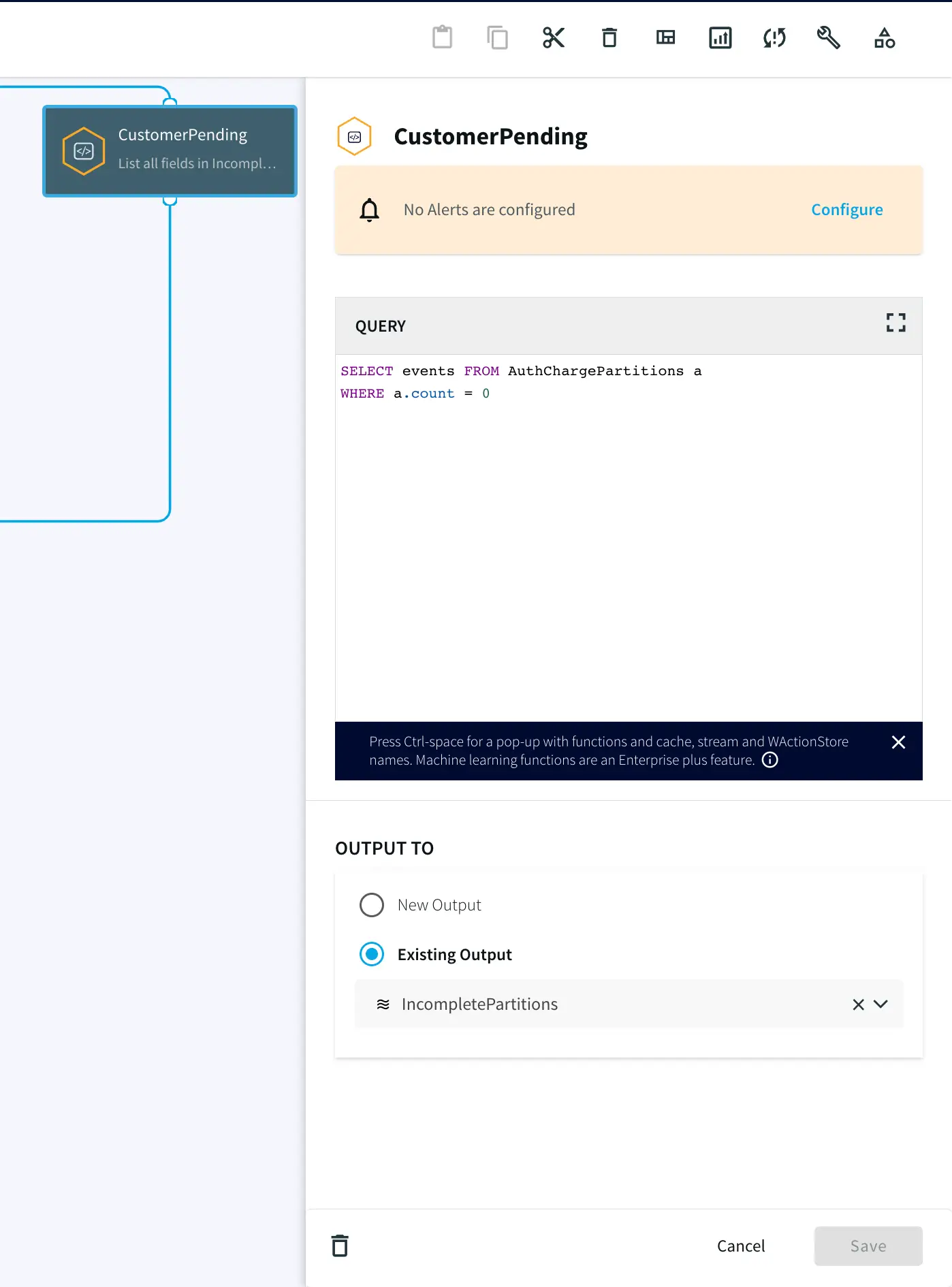
In this step, two Continuous Queries are written to split the data into two categories. One where the credit cards has been Charged and other where there was no charge until timeout.

Step 5: Write the Output using FileWriter

Once all events (‘A’ and ‘B’) are accumulated in the partition, two different files are written, one where timers ran down with incomplete charge and other where the credit card was actually charged after auth/hold.

Run the Striim App

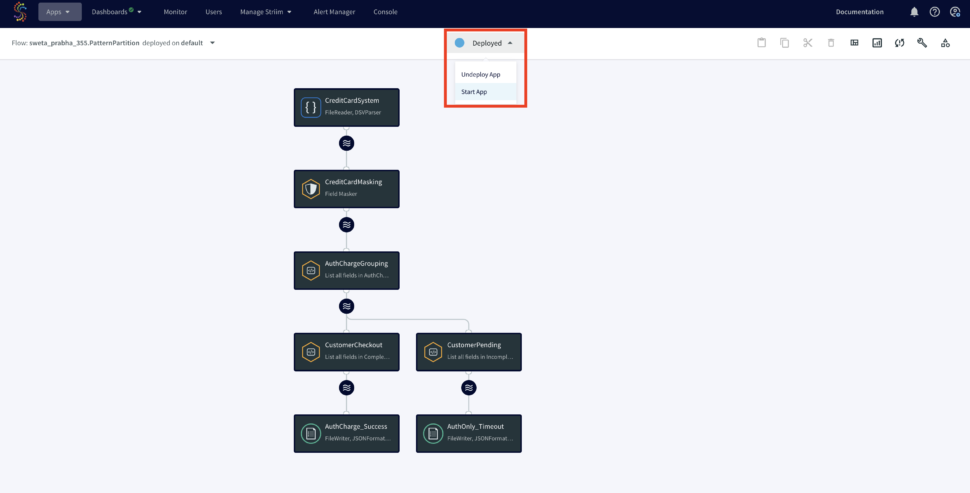
You can import the TQL file from here and run the app by selecting ‘Deploy’ followed by ‘Start App’ from the dropdown as shown below:

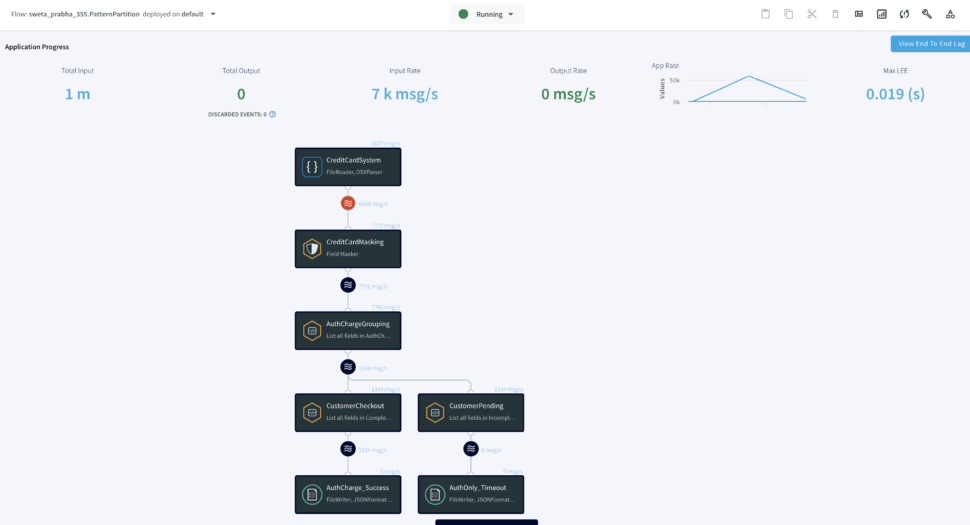
Once the Striim app starts running you can monitor the input and output data from the UI. To learn more about app monitoring, please refer to the documentation here.

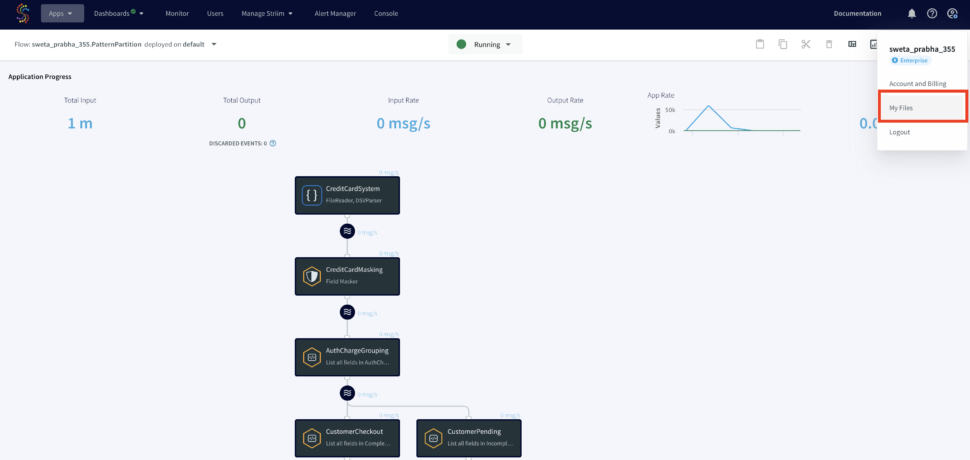
The output files will be stores under ‘My Files’ in the web UI as shown below:

Wrapping Up

As you can see in this use case, Striim can help organizations simplify their real-time workflow by processing and enriching data in real-time using Continuous Query. 

This concept can be applicable to many financial use-cases, such as Brokerage Industries where streaming trade order fulfillment patterns are analyzed, for example, a Market Order Submitted (A) event is followed by a Market Order Fulfilled (B) event OR a Canceled (C) event. This has to be done in real-time as stock market brokerage does not have time to wait around for batch processing and has a very high SLA for data.

Unlock the true potential of your data with Striim. Don’t miss out—start your 14-day free trial today and experience the future of data integration firsthand. To give what you saw in this recipe a try, get started on your journey with Striim by signing up for free Striim Developer or Striim Cloud

Learn more about data streaming using Striim through our Tutorials and Recipes.
Tools you need

Striim

Striim’s unified data integration and streaming platform connects clouds, data and applications.

Oracle Database

Oracle is a multi-model relational database management system.

Apache Kafka

Apache Kafka is an open-source distributed streaming system used for stream processing, real-time data pipelines, and data integration at scale.

Azure Cosmos

Azure Cosmos is a fully managed NoSQL database.

Azure Blob Storage

Azure Blob Storage is an object store designed to store massive amounts of unstructured data.

Build Smart, Real-Time Data Pipelines for OpenAI using Striim

Tutorial

Build Smart, Real-Time Data Pipelines for OpenAI using Striim

Striim transforms data from hundreds of sources into real-time streams for OpenAI

Benefits

Get Started with Streaming

Learn how to play with real-time streams with simple auto-generated data streams

Real-Time Ingest for OpenAI

Enable true real-time ingest using openai API to build smart AI modelsConvert Training data to JSONL format Use Striim’s Continuous Query to process data into desired format
On this page

Overview

JSON data format can be particularly useful for preparing AI training data due to its ease of transfer and data manipulation, allowing for easy summarization of relevant information as part of the prompt. OpenAI accepts the prompt-completion format, also known as JSON line format, for training models. Data preparation is a crucial aspect of creating AI models, and converting JSON to JSON line format is the first step. While Python is typically used to convert dataset formats, for large datasets and production environments, it may not be the most efficient tool.

Striim is a unified real-time data streaming and integration product that enables continuous replication from various data sources, including databases, data warehouses, object stores, messaging systems, files, and network protocols. The Continuous Query (CQ) component of Striim uses SQL-like operations to query streaming data with almost no latency.

In this recipe, we read a JSON file of grocery and gourmet food reviews from a S3 bucket and processed it using a CQ to generate prompt-completion pairs as input for OpenAI model training. To recreate the Striim application, follow this tutorial. To try Striim for free, sign up for the developer version here. With Striim Developer, you can prototype streaming use cases for production use at no upfront cost, stream up to 10 million events per month with unlimited Streaming SQL queries, and simulate real-time data behavior using Striim’s synthetic continuous data generator.

Background

OpenAI is an artificial intelligence research laboratory that was established with the goal of promoting and developing friendly artificial intelligence. Initially, it operated as a non-profit organization that allowed for free collaboration with institutions and researchers by making its patents and research open to the public. However, as artificial intelligence gained more traction and with investments from major industries like Microsoft, OpenAI transitioned from a non-profit to a for-profit organization, with its profits capped at 100 times any investment.

One of OpenAI’s notable developments is the Generative Pre-trained Transformer-3 (GPT-3), a machine learning-driven language model that generates human-like text using pre-trained algorithms. The latest milestone in OpenAI’s efforts to scale up deep learning is the GPT-4 model, which accepts both image and text inputs and produces text outputs that exhibit close to human-level performance on various professional and academic benchmarks.

Natural Language Generation (NLG) is a domain that is responsible for converting structured data into meaningful phrases in natural language form. GPT-3 has been called “the next generation of NLG” due to its ability to understand data, extract meaning, and identify relationships between data points that can be communicated in plain English, which is an open-source and free tool.

There are numerous use cases where OpenAI can positively impact businesses. Developers can use the OpenAI API to create applications for chatbots, content creation, customer service, and more. However, an important aspect of using OpenAI is training the built-in models with training data. A vast amount of data is generated every day, most of which is unstructured. OpenAI expects its training data in Jsonl format, which consists of a prompt-completion pair. Striim’s CQ component can be used to easily convert real-time data from JSON to JSONL format, making Striim a valuable tool in the pipeline.

Why Striim

Striim offers a straightforward, unified data integration and streaming platform that combines change data capture (CDC), application integration, and Streaming SQL as a fully managed service.

Striim can be used for OpenAI by parsing any type of data from one of Striim’s 100+ streaming sources into the JSONL format, which can be easily uploaded to OpenAI for model creation. The following steps can be taken to use Striim for OpenAI:

  1. Set up a Striim account and connect to the data source from which you want to extract data.
  2. Use Striim’s Continuous Query (CQ) component to query streaming data using SQL-like operations and parse the data into JSONL format.
  3. Save the parsed data into a file and upload it to OpenAI for model creation.

It’s important to note that the specific steps involved in using Striim for OpenAI may depend on the particular use case and data source. However, Striim’s ability to parse data into JSONL format can be a valuable tool in preparing data for OpenAI model creation.

In this use case, Striim parses data into JSONL format, which can then be uploaded to OpenAI for model creation.

Core Striim Components

S3 Reader: The S3 Reader source reads from an Amazon S3 bucket with the output type WAEvent except when using the Avro Parser or JSONParser.

Continuous Query: Striim’s continuous queries are continually running SQL queries that act on real-time data and may be used to filter, aggregate, join, enrich, and transform events.

File Writer: Writes files to disk using a compatible parser.

Step 1: Configure your source containing raw data

Please find the app TQL file (passphrase: striimrecipes) from our github repository to directly upload into the flow designer and edit the source and target configuration.

For this recipe, we have read raw data in JSON format from S3 bucket. If needed, please  create an IAM user that can access your S3 bucket. If you already have your source set up, go to your homepage. Click create app followed by ‘Start from scratch’ under ‘Build using Flow Designer

Name your app and click save. You will be redirected to the Flow Designer. Select S3 Reader source from the list of components on the left and enter your S3 bucket name, Object name and choose a relevant parser. For this use-case we have a JSON file, hence a JSONParser is chosen. You can find the JSON file in our github repository.

Step 2: Write the Continuous Query to convert JSON data into Prompt and Completion

A JSON file can be parsed to JSONL using Python but it is a lengthy process compared to creating a pipeline using Striim’s CQ component. Drag a CQ component from the list of components on the left and enter the following query:

SELECT
  (‘ReviewerID=’ + data.get(‘reviewerID’).textValue() + “, ” +
  ‘asin=’ + data.get(‘asin’).textValue()+ “, ” +
  ‘rating=’ + data.get(‘overall’))
  as prompt,
  data.get(‘reviewText’).textValue()
  as completion
FROM groceryStream j

The above query will continuously parse the incoming raw data into Jsonl format that has a prompt and completion.

Step 3: Read the parsed data and upload to OpenAI using relevant APIs

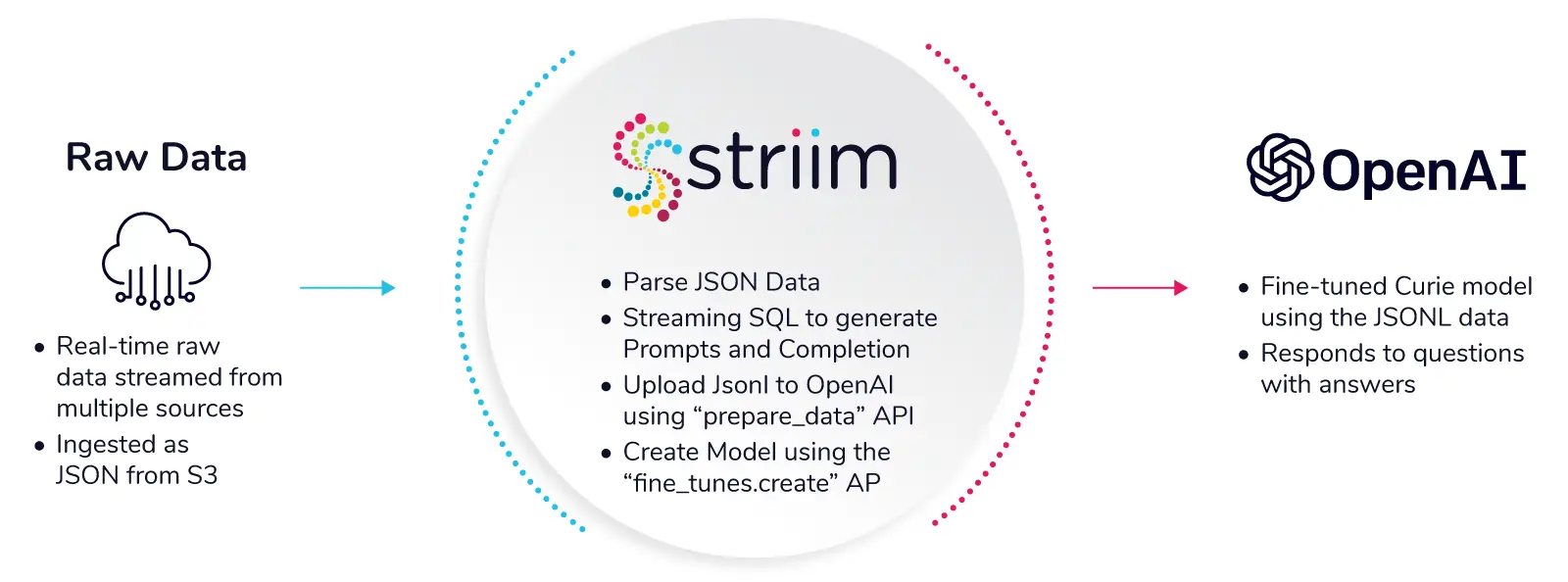
In this step we read the JSONL file and upload it into OpenAI for model creation. For this demo, we have written the parsed data with fileWriter and uploaded it to OpenAI using “prepare_data” API and trained with curie model/engine using “fine_tunes.create” API. This entire pipeline can be automated with custom Java functions or Open Processors.

For the fileWriter component, specify the filename, directory which is the path of the output file, ROLLOVER and FLUSH Policies and the formatter.

Step 4: Running the Striim application

Click on Start from the dropdown menu to run your app. You can monitor your data by clicking on the eye wizard next to each stream.

Tuning the Model and Asking Questions

You can try out GPT-3 for three months of free credits if you do not have an account yet. For help with fine tuning your model, follow this link. After you have installed OpenAI locally and exported your account’s API key, you can access OpenAI from your CLI . Use fine_tunes.prepare_data API for training data preparation:

openai tools fine_tunes.prepare_data -f <LOCAL_FILE>

Next, create a fine-tuned model using fine_tunes.create API:

openai api fine_tunes.create -t <TRAIN_FILE_ID_OR_PATH> -m curie

The fine tuning job will take sometime. Your job may be queued behind another job, and training the model can take minutes or hours depending on the model and dataset size. If the event stream is interrupted for any reason, you can resume it by running:

openai api fine_tunes.follow -i <YOUR_FINE_TUNE_JOB_ID>

After the model is trained, you can start making requests by passing the model name as the model parameter of a completion request using completion.create API.

openai api completions.create -m <FINE_TUNED_MODEL> -p <YOUR_PROMPT>

OpenAI allows us to optimize algorithmic parameters that will increase the precision of the model. In this recipe, we have trained a basic AI model with grocery and gourmet food reviews. The model can be improved with larger datasets and hyperparameter tuning, and businesses can harness the real-time AI models for better decision-making. Here are some of the questions we asked our model:

Question 1: What are customers hating in coffee?

Question 2: What ingredients do I need to make a traditional panang curry?

Question 3: What spices are preferred in roast chicken?

Question 4: What is the most popular food item consumed?

Setting Up the Striim Application

Step 1: Create a S3 user with required permissions.

Step 2: Configure your source S3 reader. Enter access key and secret key for your user.

Step 3: Parse the source data stream to convert into JSONL format using Continuous Query.

Step 4: Configure the target to write the parsed data using FileWriter.

Step 5: Deploy and Run your real-time streaming application .

Step 6: Use OpenAI API to prepare and tune the data to build an AI model. The AI model responds to questions asked by users.

Wrapping Up: Start your Free Trial Today

Want to try this recipe out for yourself and experience the power of real-time data streaming and integration?  Get started on your journey by signing up for Striim Developer or Striim Cloud. Dive into data streaming and analytics with ease and transform your decision-making today. With Striim Developer, you’ll have access to a free sandbox environment that allows you to experiment with Streaming SQL and Change Data Capture for up to 10 million events per month, free forever. It’s an ideal way to dive into the world of data streaming and real-time analytics without any upfront investment.

For those who need a more comprehensive solution, Striim Cloud is the perfect choice. As a fully managed SaaS solution — available on AWS, Google Cloud, and Microsoft Azure — Striim Cloud allows you to focus on building and optimizing your applications while we handle the complex data integration and streaming infrastructure management.

Tools you need

Striim

Striim’s unified data integration and streaming platform connects clouds, data and applications.

OpenAI

OpenAI is a private research laboratory that aims to develop and direct artificial intelligence (AI) in ways that benefit humanity as a whole.

Amazon S3

Amazon S3 is cloud object storage with industry-leading scalability, data availability, security, and performance.

Striim Real-Time Analytics Intro Recipe

Tutorial

Striim Real-Time Analytics Quick Start

Go from zero to Streaming Analytics in a matter of clicks

Benefits

Get Started with Streaming

Learn how to play with real-time streams with simple auto-generated data streams

Explore Striim Dashboards

Use Striim’s SQL dashboard for real-time analytics

Free Streaming with Striim Developer
 
Stream up to 10 million events per month for free with Striim Developer
On this page

Overview

In today’s fast-paced, always-on lifestyle, real-time data is crucial. No one wants to know where their rideshare was ten minutes ago, miss out on the trade of a lifetime, or find out that half the items they ordered from their delivery app were out of stock. However, for many organizations, real-time data is out of reach due to the complexity of the infrastructure and the need to integrate with internal systems. This is where Striim comes in.

Why Striim?

Striim provides a simple unified data integration and streaming platform that combines change data capture (CDC), application integration, and Streaming SQL as a fully managed service. 

Free Streaming for Developers!

With Striim Developer, you can prototype streaming use cases for production use with no upfront cost, stream up to 10 million events per month with unlimited Streaming SQL queries, and simulate real-time data behavior using Striim’s synthetic continuous data generator.

Want to see how easy it is to use Striim Developer for a real-time analytics use case? This tutorial will show you how to use Striim to process and analyze real-time data streams using continuous queries. You’ll also learn how to use a Striim dashboard for real-time data visualizations and reports. Whether you’re a data engineer or an analyst, this tutorial is the perfect introduction to real-time data insights with Striim Developer.
Core Striim Components

Continuous Generator: A continuous data-generator that can auto generate meaningful data for a given set of fields

Continuous Query: Striim’s continuous queries are continually running SQL queries that act on real-time data and may be used to filter, aggregate, join, enrich, and transform events.

Window: A window bounds real-time data by time, event count or both. A window is required for an application to aggregate or perform calculations on data, populate the dashboard, or send alerts when conditions deviate from normal parameters.

Dashboard: A Striim dashboard gives you a visual representation of data read and written by a Striim application.

Get Started

Watch this step-by-step video walkthrough or read through all the steps below:

Step 1: Sign up

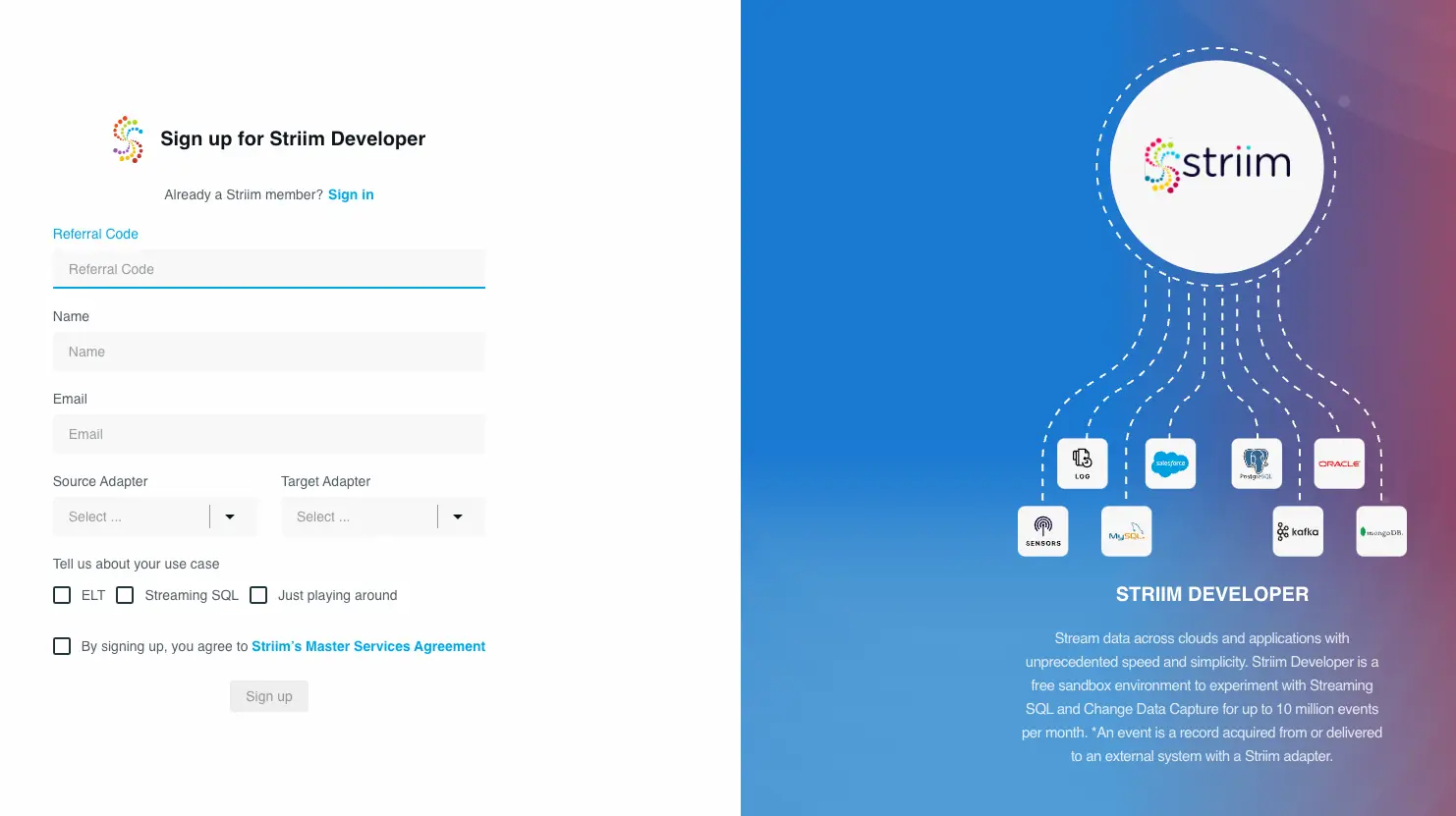
To sign up for free Striim Developer, you can use either your personal or work email address. Go to https://signup-developer.striim.com/ and use your referral code. If you cannot reach this page, try disabling any ad/cookie blockers or sign up from an incognito page. Fill in all your details and select your choice of source and target from the dropdown list.

Step 2: Create your account and complete signup

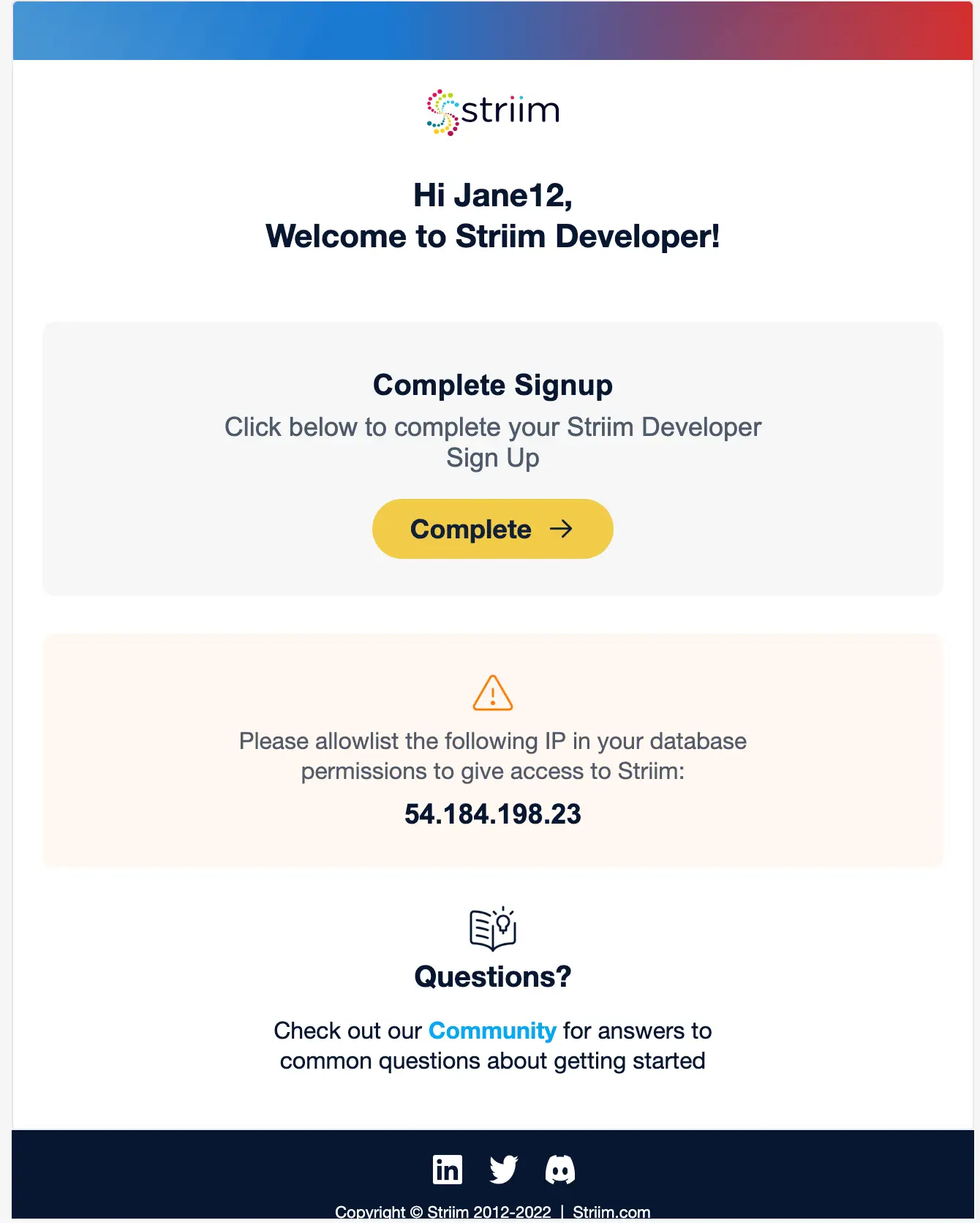
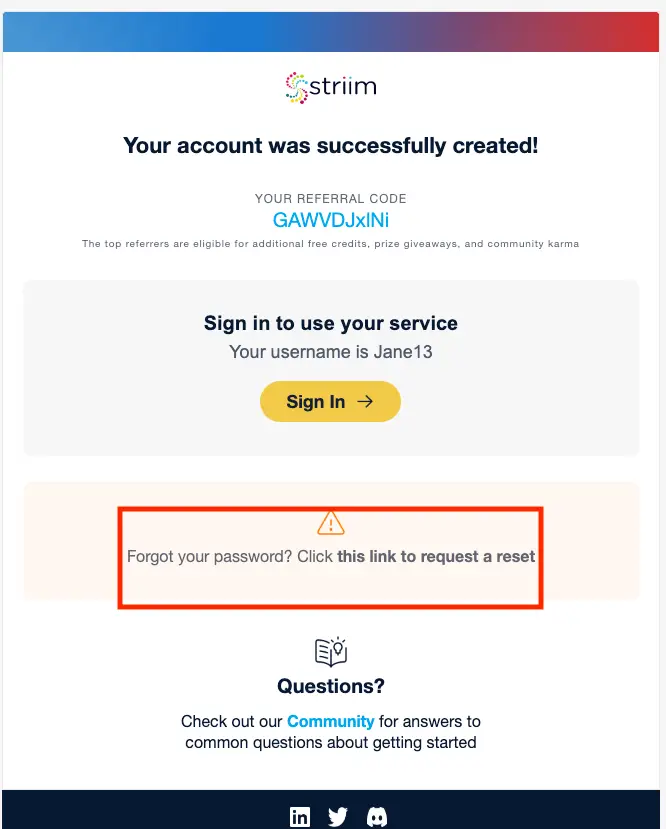
After you submit the form in Step 1, check your inbox. You would receive an email from Striim Developer with the next steps. Check your spam folder if you do not get the following email.

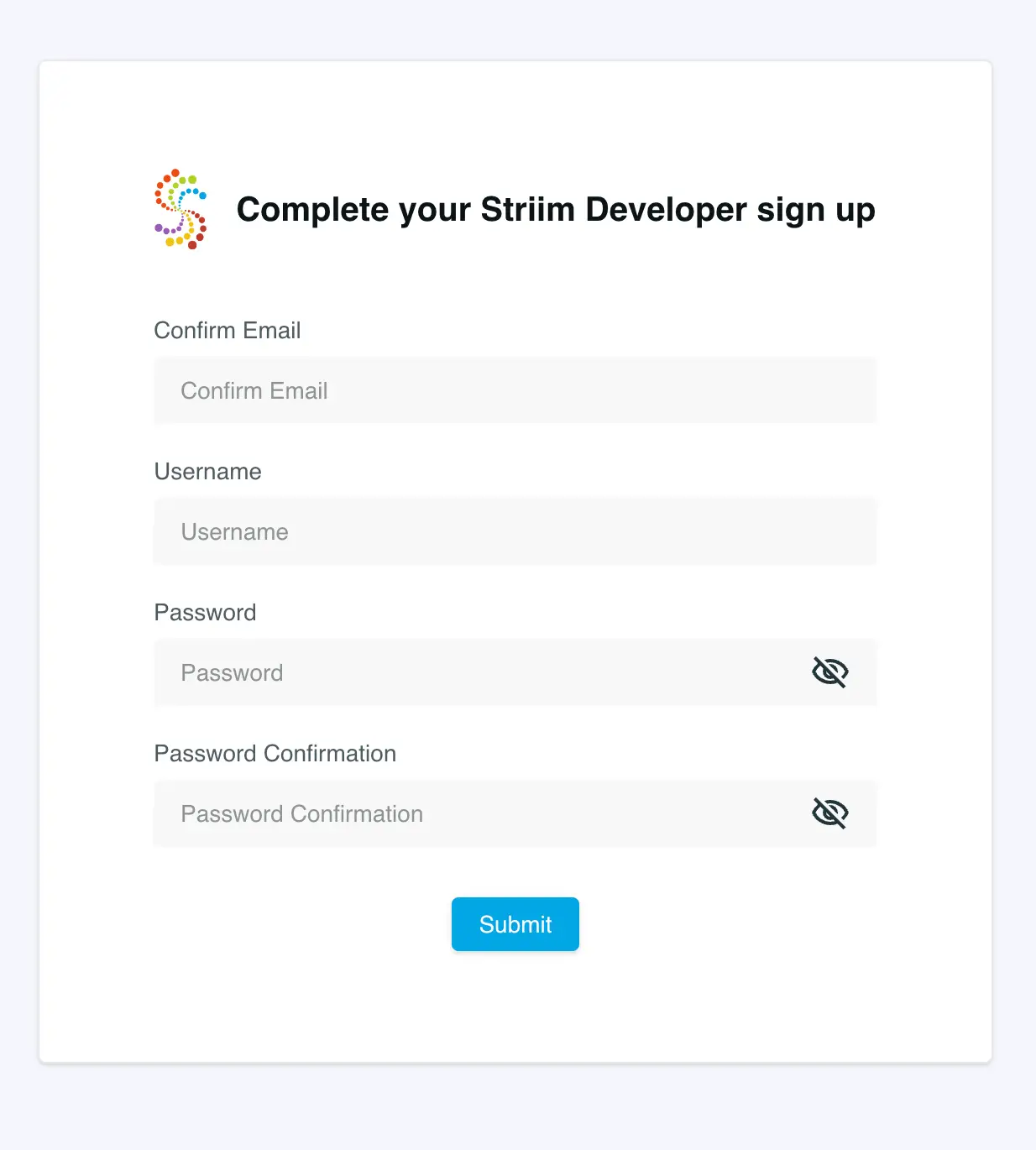
Complete your signup by clicking ‘Complete’. That will prompt you to confirm your email address and set your username and password. You can ignore the part about whitelisting the IP address.

Step 3: Sign in using your username and password

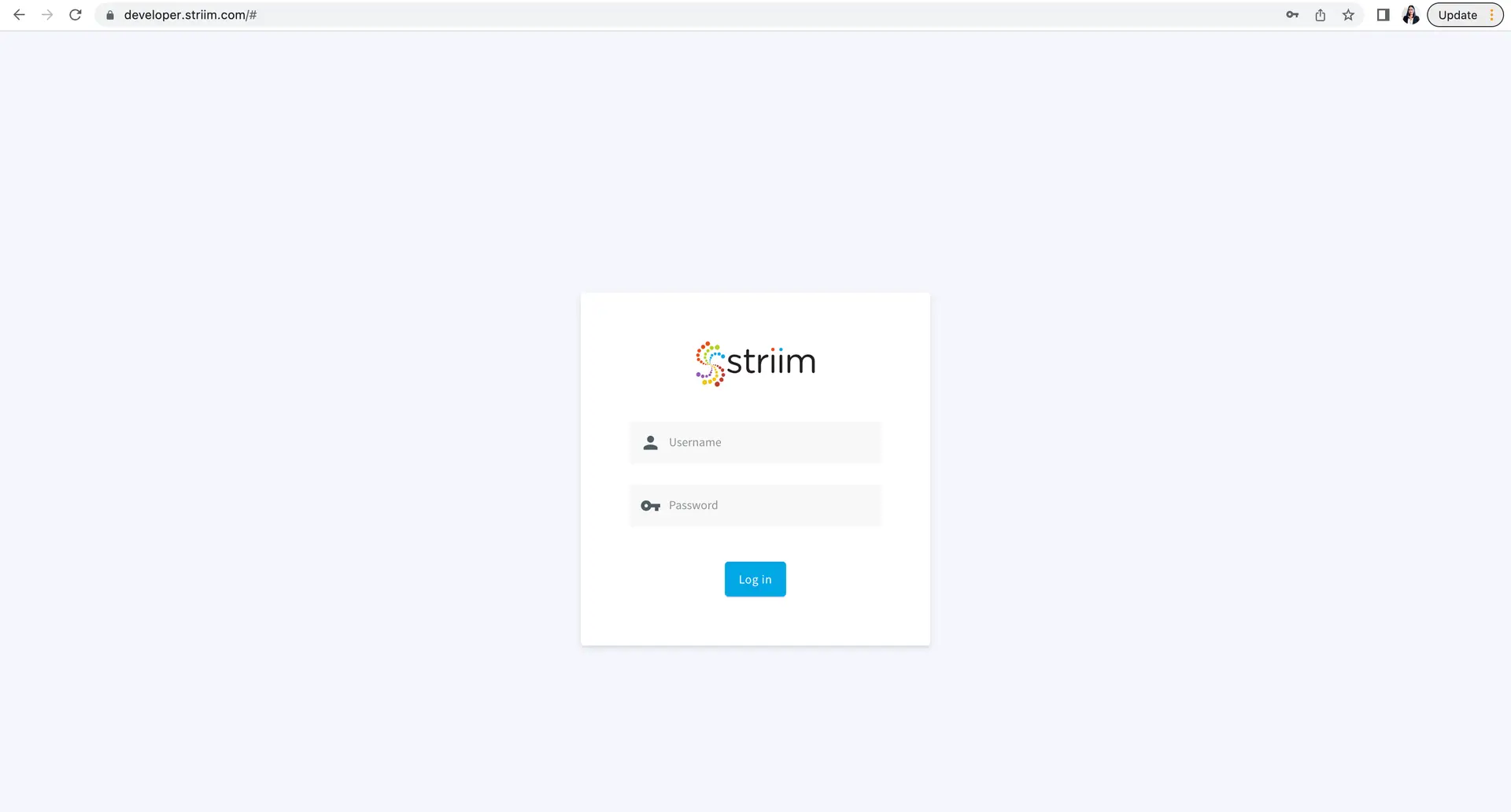
Once you submit the form from Step 2, you will be redirected to developer.striim.com sign in page where you can enter your username and password. You will also receive a confirmation email that contains the reset password in case you forget your password.

Create your first real-time analytics app

Step 1: Create and name your Striim App

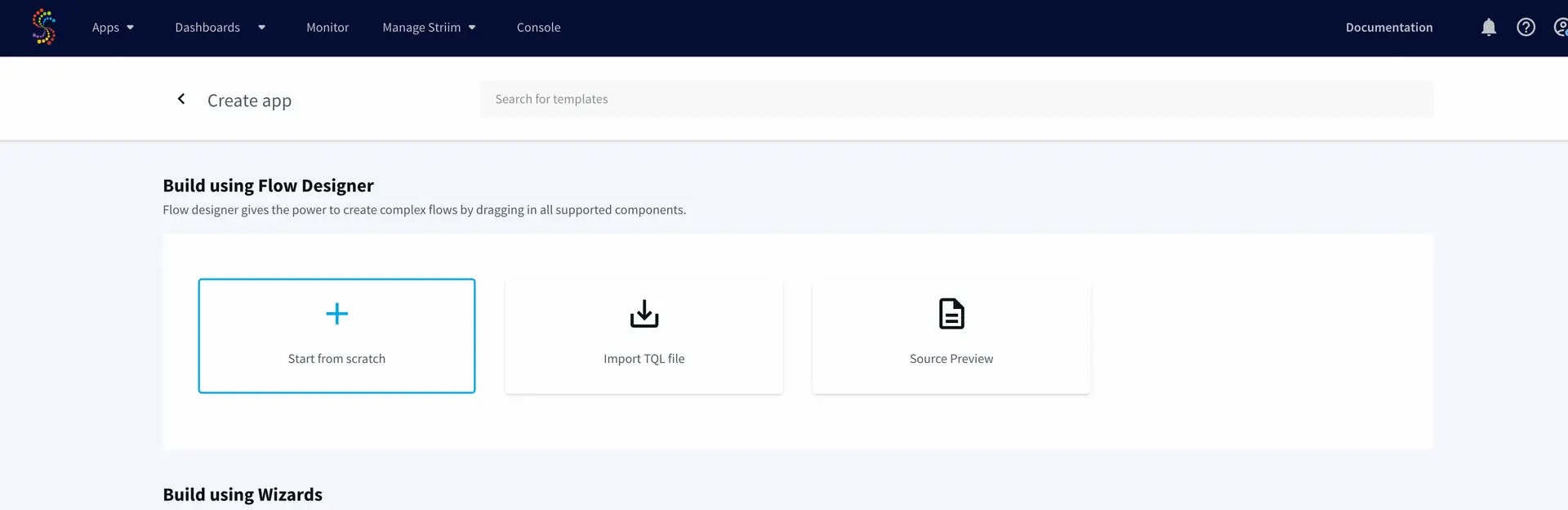
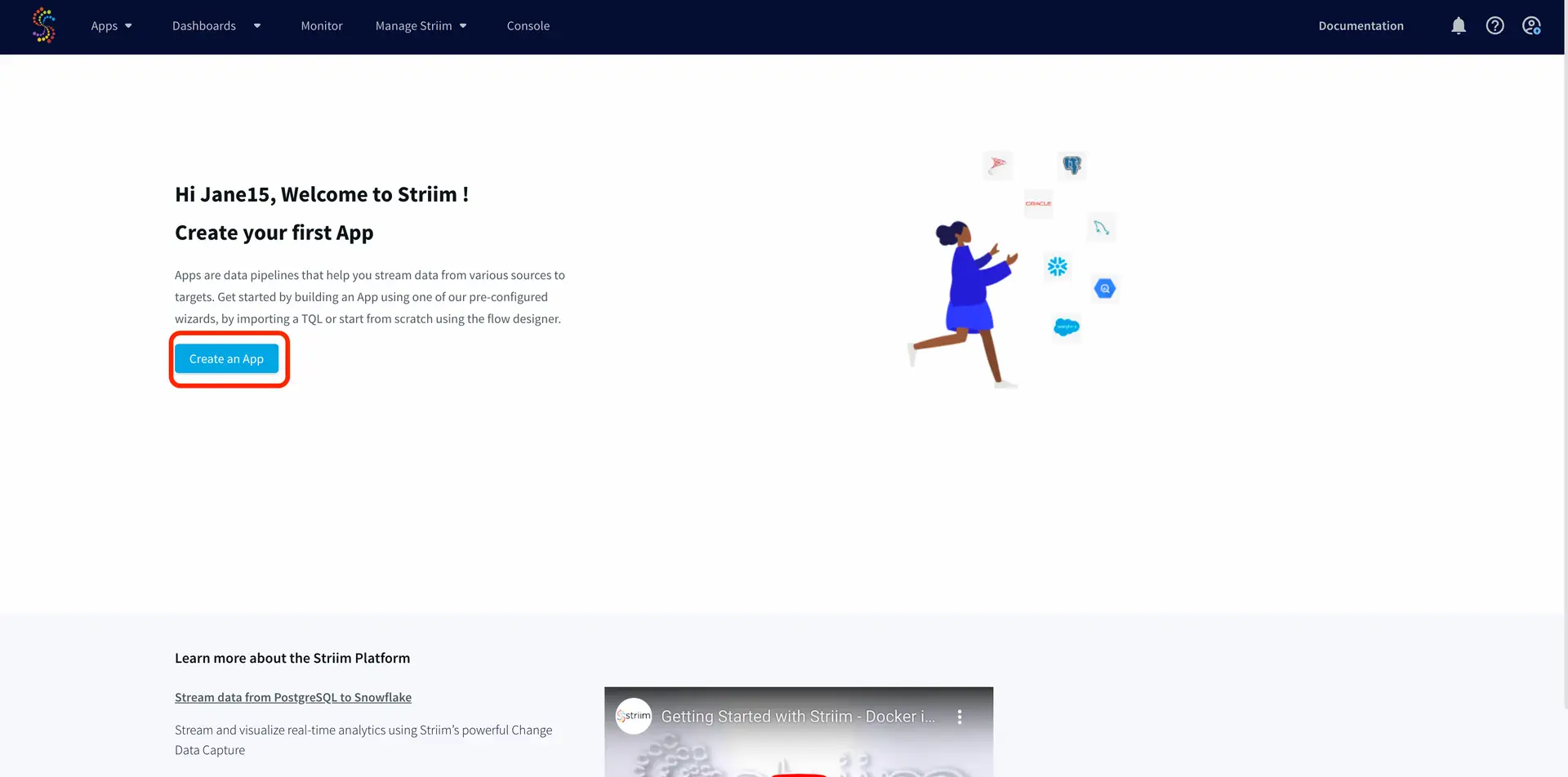
After you have signed into your developer account, click on ‘Create an App’ on the landing page.

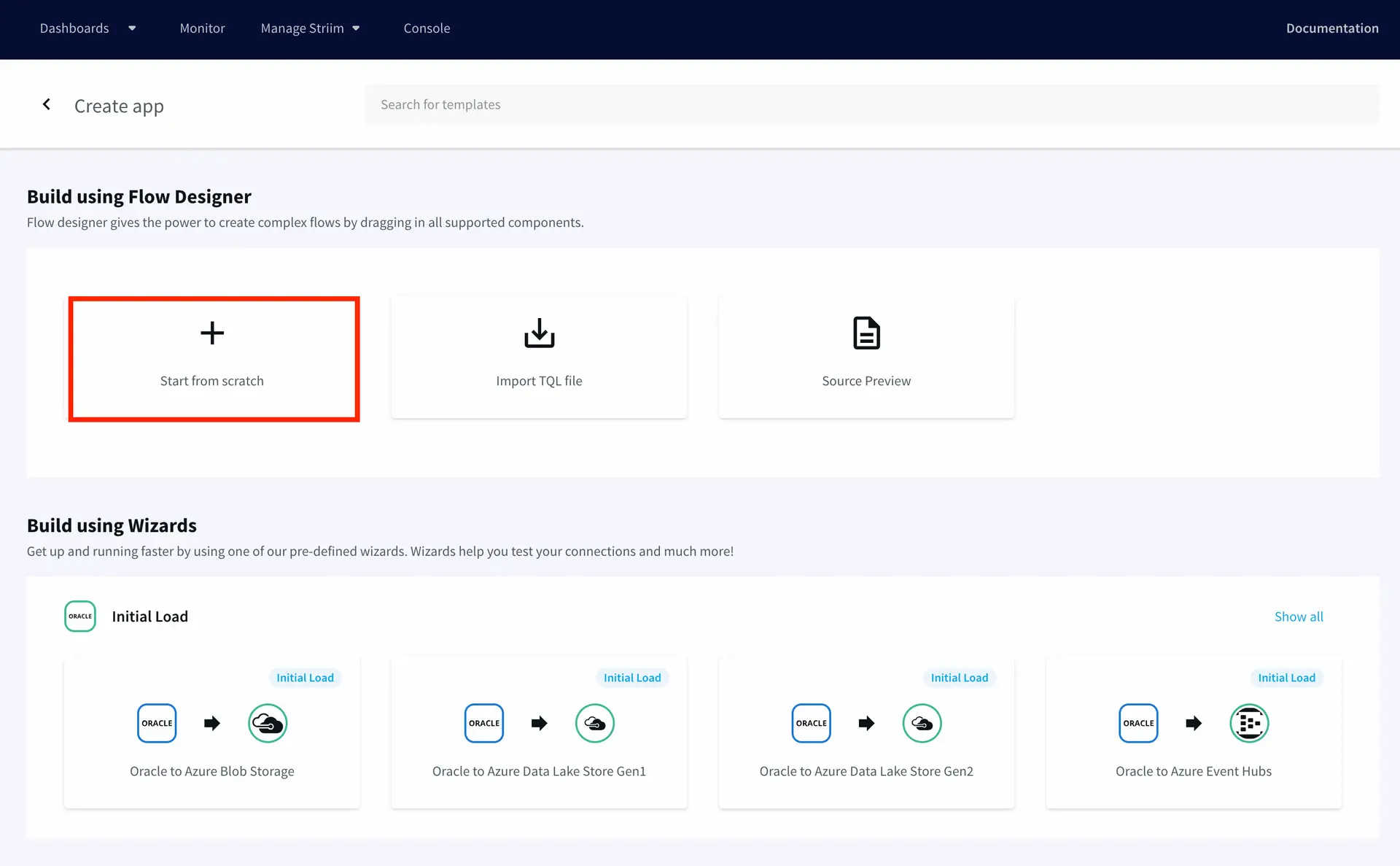
Build your app using flow designer by selecting ‘Start from scratch’.

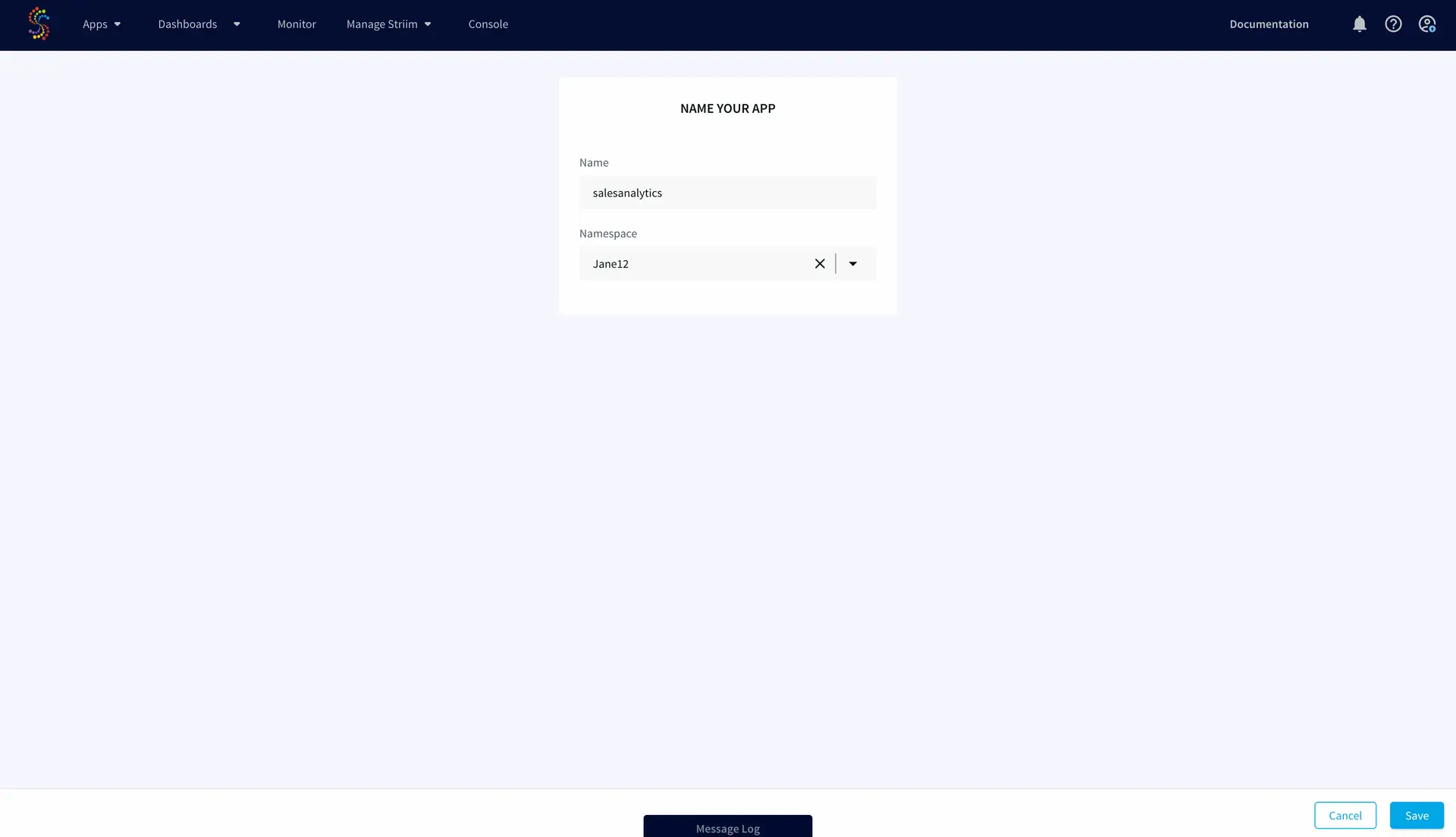
 Next, name your app ‘salesanalytics’ and click ‘save’ on the lower right. Select the namespace that’s automatically set.

Step 2: Build a streaming application

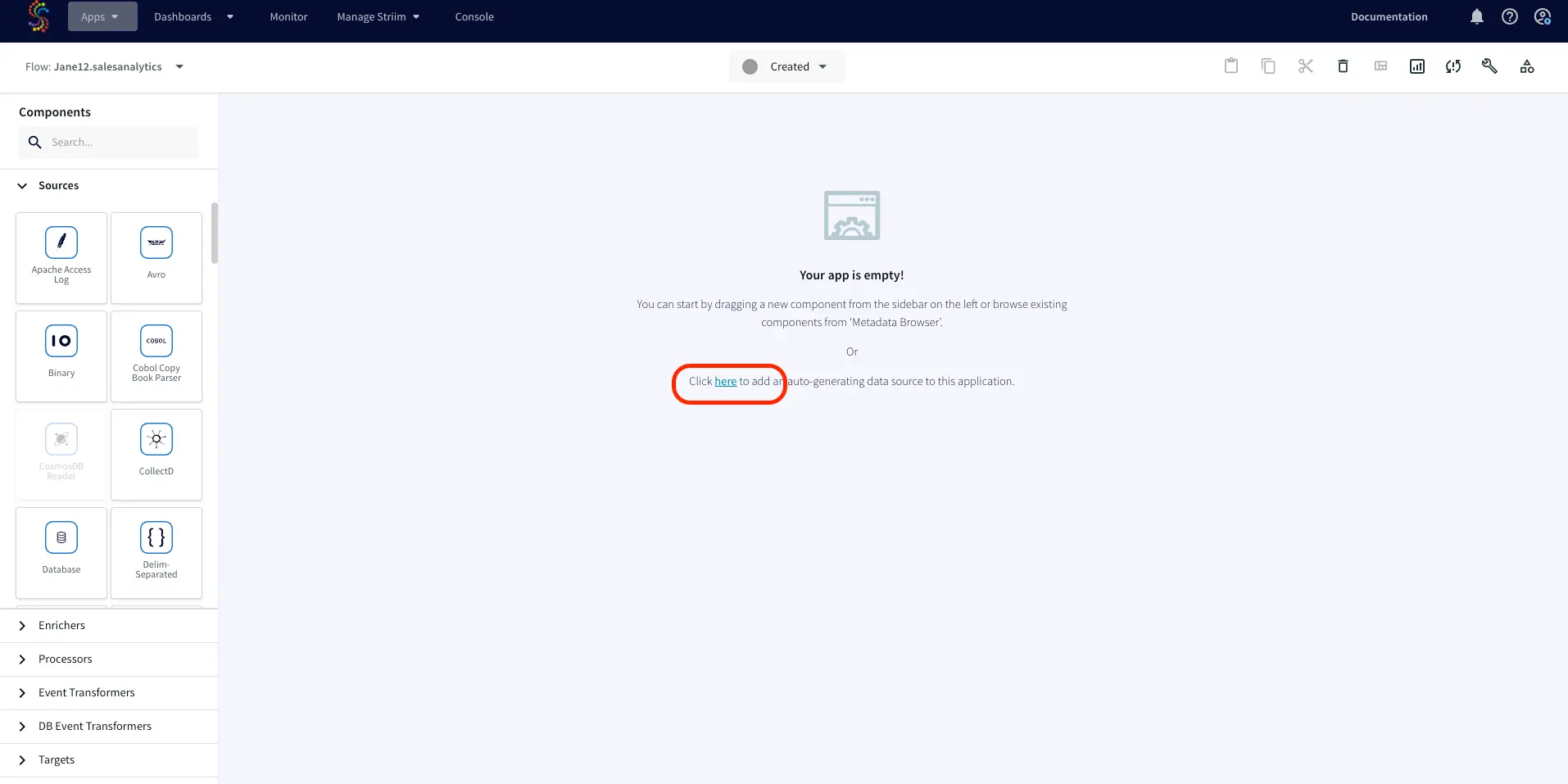
Now you are ready to build your first real-time analytics application on Striim. To add an auto-generating  data source, click on the relevant link on your screen as shown below:

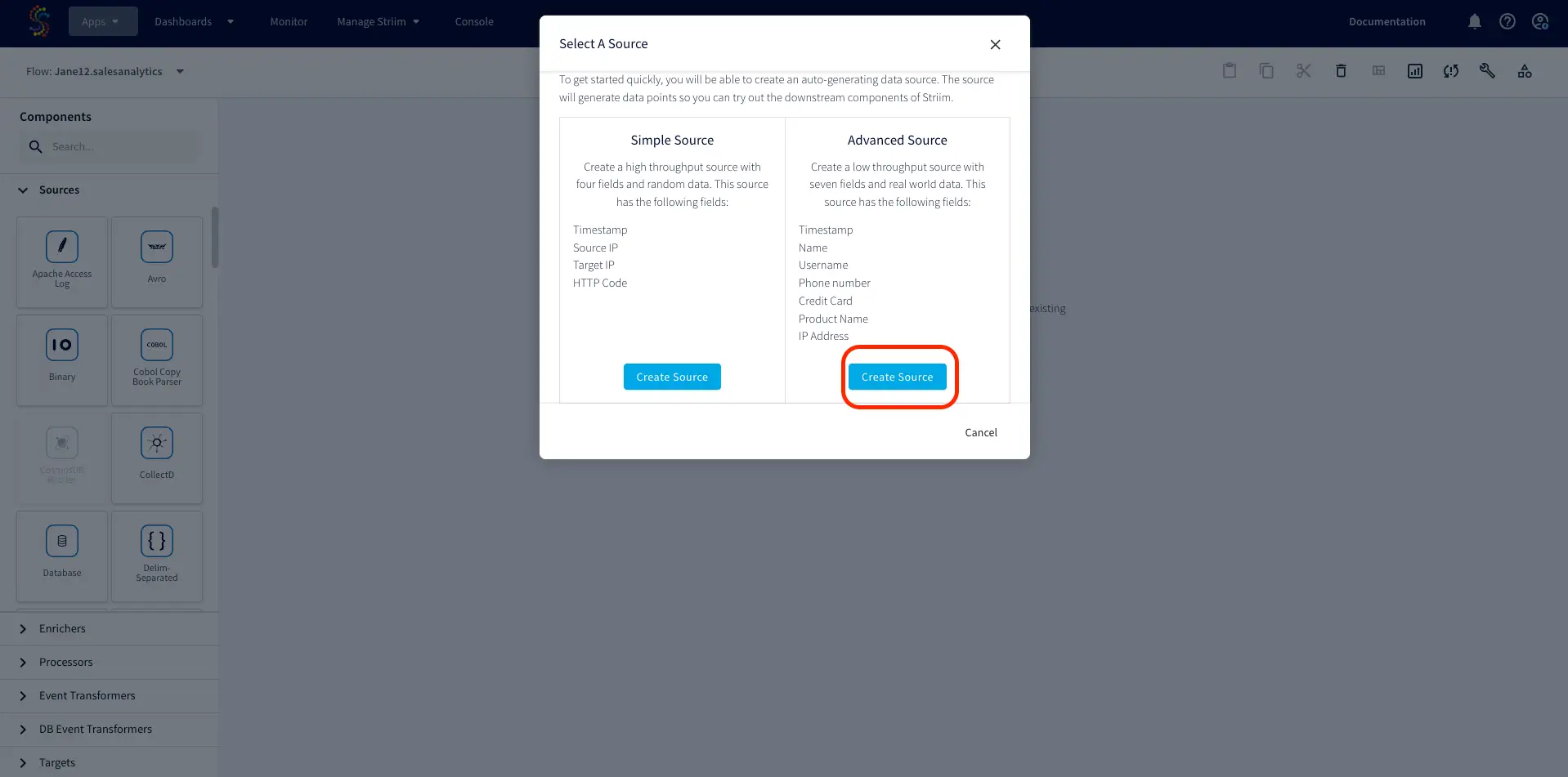
You will have an option to choose between ‘Simple Source’ and ‘Advanced Source’. For this use-case, let us  create an advanced source with seven fields. This will start generating streaming sample data.

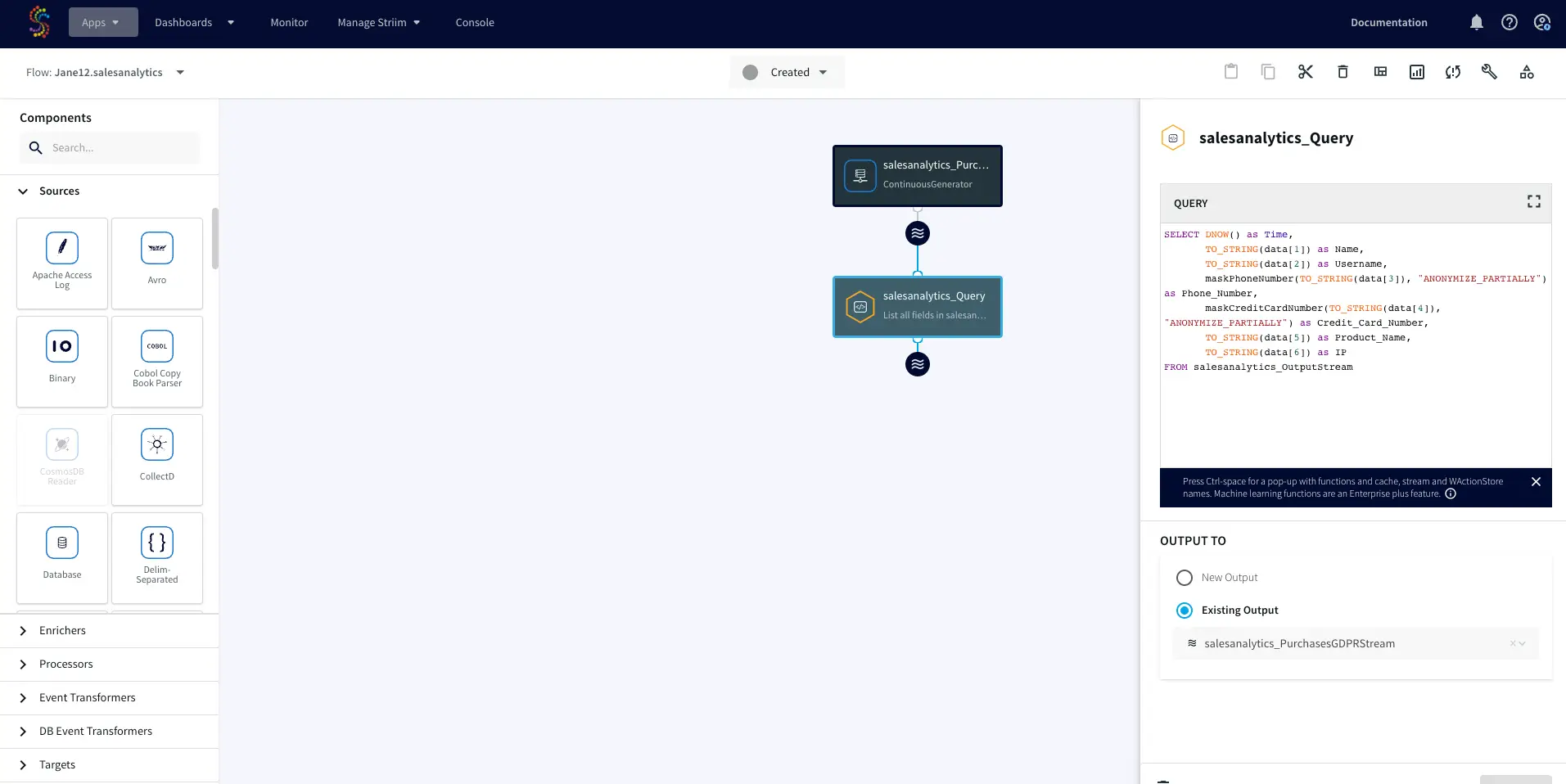
The advanced source comes with a continuous query that processes and analyzes the data stream.

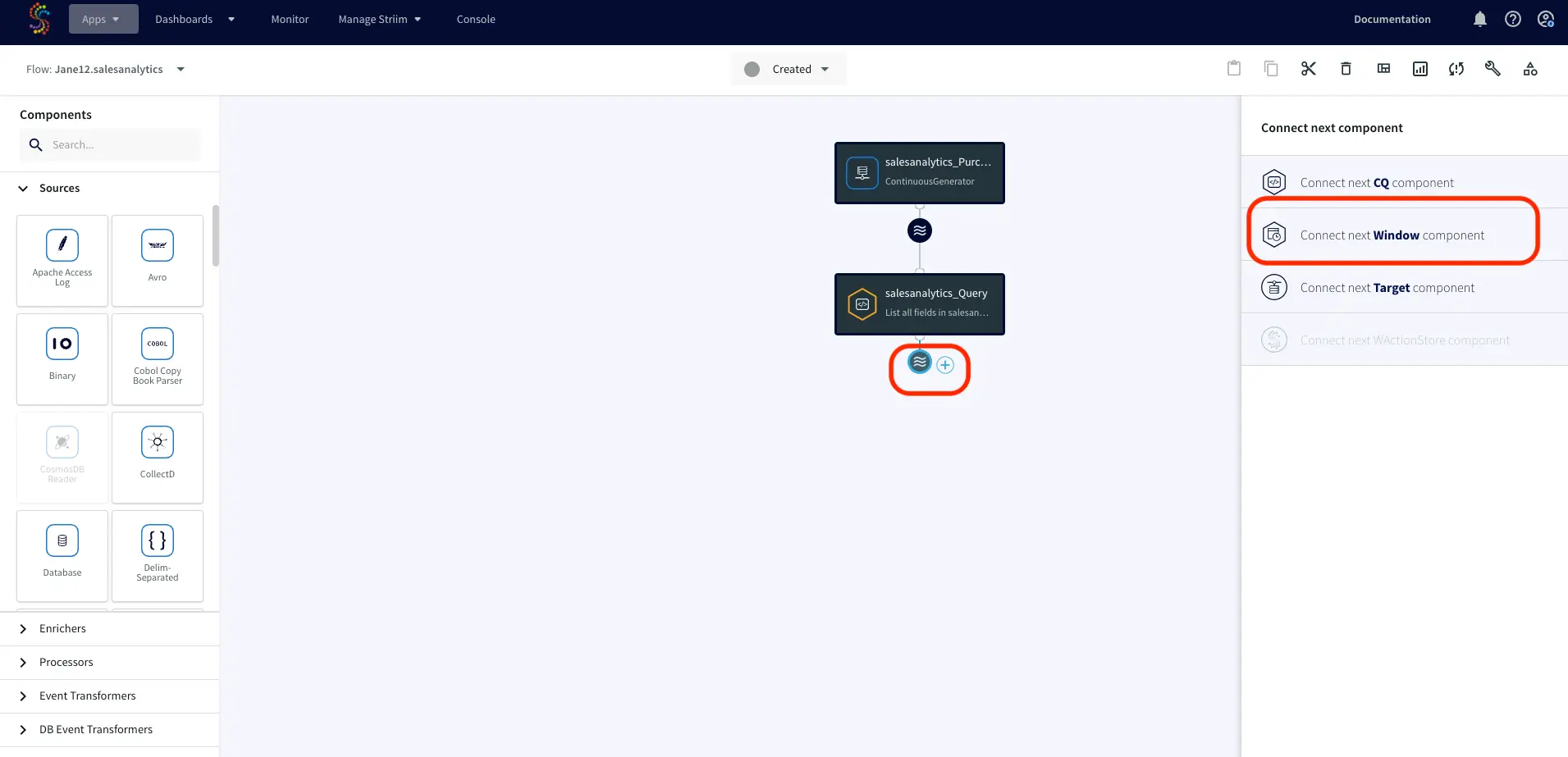
Now a Window component will be added that bounds the streaming data into buckets. Click the ‘+’ button as shown below and select ‘Window’.

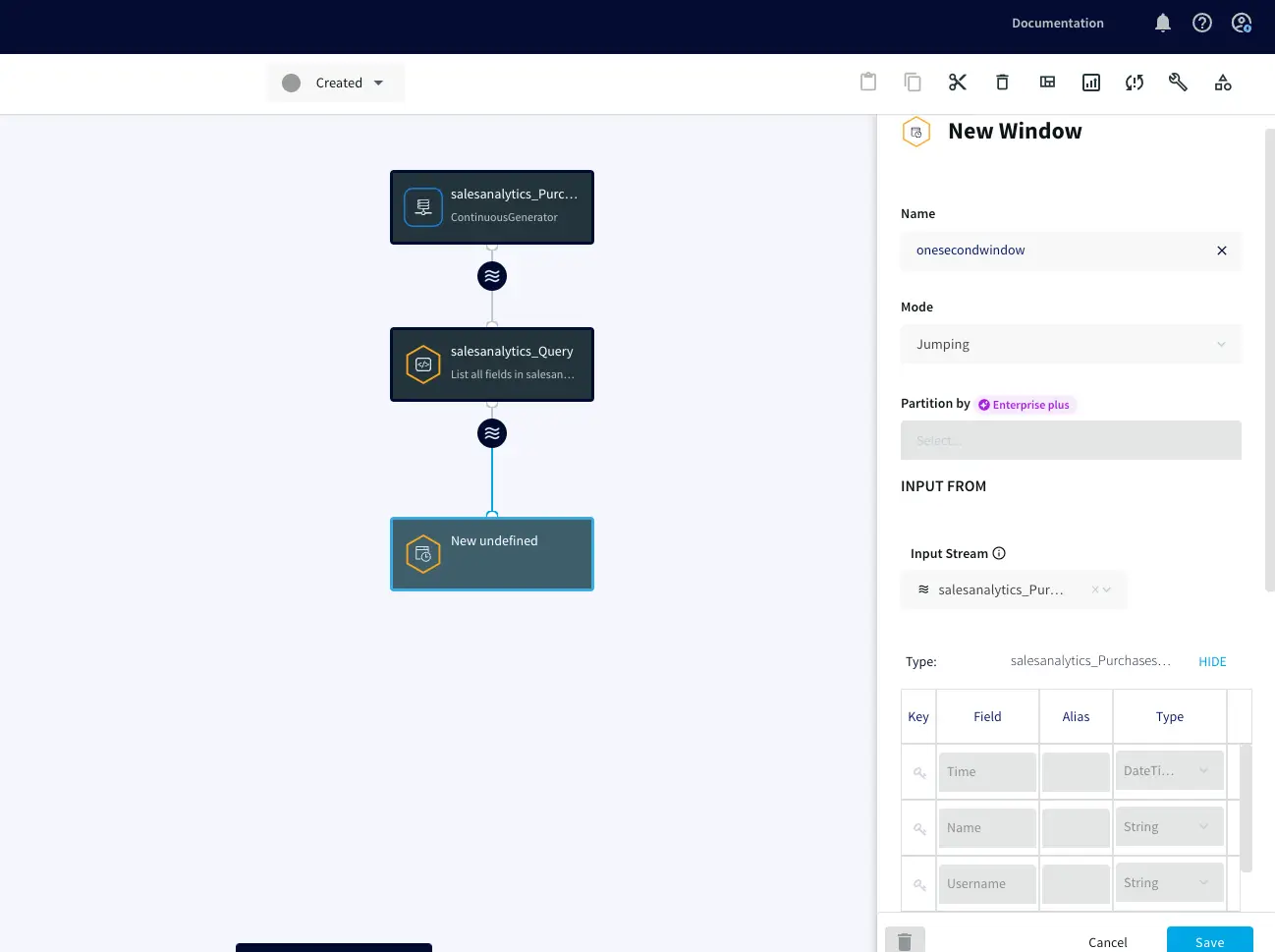
We will set the size of the window to ‘1-second’ on the timestamp of the sample data events. Important: name it ‘onesecondwindow’ for this exercise.

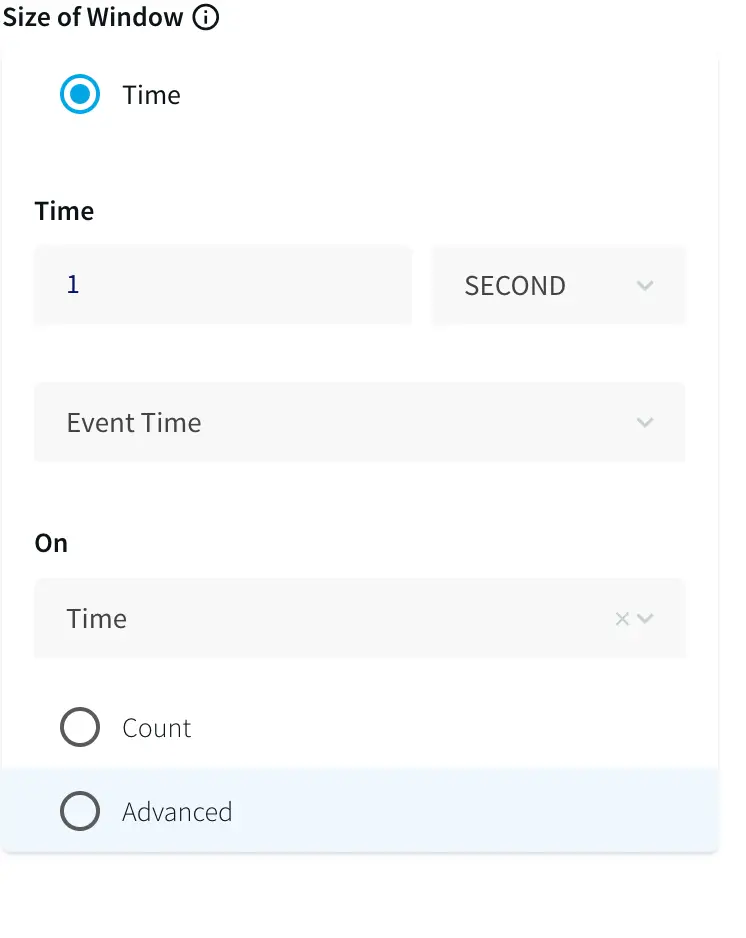
Now scroll down on the window editor and populate the following fields:

Time: 1 Second

on 

EventTime

So it looks exactly like this:

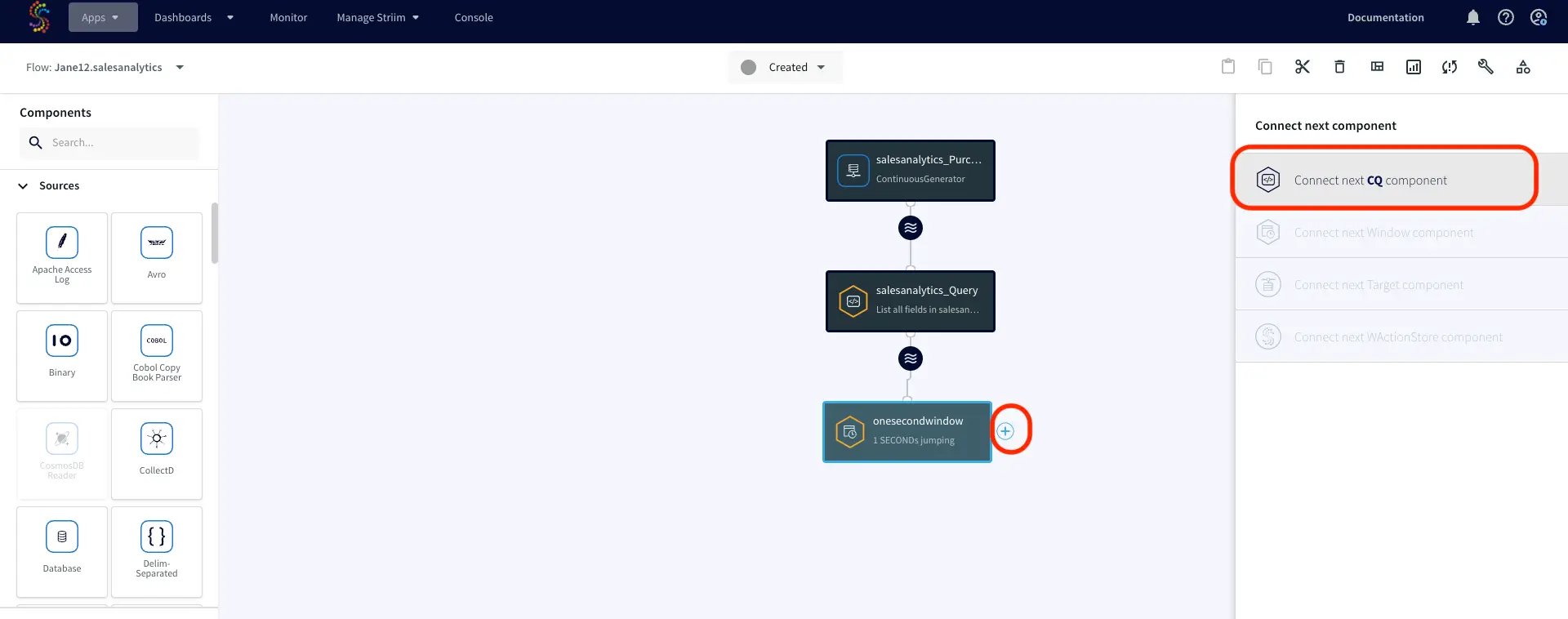
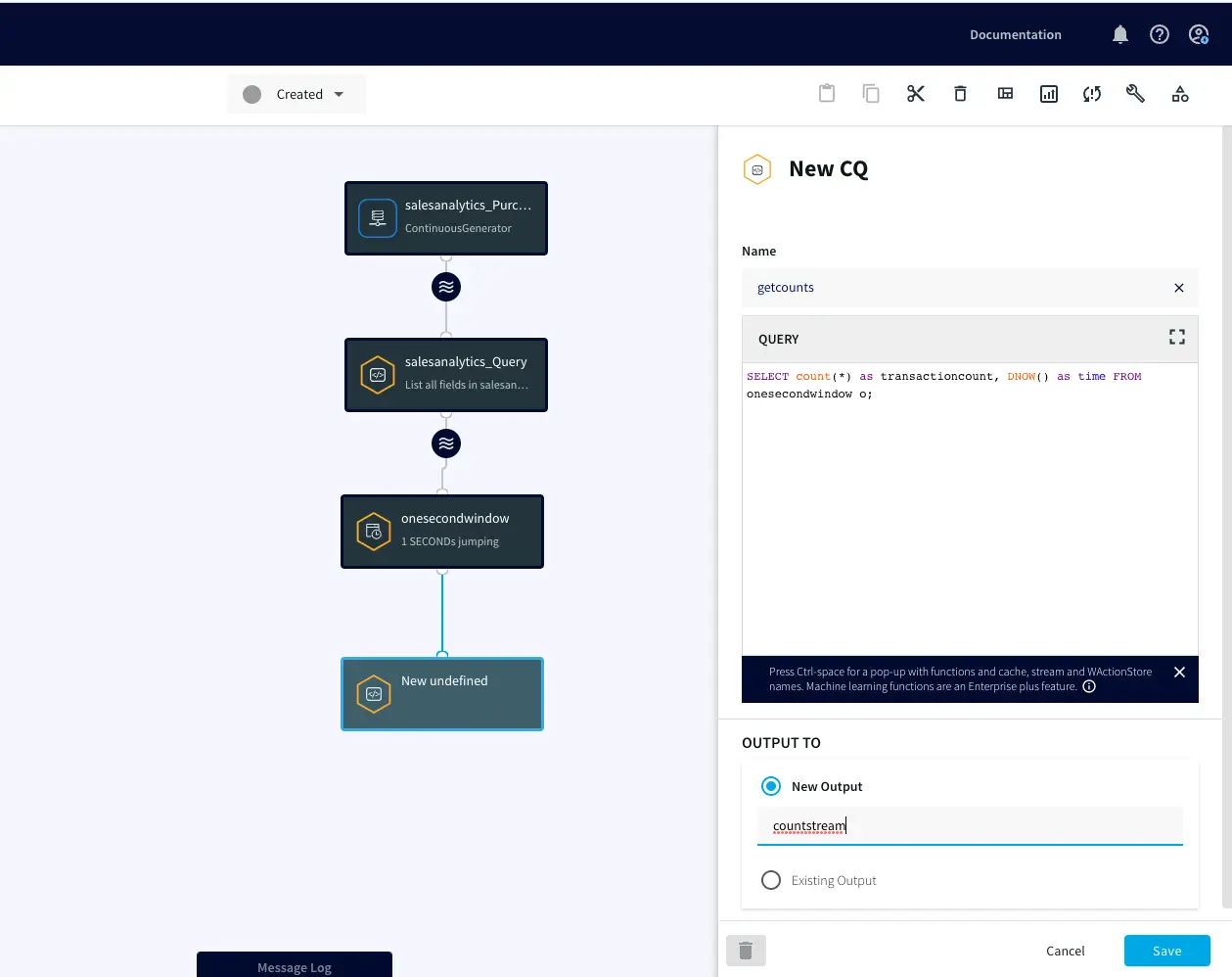
Next we will create a query to analyze this data. A CQ (Continuous Query) will process streaming data in real-time. You can name it ‘getcounts’ or whatever you want (no spaces or special characters). To add a CQ, select ‘+’ and connect next CQ component.

Copy and paste the following Streaming SQL snippet into the ‘CQ’ box:

SELECT count(*) as transactioncount, DNOW() as time FROM 

onesecondwindow o;

IMPORTANT: name the New Output ‘countstream’.

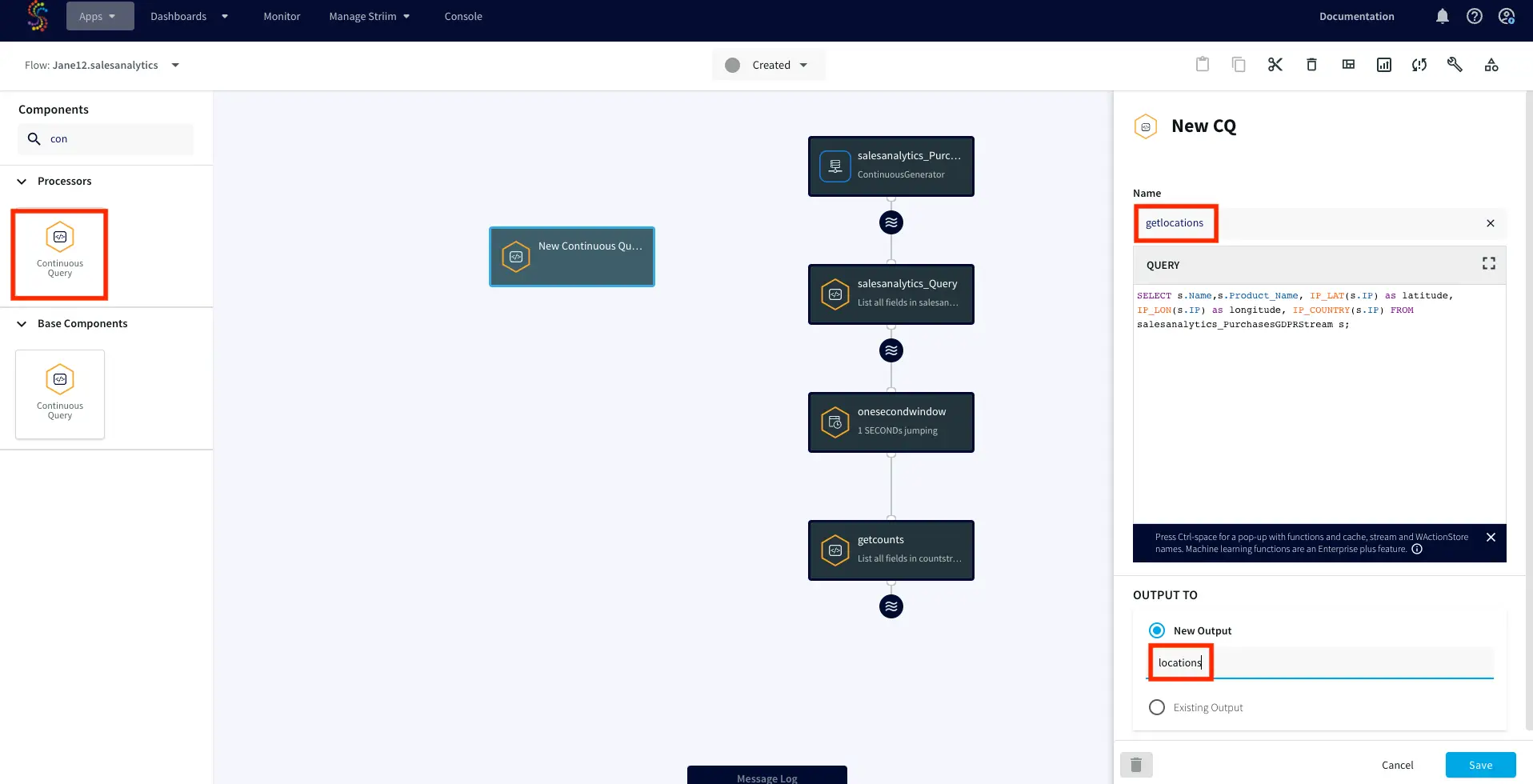
As you may have noticed, the sample data has an IP address (every computer’s network ID) for each transaction. However, the business wants to know where their customers are coming from and we are missing that data. Luckily, Striim has a way of pulling locations for IP addresses. 

Click and drag another ‘Continuous Query’ from the left-side panel on to the flow designer panel (anywhere on the blank/white space)

You can name the component ‘getlocations’ or whatever you want (no special characters or whitespaces)

Now copy and paste the following snippet in to the query box:

SELECT s.Name,s.Product_Name, IP_LAT(s.IP) as latitude, IP_LON(s.IP) as longitude, IP_COUNTRY(s.IP) FROM salesanalytics_PurchasesGDPRStream s;

IMPORTANT: name the New Output ‘locations’

Step 3: Deploy and Run your Striim Application

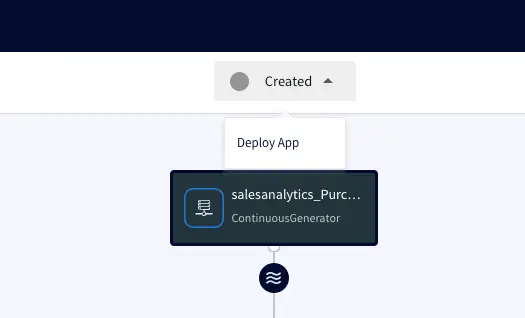
After you have saved all the components of your streaming app, you may deploy and run the Striim application. Click on the dropdown list next to ‘Created’ and choose ‘Deploy App’.

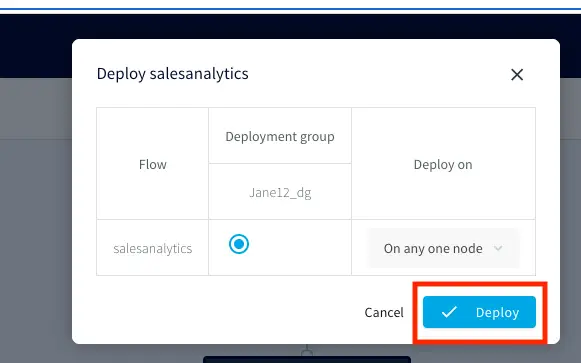
You can select any available deployment group and click ‘Deploy’.

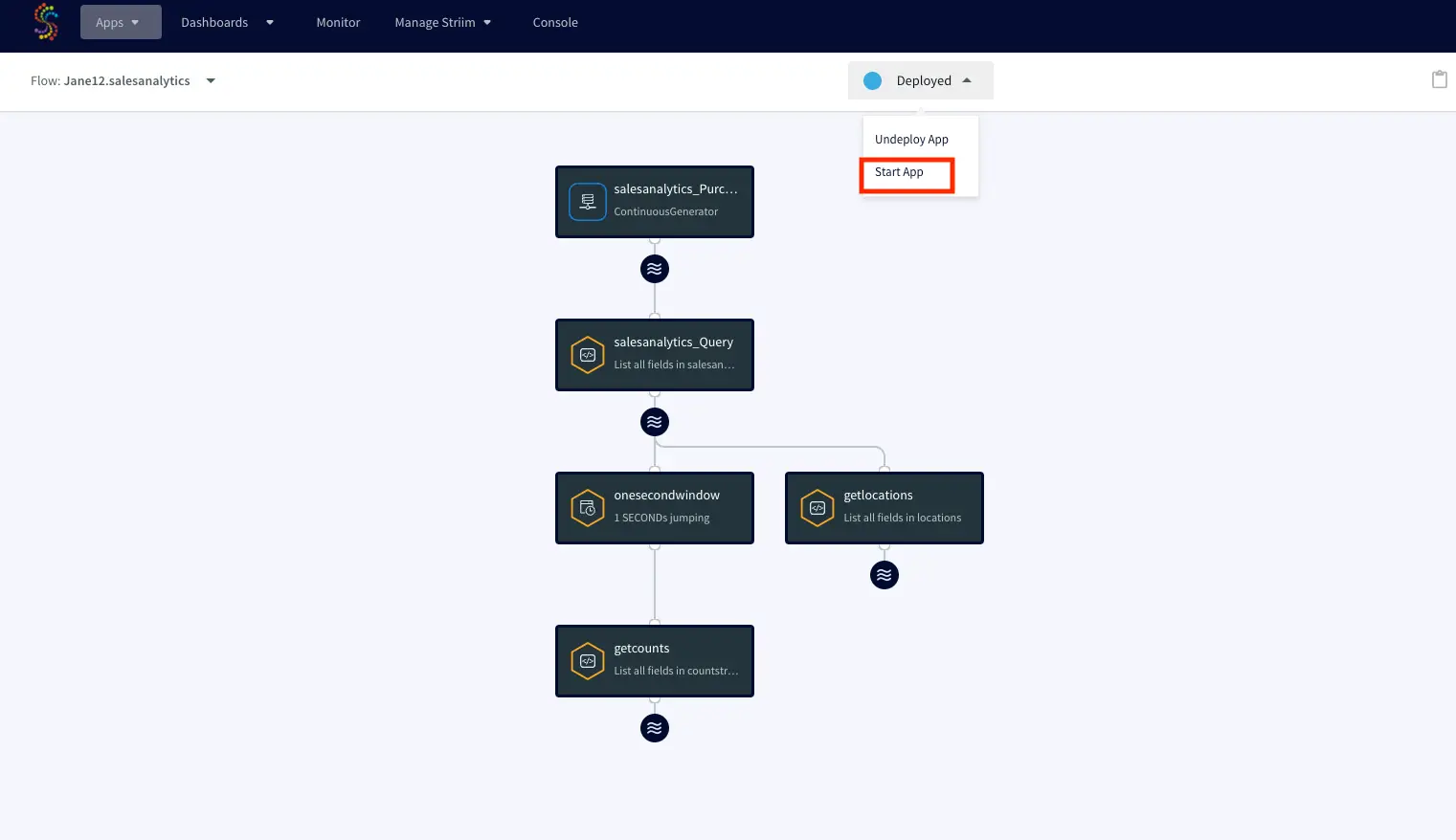
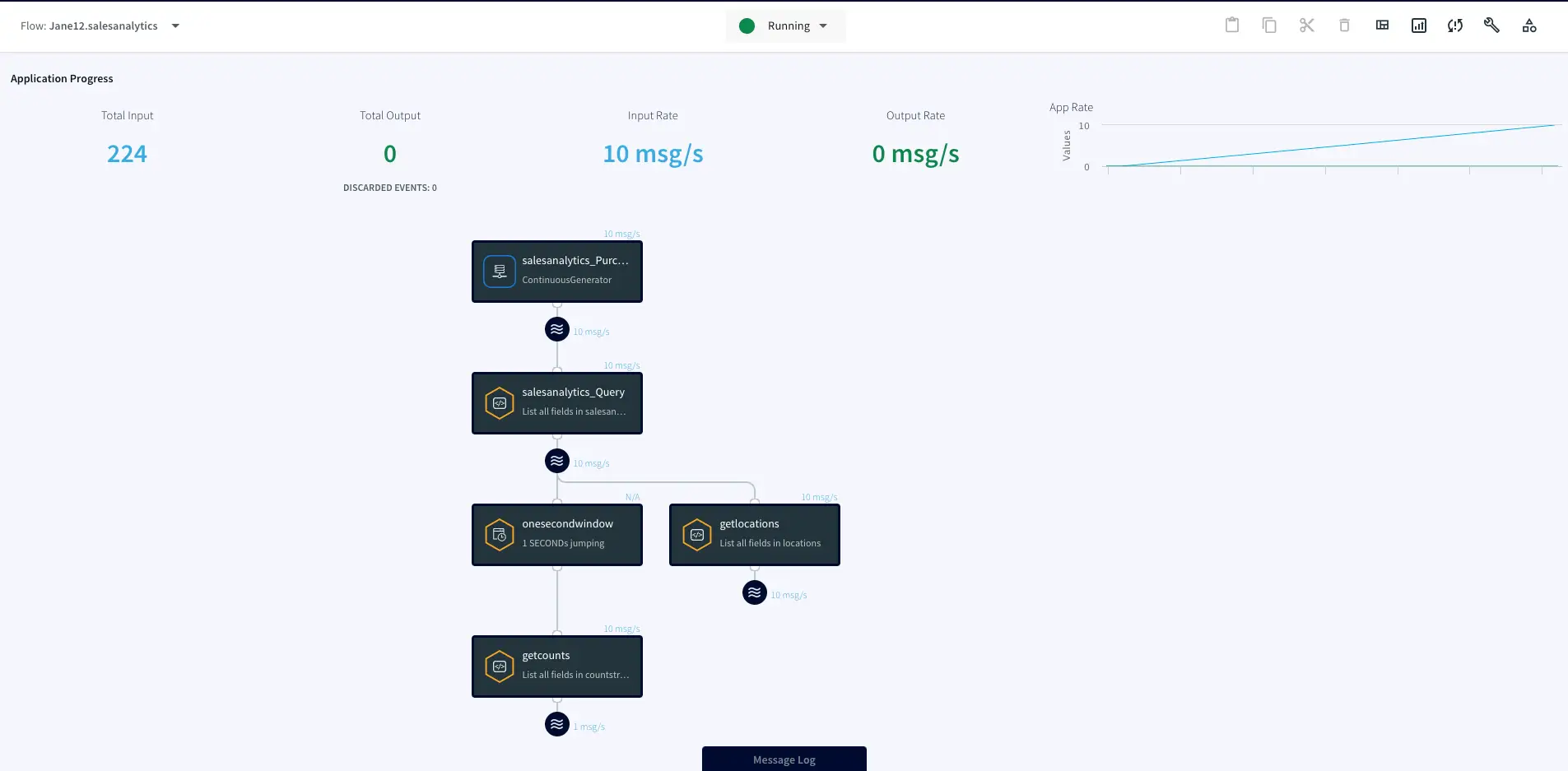
After your Striim app is deployed, you can run the streaming application by clicking ‘Start App’.

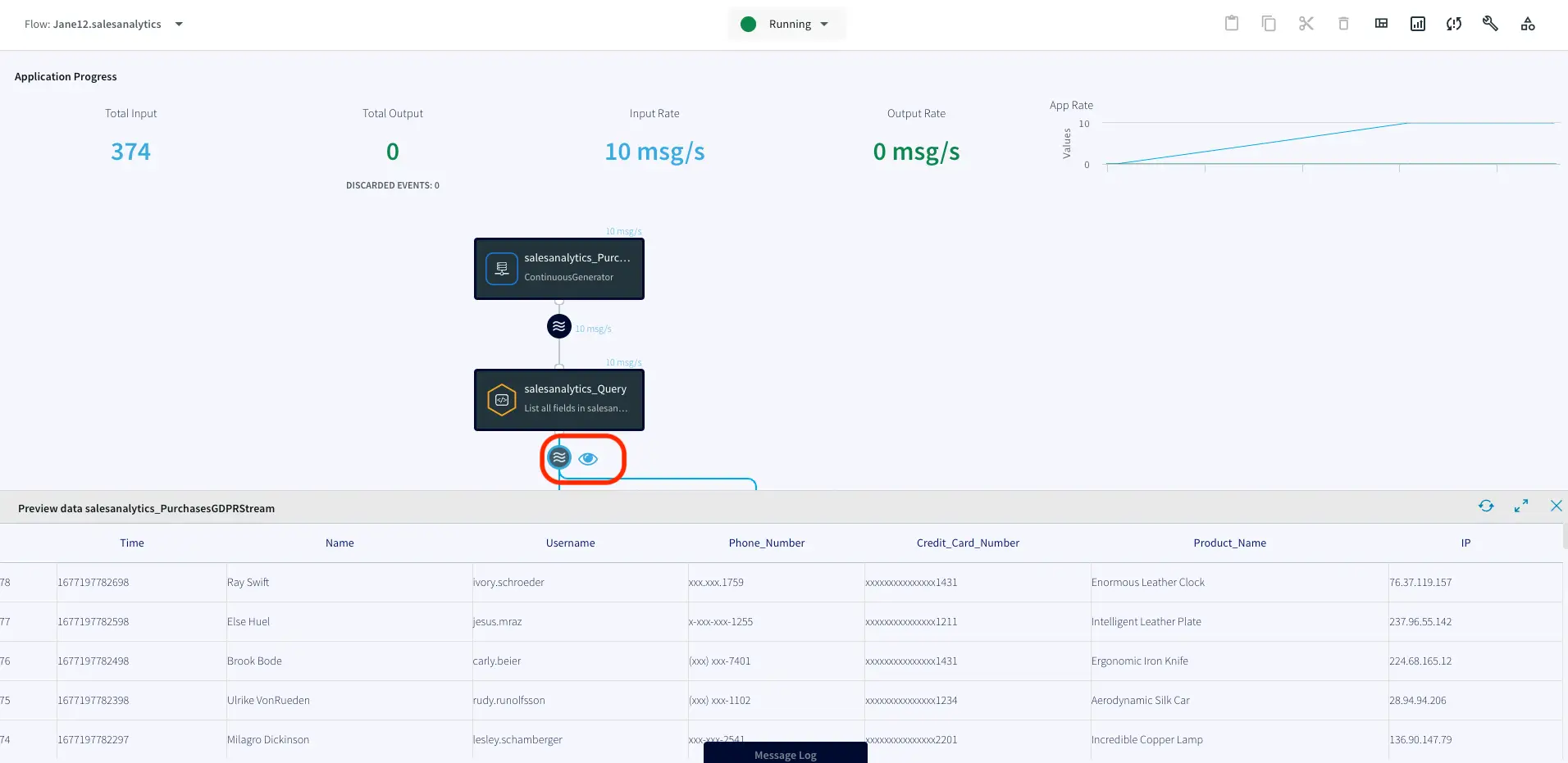
You can monitor the processed data through the ‘eye’ wizard next to any stream component.

Explore Striim Dashboards

A Striim dashboard gives you a visual representation of data read and written by a Striim application. We will create a dashboard for the above data stream to visualize streaming data in real-time. Start by downloading this file

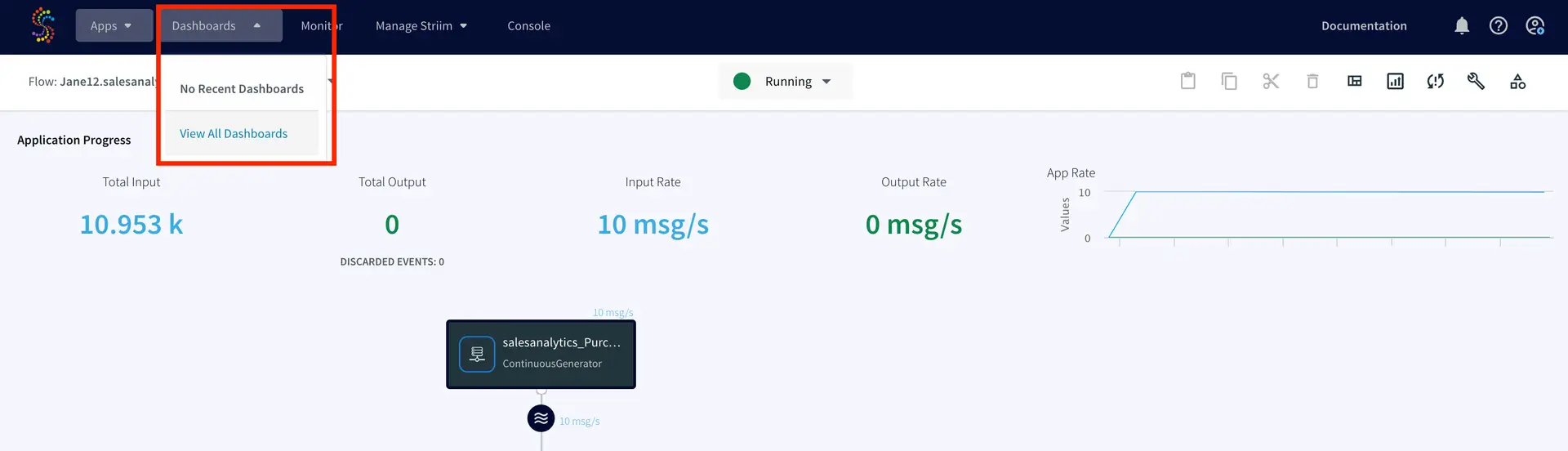
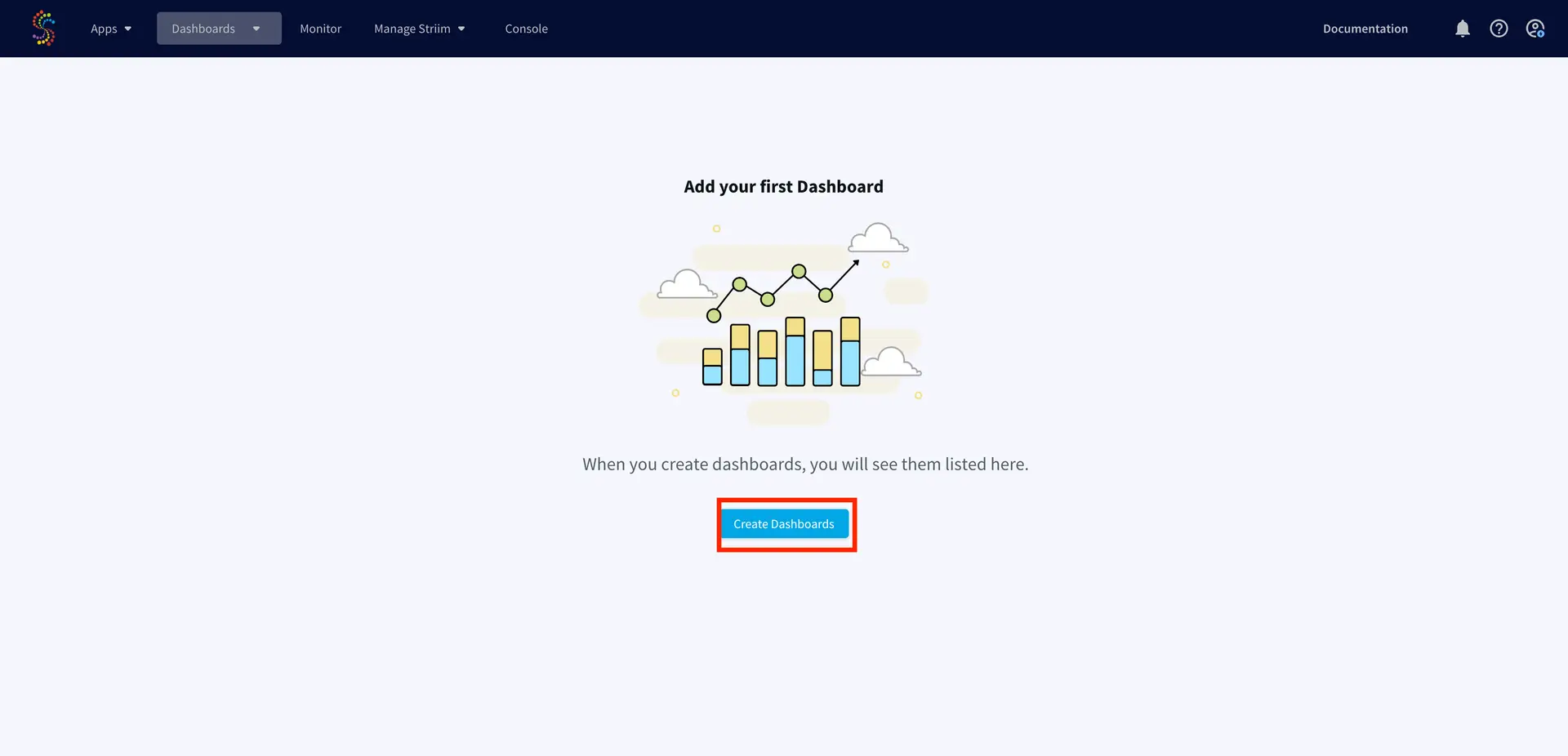
Click on ‘View All Dashboards’ from the dropdown next to ‘Dashboards’ at the top of screen.

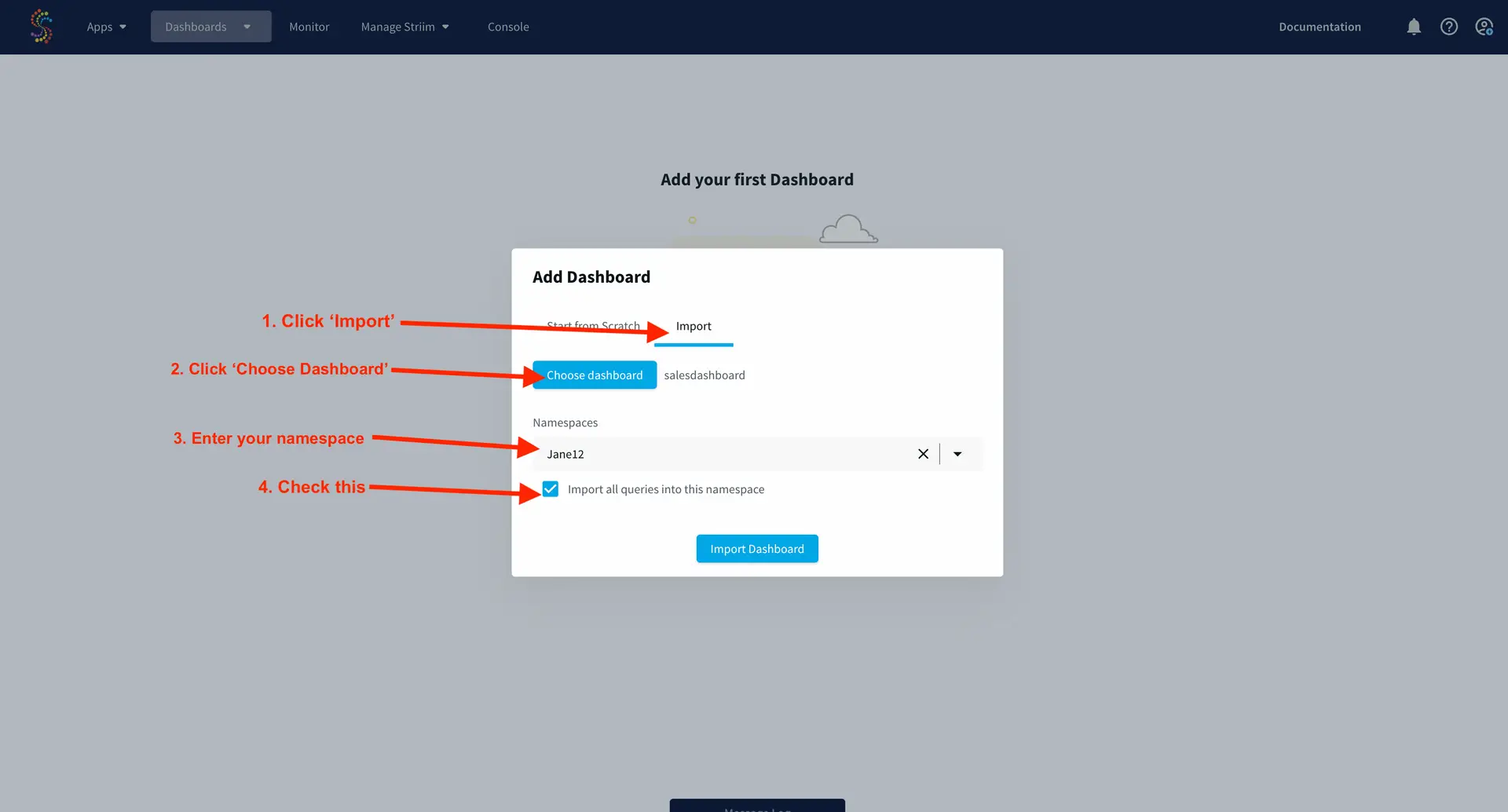
Click on ‘Create Dashboard’ and import the above downloaded file and select ‘Import all queries into this namespace’ using the auto selected namespace.

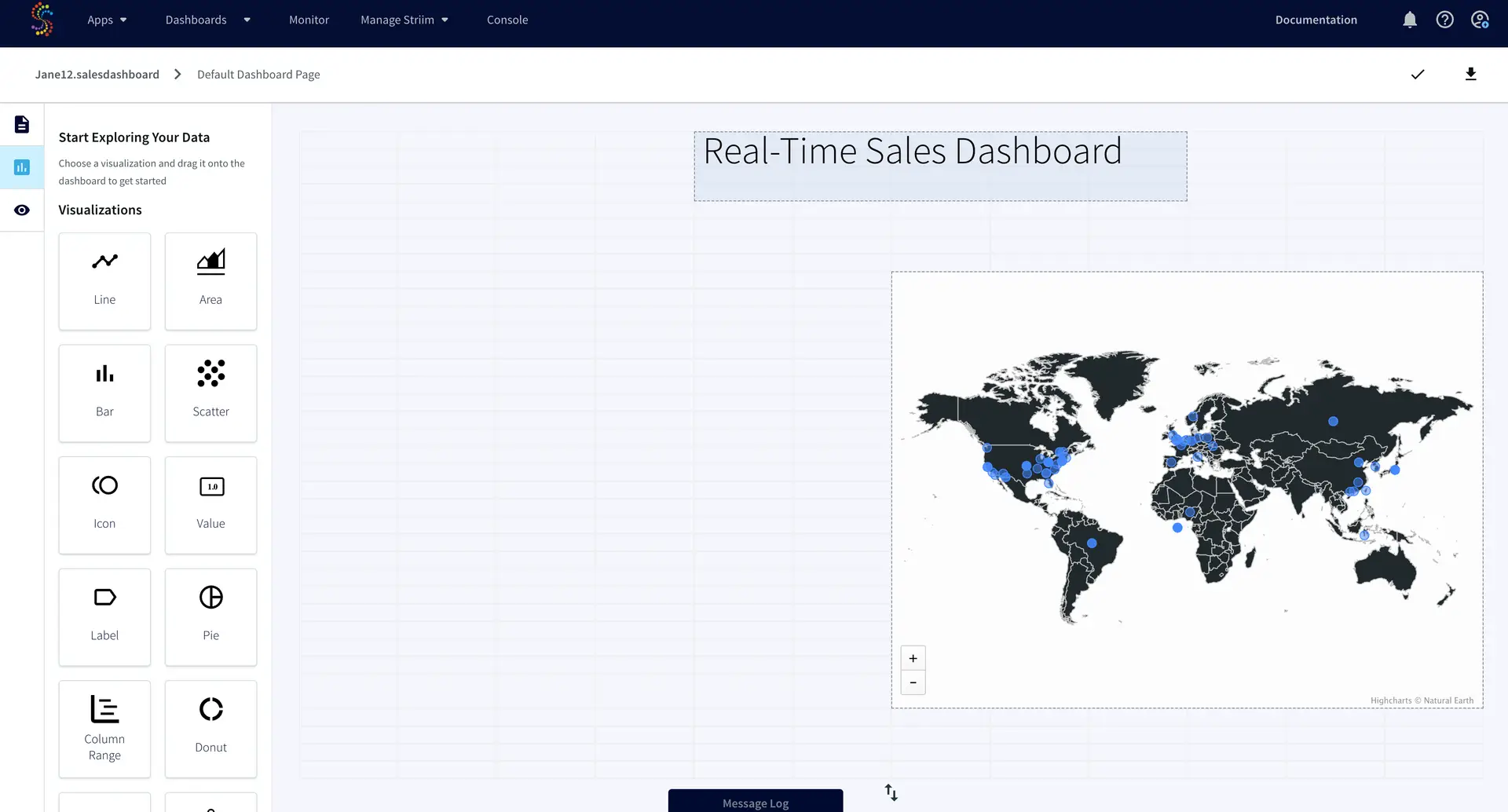
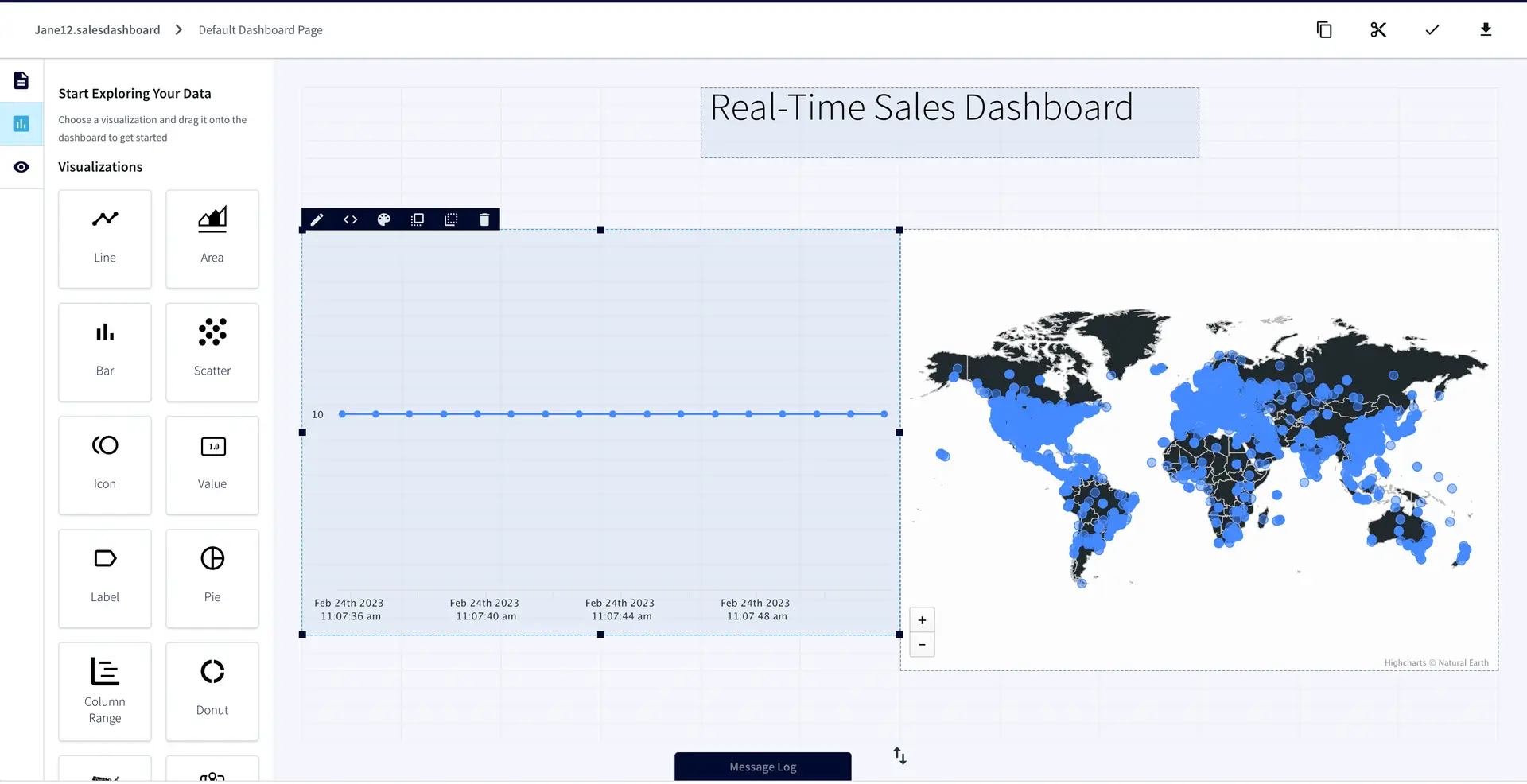
Here you will see a Striim Dashboard with a map already created. You will create a real-time chart yourself!

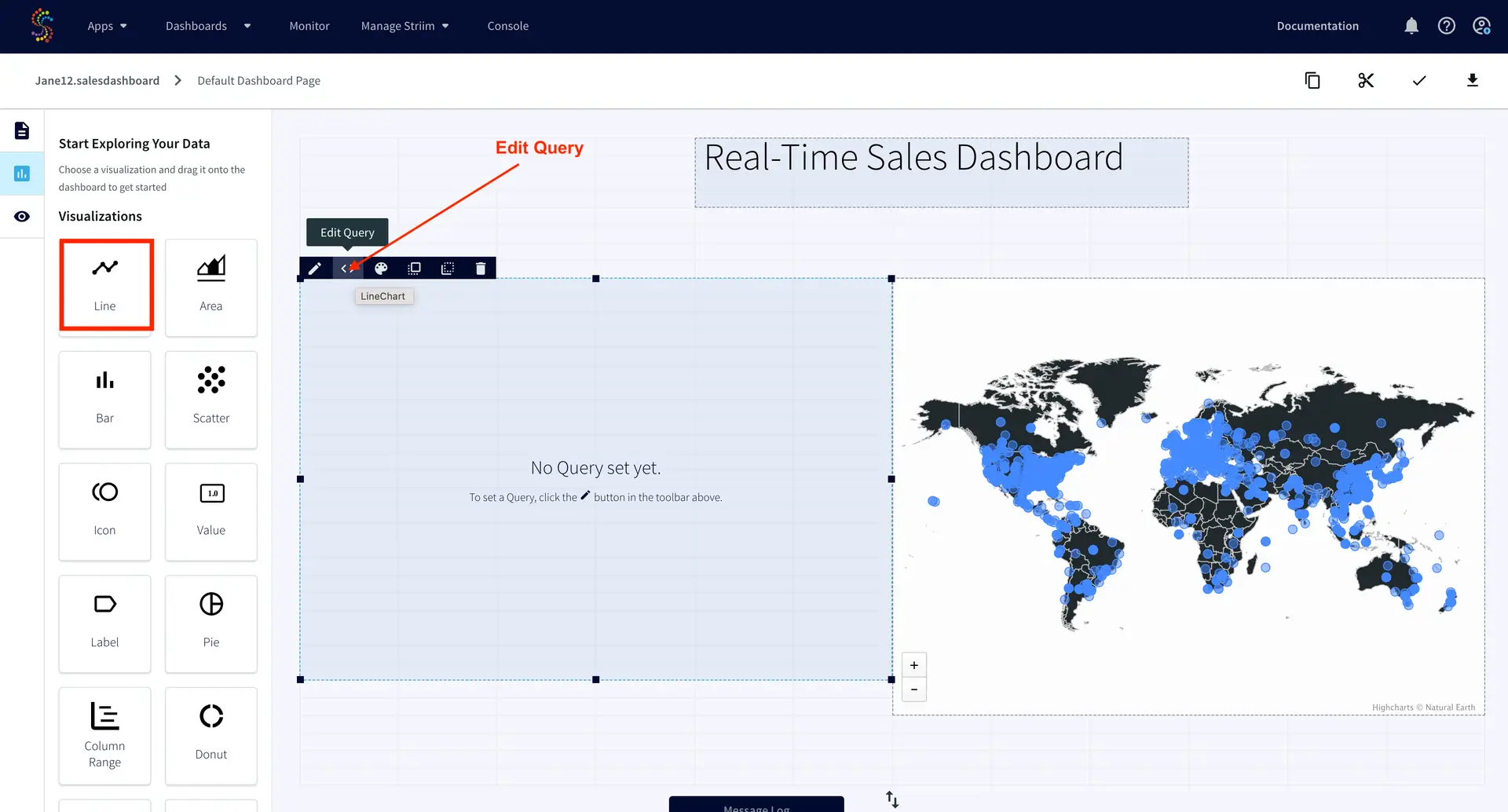
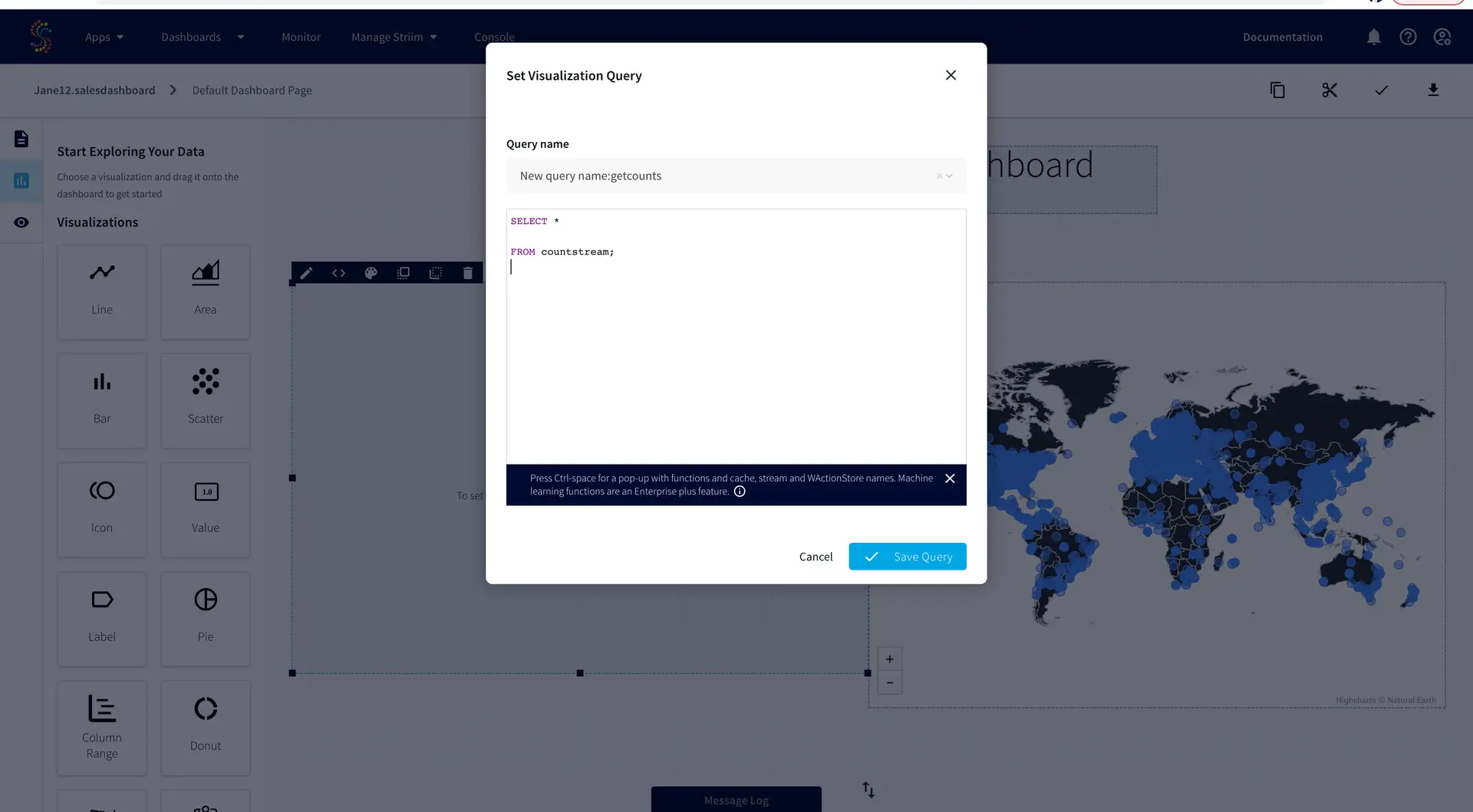
We will now create a line chart with our sales data. Click the ‘Line’ chart on the left side, drag it into the panel. Then select ‘Edit Query’ on the ‘<>’ icon on the top left.

Name the query ‘getcounts’ or whatever you want (no whitespace or special characters) and push ‘Enter’ on your keyboard. 

Enter the following query into the input

SELECT * FROM countstream;

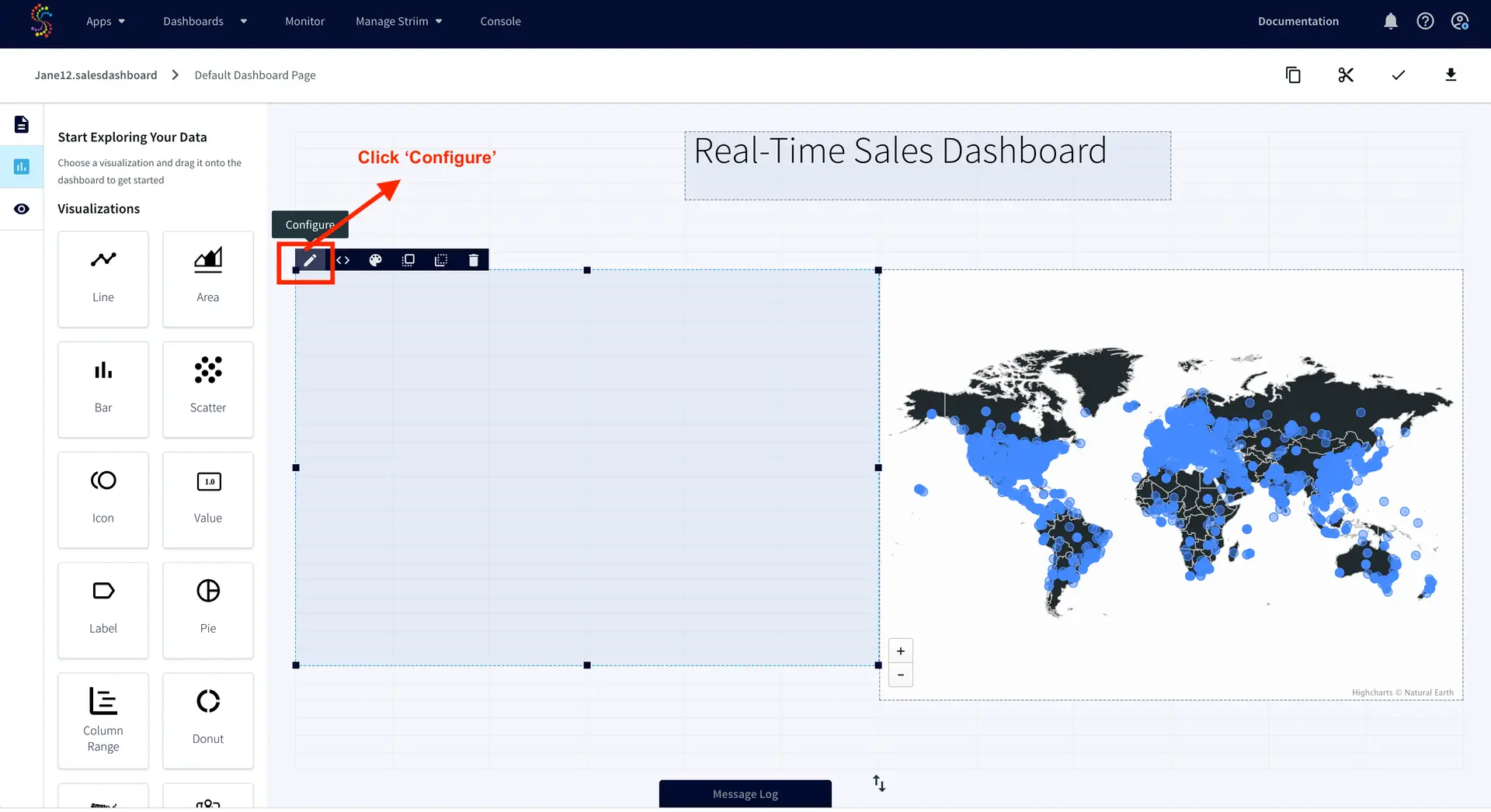
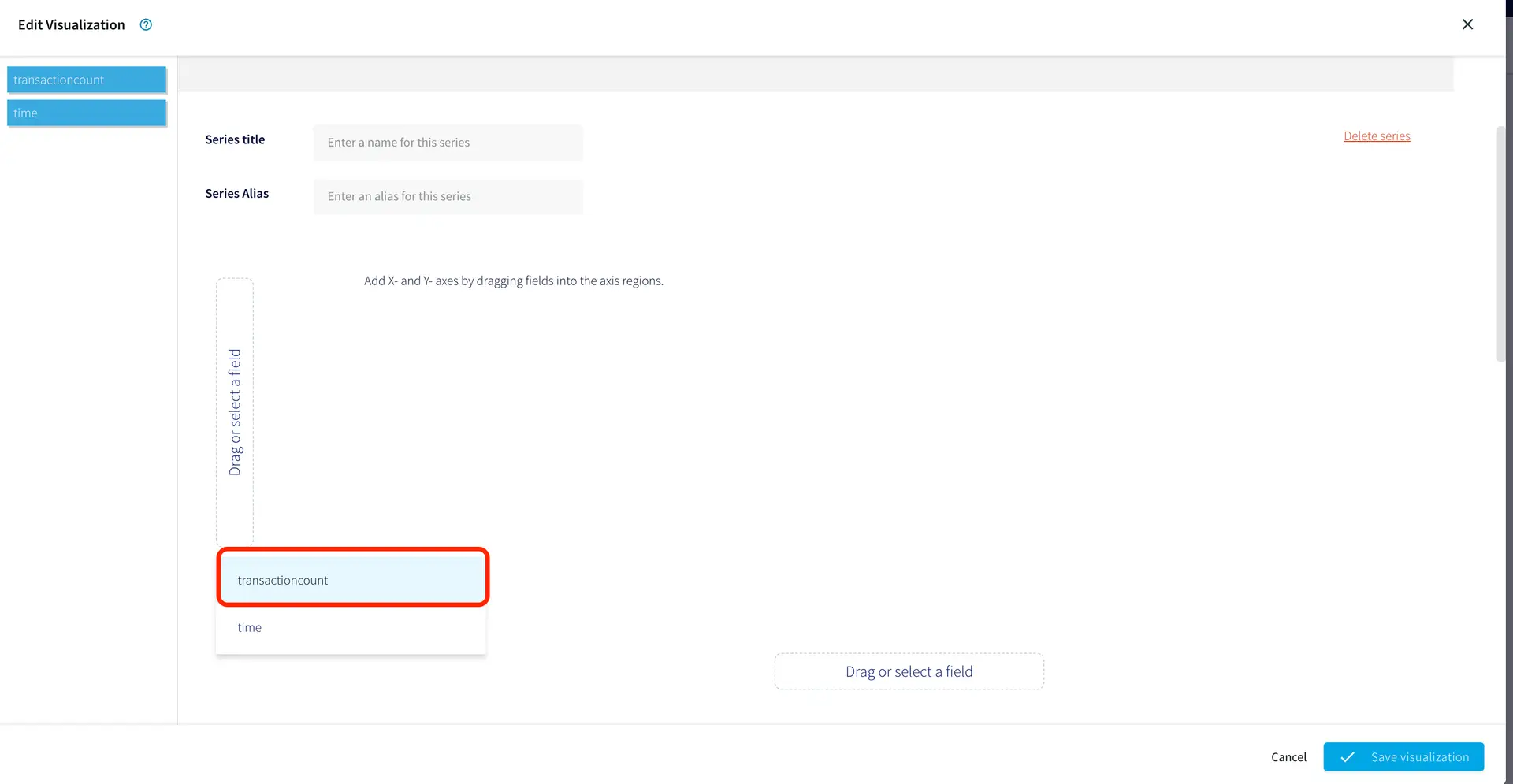
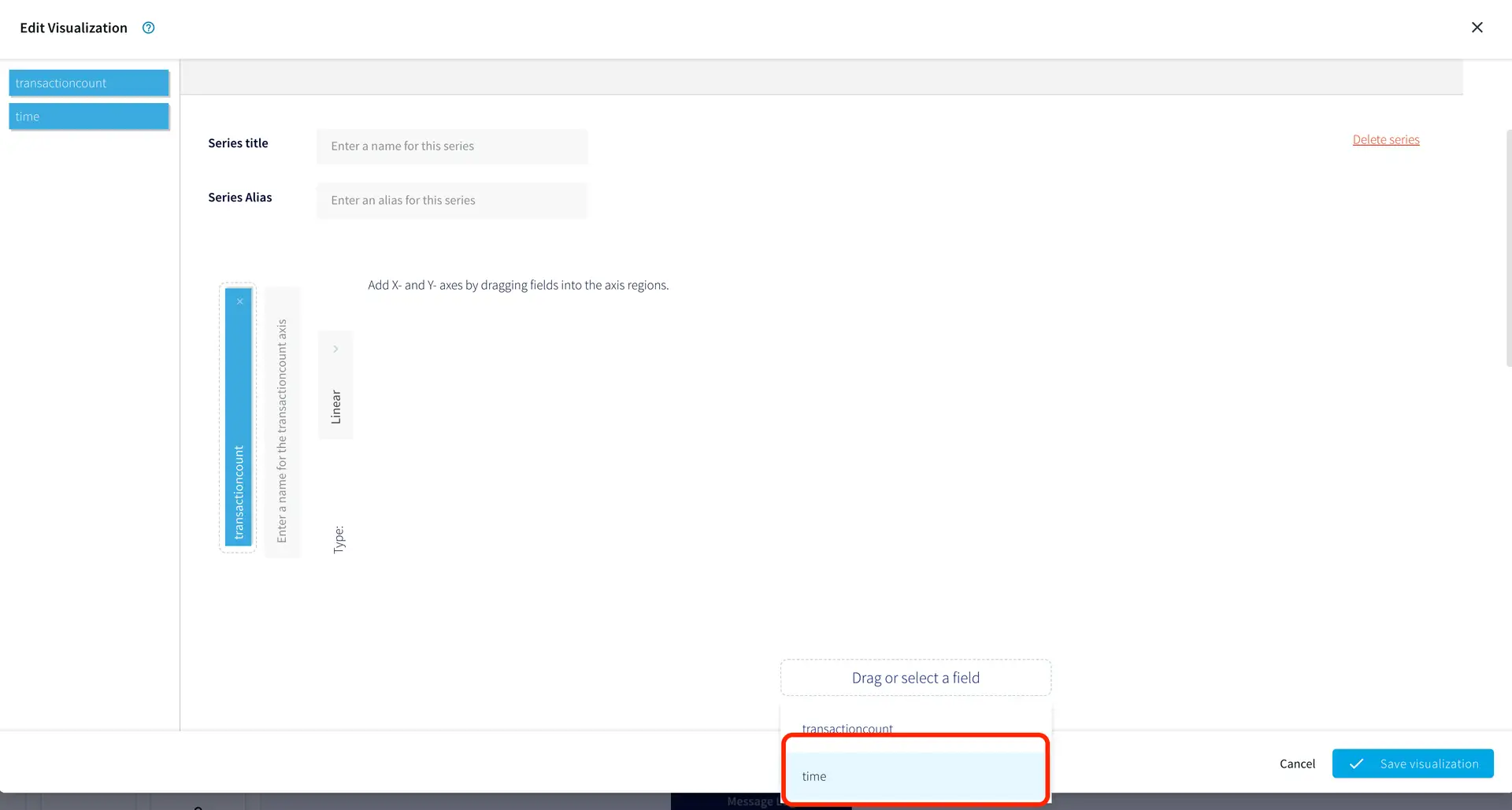
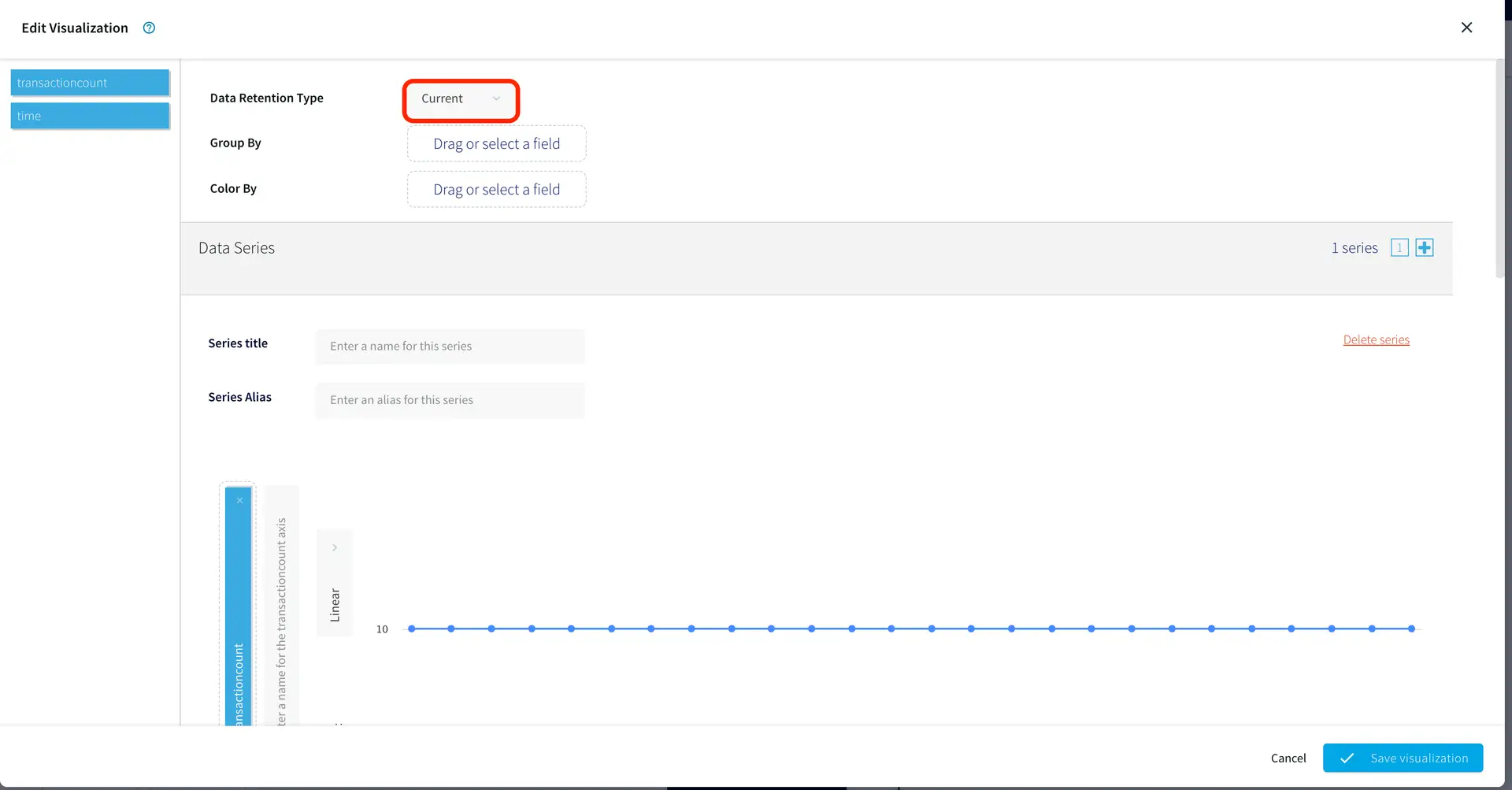
Click the ‘configure’ button as shown below to add axes details into your line graph.  Choose ‘transactioncount’ field for y axis and ‘time’ with datetime format for x axis. For real-time chart, the data retention time is ‘current’.

Now you have a real-time sales dashboard!


Wrapping Up: Start your Free Trial Today

In this recipe, we have walked you through steps for creating a Striim application using test data from Striim’s Continuous Generator adapter. You can query the data stream using continuous queries and partition it using a Window. We have also demonstrated how to create aStriim dashboard for real-time data visualization.You can try adding your own continuous queries to the sales app and build whatever charts you want!

As always, feel free to reach out to our integration experts to schedule a demo, or try Striim developer for free here.

Tools you need

Striim

Striim’s unified data integration and streaming platform connects clouds, data and applications.

Streaming Synthetic Data to Snowflake with Striim

Tutorial

Streaming Data to Snowflake With Striim

Experiment with real-time ingest in Snowflake

Benefits

Get Started with Streaming

Learn how to play with real-time streams with simple auto-generated data streams

Real-Time Ingest for Snowflake

Enable true real-time ingest for Snowflake via Snowpipe StreamingActivate Data
With real-time data in Snowflake, you can power data activation workflows fed by fresh data and in-the-moment actions
On this page

Overview

Striim is a unified data streaming and integration product that offers change capture (CDC), enabling continuous replication from popular databases such as Oracle, SQLServer, PostgreSQL and many others to target data warehouses like BigQuery and Snowflake.

In this recipe, we walk you through setting up a streaming application to a Snowflake target. To begin with, we will generate synthetic data to get a feel for Striim’s streaming platform. We use Striim’s Continuous Generator component to generate test data which is then queried by a SQL-based Continuous Query. Follow the steps to configure your own streaming app on Striim.

Core Striim Components

Continuous Generator: A continuous data generator can auto-generate meaningful data for a given set of fields

Continuous Query: Striim continuous queries are continually running SQL queries that act on real-time data and may be used to filter, aggregate, join, enrich, and transform events.

Snowflake Writer: Striim’s Snowflake Writer writes to one or more existing tables in Snowflake. Events are staged to local storage, Azure Storage, or AWS S3, then written to Snowflake as per the Upload Policy setting.

Step 1: Log into your Striim account and select the source

If you do not have an account yet, please go to signup-developer.striim.com to sign up for a free Striim developer account in a few simple steps. You can learn more on how to get started with free Striim Developer here. To configure your source adapter from the flow designer, click on ‘Create app’ on your homepage followed by ‘Start from scratch’. Name your app and click ‘Save’.

Click on the relevant link on the flow-designer screen to add an auto-generated data source.

You will be prompted to select a simple or an advanced source. For this application, we’ll add a simple source. The simple source has a continuous generator with four fields that are queried by a CQ component of Striim.

Step 2: Add a target table on your Snowflake Data Warehouse and enter the connection details on the Striim Target Snowflake adapter

On your Snowflake warehouse, add a table with the same fields and data type as the outcoming stream from Continuous Query.

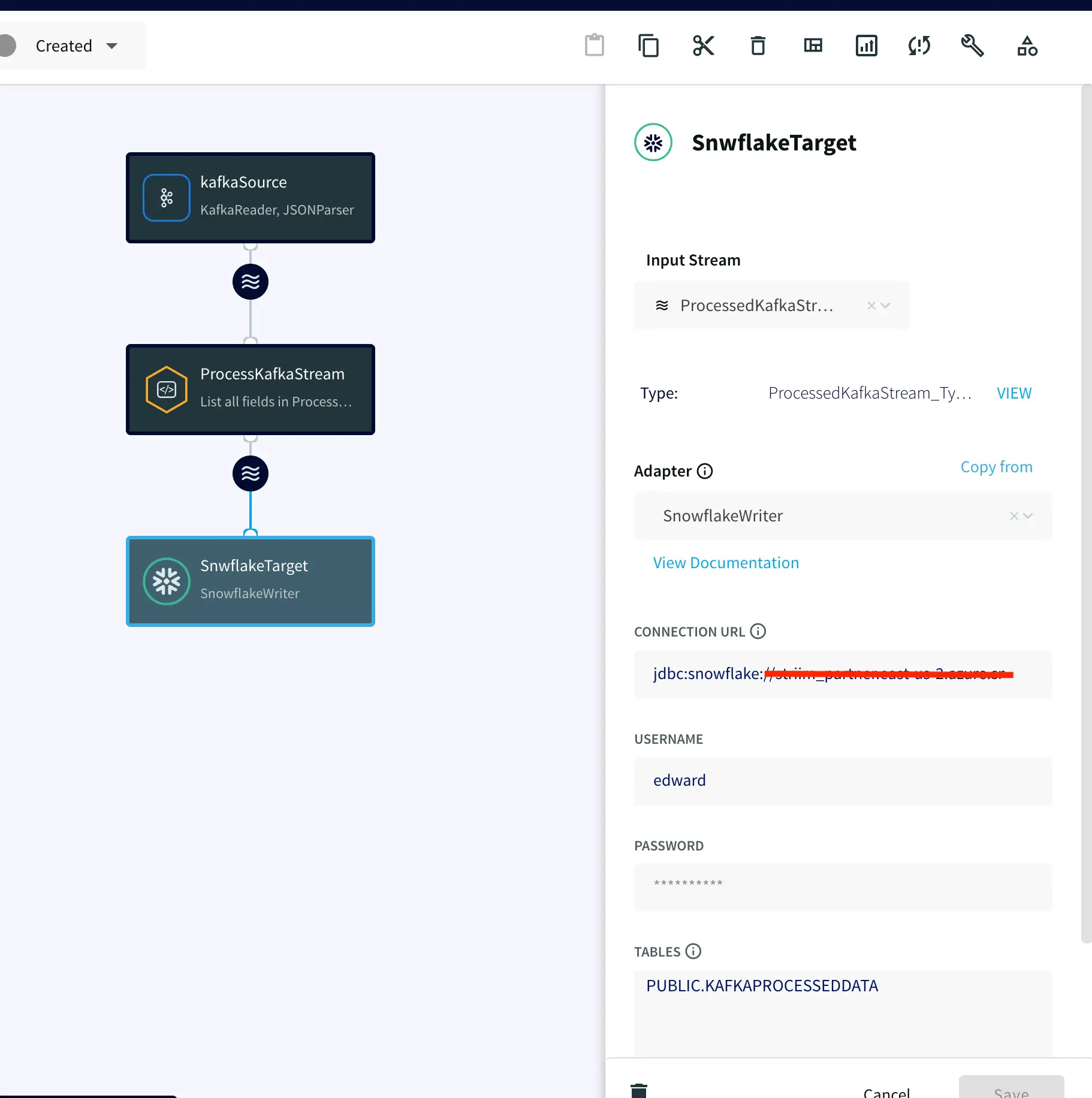
Drag the Snowflake component from the left panel and configure your target. The connection url is of the format

jdbc:snowflake://YOUR_HOST-2.azure.snowflakecomputing.com:***?warehouse=warehouse_name&db=RETAILCDC&schema=public

Step 3: Deploy and Run the Striim app

Once the source, target and CQ are configured, select Deploy from the dropdown menu next to Created. Choose any available node and click Deploy. After the app is deployed, from the same drop-down, select StartApp.

You can preview the processed data by clicking on the ‘eye’ wizard next to the stream component.


Setting Up the Striim Application

Step 1: Log into your Striim account and select the source

To create a free account, go to signup-developer.striim.com

Step 2: Add a target table on your Snowflake Data Warehouse and enter the connection details on Striim Target adapter

Connection url: jdbc:snowflake://<YOUR_SNOWFLAKE_URL:***>?warehouse=warehouse_name&db=RETAILCDC&schema=public

Step 3: Deploy and Run the Striim app

Snowflake Writer: Support for Streaming API (Optional)

The Snowpipe Streaming API is designed to supplement Snowpipe, rather than replace it. It is intended for streaming scenarios where data is transmitted in row format, such as from Apache Kafka topics, rather than written to files. It enables low-latency loading of streaming data directly to the target table using the Snowflake Ingest SDK and Striim’s Snowflake Writer, thereby saving the costs associated with writing the data from staged files. 

Configurations:

Users should enable streaming support for their Snowflake account along with key-pair authentication. The Private Key is passed on SnowflakeWriter property by removing header and footer and no line break:

—–BEGIN ENCRYPTED PRIVATE KEY—– ## HEADER

*************************

*******************

—–END ENCRYPTED PRIVATE KEY—– ## FOOTER

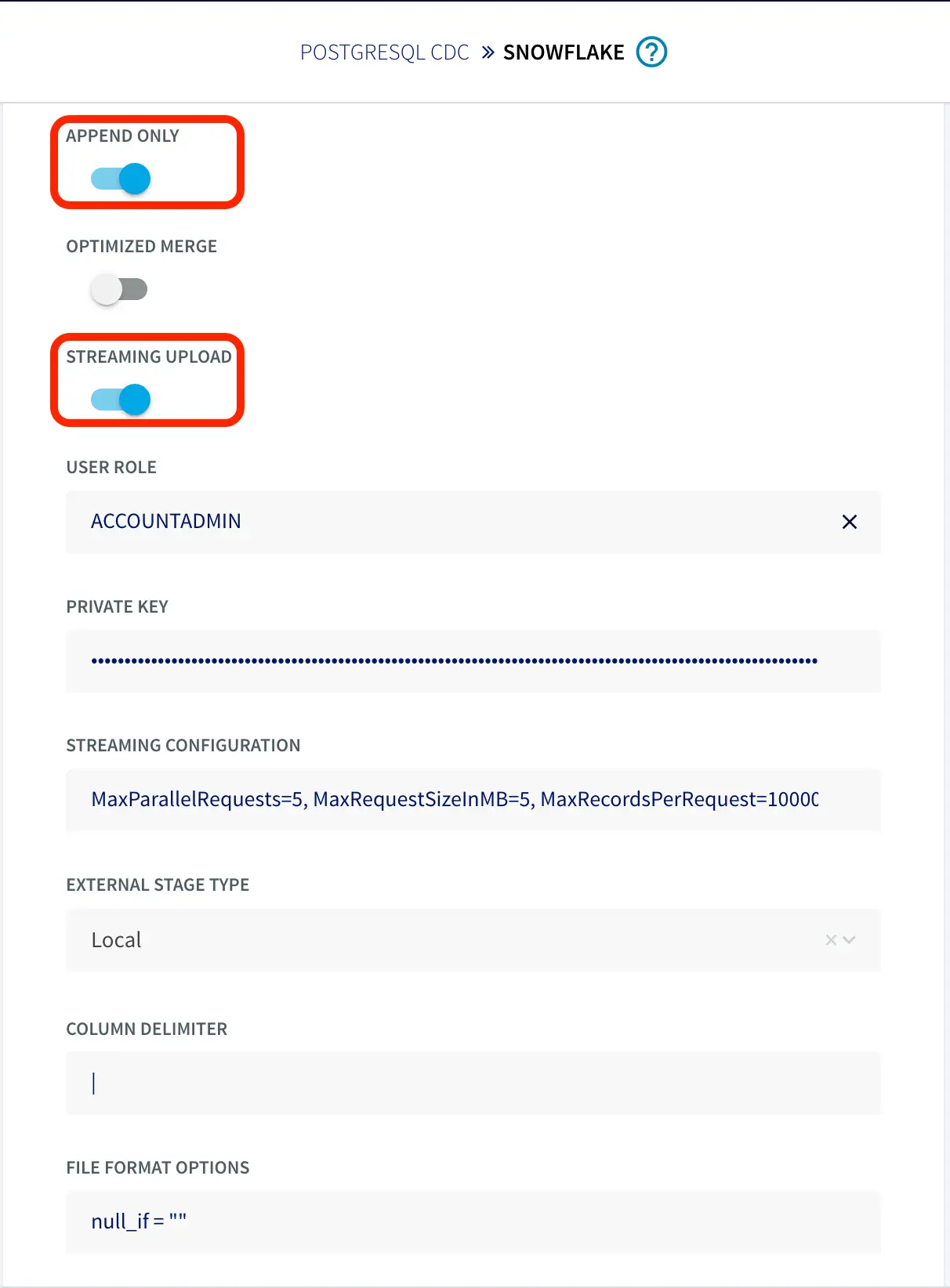
To configure the snowflake writer, under Advanced Settings, enable APPEND ONLY and STREAMING UPLOAD. With this setting, data will be streamed to the target table directly. Enter your user role and private key as shown below.

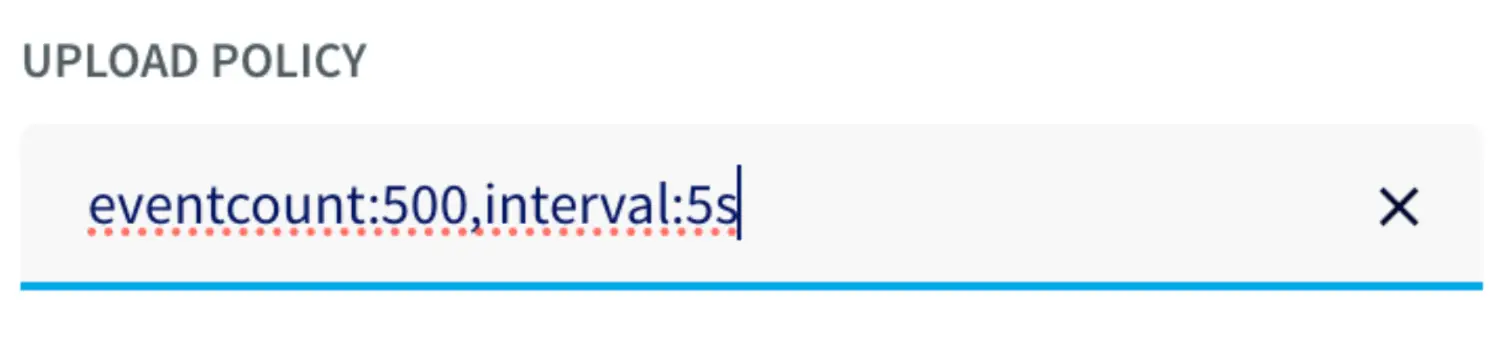
You can fine-tune the settings of upload policies based on the needs of your users. But you may start by changing ‘UploadPolicy’ to ‘eventcount:500,interval:5s’ to load either at every 500 events or 5 seconds (whichever comes first). 

There are a few limitations to this approach, as follows:

  • Snowflake Streaming API restricts AUTO INCREMENT or IDENTITY. 
  • Default column value that is not NULL is not supported. 
  • Data re-clustering is not available on Snowpipe streaming target tables. 
  • The GEOGRAPHY and GEOMETRY data types are not supported.

Wrapping Up: Start your Free Trial Today

In this recipe, we have walked you through steps for creating a Striim application with Snowflake as a target using test data from our Continuous Generator adapter. You can easily set up a streaming app by configuring your Snowflake target. As always, feel free to reach out to our integration experts to schedule a demo, or try Striim developer for free here.

Tools you need

Striim

Striim’s unified data integration and streaming platform connects clouds, data and applications.

Snowflake

Snowflake is a cloud-native relational data warehouse that offers flexible and scalable architecture for storage, compute and cloud services.

Streaming SQL on Kafka with Striim

Tutorial

Streaming SQL on Kafka with Striim

Data integration and SQL-based processing for Kafka with Striim

Benefits

Efficient Data Processing
Process streaming data quickly and effectively between enterprise databases and Kafka

Streamlined SQL-Based Queries
Transform, filter, aggregate, enrich, and correlate your real-time data using continuous queries

ACID-Compliant CDCStriim and Confluent work together to ensure high-performance, ACID-compliant Change Data Capture
On this page

Overview

Apache Kafka is a powerful messaging system, renowned for its speed, scalability, and fault-tolerant capabilities. It is widely used by organizations to reliably transfer data. However, deploying and maintaining Kafka-based streaming and analytics applications can require a team of developers and engineers capable of writing and managing substantial code. Striim is designed to simplify the process, allowing users to reap the full potential of Kafka without extensive coding.

Striim and Confluent, Inc. (founded by the creators of Apache Kafka), partnered to bring real-time change data capture (CDC) to the Kafka ecosystem. By integrating Striim with Confluent Kafka, organizations can achieve a cost-effective, unobtrusive solution for moving transactional data onto Apache Kafka message queues in real time. This delivery solution is managed through a single application that offers enterprise-level security, scalability, and dependability.

The Striim platform helps Kafka users quickly and effectively process streaming data from enterprise databases to Kafka. Streamlined SQL-like queries allow for data transformations, filtering, aggregation, enrichment, and correlation. Furthermore, Striim and Confluent work together to ensure high-performance, ACID-compliant CDC and faster Streaming SQL queries on Kafka. For further insights into the strengths of the Striim and Kafka integration, visit our comparison page.

This recipe will guide you through the process of setting up Striim applications (Striim apps) with Confluent Kafka. Two applications will be set up: one with Kafka as the data source using the Kafka Reader component and another with Kafka as the destination with the Kafka Writer component. You can download the associated TQL files from our community GitHub page and deploy them into your free Striim Developer account. Please follow the steps outlined in this recipe to configure your sources and targets.

Core Striim Components

Kafka Reader: Kafka Reader reads data from a topic in Apache Kafka 0.11 or 2.1.

Kafka Writer: Kafka Writer writes to a topic in Apache Kafka 0.11 or 2.1.

Stream: A stream passes one component’s output to one or more components. For example, a simple flow that only writes to a file might have this sequence.

Snowflake Writer: Striim’s Snowflake Writer writes to one or more existing tables in Snowflake. Events are staged to local storage, Azure Storage, or AWS S3, then written to Snowflake as per the Upload Policy setting.

Mongodb Reader: Striim supports MongoDB versions 2.6 through 5.0 and MongoDB and MongoDB Atlas on AWS, Azure, and Google Cloud Platform.

Continuous Query: Striim continuous queries are continually running SQL queries that act on real-time data and may be used to filter, aggregate, join, enrich, and transform events.

App 1: Kafka Source to Snowflake Target

For the first app, we have used Confluent Kafka (Version 2.1) as our source. Data is read from a Kafka topic and processed in real time before being streamed to a Snowflake target warehouse. Please follow the steps below to set up the Striim app from the Flow Designer in your Striim Developer account. If you do not have an account yet, please follow this tutorial  to sign up for a free Striim Developer account in a few simple steps.

Step 1: Configure the Kafka Source adapter

In this recipe the Kafka topic is hosted on Confluent. Confluent offers a free trial version for learning and exploring Kafka and Confluent Cloud. To sign-up for a free trial of Confluent cloud, please follow the Confluent documentation. You can create a topic inside your free cluster and use it as the source for our Striim app.

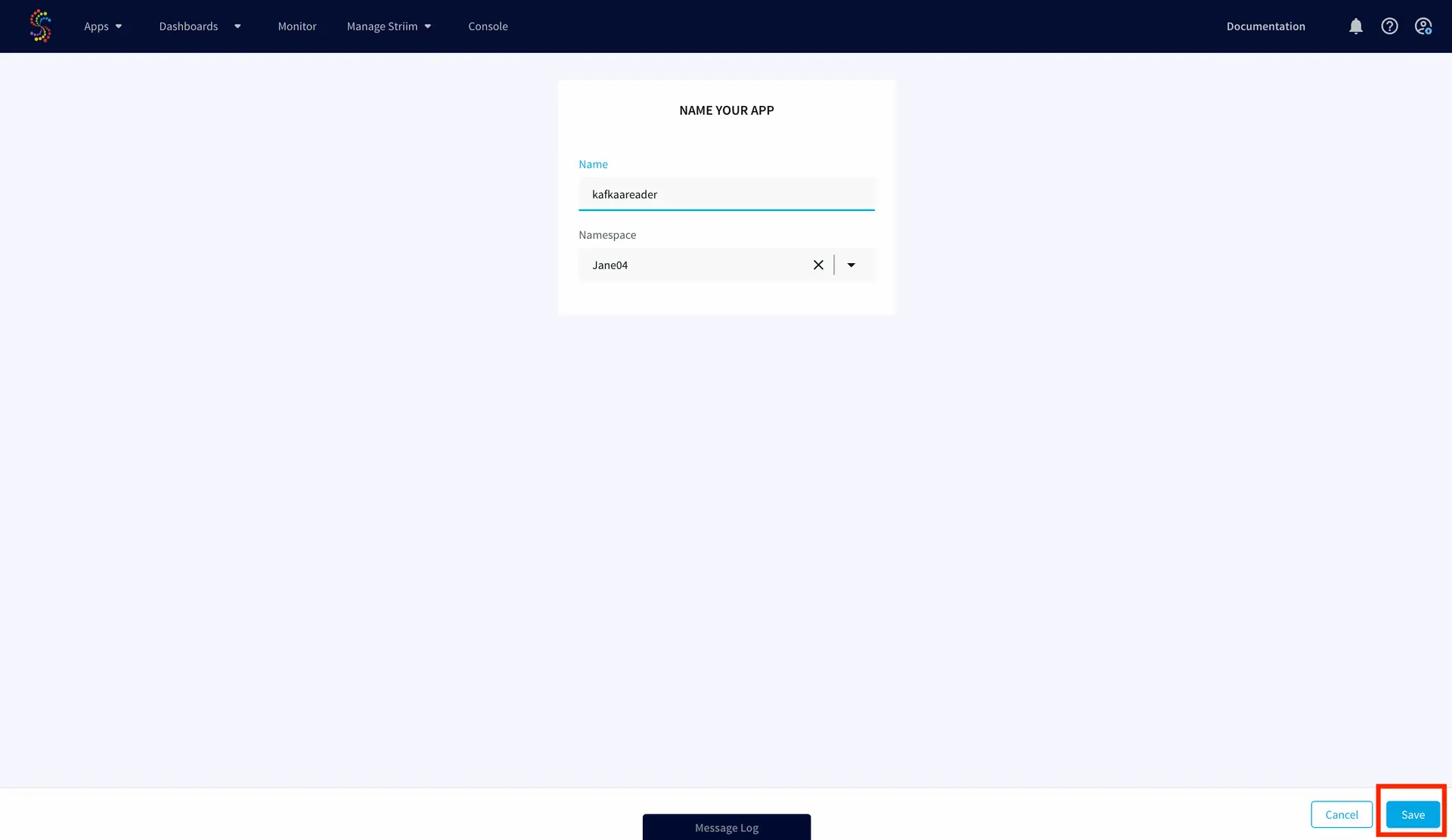
To configure your source adapter from the Flow Designer, click on ‘Create app’ on your homepage followed by ‘Start from scratch’. Name your app and click ‘Save’.

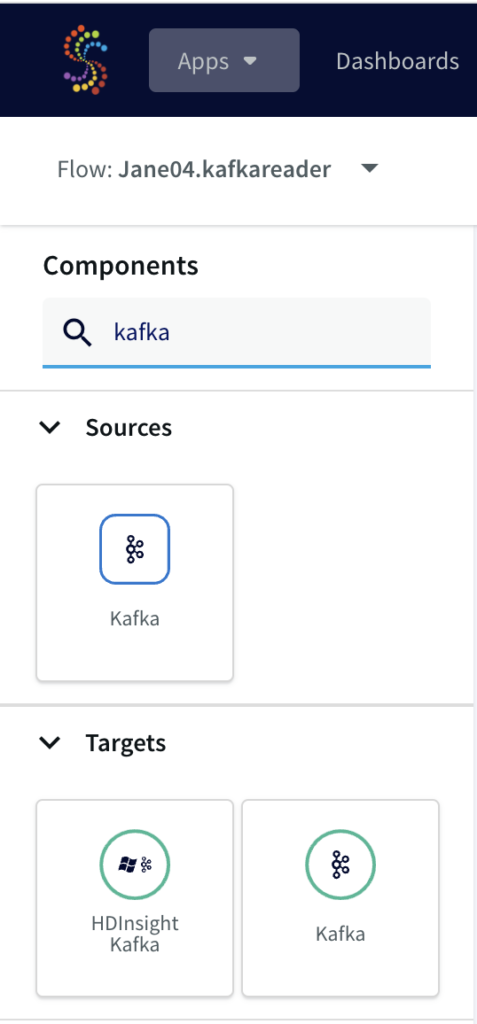
From the side panel, drag the Kafka source component and enter the connection details.

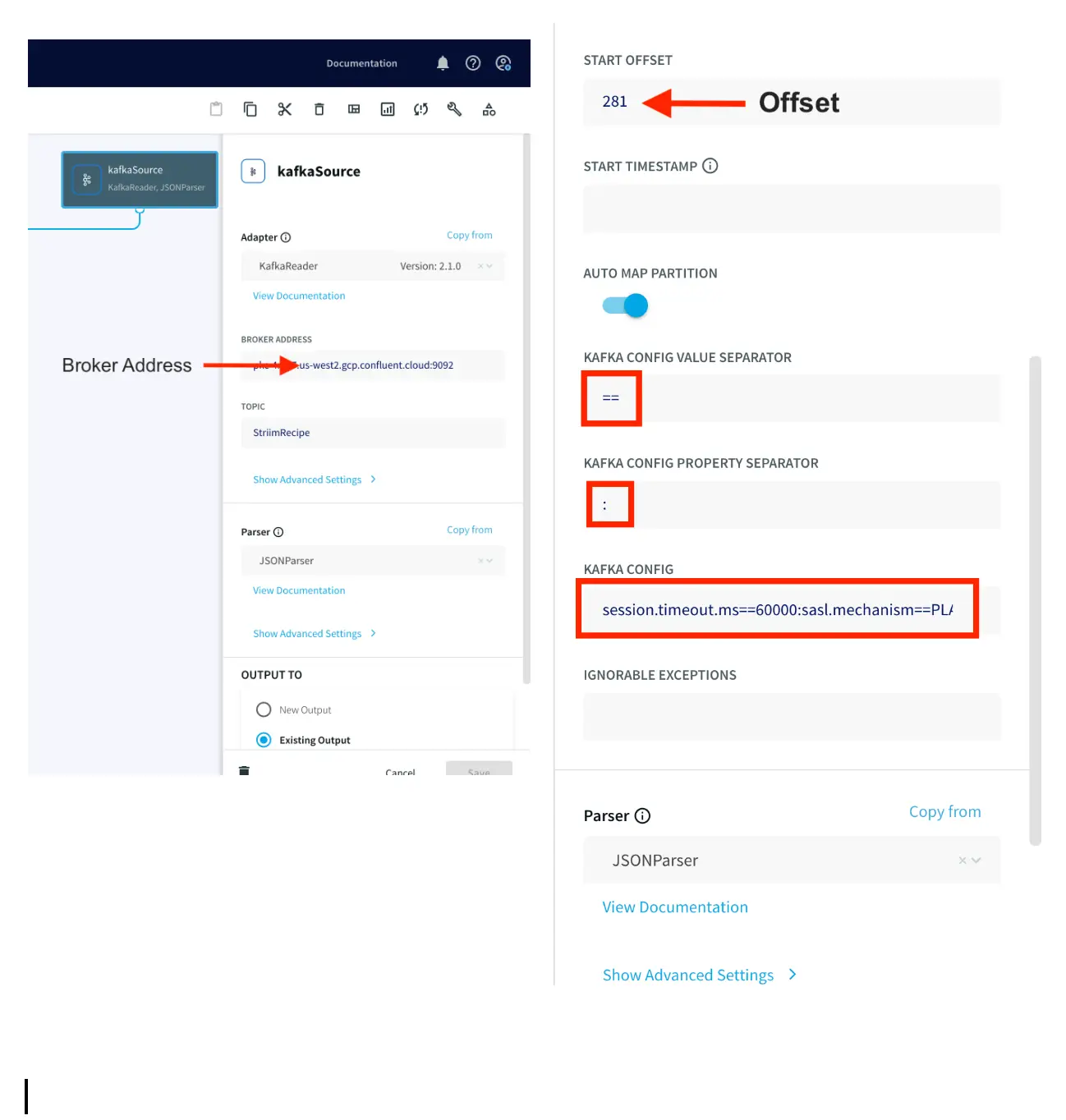
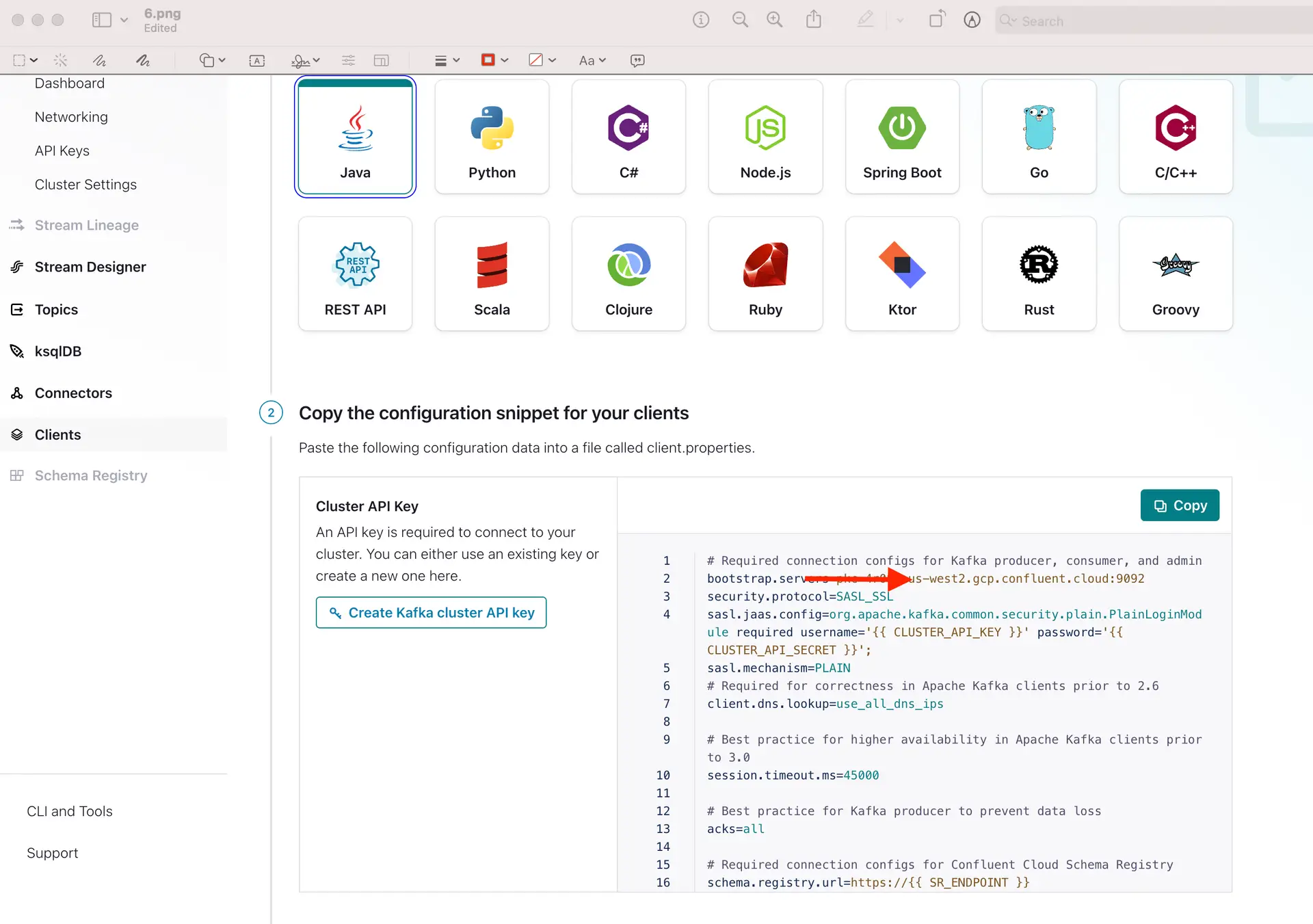
Add the broker address that you can find under client information on Confluent Cloud, also called the bootstrap server.

Enter the offset from where you want to stream data from your topic. Change the Kafka Config value and property separators as shown above. For the Kafka Config field you will need API key and API secret of your Confluent Kafka topic. The Kafka Config is entered in the following

format:session.timeout.ms==60000:sasl.mechanism== PLAIN:sasl.jaas.config==org.apache.kafka.common.security.plain.PlainLoginModule required username=””password=””;  :ssl.endpoint.identification.algorithm==https:security.protocol==SASL_SSL

You can copy the sasl.jaas.config from client information on Confluent Cloud and use the correct separators for the Kafka Config string.

Step 2: Add a Continuous Query to process the output stream

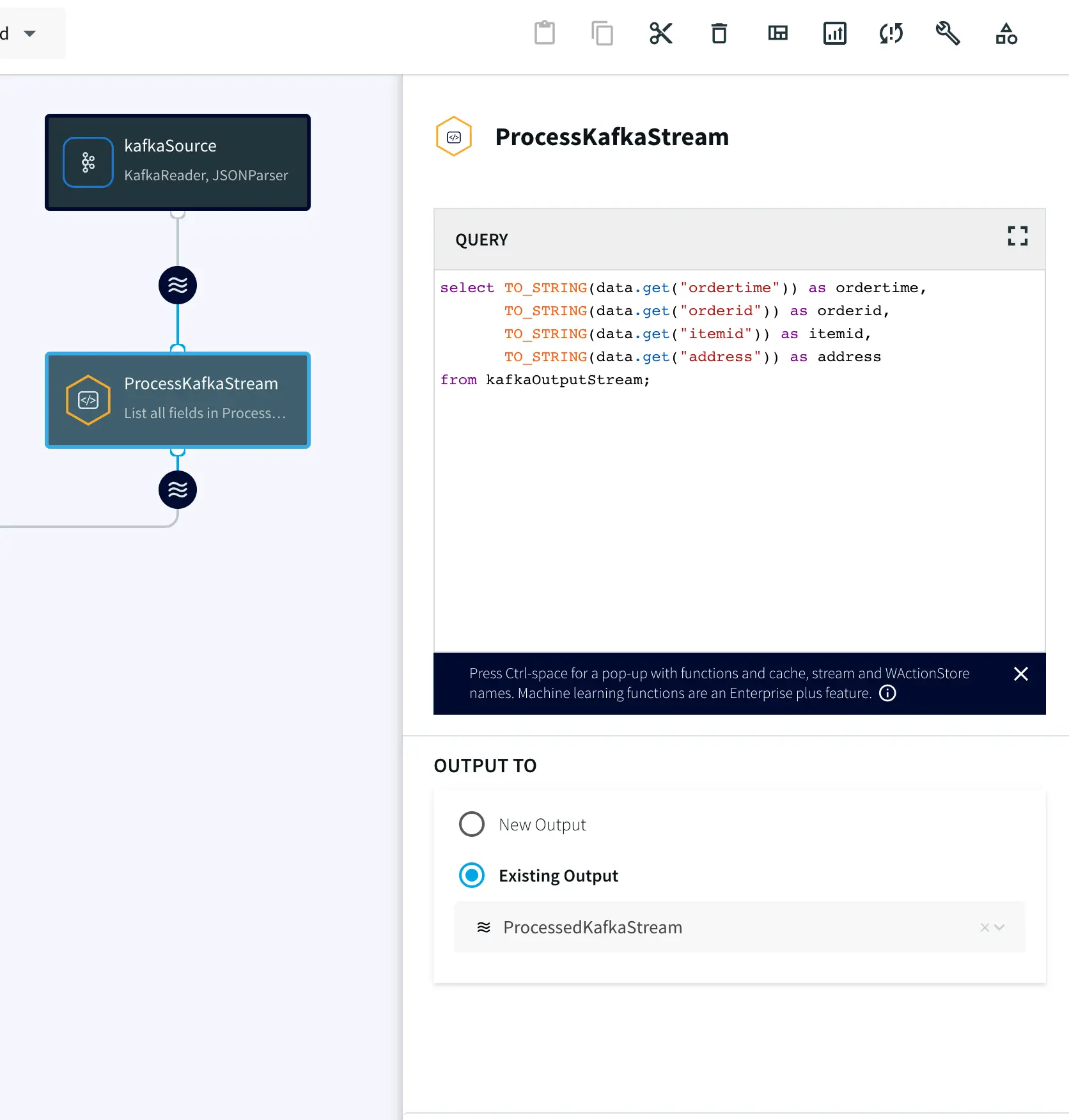
Now the data streamed from the Kafka source will be processed in real time for various analytical applications. In this recipe the data is processed with SQL-like query that converts the JSON values into a structured table which is then streamed into your Snowflake warehouse, all in real time.

Drag the CQ component from the side panel and enter the following query. You can copy the SQL query from our GitHub page.

Step 3: Configure your Snowflake Target

On your target Snowflake warehouse, create a table with the same schema as the processed stream from the above Continuous Query. Enter the connection details and save. You can learn more about Snowflake Writer from this recipe.

Step 4: Deploy and run the app

Once the source, target and CQ are configured, select Deploy from the dropdown menu next to ‘Created’. Choose any available node and click Deploy. After the app is deployed, from the same drop-down, select StartApp.

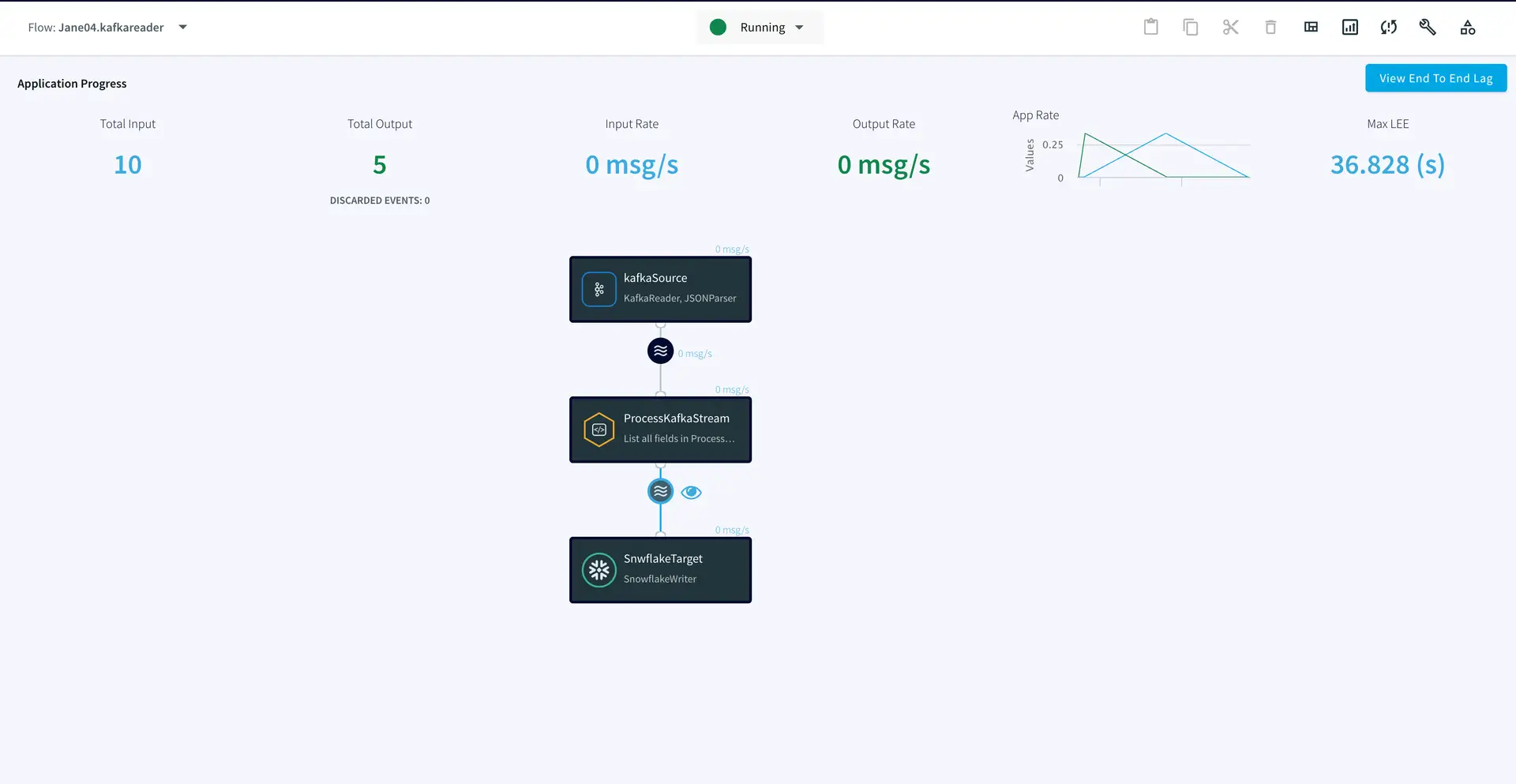
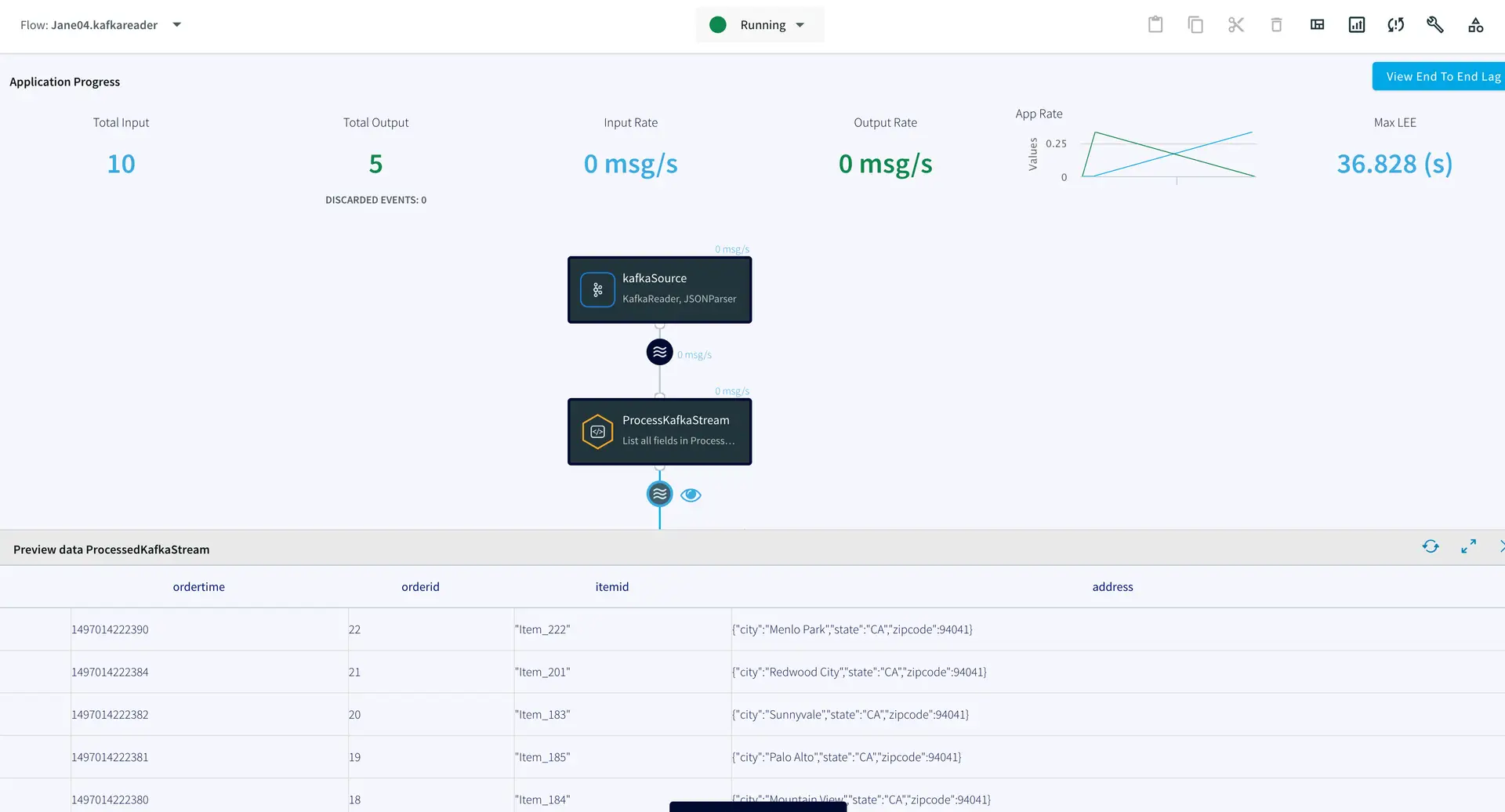
You can preview the processed data by clicking on the ‘eye’ icon next to the stream component.

App 2: MongoDB Source to Kafka Target

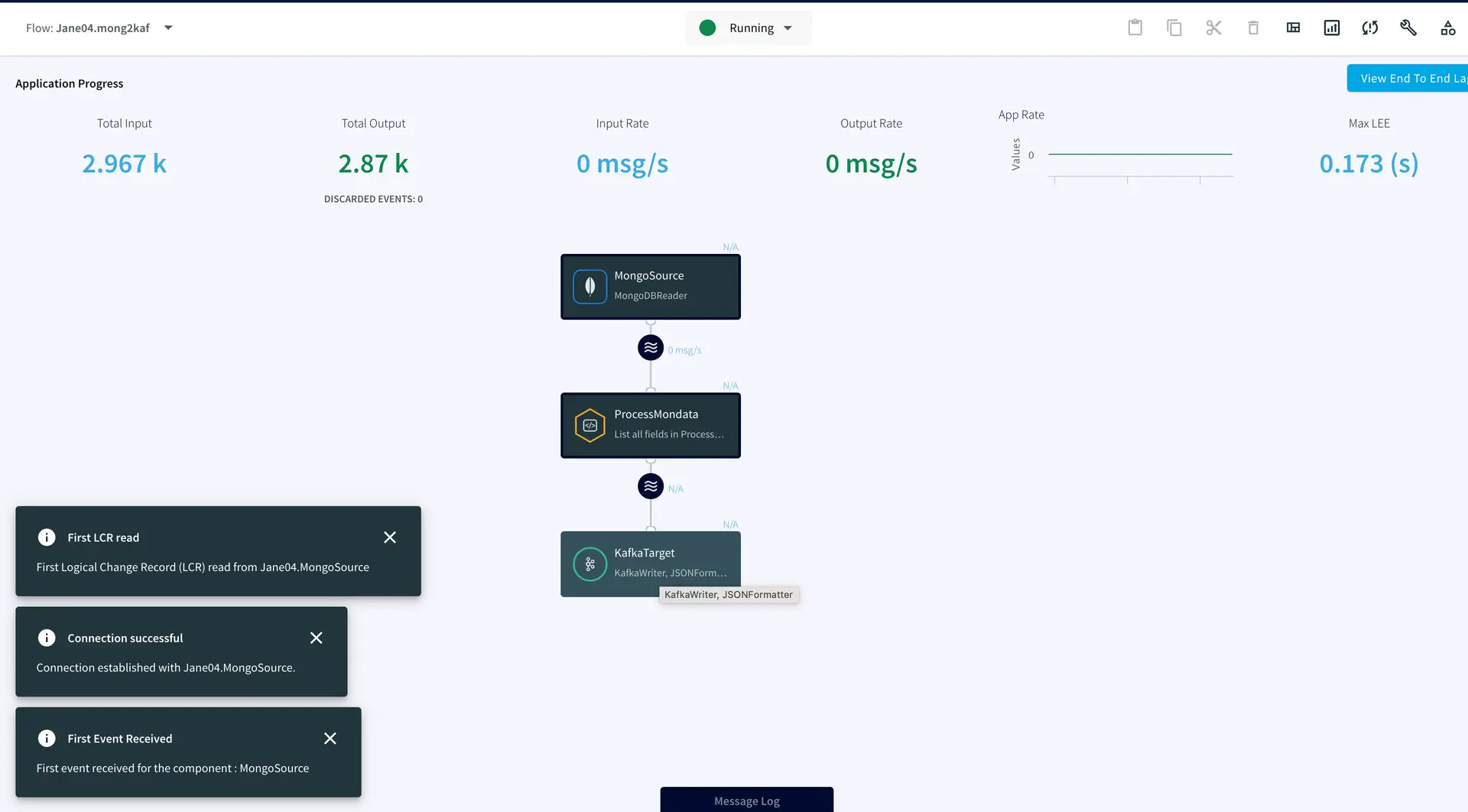
In this app, real-time data from MongoDB has been processed with SQL-like queries and replicated to a Kafka topic on Confluent. Follow the steps below to configure a MongoDB to Kafka streaming app on Striim. As shown in app 1 above, first name your app and go to the Flow Designer.

Step 1: Set up your MongoDB Source

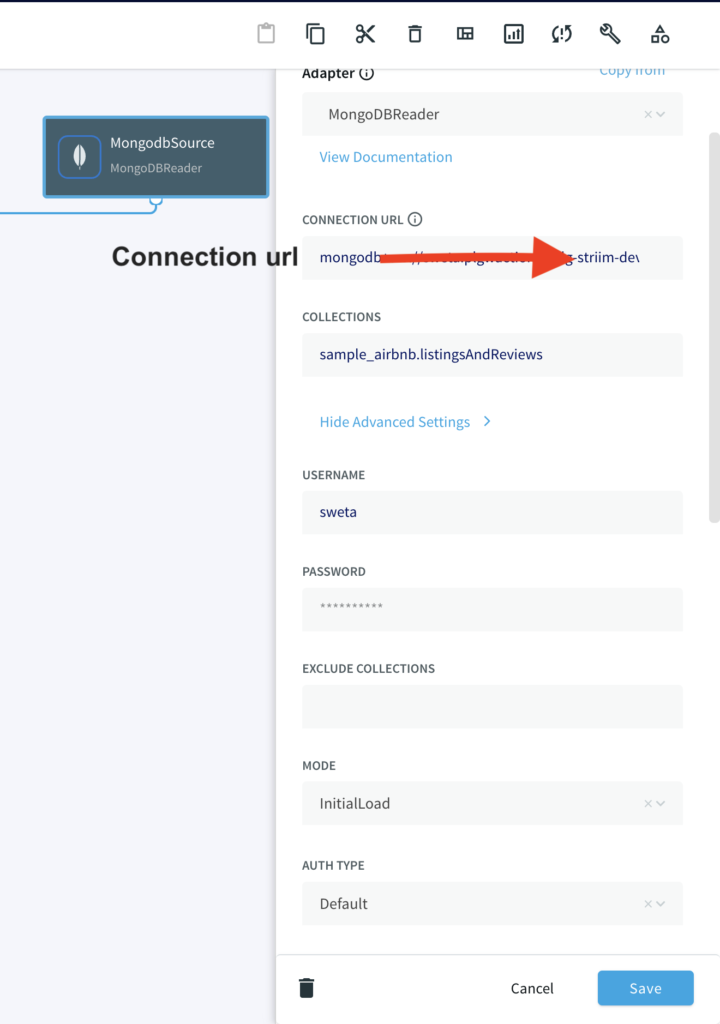
Configure your MongoDB source by filling in the connection details. Follow this recipe for detailed steps on setting up a MongoDB source on Striim. Enter the connection url, username, password and the collection data that you want to stream.

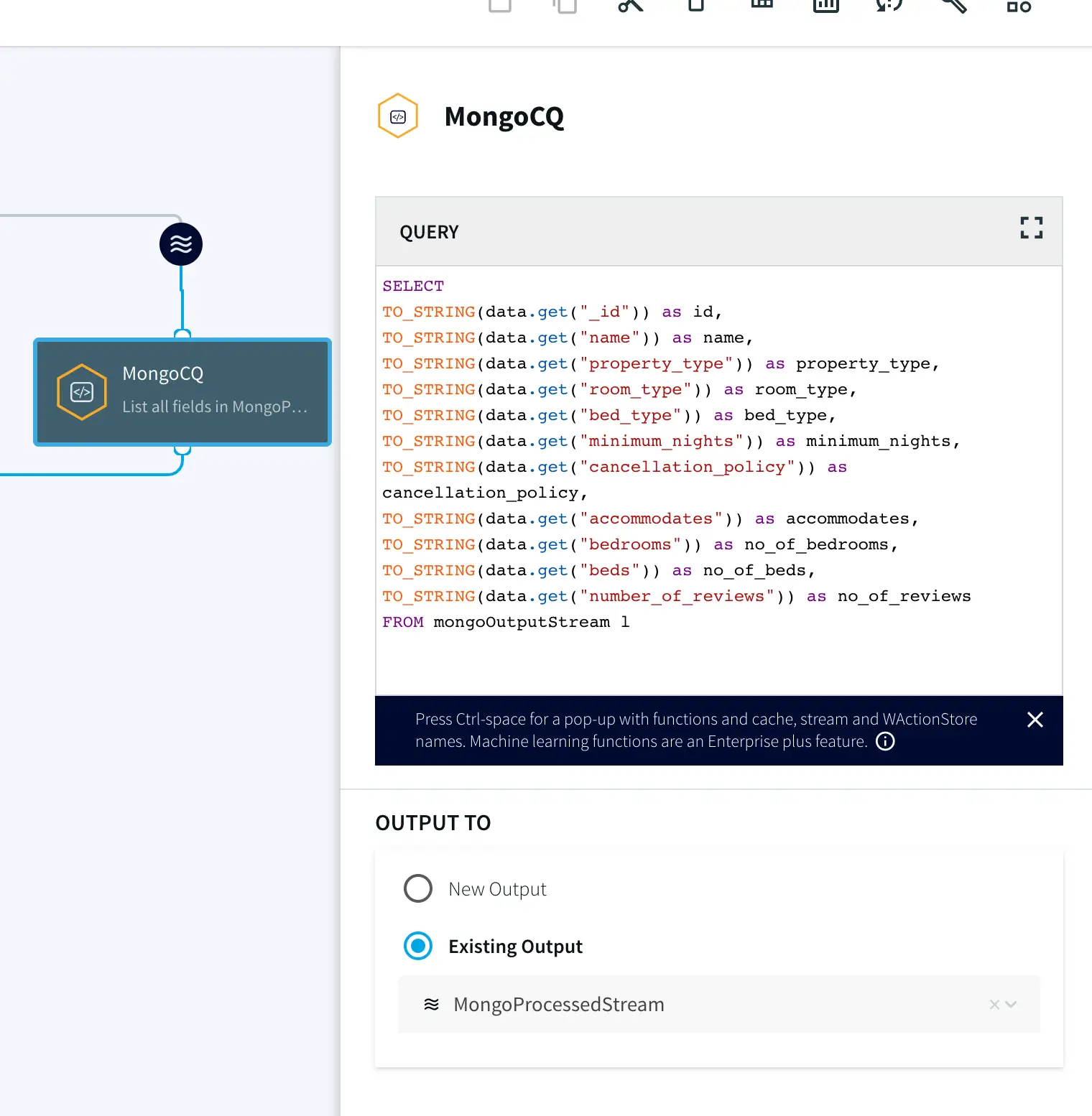
Step 2: Add a Continuous Query to process incoming data

Once the source is configured, we will run a query on the data stream to process it. You can copy and paste the code from our GitHub page.

Step 3: Set up the Kafka target

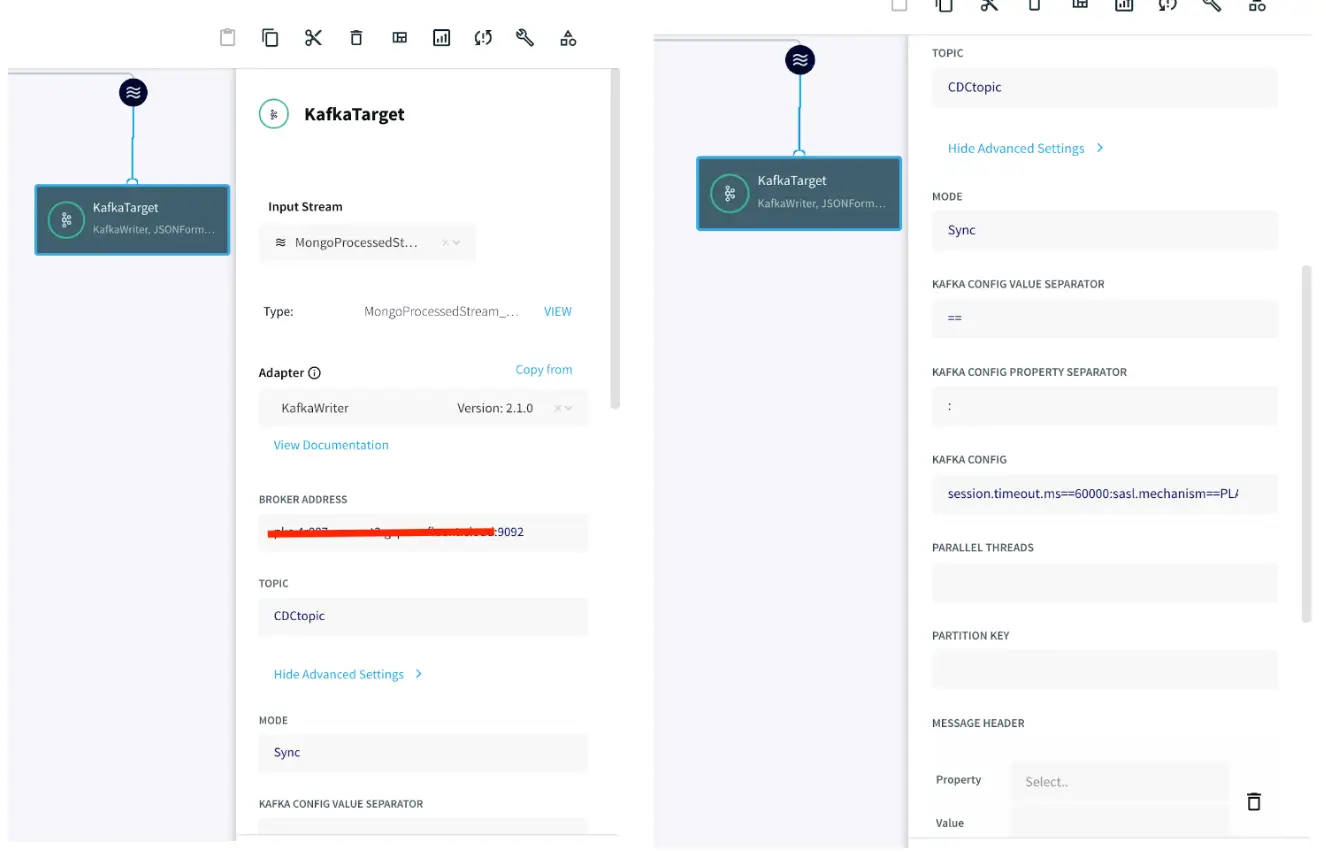
After the data is processed, it is written to a Confluent Kafka topic. The configuration for the Kafka Writer is similar to Kafka Reader as shown in app 1. Enter the connection details of your Kafka and click Save.

Step 4: Deploy and run the app

After the source and target adapters are configured, click Deploy followed by Startapp to run the data stream.

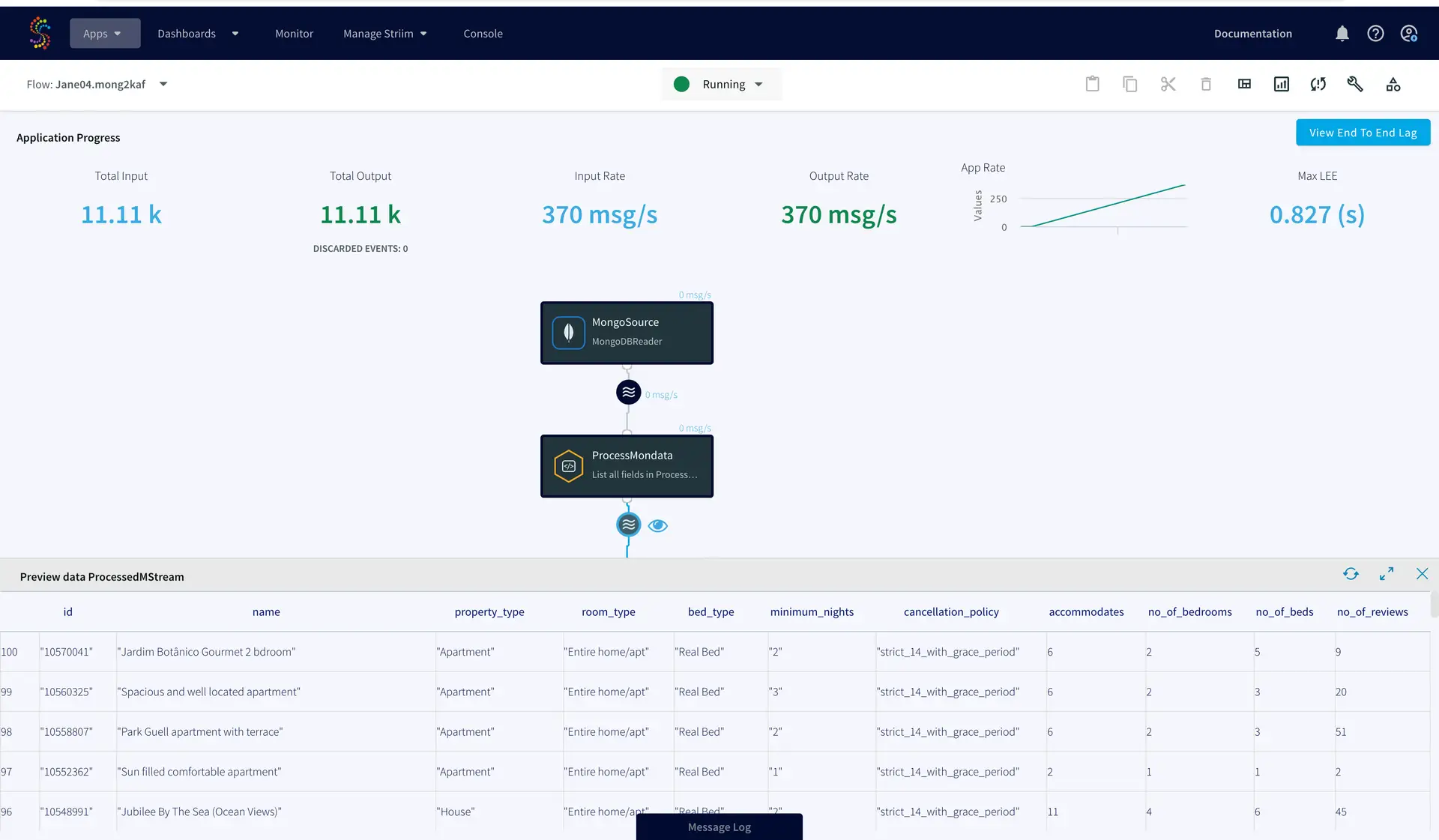
You can preview the processed data through the ‘eye’ wizard next to the data stream.

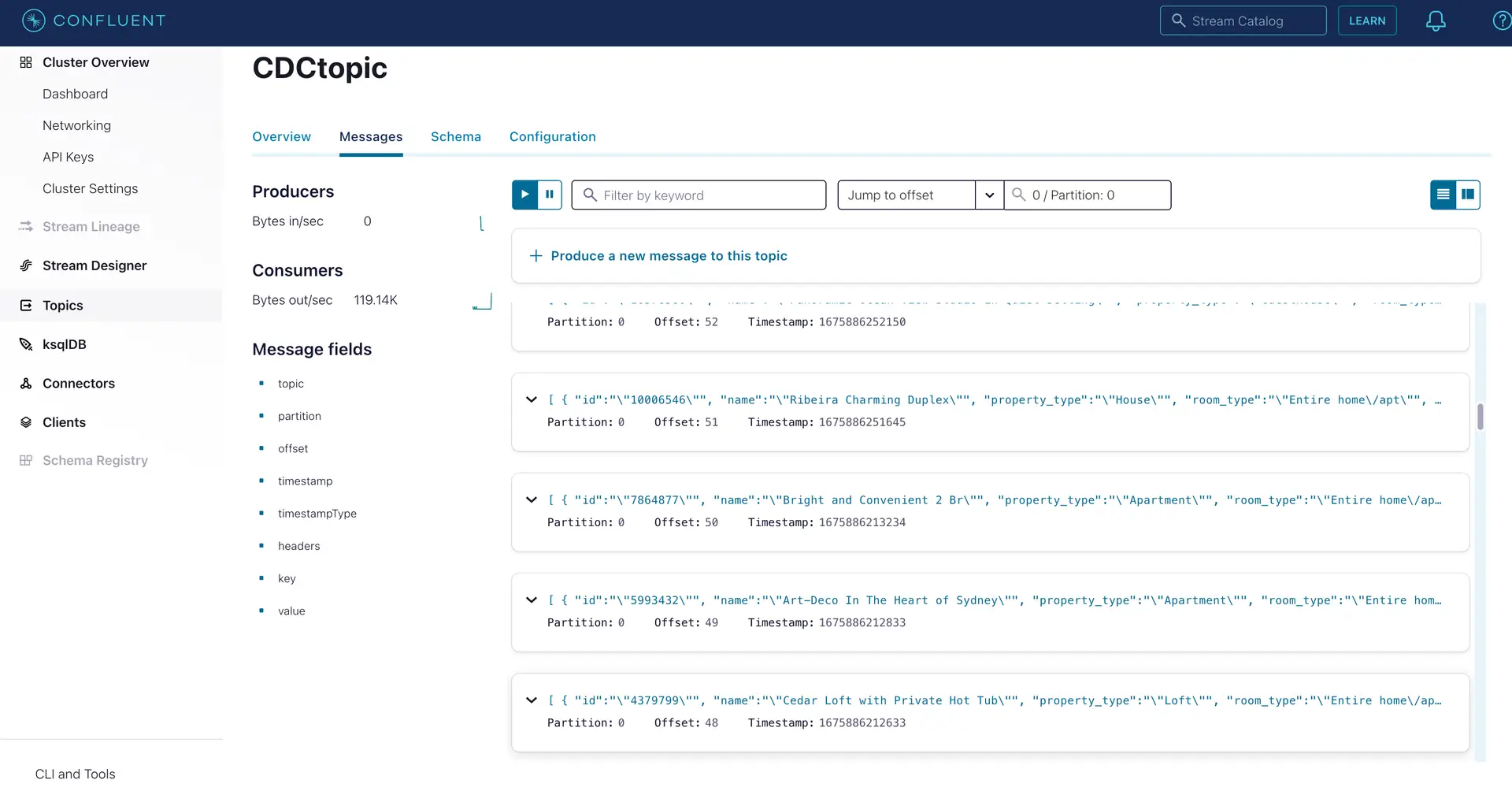
As seen on the target Kafka messages, the data from MongoDB source is streamed into the Kafka topic.

Setting Up the Striim Applications

App 1: Kafka Source to Snowflake Target

Step 1: Configure the Kafka Source Adapter

Kafka Config:

session.timeout.ms==60000:sasl.mechanism==PLAIN: sasl.jaas.config==org.apache.kafka.common.security.plain.PlainLoginModule required username=””password=””; :ssl.endpoint.identification.algorithm==https:security.protocol==SASL_SSL

Step 2: Add a Continuous Query to process the output stream

select TO_STRING(data.get(“ordertime”)) as ordertime,
TO_STRING(data.get(“orderid”)) as orderid,
TO_STRING(data.get(“itemid”)) as itemid,
TO_STRING(data.get(“address”)) as address
from kafkaOutputStream;

Step 3: Configure your Snowflake target

Step 4: Deploy and run the Striim app

App 2: MongoDB Source to Kafka target

Step 1: Set up your MongoDB Source

Step 2: Add a Continuous Query to process incoming data

SELECT
TO_STRING(data.get(“_id”)) as id,
TO_STRING(data.get(“name”)) as name,
TO_STRING(data.get(“property_type”)) as property_type,
TO_STRING(data.get(“room_type”)) as room_type,
TO_STRING(data.get(“bed_type”)) as bed_type,
TO_STRING(data.get(“minimum_nights”)) as minimum_nights,
TO_STRING(data.get(“cancellation_policy”)) as cancellation_policy,
TO_STRING(data.get(“accommodates”)) as accommodates,
TO_STRING(data.get(“bedrooms”)) as no_of_bedrooms,
TO_STRING(data.get(“beds”)) as no_of_beds,
TO_STRING(data.get(“number_of_reviews”)) as no_of_reviews
FROM mongoOutputStream l

Step 3: Set up the Kafka target

Step 4: Deploy and run the app

Wrapping Up: Start your Free Trial Today

The above tutorial describes how you can use Striim with Confluent Kafka  to move change data into the Kafka messaging system. Striim’s pipelines are portable between multiple clouds across hundreds of endpoint connectors. You can create your own applications that cater to your needs. Please find the app TQL and data used in this recipe on our GitHub repository.

As always, feel free to reach out to our integration experts to schedule a demo, or try Striim for free here.

Tools you need

Striim

Striim’s unified data integration and streaming platform connects clouds, data and applications.

Snowflake

Snowflake is a cloud-native relational data warehouse that offers flexible and scalable architecture for storage, compute and cloud services.

Apache Kafka

Apache Kafka is an open-source distributed streaming system used for stream processing, real-time data pipelines, and data integration at scale.

MongoDB

NoSQL database that provides support for JSON-like storage with full indexing support.

Replicating changes and maintaining history in your warehouse with streaming change data capture

Tutorial

Replicating changes and maintaining history in your warehouse with streaming change data capture

You don’t have to copy data or run expensive batch jobs to audit your data

Benefits

Reduce Costs
Run updates only when the data changes and not on fixed schedule

Avoid Maintainability Problems
Simplified Architecture that gives you correctness and avoids maintainability problems with batch/scheduled snapshots

Extend with Additional FunctionalityEasy to extend with additional functionality, e.g. Slack Notification when a customer changes their address and has an open order
On this page

Overview

Many companies need to maintain a history of changes on the lifecycle of their customers while keeping the latest ‘source of truth’. When this data is processed in an operational database (PostgreSQL, MySQL, MongoDB), the common method of doing the above is change data capture to a cloud data warehouse (Snowflake, BigQuery, Redshift). However there are challenges here: how do I use the same CDC stream to A) apply the changes as DML to a table in my warehouse and B) maintain a separate table to track the history WITHOUT copying data inefficiently or creating multiple CDC clients on the database (each client adding some processing overhead).

Striim is a unified data streaming and integration product that offers change data capture (CDC) enabling continuous replication from popular databases such as Oracle, SQLServer, PostgreSQL and many others to target data warehouses like BigQuery and Snowflake. The CDC capabilities of Striim makes it a powerful tool to track changes in real time whenever a table is altered.

In this recipe we have shown how we can use Striim to maintain historical records while streaming data that gets frequently updated. For example, when engineering teams have a production table that overwrites data, such as users in a CUSTOMERS table change their addresses and the table is updated with the new data. However, for tax and reporting purposes, a record of the customer’s previous addresses is required. We can use CDC to solve this without requiring engineering effort from the backend teams.

One possible solution is a Batch ETL process directly into Snowflake with dbt Snapshots running regularly to mimic a CDC-like process. The problem with this approach is that it only detects changes when it’s running. If a record changed twice between dbt Snapshots, then the first change is lost forever. To support the CDC-like behavior, you have to run your batch ETL more frequently in order to reduce (but not eliminate) the likelihood of missing a change between runs.

We can leverage Striim to generate a CDC feed from source database (eg. PostgreSQL) that captures all changes as they happen. All new and updated records are appended to an audit/history table and at the same time, we use Snowflake’s merge function to maintain an up-to-date list of current customer information.

The latter architecture gives correctness and avoids maintainability problems that occur in batch/scheduled snapshots. There is a reduction in cost as updates are run only when the data changes and not on a fixed schedule. The data pipeline is simpler with only one connector/CDC stream for incoming data. Last but not least, this architecture can be easily extended with additional functionality, e.g. Slack Notification when a change occurs.

Please follow the steps below to set up your CDC source and configure the target table for both historical records table and most up-to-date table.

Core Striim Components

PostgreSQL Reader: PostgreSQL Reader uses the wal2json plugin to read PostgreSQL change data.

Stream: A stream passes one component’s output to one or more other components. For example, a simple flow that only writes to a file might have this sequence.

Snowflake Writer: Striim’s Snowflake Writer writes to one or more existing tables in Snowflake. Events are staged to local storage, Azure Storage, or AWS S3, then written to Snowflake as per the Upload Policy setting.

Step 1: Set up your Source Database

For this recipe, our source database is PostgreSQL. A table containing customer names and addresses is updated when a customer changes their address. It is very important to have a Primary Key column to capture DMLs like Update and Delete operations.

Step 2: Set up your Snowflake Targets

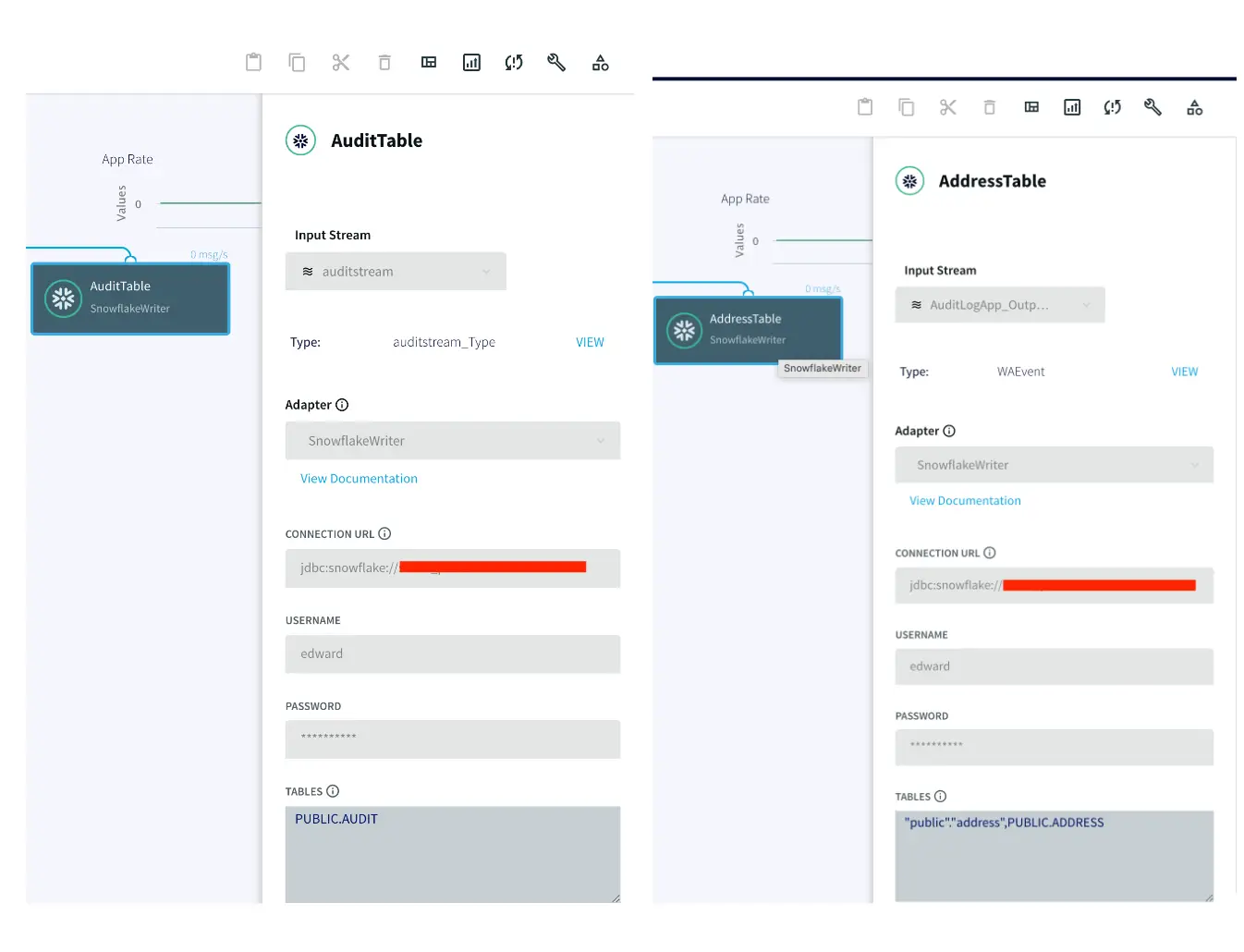
The target tables for this streaming application are hosted in snowflake data warehouse. There is an AUDIT table that stores  all new as well as historical records for each customer and a second table called ADDRESS stores the most recent records for each customer.

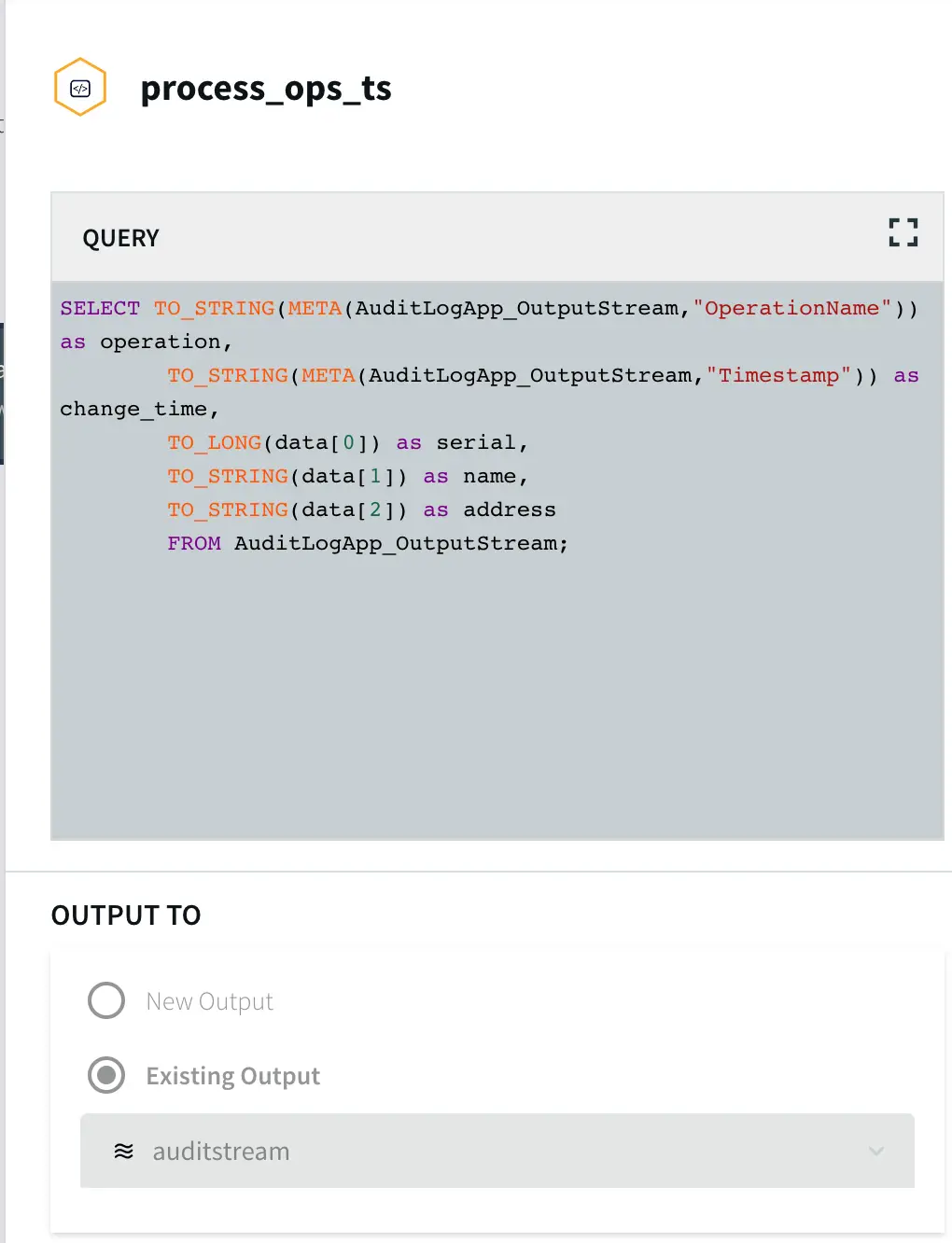
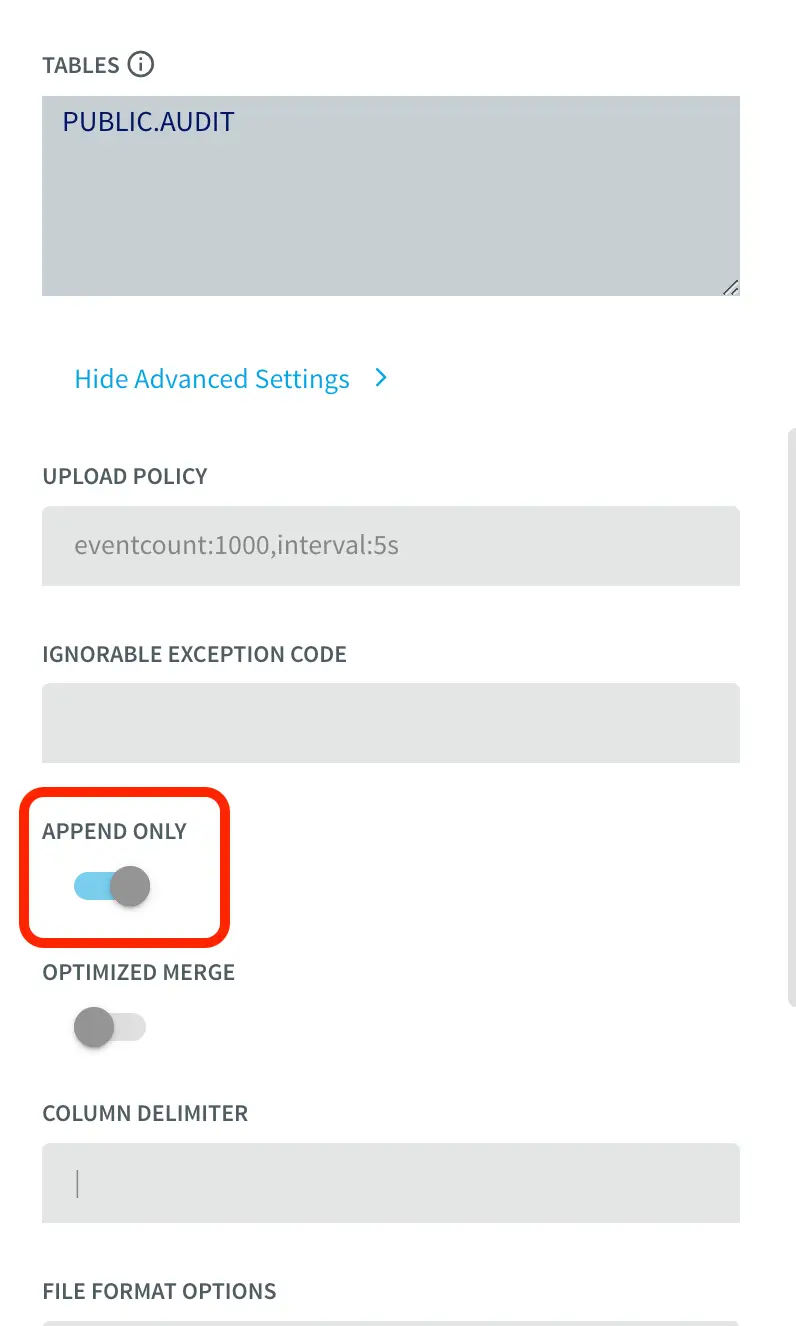
To insert data into AUDIT table, we process the input stream with a Continuous Query to include operation time and Timestamp when CDC occurred using the metadata.  The APPEND ONLY setting is set to True that handles the updates and deletes as inserts in the target.

With the default value of False, updates and deletes in the source are handled as updates and deletes in the target. With Append Only set to True, Primary key updates result in two records in the target, one with the previous value and one with the new value. For more information on Snowflake Writer, please follow the Striim documentation.

Step 3: Run the app and update your source table

Once the source and target adapters are configured, deploy and run the Striim app and update your source table to stream both updated and historical data into the target tables. You can download the app TQL file from our github repo. Perform the following DMLs on your source table:

  • Update address for ‘John Doe’ from ‘Franklin Street’ to ‘Monroe Street’

  • Insert a new record for customer ‘Zane Doe’

  • Delete the row containing information about ‘Zane Doe’

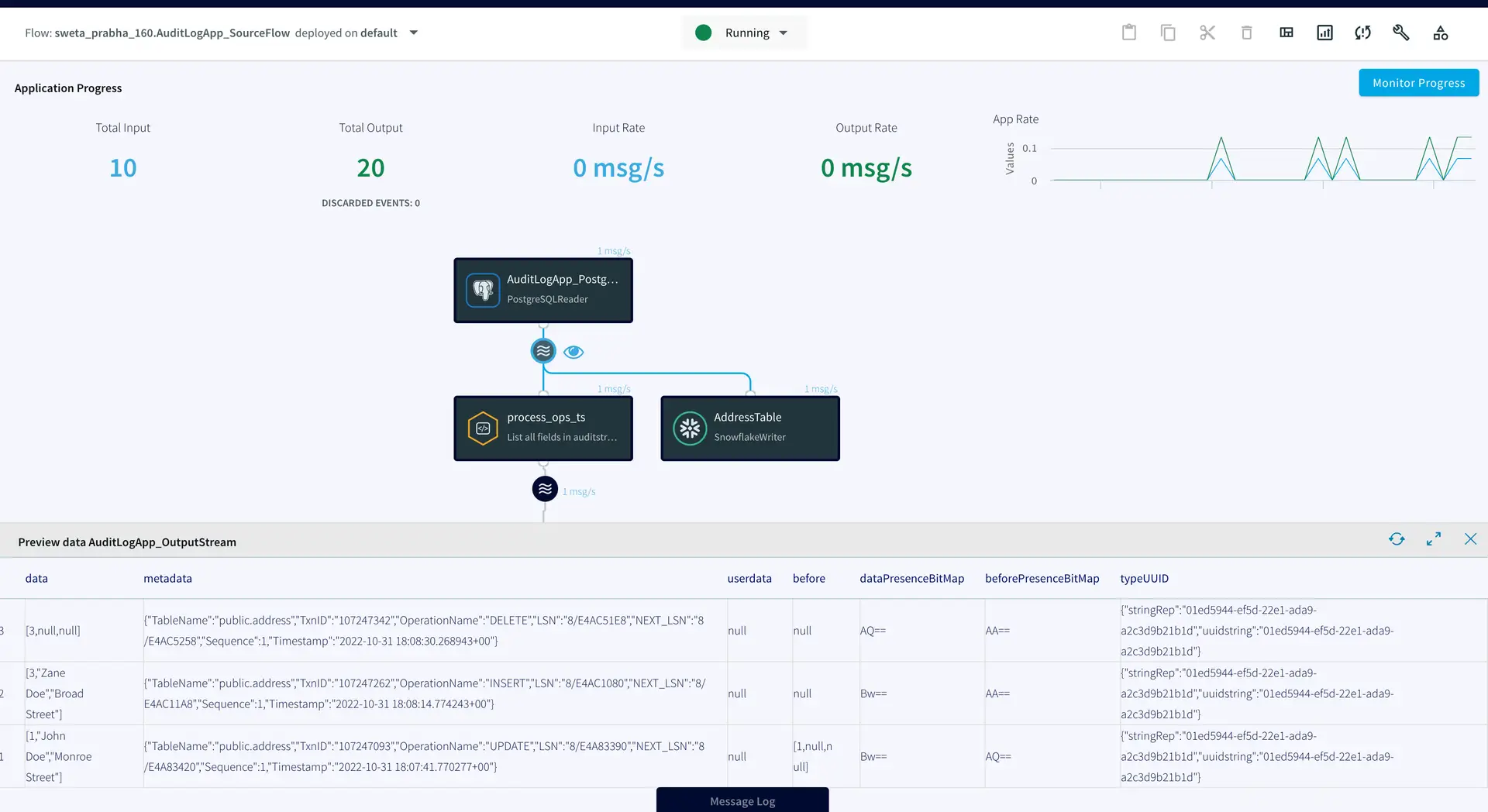
We can check the target table and preview the data stream between source and target adapters after each DML to confirm if the target table has been populated with desired records. As shown below, when a row is updated (Preview 3), an UPDATE operation on metadata is streamed, similarly for INSERT (Preview 4) and DELETE (Preview 5), operations in the source table are reflected.

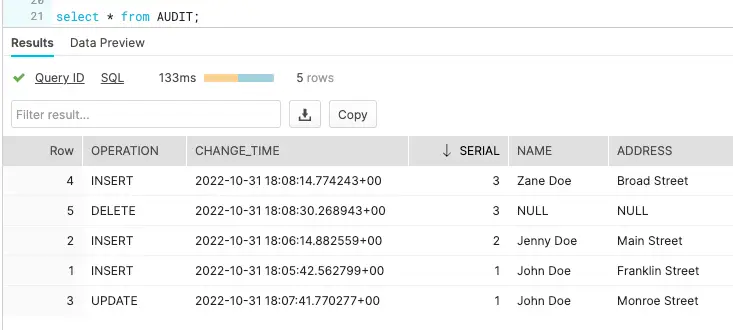
The ADDRESS table in the snowflake data warehouse has the most updated record whereas AUDIT table stored all the previous records.

Setting Up the Log CDC Application

Step 1: Set up the source table on Postgres

Create a new table on your source Postgres database with the following query

CREATE TABLE Address(

“Serial” integer,

name TEXT,

address TEXT,

PRIMARY KEY (“Serial”)

);

Step 2: Set up the target tables on Snowflake

Create an ADDRESS table with the same column names and data types as your source table and AUDIT table with additional columns for operation and timestamp on snowflake.

Step 3: Configure your source and target adapters on Striim

You can download the TQL file from our github repository and deploy it by configuring your source and target as explained in this recipe.

Step 4: Perform DML operations and stream records to target tables

Deploy and run the Striim app and replicate most updated as well as historical data on your target tables.

Wrapping Up: Start your Free Trial Today

The above tutorial describes how you can use Striim to replace the Batch ETL process with a low cost CDC for audit logs. Striim’s pipelines are portable between multiple clouds across hundreds of endpoint connectors. You can create your own applications that cater to your needs. Please find the app TQL and data used in this recipe on our github repository.

As always, feel free to reach out to our integration experts to schedule a demo, or try Striim for free here.

Tools you need

Striim

Striim’s unified data integration and streaming platform connects clouds, data and applications.

PostgreSQL

PostgreSQL is an open-source relational database management system.

Snowflake

Snowflake is a cloud-native relational data warehouse that offers flexible and scalable architecture for storage, compute and cloud services.

Real-Time Customer Analytics with Change Data Capture + Streaming SQL Joins

Tutorial

Real-Time Customer Analytics with Change Data Capture + Streaming SQL Joins

Use Striim for real-time analytics with in-flight data processing and transformation

Benefits

Ensure Data Delivery SLAs
Monitor data delivery in real time to ensure it meets Service Level Agreements with your stakeholders

Visualize Data with Striim Dashboards
Get real-time insights for immediate decision-making

Reliable Real-Time Analytics Stream real-time data for operational analytics knowing your teams won’t fall behind
On this page

Overview

Striim is a unified data streaming and integration product that offers change data capture (CDC) enabling continuous replication from popular databases such as Oracle, SQLServer, PostgreSQL and many others to target data warehouses like BigQuery and Snowflake. Striim is a powerful tool for real-time analytics, allowing you to stream data in real time or near-real time from various sources, and analyze and transform it into a format that is readily understandable by end users.

Real-time analytics plays a major role in retail industries. For example, a multinational retail chain keeps a centralized record of all its branches in different geographical locations and needs access to real-time insights for immediate decision-making. Data streaming and integration platforms like Striim perform in-flight data processing such as filtering, transformations, aggregations, masking and enrichment of streaming data before delivering it with sub-second latency to diverse environments in the cloud or on premises. The data can be delivered on a dashboard, report or any other medium. Managers and analysts can view real-time dashboard data to oversee the supply chain and strategize demand and supply.

The following recipe demonstrates how to stream retail data from a PostgreSQL database, process it in-flight using Streaming SQL, cache, and window components in a Striim application, and deliver it to a dashboard for analysis.

Core Striim Components

PostgreSQL Reader: PostgreSQL Reader uses the wal2json plugin to read PostgreSQL change data.

Stream: A stream passes one component’s output to one or more other components. For example, a simple flow that only writes to a file might have this sequence.

Cache: A memory-based cache of non-real-time historical or reference data acquired from an external source, such as a static file of postal codes and geographic data used to display data on dashboard maps, or a database table containing historical averages used to determine when to send alerts. If the source is updated regularly, the cache can be set to refresh the data at an appropriate interval.

Continuous Query: Striim Continuous Queries are continually running SQL queries that act on real-time data and may be used to filter, aggregate, join, enrich, and transform events.

Window: A window bounds real-time data by time, event count or both. A window is required for an application to aggregate or perform calculations on data, populate the dashboard, or send alerts when conditions deviate from normal parameters.

WAction and WActionStore: A WActionStore stores event data from one or more sources based on criteria defined in one or more queries. It is an incrementally maintained view.

Dashboard: A Striim dashboard gives you a visual representation of data read and written by a Striim application

Simplified Diagram of the Striim App

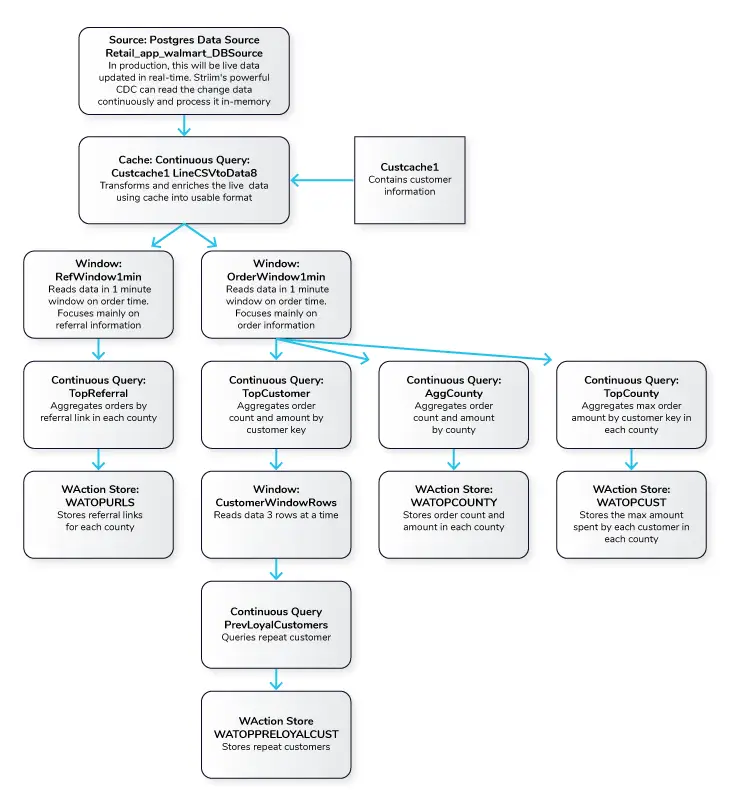
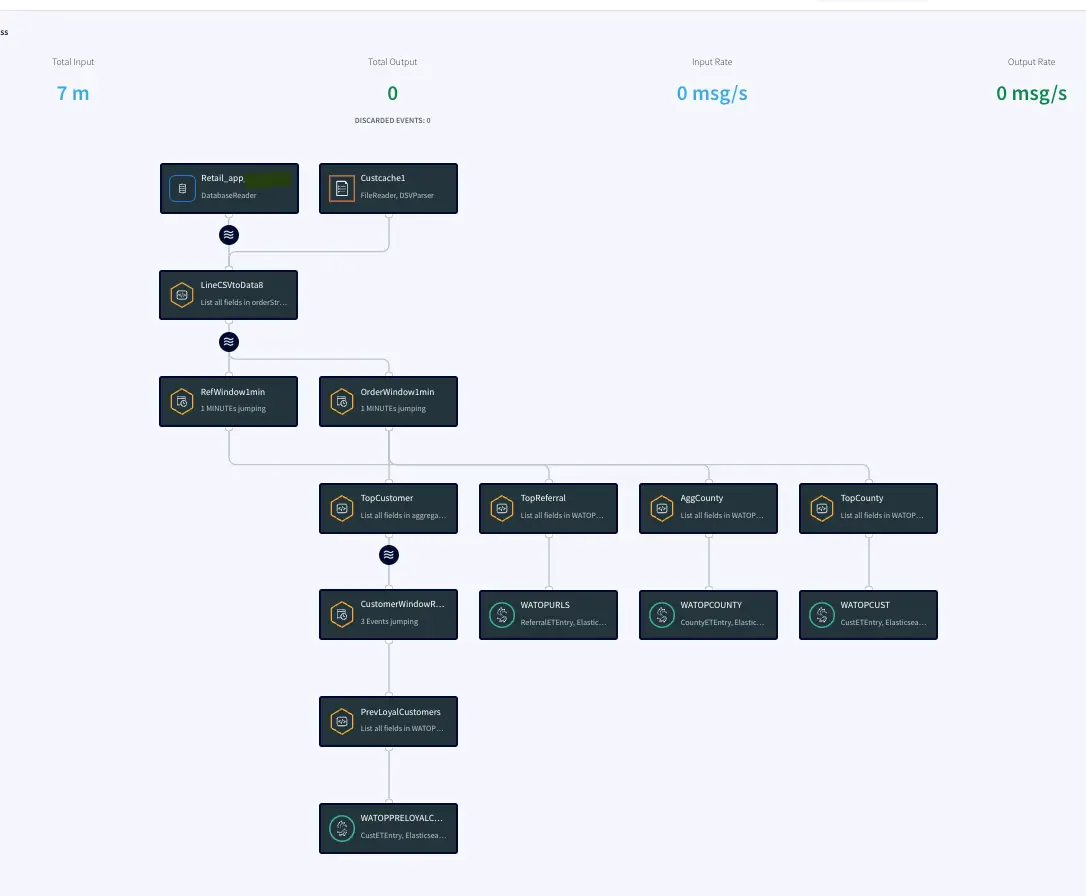
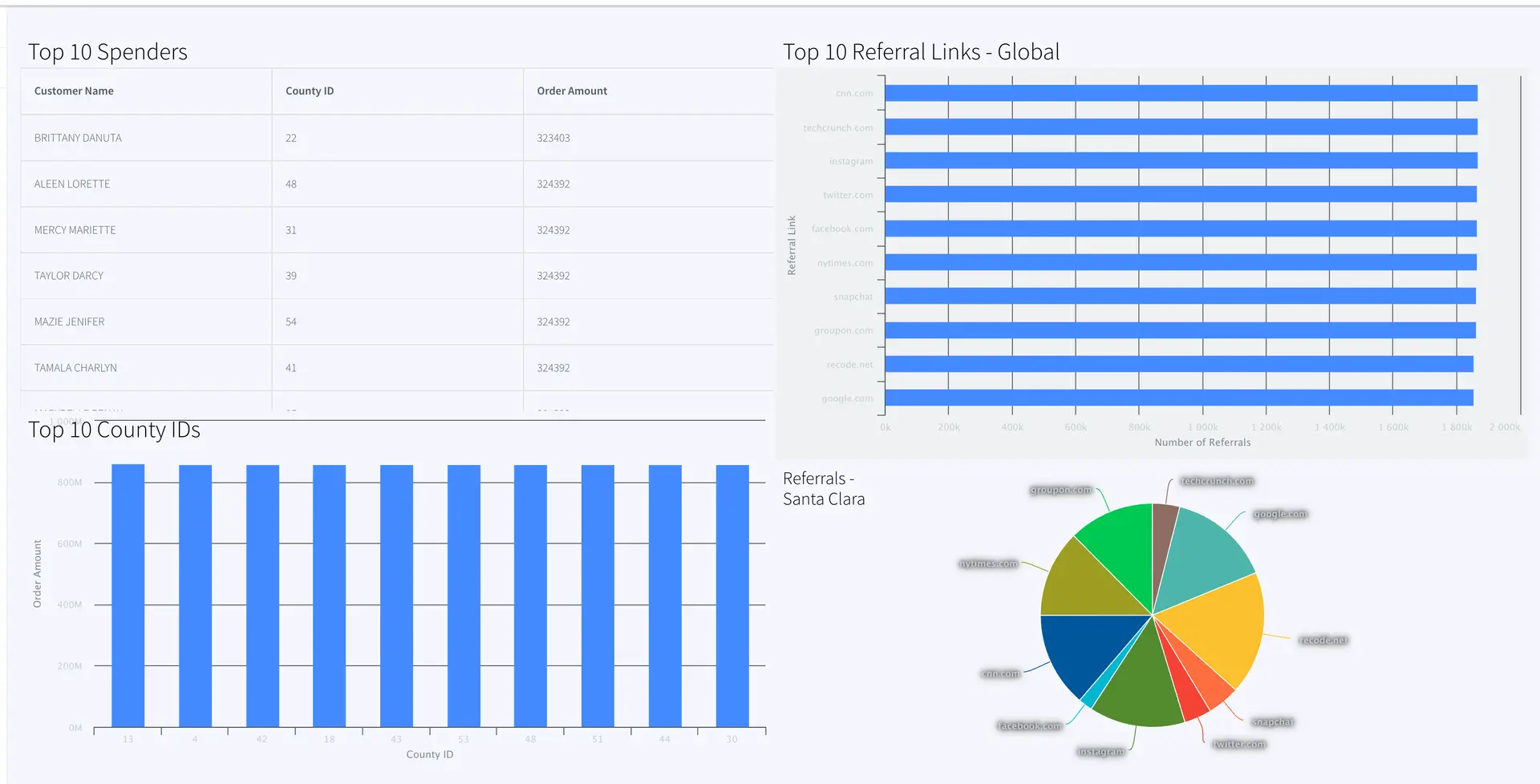
The Retail app in this recipe reads data from PostgreSQL Database and processes it into a usable format. The data is enriched using a cache containing customer details and then transformed using Continuous Queries. The transformed data is streamed with a one-minute window on order time which is further processed and stored in WActionStores. The data from the WAction component is used to populate a dashboard that shows top spenders, referrals and counties. In the production environment, data will be continuously updated on the source database which could be read with Striim’s Change Data Capture for real-time insights.

Step 1: Read Retail Data from Postgres Reader and process using CQ

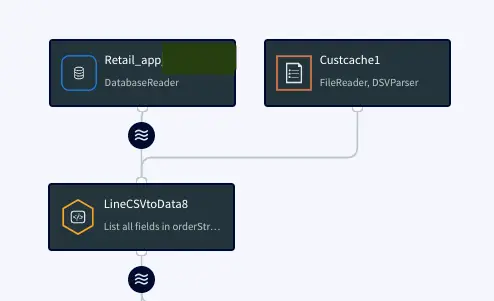
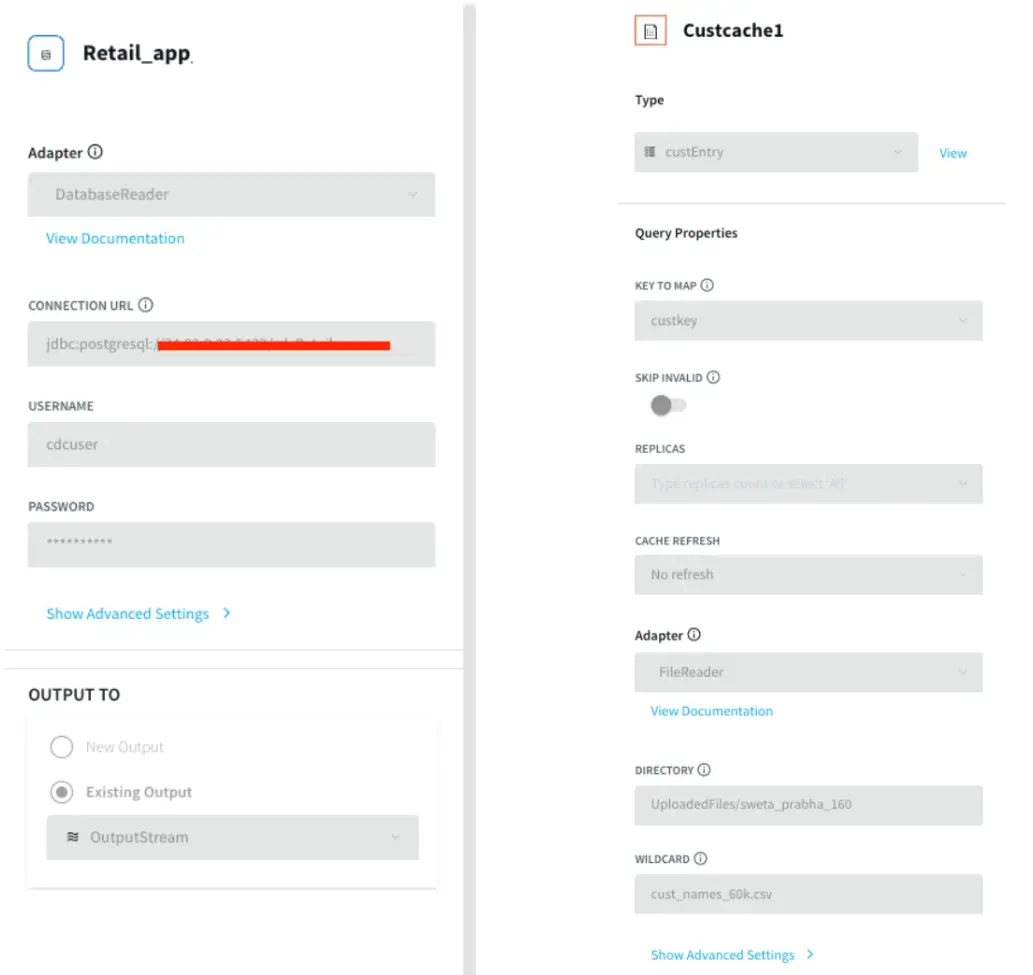
For this recipe we are reading data from Postgres Database. The dataset can be found on our github repo. The data is read once and queried in a one-minute window. In production, this would be live streaming data from different sources at different locations. The metadata is processed and enriched using customer cache data and the Continuous Query Striim component.

Postgres Source and csv cache: We specify the endpoints, username and password of the source Postgres database. The Cache will cache a dataset in Striim Cloud so it can be joined with a Stream using SQL.

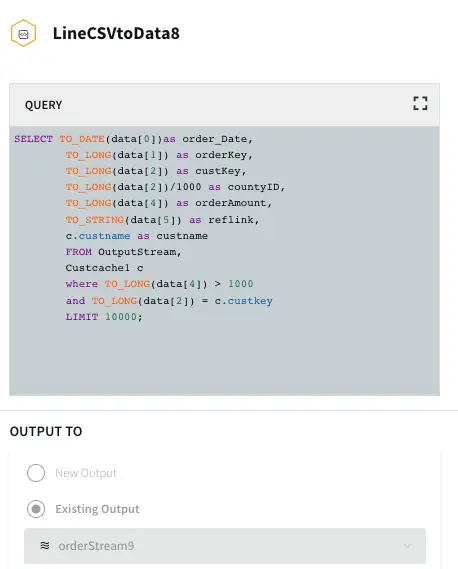
Initial Data Processing and Enrichment: The Continuous Query, LineCSVtoData8 is used to change the datatype for each field in usable format and merge the customer name from cache.

Step 2: Split data into one-minute window on Order time

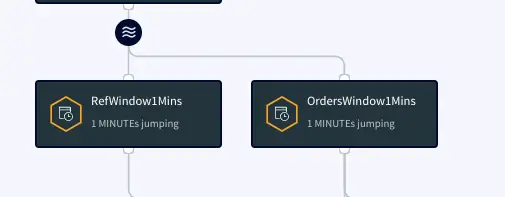
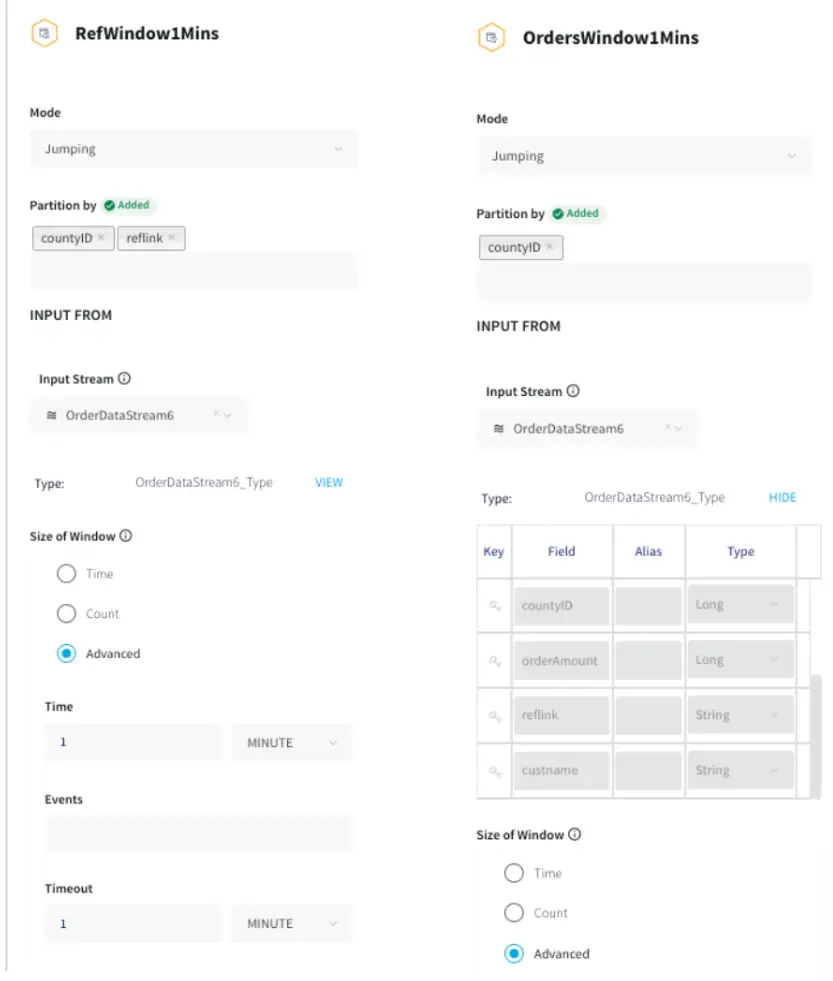
The processed data stream is split into one-minute chunks. The Window component in Striim creates a bounded dataset by a specified number of events, a period of time, or both. In this recipe, the incoming steam contains order data. There are two window components as shown below. Both the windows have jumping mode which means data is periodically updated for 1 minute interval. For RefWindow1Mins window, we have partitioned the datastream by reference link for every county. The partition by option on a time based window starts the timer separately for each. field value. The OrdersWindow1Mins partitions the data stream on countyID.

The timeout of one minute under Advanced Window settings forces the window to jump within a set period. To prevent the window from opening over longer time gaps between events, a timeout value is provided.

Step 3: Aggregate data using CQ on various fields

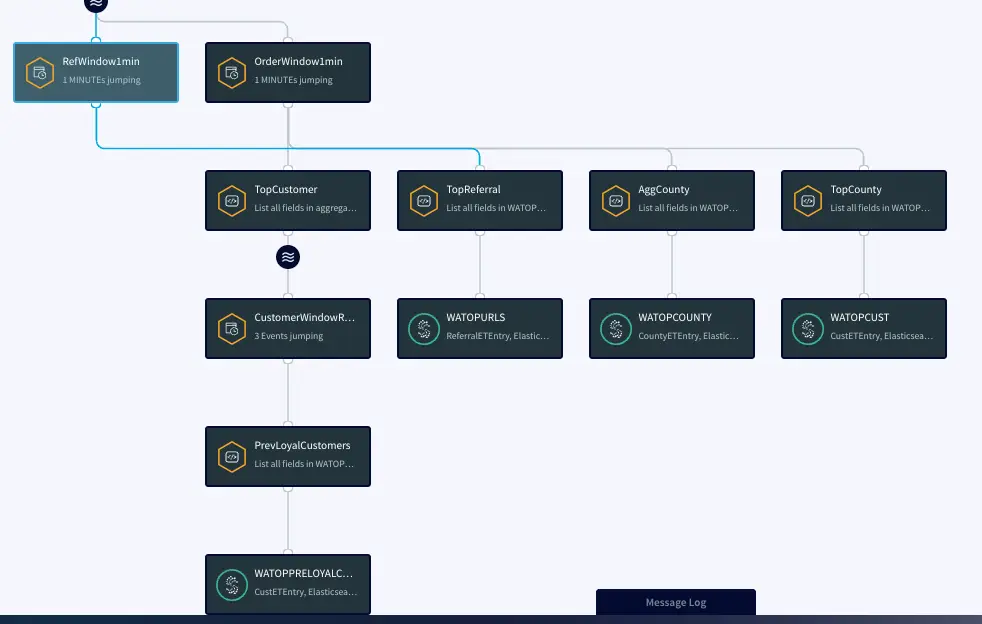
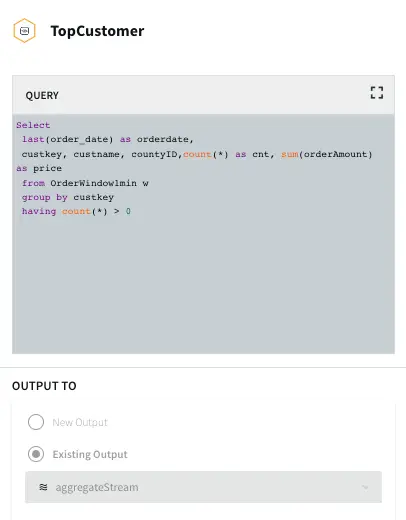
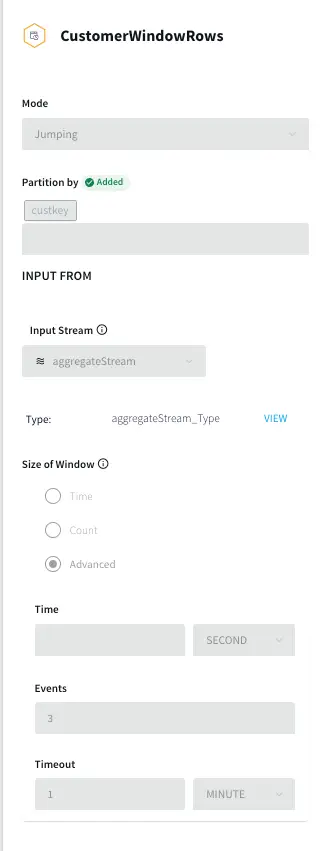
In this section continuous queries are written on orders and referral streams to aggregate data by top referral urls, top selling counties, top customers, and loyal customers. The data is then stored in the WAction component which is used to populate the Striim dashboard.

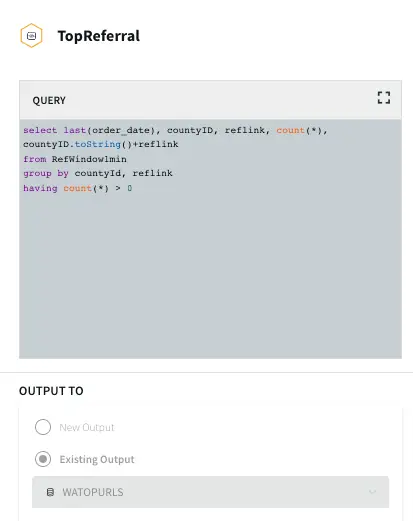
Top Referral links: The CQ counts the number of orders placed through various referral links in each county. The aggregated data is then stored in a WAction store which will be used in the Striim dashboard.

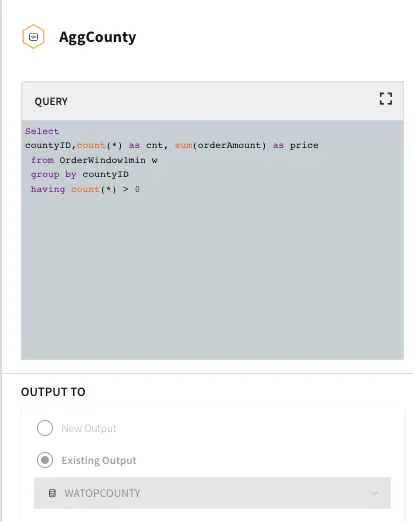
Aggregate County: In this query the total order amount and order count from each county is recorded.

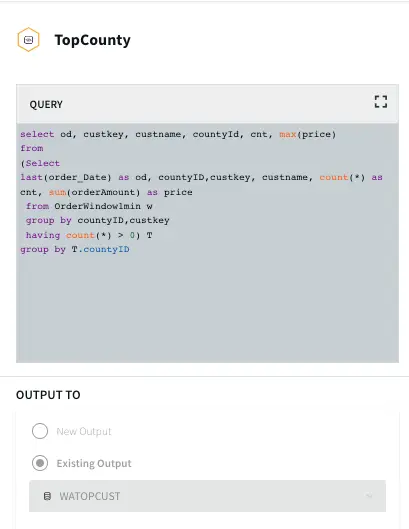
Top County: In this query the maximum order amount from customers in every county is recorded.

Top Customer: In this app, the order count and order amount of each customer is queried which is then partitioned to 3 events window with partition on customer key. The total order amount  by each customer in a 3 event window is calculated. The data is then stored in WAction to analyze the top loyal customers with repeat orders.

Step 4: Populate the dashboard with data from WAction Stores

In this step a Striim dashboard is configured. Click on the Dashboards option on your service page as follows:

For this recipe, we have created two bar charts, one pie chart and one table. There are many more options to visualize data on the Striim dashboard. Please follow our dashboard guide to learn about various dashboard options in Striim.

Top 10 Spenders: 

The Top 10 Spender table shows the county id, customer name and order amount of customers with the highest order amount. The data is pulled from WATOPPRELOYALCUST WAction store and ordered by orderamount.

Top 10 County IDs:

This is a bar chart that reads data from WATOPCOUNTY and orders by amount sold in each county.The top 10 county ids with total order amount are shown in the bar chart.

Top 10 Referral Links-Global:

This barchart shows the top 10 referral links through which orders are placed.

Referrals- Santa Clara (County ID: 43)

This pie chart shows the referral links for order counts sold in Santa Clara county (County id: 43). Most orders were placed through google.com, instagram and recode.net.

Final App and Dashboard

How to deploy and run this Striim Application?

Step 1: Download the TQL files

You can download the TQL files from our github repository. Deploy the Retail app on your Striim server.

Step 2: Set up the Postgres Source

The csv data used in this recipe can be downloaded from our github repository. You can use the data to populate tables in your own Postgres database. Configure the source adapter with Postgres endpoint, username, password and relevant tables.

Step 3: Deploy and Run the app

Deploy and run the retail app.

Step 4: Populate the dashboard

You can find the .json file for the dashboards in our github repository. Deploy the dashboard to visualize the retail dataset.

Wrapping Up: Start your Free Trial Today

The above tutorial describes how you can use Striim’s real-time data streaming feature to process, aggregate and enrich in-flight data and display it through a Striim dashboard for real-time analytics. Striim’s pipelines are portable between multiple clouds across hundreds of endpoint connectors. You can create your own applications and dashboards that cater to your needs. Please find the app TQL and data used in this recipe on our github repository

As always, feel free to reach out to our integration experts to schedule a demo, or try Striim for free here.

Tools you need

Striim

Striim’s unified data integration and streaming platform connects clouds, data and applications.

PostgreSQL

PostgreSQL is an open-source relational database management system.

Ensure Data Freshness with Streaming SQL

Tutorial

Ensure Data Freshness with Streaming SQL

Use Striim’s Streaming SQL to monitor and alert on lag between source and target systems

Benefits

Ensure Data Delivery SLAs
Monitor the data delivery in real-time to ensure it meets Service Level Agreement with your stakeholders

Simple Notifications in Email or Slack

Stream real-time alerts on stale data directly to your data teams via email or slack

Reliable Real-Time Analytics  Stream real-time data for operational analytics knowing your teams won’t fall behind
On this page

Overview

Striim is a unified data streaming and integration product that offers change data capture (CDC) enabling continuous replication from popular databases such as Oracle, SQLServer, PostgreSQL and many others to target data warehouses like BigQuery and Snowflake. Data loses its value over time and to make the most out of it, real-time analytics is the modern solution. It is important for streaming pipelines to deliver real-time data with desired SLAs required for the target application.

In this application, the OP will monitor the target and generate an output stream with monitoring metrics, such as target table names, last merge time, and lag in minutes. These monitoring metrics can be used to trigger conditional flows based on business needs. In this case, we are using this to alert specific users or integrated Slack channels.The service level of this tool in terms of data freshness is in minutes and so it will only indicate the possibility of loss or delay in minutes.

The table monitoring application can be paired with any striim app with different targets. The coupled application will alert customers if their expected data rates are not being achieved on the target component of the Striim app. This way users can identify tables that are stale for analytics use cases and triage.

Core Striim Components

PostgreSQL CDC: PostgreSQL Reader uses the wal2json plugin to read PostgreSQL change data. 1.x releases of wal2jon can not read transactions larger than 1 GB.

BigQueryWriter: Striim’s BigQueryWriter writes the data from various supported sources into Google’s BigQuery data warehouse to support real time data warehousing and reporting.

Open Processor: A Striim open processor contains a custom Java application that reads data from a window or stream, processes it, optionally enriching it with data from a cache, and writes to an output stream.

Streaming App

The utility tool can be paired with any Striim app with a variety of targets supported by Striim. For this recipe, our app replicates data from Postgres CDC to BigQuery. Please follow this recipe to learn how to set up a CDC user and configure Postgres CDC to BigQuery streaming application.

Monitoring Tables

There are four major components of the utility tool that couples with the user’s streaming app to analyze and alert on database tables that are falling behind their data delivery SLA to respective targets.

A Trigger input stream invokes  the monitoring Open Processor at specified time intervals. The Open Processor that contains a custom Java code  will monitor the target component and emit monitoring metrics as stream for the next component (in this case, Continuous Query) in the application flow The Continuous Query component then compares the table lag condition (specified in the user-provided spreadsheet) with the monitoring metrics from the OP. Finally, mailer target component will send  alerts when the SLA condition has not been met. The following functional diagram shows the architecture of the Table-level monitoring utility system.

Here is the Striim Utility app that fetches data from target and compares it against a benchmark to ensure table SLAs. You can download the TQL file from our github repository.

Trigger Input Stream

The Trigger input stream (TableLagHBCQ) passes a heartbeat (in this case 5 seconds) that acts as a trigger  to allow  the Open Processor to run its cycles  periodically. This periodic time interval can be modified by the user.

Open Processor

The OP component is the heart of this utility tool. It is designed by Striim’s engineering team for the purpose of table-level lag monitoring. It is in the form of a .scm file. Loading an Open Processor file requires a Global.admin role. Please reach out to cloud_support@striim.com to load the .scm file downloaded from our github repo. To upload the .scm file click on My files in the upper right corner and select the file from your local computer.

Once the file is uploaded, copy the file path and paste it into LOAD/UNLOAD OPEN PROCESSOR under Configuration -> App Settings as shown below:

Next, the user needs to configure the Open Processor Component inside the TQL file downloaded from our github account. The TQL file from the git repo should ideally look like this:

The user needs to add the OP component from the list of components in Striim:

The configuration of OP component is shown below:

Lag Threshold CSV and Continuous Query

This part of the application reads from a csv file uploaded in the same way as the .scm file in the previous step that contains the list of  Target Tables, lag threshold as per table SLAs and email in case of email adapter as the mailer alert. A sample file can be found in the github repository. The first column specifies all the table names that are monitored. The second column contains the SLA in minutes. The third column is used for email as mailer alert and can be skipped for slack alert.

If you are setting up the app from scratch, use a File reader component and specify the file path with DSVParser as shown below:

The Continuous Query has already been written for users in our tql file. It returns an alert message when the output lag time from the OP’s monitoring metrics is greater than the lag threshold specified by the user.

Slack Adapter as Mailer Target Component

For this use case, we have configured a Slack target component. Please follow the steps in this link  to configure slack to receive alerts from Striim. There is an additional Bot Token scope configuration for incoming-webhook. Please refer to the next image for scopes section.

Configure the slack adapter with the channel name and oauth token as shown below:

Setting Up the Utility

Step 1: Download the TQL files

You can download the TQL files for streaming app and lag monitor app from our github repository. Deploy the lag monitor app on your Striim server.

Step 2: Set up the source and Target for streaming app

You can use any Striim app of your choice and monitor the data freshness. Please checkout our tutorials and recipes to  learn how to set up streaming applications with various sources and targets.

Step 3: Edit the csv file

The first column of  lagthreshold csv file lists the names of target tables that are monitored and second column contains the SLA in minutes. The third column is optional and is used in case of email alerts. Upload the csv file and enter the filepath in the FileReader component of your app as explained in ‘Lag Threshold CSV and Continuous Query’ section of this recipe

Step 4: Upload the .scm file

If you do not have Global.admin permission, please reach out to cloud_support@striim.com to upload the OP .scm script. Once the .scm file is uploaded, follow the steps in ‘Open Processor’ section of this recipe to configure the open processor component.

Step 5: Set up the Slack Channel

Configure a slack channel with correct Bot Token and User Token Scopes as explained above. You can follow this link to set up the slack alerts. Generate the oauth token for your channel and configure the slack mailer component of the lag monitor app.

Next, you are ready to monitor the data rates through slack alerts for your streaming app.

Running the Application

Next, deploy and run the lag monitor app. When the streaming app (Postgres to BQ) is deployed, run, quiesced, stopped, halted or crashed, OP will be able to retrieve Monitoring Report and Slack alerts will be sent through mailer components accordingly. Here is a sample Slack alert notification for a lagging table.

Wrapping Up: Start your Free Trial Today

Our tutorial showed you how a striim utility tool created with an Open Processor component can help customers monitor table SLAs. The Slack alerts make it very easy to track data delivery rate and take action immediately in case of delays.

As always, feel free to reach out to our integration experts to schedule a demo, or try Striim for free here.

Tools you need

Striim

Striim’s unified data integration and streaming platform connects clouds, data and applications.

PostgreSQL

PostgreSQL is an open-source relational database management system.

Google BigQuery

BigQuery is a serverless, highly scalable multicloud data warehouse.

Building Real-Time Data Products on Google Cloud with Striim

Tutorial

Building Real-Time Data Products on Google Cloud with Striim

Leveraging Striim to create decoupled, decentralized real-time data products in Streaming SQL

Benefits

Domain Ownership

Transform raw change data capture logs to domain-specific business events in real-time

Decentralized Data

Use Striim to decentralize your data operations and provide self-service access to domain events

Data Contracts

Enforce contracts on schemas and data delivery SLAs across multiple business groups while minimizing load on the database

On this page

Overview

The Data Mesh – a concept coined by Zhamak Dehghani –  is emerging as a popular set of principles and methods to manage enterprise data with product-thinking and domain ownership. Without diving into the details of Data Mesh, we want to highlight the importance of self-service data access, generalizing data for consumption, and sparing superfluous technical details of sourced data from analytical models.

While monolithic data operations accelerated adoption of analytics within organizations, centralized data pipelines quickly grew into bottlenecks due to lack of domain ownership and focus on results.

To address this problem an approach called Data Mesh and tangential Data Mesh data architectures are rising in popularity. A data mesh is an approach to designing modern distributed data architectures that embrace a decentralized data management approach.

In the following, we will dive into ‘Collaborating operational systems as data sources’ of a data product using Chapter 12 of Zhamak Dehghani’s Data Mesh book as a reference. To be clear: this recipe is NOT labeling itself as a way to ‘build a data mesh’, rather how teams can architect a source-aligned data product with operational databases as the source which supports a Data Mesh strategy.  The other goal here is to create source aligned analytical data from an operational database rather than directly exposing change data capture logs to the analytical users.

“Common mechanisms for implementing the input port for consuming data from collaborating operational systems include asynchronous event-driven data sharing in case of modern systems, and change data capture.”. (Dehghani, 220)

In this data mesh use-case, we have shown how Striim aides decentralized architecture in the form of multiple decoupled Striim Applications with different data processing logic and delivery SLAs. We can leverage Striim for change data capture and persisted streams that can be consumed by separate targets to create data products.

The application created in this tutorial has five components serving five different teams. LCR data is read from a source database which is replicated and transformed in different streams. The data stream is persisted with a kafka message broker. The business architectural view of this application is shown below where Striim delivers real-time data to multiple consumers.

Benefits of Using Data Mesh
Domain Oriented Decentralization approach for data enables faster and efficient real-time cross domain analysis. A data mesh is an approach that is primitively based on four fundamental principles that makes this approach a unique way to extract the value of real-time data productively. The first principle is  domain ownership, that allows domain teams to take ownership of their data. This helps in domain driven decision making by experts. The second principle projects data as a product. This also helps teams outside the domain to use the data when required and with the product philosophy, the quality of data is ensured. The third principle is a self-serve data infrastructure platform. A dedicated team provides tools to maintain interoperable data products for seamless consumption of data by all domains that eases creation of data products. The final principle is federated governance that is responsible for setting global policies on the standardization of data. Representatives of every domain agree on the policies such as interoperability (eg: source file format), role based access for security, privacy and compliance

Data Contracts

Data Contracts are another pattern gaining popularity and can be built on top of Data Mesh’s innately decentralized, domain specific view of the world. We will not focus on how to build the Data Contracts in this specific recipe, but you can learn about how Striim’s unified change data capture and streaming SQL layer allows you to

  • Capture raw changes from your database with low impact CDC
  • Set parameters for Schema Evolution based on internal data contracts
  • Propagate compliant schema changes to consumers on an independent, table specific basis
  • Alert directly to Slack and other tools when schema contracts are broken
Data Contracts with Striim

Schematic Architecture to support Data Mesh Pattern

The data mesh shown in the next sections has six apps that is fed data from the same source through kafka persisted stream

App1: Production Database Reader

This application reads LCR data from a Postgres database and streams into a kafka persisted stream

App2: Real-Time BigQuery Writer

This application transforms data in-flight and writes to a BigQuery data warehouse with 30 secs SLA. The team needs the real-time transformed data for inventory planning.

App3: Near Real-Time BigQuery Writer

This application reads fast table with 5 min SLA and medium/near real-time tables with 15 min SLA and write into BigQuery tables with the respective upload policy

App4: Cloud Database Replication

This application replicate the incoming LCR data into a Google Spanner Database in real time

App5: A/B Testing Query Logic

This application compares data from two different version of CQ to find the best data that can be ingested to a model that forecasts average order amount

App6: Pub/Sub

This application records all the order values larger than $500 and writes it to an existing topic in Google cloud Pub/Sub

Core Striim Components

PostgreSQL CDC: PostgreSQL Reader uses the wal2json plugin to read PostgreSQL change data. 1.x releases of wal2jon can not read transactions larger than 1 GB.

Stream: A stream passes one component’s output to one or more other components. For example, a simple flow that only writes to a file might have this sequence

Continuous Query : Striim Continuous queries are are continually running SQL queries that act on real-time data and may be used to filter, aggregate, join, enrich, and transform events.

Window: A window bounds real-time data by time, event count or both. A window is required for an application to aggregate or perform calculations on data, populate the dashboard, or send alerts when conditions deviate from normal parameters.

Event Table: An event table is similar to a cache, except it is populated by an input stream instead of by an external file or database. CQs can both INSERT INTO and SELECT FROM an event table.

BigQueryWriter: Striim’s BigQueryWriter writes the data from various supported sources into Google’s BigQuery data warehouse to support real time data warehousing and reporting.

Google Pub/Sub Writer: Google Pub/Sub Writer writes to an existing topic in Google Cloud Pub/Sub.

Spanner Writer: Spanner Writer writes to one or more tables in Google Cloud Spanner.

Launch Striim Cloud on Google Cloud

The first step is to launch Striim Cloud on Google Cloud.  Striim Cloud is a fully managed service that runs on Google Cloud and can be procured through the Google Cloud Marketplace with tiered pricing. Follow this link to leverage Striim’s free trial for creating your own data-mesh. You can find the full TQL file (pipeline code) of this app in our github repo.

App 1: Production Database Reader

The first app reads the logical change streams from the production database into a ‘persistent stream’ that persists for 7 days. In this use case real-time Retail data is stored and is streamed from a Postgres database. The data consists real-time data of store id, skus and order details at different geographical locations.

Source Reader

Please follow this recipe to learn about how to set up a replication slot and user for a Postgres database that reads Change Data Capture in real-time.

Persistent Stream:

Striim natively integrates Apache Kafka, a high throughput, low-latency, massively scalable message broker. Using this feature developers can perform multiple experiments with historical data by writing new queries against a persisted stream. For a detailed description of this feature follow this link.

App 2: Real Time BigQuery Writer

In this application, the team needs inventory updates from each state in real time. The team takes care of the transportation of various different skus and does the inventory planning for each state to meet the forecasted demand. The application has a strict policy where real-time data must be available in BigQuery within 30 seconds. A Continuous Query transforms the data in-flight for analytics-ready operations rather than transforming in the warehouse.

The data is read from Kafka persisted stream, transformed in-flight and streamed to BigQuery target tables. To know more about how to set up a BigQuery target for Striim application, please follow this recipe.

App 3: Near Real-Time BigQuery Writer

In app 3 fast tables are selected from LCR (Logical Change Record) streams with 5 minute upload policy and medium/near-real time SLA tables are selected and written to BigQuery within 15 minutes upload policy. In this use case the Store activity data such as store id, order amount in each store and number of orders in each store are updated within 5 minutes whereas Product Activity such as number of orders for each sku are updated every 15 minutes on BigQuery table. This helps the relevant team analyze the store sales and product status that in turn is used for inventory and transportation planning.

App 4: Cloud Database Replication

For this app, the team needs real-time business data to be replicated to Spanner on GCP. The CDC data is read from Kafka persisted stream and replicated to Google Cloud Spanner.

App 5: A/B Testing CQ Logic

In this app, the team performs an experiment on stream with two different SLAs. The idea is to compare the average order amount of each state obtained from a 30 seconds window stream and 1 minute window stream for forecasting average order amount. The forecasting model is applied on each data stream to find out the best SLA for forecasting average order amount.The updated data is stored in an event table which can be read by the analytics team for A/B testing.

Continuous Query and Event Table

App 6: Google Pub/Sub Messaging App

In this app, the user wants to get a notification when a high value order is placed. The data is transformed in-flight using Continuous Query and all the orders greater than $500 are streamed into a google pub/sub topic which can be further subscribed by various teams.

Continuous Query and Pub/Sub Target Configuration

The topic is configured in Google Pub/Sub and the subscribers can pull the messages to see each new entry.

Running the Striim Pipelines

The following image shows the entire data mesh architecture designed using Striim as the streaming tool that replicated data to various targets with SLAs defined for each application.

Setting Up PostgreSQL to BigQuery Streaming Application

Step 1: Download the data and Sample TQL file from our github repo

You can download the TQL files for streaming app our github repository. Deploy the Striim app on your Striim server.

Step 2: Configure your Postgres CDC source

Set up your source and add the details in striim app

Step 3: Configure your BigQuery Targets

Add all the targets in this decentralized data-mesh application

Step 4: Set up Google Pub/Sub

Set up Google cloud Pub/Sub and add the details on Google Pub/Sub Writer component

Step 5: Set up Google Spanner

Set up Google Spanner and configure Spanner Writer Component on Striim app

Step 6: Deploy and run your Striim Data Mesh app

Run your app for decentralized real-time data streaming

Wrapping Up: Start your Free Trial Today

The above tutorial describes each component of a decentralized application in detail. As demonstrated, Striim’s pipelines are portable between multiple clouds across hundreds of endpoint connectors.

As always, feel free to reach out to our integration experts to schedule a demo, or try Striim for free here.

Tools you need

Striim

Striim’s unified data integration and streaming platform connects clouds, data and applications.

PostgreSQL

PostgreSQL is an open-source relational database management system.

Google BigQuery

BigQuery is a serverless, highly scalable multicloud data warehouse.

Google Cloud Pub/Sub

Google Cloud Pub/Sub is designed to provide reliable, many-to-many, asynchronous messaging between applications.

Google Cloud Spanner

Spanner is a distributed, globally scalable SQL database service

Back to top